The apps#
Hinata ships a single Flutter client that runs from one codebase on Android, iOS, the web, and all three desktops — macOS, Windows and Linux. There is no separate mobile app and desktop app to keep in sync — the same screens, the same state, the same networking layer adapt to whatever they run on. This page explains how the app connects to your server, how it decides whether it is up to date, how you sign in, how a single app talks to many servers at once, and what is worth knowing if you run it on Linux.
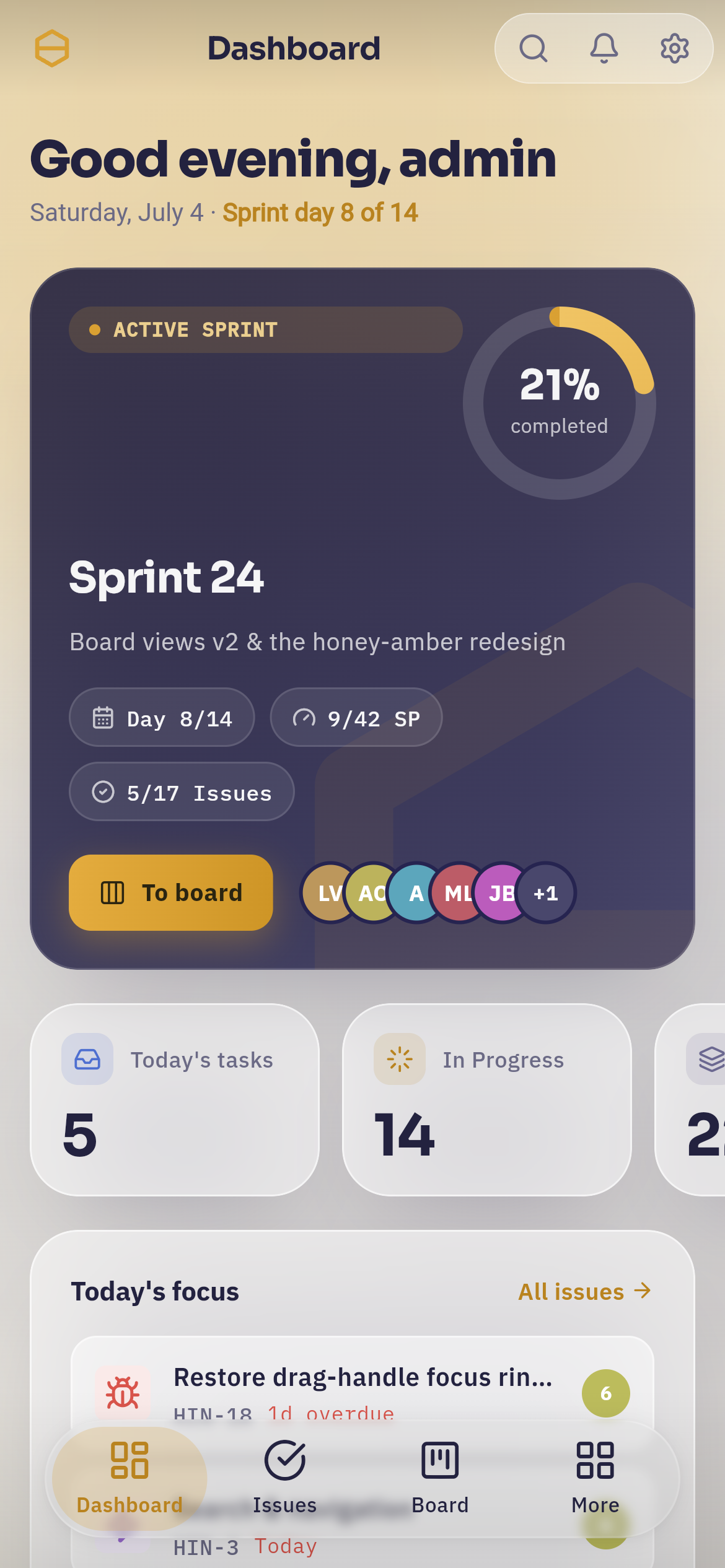 One Flutter codebase — Android, iOS, Web, macOS, Windows and Linux from a single app.
One codebase, six platforms#
The client is built with Flutter. State is managed with bloc/cubit, routing with
go_router, localization with i18next, and every network call goes through a
single ApiClient built on dio (automatic token refresh, Accept-Language
header). Because there is only one codebase, a feature lands everywhere at once.
- Responsive by design. Layout adapts through golden-ratio-derived breakpoints rather than fixed pixel widths, so the same UI reflows cleanly from a phone to a tablet to a desktop window to a browser tab.
- Localized. The UI ships in English and German (i18next), and error
messages are localized by the server through the
Accept-Languageheader — the client sends the user's language, the server returns the message already translated. - Light & dark. A navy navigation rail, a warm-paper workspace and the
signature honey-amber accent
#D9A032that reads identically in light and dark mode, with liquid-glass surfaces on the mobile nav, the ⌘K palette and the attachment lightbox. - Native on the desktop. The three desktop targets are real native builds, not a browser in a frame: macOS, Windows (packaged as an MSIX) and Linux as a GTK 3 application. See Hinata on Linux for what that means in practice.
How it works: from launch to workspace#
Every fresh launch walks a short, predictable path before you land in your workspace.
| Step | What happens |
|---|---|
| Connect | On first start the app asks for your server URL and only continues once the server answers at /api/v1/meta. |
| Version gate | The app compares its own version with the server's minimum (HINATA_APP_MIN_VERSION, exposed as minAppVersion) and forces an update when the client is too old. |
| Setup wizard | A brand-new server is configured directly in the app — organization name and first admin — unless it was bootstrapped with HINATA_SETUP_*. |
| Onboarding | A one-time illustrated tour of the key features. |
| Sign in | Local credentials, or SSO (OpenID Connect, OAuth 2.0, SAML 2.0, LDAP). |
Connect#
The very first thing a native app asks for is a server URL. It probes
/api/v1/meta and refuses to continue until the server responds, so you can
never end up "connected" to a host that isn't a Hinata server. Previously used
servers appear as one-tap shortcuts beneath the URL field, which makes
re-connecting after a server was briefly unreachable a single tap.
Native apps never bake in a server URL
A published native app has no server address compiled into it. This is what
lets one app serve every Hinata operator. Only the web build may default
to its own origin (via kIsWeb), because it is already served from a known
host. See Multi-server below.
Version gate#
On every start the app reads the server's advertised minimum client version. If
the installed app is older, it shows an update-required screen instead of the
workspace. Operators control this value with the HINATA_APP_MIN_VERSION
environment variable, or override it live in the
Admin area → App settings (the database value wins). This
means you can force every client onto a new build the moment a breaking change
ships — no client-side coordination required.
Setup wizard#
Point the app at a freshly deployed server and it walks you through first-run
setup in the UI: your organization name and the first administrator account. If
you would rather bootstrap unattended, set HINATA_SETUP_AUTO_COMPLETE=true
together with HINATA_SETUP_ORGANIZATION_NAME and the admin credentials, and the
wizard is skipped. See Setup & first run.
Sign in#
Once a server is set up, you authenticate with either:
- Local credentials — username/e-mail and password. Self-registration, e-mail verification, forgot-password and optional admin approval are all supported and toggled by feature flags (see Authentication).
- SSO — OpenID Connect, OAuth 2.0, SAML 2.0 or LDAP, configured by the
operator in the Admin area. SSO returns to the app through the
hinata://auth-callbackdeep link. See Single sign-on.
When two-factor authentication (TOTP) is enabled on an account, sign-in adds a one-time-code challenge after the password step.
Multi-server: one app, many servers#
A single Hinata app can talk to any number of independent servers, and switch between them without signing out of the others.
- Save multiple servers. Add each server once; the app remembers them.
- Switch freely. Move between servers from the switcher; each keeps its own session.
- Per-server scoped tokens. Access tokens are scoped to the server that issued them — switching servers never leaks credentials across instances.
The Server Manager#
The liquid-glass Server Manager is where you administer your saved servers. It probes every saved server in parallel on open, so each row shows a live status — a pulsing dot and a real ping in milliseconds — and flips from checking… to online (with latency) or offline as results land.
From the manager you can:
- Add a server — the app runs a connection test before saving, so an unreachable or wrong URL is caught immediately.
- Edit a saved server's name or URL.
- Delete a server you no longer use.
- Switch to any online server with a tap.
Self-hosted or cloud, side by side
Each row is badged so you can tell your own self-hosted instance apart from others at a glance. Because tokens are scoped per server, keeping a work server and a personal server in the same app is completely safe.
Where to get the app#
There are three ways to run the client, depending on who you are.
| You want to… | Use |
|---|---|
| Just use a server in the browser | The hosted web app — an operator serves it at https://track.example.com (the docker-compose.app.yml overlay). Nothing to install. |
| Run the client yourself from source | Clone hinata-app, flutter pub get, flutter run. GPL-3.0. |
| Ship a branded app to the stores | Build your own custom client — see Branding & custom clients. |
The published store builds follow the bring-your-own-server model: because native apps carry no baked-in server URL, one published app can serve every operator through the Hinata Connect gateway. That gateway also relays push notifications — to FCM for Android, iOS and macOS, and to WNS for Windows. Linux has no such service to relay to, so the Linux build receives no push at all; notifications reach you in the app and by e-mail instead.
On Linux the lane is the Snap Store: snap install hinata gets you a
strictly confined snap for amd64 and arm64, from
snapcraft.io/hinata. The Flatpak manifest
and the AppImage script stay in the repository beside it — the same app,
built by you instead of by a store.
Open source, GPL-3.0
The app is licensed GPL-3.0. You are free to build it, modify it and ship your own branded client — see the custom-client guide for exactly what to change.
Hinata on Linux#
Linux is a full target, not a compatibility layer. The app builds as a native
GTK 3 desktop application — one binary, hinata, with the application id
com.ahmadre.hinata — from exactly the same Flutter codebase as the phone and
the browser build. Sign-in, SSO, multi-server, boards, attachments, printing and
PDF export behave the way they do everywhere else.
Installing it#
| Format | What you get |
|---|---|
| Snap | The channel Hinata ships Linux through. sudo snap install hinata on any distribution with snapd, for x86-64 and ARM64, strictly confined. Two of its permissions do not connect by themselves — see below. |
| Flatpak | Build and install it yourself from the manifest in packaging/linux/flatpak/ with flatpak-builder. It is on no hosted Flatpak remote, and it is not going to Flathub — see below. |
| AppImage | One portable file, which you build: packaging/linux/appimage/build-appimage.sh turns a release bundle into it, then chmod +x and run. It is published nowhere — CI attaches it to a workflow run, not to a release. It links against your system's GTK, GStreamer and libsecret on purpose, so it keeps your desktop theme and your distribution's codecs instead of freezing its own copies. |
| From source | flutter build linux --release produces a relocatable bundle (the hinata binary plus data/ and lib/) that you can install wherever you like. |
Two permissions need one click
Snap runs the app under strict confinement, and two of the interfaces it asks for are not connected automatically. Both are the kind of thing a store makes you grant deliberately rather than by installing:
bash
sudo snap connect hinata:password-manager-service   # stay signed in
sudo snap connect hinata:audio-record               # record a voice comment
Without the first, the app runs but cannot keep your session in the keyring, so every restart lands on the sign-in screen. Without the second, the microphone button does nothing. The app names the missing one instead of failing quietly, and the same toggles are in Ubuntu's App Center under the app's Permissions.
snap info hinata is the status worth trusting, not this page. It prints
the channels that carry a revision, and errors with no snap found while
none does. When one appears, note which channel: a tagged build goes to
edge, and stable — what a bare snap install hinata reads — only when
a release is deliberately submitted. So the first command that will work is
snap install hinata --edge. Until then, the recipes below build the same
application.
All three recipes live in packaging/linux/ in
hinata-app, and all three
install the identical desktop entry, icon and AppStream metainfo. The Flatpak
and the AppImage package a bundle that was built beforehand; the snap runs the
Flutter build itself, because a snapcraft build step has network — and both the
Flutter engine artefacts and pdfium are fetched during a build. flatpak-builder
runs its modules with no network at all, which is why the Flatpak has to be
handed a finished bundle.
The AppImage and the raw bundle are built on a pinned ubuntu-22.04 runner,
which makes their glibc floor a decision rather than an accident: a Flutter
bundle is dynamically linked against the glibc it was built on, and glibc is
only forward-compatible, so building on a newer runner would quietly produce a
binary that refuses to start on older distributions. The snap needs no such pin,
because its libc comes from its core24 base rather than from the machine that
built it.
Why not Flathub
Flathub's submission requirements exclude applications whose content was produced with an LLM, and Hinata's was. The manifest stays in the repository because it builds and installs fine — it is a recipe, not a channel.
To build it yourself on Debian or Ubuntu:
sudo apt install \
  clang cmake ninja-build pkg-config \
  libgtk-3-dev liblzma-dev libsecret-1-dev libjsoncpp-dev \
  libgstreamer1.0-dev libgstreamer-plugins-base1.0-dev

flutter config --enable-linux-desktop
flutter build linux --release
Deep links land in the window you started from#
The desktop entry registers the x-scheme-handler/hinata scheme, and the app
runs as a single-instance GTK application: launching hinata a second time
hands its arguments to the copy that is already running instead of opening a
rival window. That is what makes hinata://auth-callback work — an SSO return,
an invitation or a password-reset link arrives in the window you started from,
whether the app was already open or the link is what launched it.
What differs on Linux#
Two things are genuinely not available on Linux, and a few more lean on programs your distribution may or may not have installed. The honest list:
| Area | On Linux | Why |
|---|---|---|
| Push notifications | Not available. Notifications arrive in the app and by e-mail. | firebase_messaging has no Linux implementation, and there is no desktop push service to register a token with — nothing plays the role FCM plays on mobile or WNS on Windows. |
| Camera capture | The take a photo entry is not offered at all. Attaching an image or file you already have works normally. | No camera implementation exists for Linux. Leaving the entry out beats a button whose only possible outcome is an error dialog. |
| Staying signed in | Needs a keyring — see the callout below. | Session tokens are written through the freedesktop Secret Service. |
| Voice comments | Playback needs the GStreamer plugin packages, recording needs pulseaudio-utils and ffmpeg. |
just_audio ships no Linux implementation, so playback runs through a GStreamer plugin written for this app. The recorder produces AAC, which is why gstreamer1.0-libav is required and not optional. |
| Attachment file picker | Uses zenity, qarma or kdialog. If none of them is installed, the app names the ones you can install instead of opening nothing. |
The Flutter file picker has no native Linux backend; it drives one of those dialogs. |
| Downloads | An attachment is saved straight into your Downloads folder and a toast names the file. | There is no share sheet on Linux to hand the file to, so the app tells you where it went. |
Your notification settings stay visible and editable on a Linux desktop even though push never fires there. The preference belongs to your account, not to the machine you happen to be sitting at — hiding it on Linux would take away the switch that governs your phone.
Staying signed in needs a keyring
Hinata keeps your session tokens in the system keyring through the freedesktop Secret Service — GNOME Keyring, KWallet or anything else that implements it. A minimal window manager, a container, or an SSH session into a desktop whose keyring was never unlocked has nothing to store them in. Sign-in still works and your session lasts until you close the app, and the app says so at the time rather than letting you discover it at the next launch.
bash
sudo apt install gnome-keyring     # Debian / Ubuntu
sudo dnf install gnome-keyring     # Fedora
Everything in the table above works on a normal desktop install. If you are on a slim system — a container, a bare window manager — this is the whole list:
sudo apt install \
  gnome-keyring zenity \
  pulseaudio-utils ffmpeg \
  gstreamer1.0-plugins-base gstreamer1.0-plugins-good \
  gstreamer1.0-plugins-bad gstreamer1.0-libav
The packaged builds bring most of that with them
The Flatpak runtime already contains GTK, zenity, FFmpeg and the GStreamer
plugins, so a Flatpak install only needs a keyring on the host to keep you
signed in. The snap stages FFmpeg, PulseAudio's recording tools and the
extra GStreamer plugins itself, and picks files through the desktop portal
instead of zenity. Two of its permissions do not connect on their own,
because of what they reach:
bash
sudo snap connect hinata:password-manager-service   # stay signed in
sudo snap connect hinata:audio-record               # record voice comments
Where to go next#
- Branding & custom clients — runtime branding, or ship your own client.
- Authentication — local accounts, registration, 2FA.
- Single sign-on — connect an identity provider.
- Setup & first run — configuring a fresh server.