Authentication#
Hinata ships a complete local authentication system: username/password login, optional self-registration with email verification, a forgot-password flow that reaches the app over a deep link, optional admin approval of new accounts, and time-based two-factor authentication. Every mode is toggled at runtime from the Admin area — no restart, no redeploy.
This page covers the built-in credential system. For federated login (OpenID Connect, OAuth 2.0, SAML 2.0, LDAP) see Single sign-on; for the underlying hardening and threat model see the Security model.
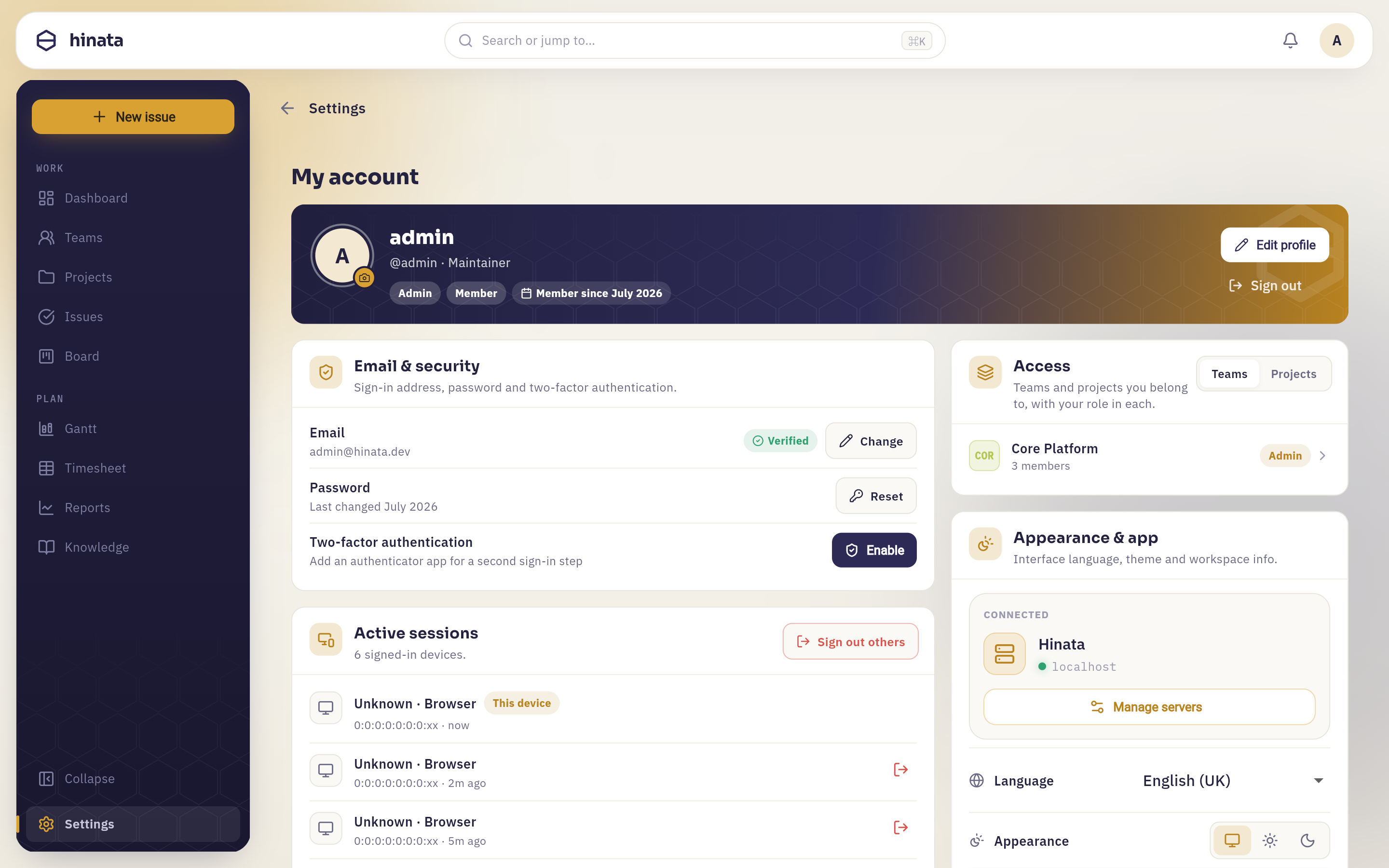 Account settings — profile, security, 2FA, sessions and notifications.
Local credentials#
Users sign in with a username (or email) and password. Passwords are hashed with BCrypt (strength 12) and never stored or logged in the clear. On success the server issues a short-lived JWT access token and a refresh token; the app stores them per server and refreshes transparently.
Password rules enforced by the server:
- Minimum 10 characters — length is the single strongest lever against brute force.
- Hashed with BCrypt strength 12, so each verification is deliberately slow.
Length over complexity
Hinata intentionally requires length rather than a zoo of special-character rules. A 10+ character passphrase is both stronger and easier for people to remember. Encourage your users to use a password manager.
Feature flags: AuthPolicy#
Three flags govern how local authentication behaves. They live in an AuthPolicy stored in MongoDB and are editable from Admin → Users / App — the database value overrides the environment default and takes effect without a restart.
| Flag | What it controls | Typical default |
|---|---|---|
localAuthEnabled |
Whether username/password login is allowed at all. Turn it off to force SSO-only. | true |
registrationEnabled |
Whether visitors can self-register from the app. Off = admins create every account. | depends on deployment |
requireAdminApproval |
Whether a newly registered (and email-verified) account must be approved by an admin before it can sign in. | false |
The app reads the effective policy from the public /api/v1/meta endpoint on launch and adapts the login screen accordingly — hiding the register link when registration is off, hiding the password form when local auth is off, and so on.
SSO-only deployments
Set localAuthEnabled = false once your SSO provider is configured and every user has a federated identity. The password form disappears and only the SSO buttons remain. You can always flip it back on to recover access.
Self-registration and email verification#
When registrationEnabled is on, the app shows a Create account flow. The sequence is:
- The visitor submits a display name, username, email and password (validated against the password rules above).
- The server creates the account in an unverified state and emails a verification link.
- The link opens the app (deep link) or the web build and confirms the email against the server.
- If
requireAdminApprovalis on, the account then waits in a pending queue until an admin approves it from Admin → Users. Otherwise the user can sign in immediately after verifying.
Email must actually work
Verification, approval and password-reset all depend on outbound mail. Configure HINATA_SMTP_* and HINATA_MAIL_FROM before enabling self-registration, and confirm delivery — see E-mail & SMTP. In development the stack ships Mailpit so you can read every message locally.
Optional admin approval#
With requireAdminApproval = true, verified accounts land in a pending list. Admins approve (or reject) them under Admin → Users. This is the recommended posture for an open registration form on a public network: anyone can request access, but a human gate keeps the workspace clean.
Forgot password#
The reset flow is deliberately app-first and leaks nothing about which addresses exist:
- On the login screen the user taps Forgot password? and enters their email.
- The server always responds the same way (it never confirms whether an address is registered) and, if the account exists, emails a reset link.
- The link carries a single-use token and opens the app through the
hinata://deep link (or an HTTPS universal link tohttps://track.example.comon platforms configured for it). The reset UI is rendered natively by the app — the backend serves no password HTML. - The user sets a new password (again subject to the 10-character minimum) and the token is consumed.
Why a deep link?
Keeping the reset screen inside the app means there is no server-rendered password page to harden, theme or localize separately. The email simply hands a token back to the client you already trust. On native platforms the hinata://auth-callback / reset scheme is registered by the app; on the web build the universal link opens the same route.
Two-factor authentication (TOTP)#
Hinata supports time-based one-time passwords (TOTP) — the six-digit codes from Google Authenticator, 1Password, Aegis, and similar apps.
Enabling 2FA#
From Settings (the /settings account screen) a user opens the two-factor section:
- The server generates a TOTP secret and returns an
otpauth://provisioning URI, shown as a QR code. - The user scans it with their authenticator app.
- They confirm by entering a current 6-digit code, which activates 2FA on the account.
The login 2FA challenge#
Once TOTP is enabled, login becomes two steps. The user submits username and password; if the credentials are valid the server responds with a 2FA challenge instead of tokens. The app then prompts for the current 6-digit code and completes the login. Only after a correct code does the server issue the access and refresh tokens.
Keep a recovery path
Treat the authenticator device as a credential. If a user loses it, an admin can reset the account's second factor from the Admin area so the user can re-enrol.
Sessions#
Every successful login creates a record in a sessions collection in MongoDB, and the issued JWT carries a session id (sid) claim that ties the token back to that record. This makes tokens individually revocable — signing out or revoking a session invalidates its sid, so a leaked token can be killed without rotating the global signing secret.
Session management#
From Settings users see their active sessions (device / client, last activity) and can revoke any of them — for example after signing in on a shared machine. Revoking a session immediately stops its tokens from being accepted.
Refresh tokens are for refresh only
Access and refresh tokens are distinct. A refresh token is accepted only at the refresh endpoint to mint a new access token — it is rejected everywhere else in the API. See the Security model for the full token design.
Account, privacy and avatar#
The same /settings screen is the user's self-service hub:
- Profile — display name and details.
- Email change — with re-verification of the new address.
- Notification matrix — per-category in-app and e-mail preferences.
- Avatar upload — a profile picture stored in S3/MinIO (uploaded via the account API, served back through a private-bucket proxy, capped and re-encoded server-side). Users can upload or remove it at any time.
- GDPR export & delete — a user can export their personal data and delete their account themselves, satisfying data-portability and right-to-erasure requirements without an admin ticket.
GDPR by design
Because Hinata is self-hosted, the data never leaves your infrastructure — and the built-in export/delete tools mean you can honour subject-access and erasure requests directly from the app.
Where to go next#
- Single sign-on — replace or complement local login with OIDC, OAuth 2.0, SAML 2.0 or LDAP.
- Security model — JWT design, rate limiting, login lockout, headers and the OWASP mapping.
- Admin area — where the AuthPolicy flags, user approval and app settings live.