Boards & sprints#
The board is where a project's issues become a living, movable picture of the work. Hinata gives every project an agile board whose columns are your own workflow states, plus full sprint planning when you want to run in timeboxes. This page walks through both.
Two kinds of board
A board is either Kanban — a continuous flow board — or Scrum — a board built around sprints with Planning, Active sprint and Insights tabs. Both share the same cards, filters and swimlanes; they differ in how they organize time. Pick the one that fits how your team works.
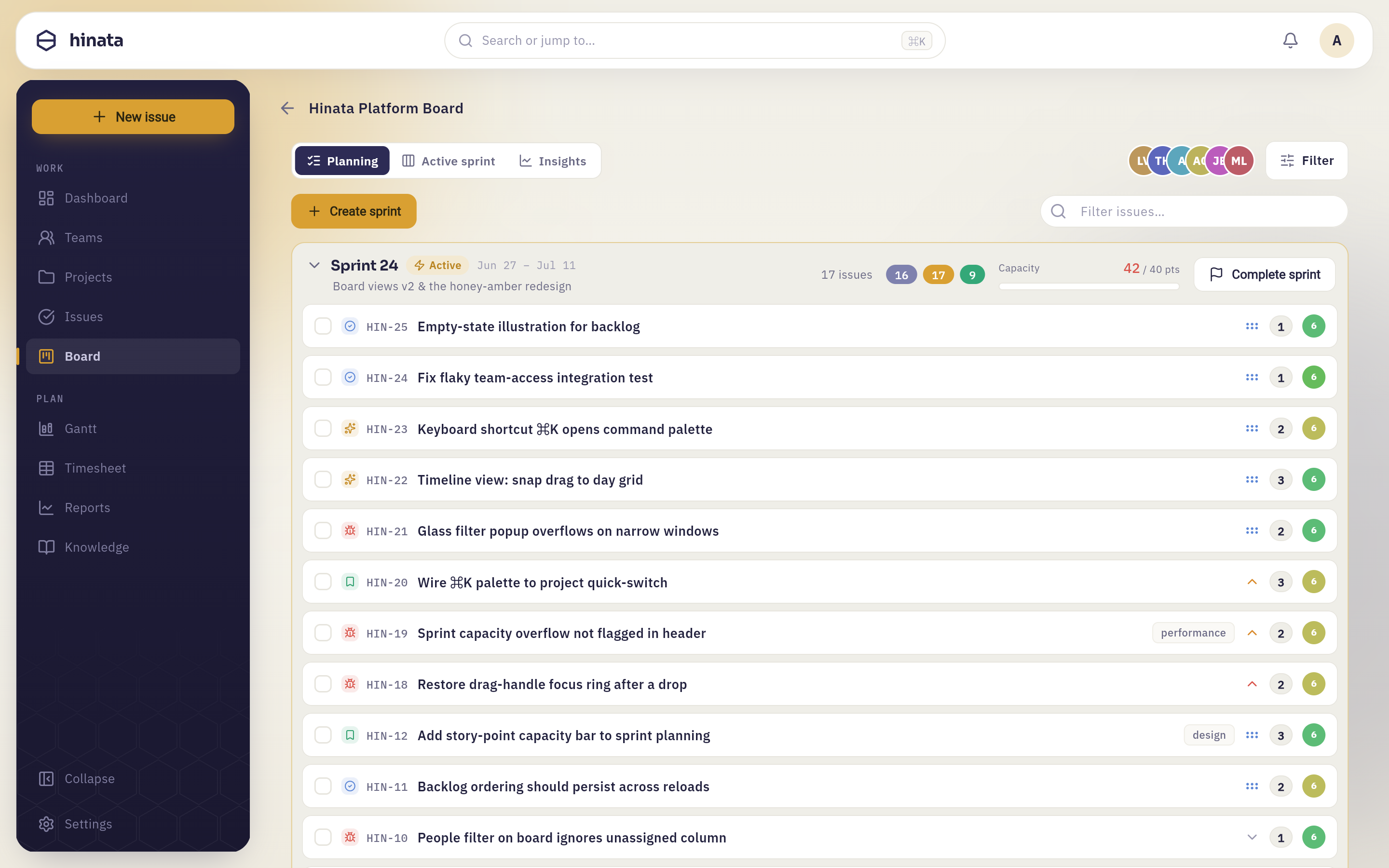 Sprint planning — capacity, story points and the active sprint at a glance.
The board#
Each column maps to one or more workflow states and shows a colored dot, the column name and a count badge. Cards are your issues. Epics never appear as cards — they act as swimlane headers and filters instead — and sub-tasks only appear as cards when you group by sub-task.
Moving issues#
On desktop, drag a card from one column to another to change its workflow state — dropping it sets the issue to that column's first state, and the target column highlights in amber as you hover. On phones and tablets, cards are tap-only: open the issue and change its state from the detail sheet. Either way, the board updates live.
WIP limits#
A column can carry a work-in-progress (WIP) limit. When set, the count badge reads 3/5 (current / limit); when a column goes over its limit, the badge turns red so overload is impossible to miss.
WIP limits are configured server-side
The board displays WIP limits but doesn't edit them in the app — they're part of the column configuration. See Project settings for workflow and column setup.
Views#
A Kanban board offers a Board / Timeline switcher — the same issues as a flow board or as a timeline. On a desktop this is a segmented control; on a phone it collapses into a compact switcher. Backlog is a Scrum concept, so it appears as its own tab on Scrum boards rather than in the Kanban switcher.
Filtering#
Open the Filter popup (a liquid-glass popover with a badge counting active criteria) to narrow the board. You can filter by:
Status · Assignee · Priority · Type · Epic · Sprint · Author · Label
Filters combine as AND across facets, OR within a facet — for example, "Bug OR Story" that are also "assigned to Ana." The Sprint facet includes a No sprint option for backlog items. A People strip of assignee avatars sits above the board as a quick shortcut into the Assignee facet, and Clear all resets everything.
Swimlanes#
Use Group by to split the board into horizontal swimlanes:
| Group by | Lanes | Catch-all lane |
|---|---|---|
| None | A single flat board | — |
| Epic | One lane per epic | No epic |
| Assignee | One lane per person | Unassigned |
| Sub-task | Group work items with their sub-tasks | Stand-alone |
Combined with the Epic filter, swimlanes let you zoom the whole board down to a single epic and its tree — a clean way to run an epic-focused standup.
The backlog#
The backlog is simply every issue in the project with no sprint assigned, sorted by priority. It's your holding area: everything raised but not yet committed to a timebox lives here until you pull it into a sprint.
Running a sprint#
Scrum boards organize work into sprints across three tabs — Planning, Active sprint and Insights. Here's the full plan → start → complete cycle.
1. Plan#
From the Planning tab, choose Create sprint. A dialog lets you set:
- Sprint name — prefilled as
Sprint 3(the next number), editable. - Sprint goal — optional; the outcome the sprint should deliver.
- Duration — 1 to 4 weeks (default 2), which computes the end date from the start date automatically.
- Start date — when the timebox begins.
With the sprint created, drag issues from the Backlog into the sprint container (or, on touch, multi-select and use Move to…). Estimate each issue with story points via a planning-poker dialog on the Fibonacci scale. As you plan, a capacity bar shows committed / capacity pts and turns red if you over-commit, and point buckets show how the committed points split across to-do, in-progress and done.
2. Start#
When the scope looks right, press Start sprint on the sprint container (it's disabled while the container is empty). The start dialog locks the scope and shows what you're committing — issue count and committed story points, with an over-capacity warning if you've exceeded the target. Confirm the goal and duration, and the sprint becomes Active.
The Active sprint tab now shows the running board with a sprint header: an amber Active badge, the sprint name and goal, and a day-progress bar reading Day 4/14.
3. Complete#
When the timebox ends, press Complete sprint. The completion dialog reviews the outcome:
- Completed — story points done, with a percentage.
- Not completed — points still open.
- Where unfinished work goes — choose a destination for open issues: carry them over into another planned sprint, or return them to the backlog.
Confirm, and the sprint closes with its unfinished issues re-homed exactly where you chose.
Nothing is lost at sprint boundaries
Completing a sprint never deletes work. Every open issue is explicitly moved — into the next sprint or back to the backlog — so your plan stays honest from one timebox to the next.
Insights & burndown#
The Insights tab turns a sprint into charts:
- Sprint burndown — a dashed Guideline (the ideal path from committed points to zero) against a solid Actual line drawn up to today. The y-axis starts at the points committed when the sprint began.
- Velocity — committed vs. done points, plus an average across sprints.
- Work breakdown by assignee and Scope changes — net points added or removed since the sprint started.
For cross-sprint reporting — velocity trends, cycle time, distributions and PDF export — see Reports & dashboard.
Related pages#
- Issues & hierarchy — the cards on your board and how they nest.
- Project settings — define the workflow states your columns map to.
- Gantt & time tracking — the Timeline view and logging work.
- Reports & dashboard — velocity, burndown history and exports.