Your account
Open Settings at the bottom of the navigation rail, or click your avatar in the top-right corner. That menu also has Edit profile and Sign out. On a phone, the settings icon sits next to the bell.
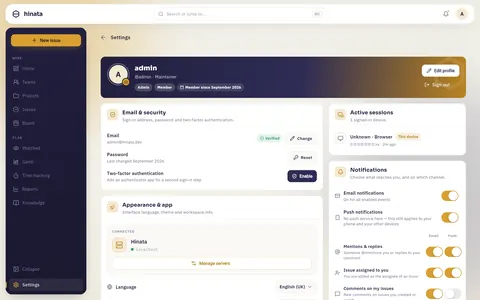
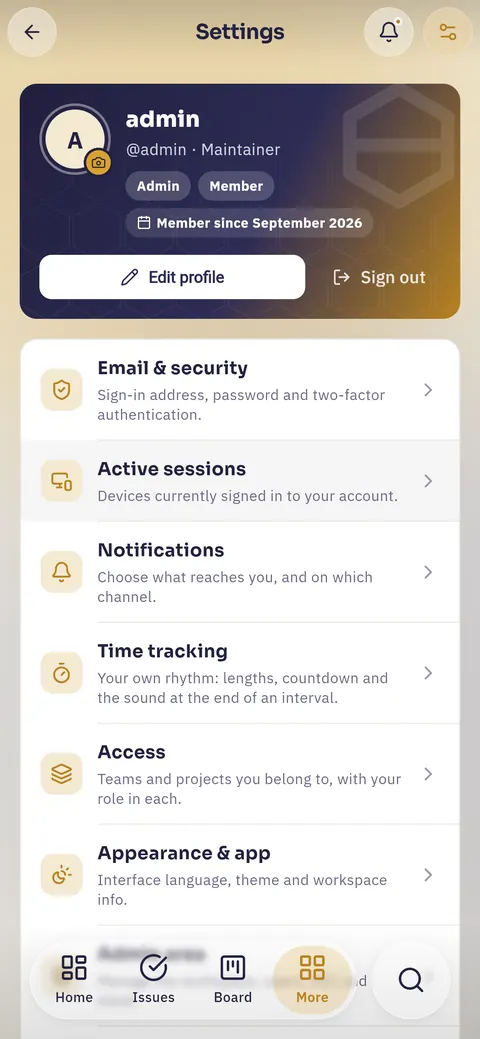
On a phone it is a list
Each card becomes a row that opens as its own page. Which rows you see depends on your account. The back arrow goes to the list first, then back.
Your profile
The banner at the top shows how others see you: picture, display name,
@username, job title, roles and the month you joined.
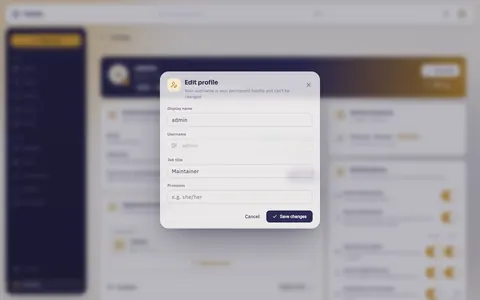
- Display name: shown on cards, in comments and in assignee pickers. Change it any time.
- Job title: free text, such as "Maintainer".
- Username: cannot be changed, because
@-mentions and old comments point to it.
Your picture
Click the camera badge on your avatar and choose Upload a photo. JPEG, PNG, GIF and BMP up to 12 MB are accepted. The server stores the image as a JPEG of at most 512 pixels on the long edge.
Remove photo brings back your coloured initials.
Your sign-in address
The E-mail & security card shows your sign-in address as Verified or Unverified.
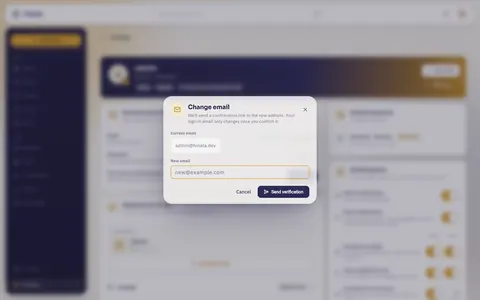
- Click Change and enter the new address.
- Click the link in the mail. Until then the card shows Pending confirmation for …, and the old address still applies.
- Once you confirm, every device is signed out. A security alert lands in your bell and inbox.
With single sign-on
If you sign in through an identity provider, the card says Email and password are managed by your identity provider, and the change and reset buttons are gone. See Single sign-on.
Your password
Reset on the Password row mails you a one-time link. It expires in 30 minutes. There is no change-password form.
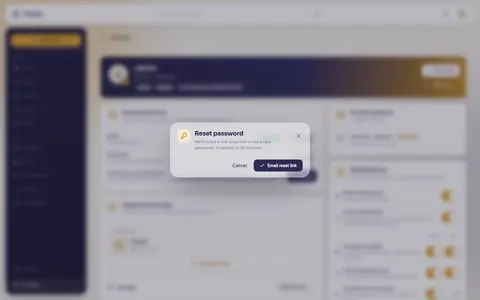
- New passwords need at least 10 characters. Symbols and digits are not
required. Four ordinary words beat
P@ssw0rd!. - Afterwards you are signed out everywhere, including the current device.
Two-factor authentication
With 2FA on, signing in also takes a six-digit code from an app on your phone. The row shows Enable or On · 10 recovery codes left.
Turning it on
Press Enable. The wizard takes about a minute.
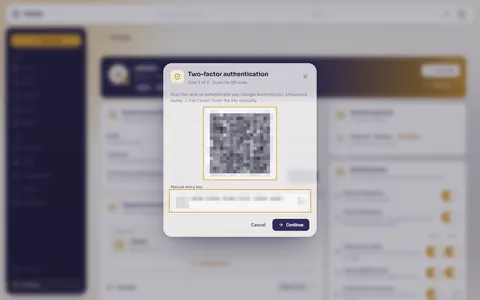
- Scan the QR code with an app such as Google Authenticator, 1Password or Authy. On that same phone, copy the "Manual entry key" instead.
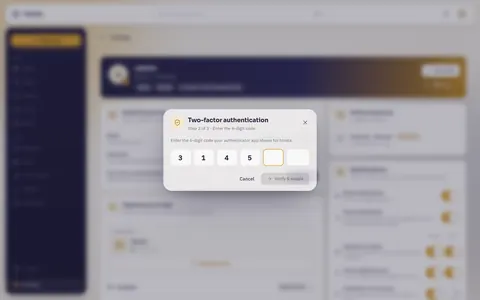
- Enter the six-digit code. "Verify & enable" becomes clickable once all six boxes are filled.
- Save your recovery codes: you get ten codes. Each one replaces the app code exactly once. Copy all puts them on your clipboard.
You see the codes only once
Hinata only keeps hashes. Store the codes where you can reach them without your phone, such as a password manager or a printout.
Living with it
- Signing in asks for the code after your password. It changes every 30 seconds. A code that just expired still works for a moment.
- Codes issues ten new recovery codes and invalidates the old ones. You need a current code for this, so do it before you replace your phone.
- Disable turns 2FA off. This also needs a current code or a recovery code.
Active sessions
Every signed-in device is listed here, most recent first: browser or Hinata app, operating system, masked IP address and last activity. Your device is marked This device.
- The arrow on a row signs out that device.
- Sign out others immediately ends every other session.
What ends a session without you pressing anything
Every device is signed out when you finish a password reset, confirm an e-mail change or delete your account. The same happens when an administrator deactivates your account. Closing the app, restarting or losing the network does not end a session.
Lost a device or see an unknown entry?
Press Sign out others first, then Reset your password. That way nobody is signed in when the new password takes effect.
The Security alerts notification tells you about sign-ins you did not make, in your bell and inbox. See Staying informed.
Language and appearance
The Appearance & app card contains:
- Language: one of nine (English, German, French, Spanish, Russian, Chinese, Japanese, Hindi, Arabic). It applies to the interface at once and to the server's e-mails and error messages. Arabic runs the layout right to left. Hinata also uses your language region (or your time zone) to work out which working days for your notification times are preset.
- Appearance: System, Light or Dark. System follows your operating system.
- Connected server, with Manage servers next to it if you use several. See On your phone.
- Privacy policy: your operator's privacy notice plus the app and server versions.
Name and logo come from the server
An administrator changes the organisation name and logo in the top-left for everyone. See Admin area.
Teams and projects you can reach
The Access card is read-only. Under Teams and Projects you see what you are a member of, with member count and your role. If a project is missing, someone has to add you to the right team. See Projects & teams.
Organization
If you are an organization admin, your settings also have an Organization row. It leads to the page with time tracking, absences, holidays, billing and the deadline default for the whole organization. See Organization.
Access tokens
If your operator has enabled it, the Access tokens card creates personal access tokens for AI assistants and scripts. They can only do what you allow. The secret is shown once, at creation. No card means the feature is off. See MCP server.
Your data
Your GDPR rights are available here as buttons.
Export a copy (Art. 15)
Data & privacy → Request. Within 24 hours you get an e-mail with a secure download link that stays valid for three days. You need no reason, and nobody is notified.
Delete your account (Art. 17)
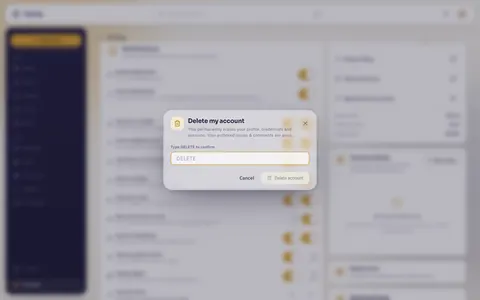
Danger zone → Delete account. To confirm, type exactly DELETE into the field.
This cannot be undone
Your profile, credentials and sessions are removed permanently. You are signed out everywhere at once, and a confirmation is mailed to you. Your issues, comments and history stay, but anonymised. There is no grace period and no recovery.
If you only want to leave a project, ask the project lead or a Team-Admin to remove your access.
As the last active administrator you cannot delete your account. Make someone else an administrator first.
Next steps
- Staying informed: set up notifications and notification times
- Getting started: signing in and your first day
- On your phone: the mobile layout and several servers
- Authentication: passwords and 2FA from the operator's side