Getting started
In Hinata every task, bug and idea is an issue. Issues live in projects and move across boards, timelines and reports until they are done.
This page takes you from a freshly installed app into your workspace.
The words you'll need
| Word | What it means here |
|---|---|
| Issue | One piece of work: a task, a bug, a feature, a question. |
| Project | The container for issues, such as a product, a service or an initiative. |
| Issue key | The short id every issue gets from its project, like HIN-42. |
| Team | A group of people and the projects that group can open. |
| Board | The column view of a project's work, where you drag cards. |
| Workflow state | The columns themselves, for example Backlog, In Progress and Done. |
| Sprint | A fixed stretch of time, usually two weeks, with a chosen set of issues. |
| Backlog | Everything that is not in a sprint yet. |
| Label | A colored tag on an issue, like design or security. |
| Epic | A big piece of work that other issues belong to. |
Before you start
You need:
- Your server's address, like
https://track.example.org. Every organization runs its own server. Ask whoever set it up. - An account, usually from an invitation e-mail. Some servers let you create your own.
- The app for Android, iPhone and iPad, macOS, Windows, Linux or the browser. All on the Download page.
The app is the same everywhere. Anything desktop-only says so.
Connect to your server
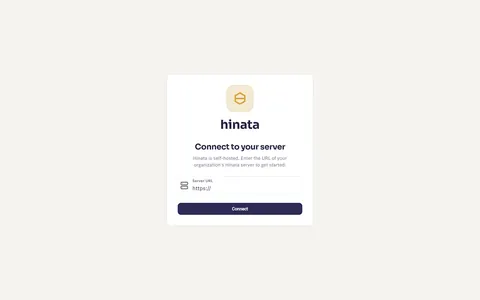
Enter the address in the Server URL field (pre-filled with https://) and press Connect. The app only moves on once the server identifies itself as a Hinata server. It never guesses or uses a default server.
If the connection fails
You'll see "Could not connect to this server. Please verify the URL." Check:
- The spelling, including
https://. A missingsis the most common cause. - Your network. Many servers are only reachable over a VPN or in the office. To the app, that looks like a wrong address.
- The port, such as
https://track.example.org:3356. Whoever runs the server will know. - Whether the server is up.
You cannot skip this step
The App Store, Play Store and desktop builds have no server built in. Only in the browser can the address be filled in already, if your organization hosts the web version itself.
Working with more than one server
Hinata remembers every server and keeps each sign-in separate, for example for a client's own Hinata or a test server. Saved servers appear under the connect form. Inside the app, find them under Settings → Manage servers.
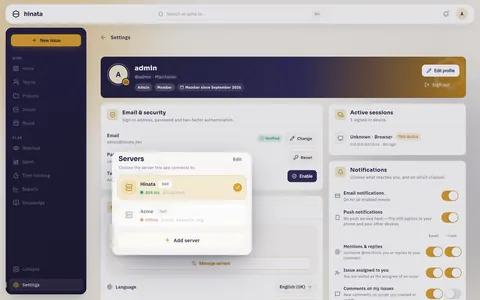
Each row carries a Self or Cloud badge. A green dot with the answer time in milliseconds means reachable, a red Offline means the server isn't answering. The check runs while the sheet is open. The tick marks the connected server, and Add server sits at the bottom.
Forgetting a server clears its sign-in
Removing a server deletes its credentials on that device. Your account stays. You sign in again next time.
Sign in
Which options the sign-in screen shows is up to your administrator.
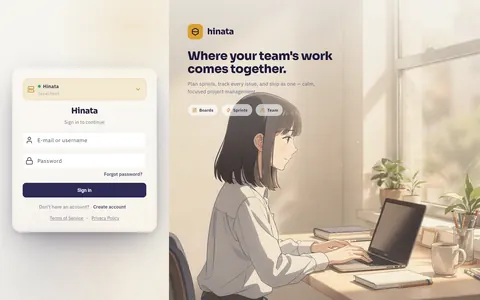
The chip at the top of the card names the server you're signing in to. You can switch to another one from there.
With a username and password
Enter E-mail or username and Password, then press Sign in. After several failed attempts the server pauses you for a few minutes: "Too many failed attempts. Please try again later."
If two-factor is switched on
An extra Two-factor authentication screen asks for the 6-digit code from your authenticator app. A recovery code works too, each one once. Setup and new codes: Your account.
With single sign-on
Press Continue with … (named after your identity provider). Sign in in your browser as usual and you land back in Hinata signed in. If a server allows single sign-on only, the sign-in screen says so and shows no password field.
If you don't have an account yet
If the server allows it, Create account lets you make one. Otherwise only invited people get in. You usually confirm your e-mail address first. On stricter servers an administrator also has to approve you.
Open the link from the e-mail on the device you use Hinata on. It takes you straight into the app.
If you forgot your password
Forgot password? sends you a link by e-mail. Open it on your device and the app asks for a new password right away.
Which of these you get is up to your server
Passwords, self-registration, admin approval and single sign-on can be switched at any time without reinstalling. If something is missing, it was turned off on purpose. For operators: Authentication and Single sign-on.
The tour
The first time the app connects to a server, it shows a short walkthrough before sign-in: a welcome slide and three cards on Projects, Sprints and Teams. It changes nothing in your workspace.
Swipe or press Continue. Skip jumps to the end, Get Started finishes. You see it once per device.
A tour of your workspace
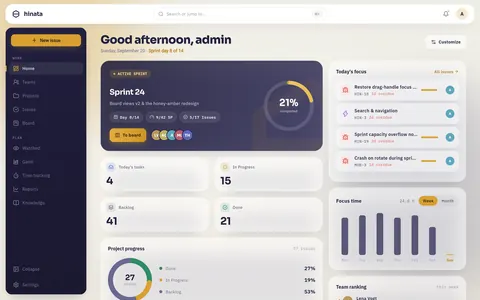
After signing in you land on Home, your dashboard.
The navigation rail
The navy rail on the left takes you everywhere. At the top is the amber New issue button, then two groups.
Work for every day:
| Entry | What it's for |
|---|---|
| Home | Your dashboard: today's focus, the active sprint, progress and time. |
| Teams | The groups you belong to, and which projects each one opens up. |
| Projects | Every project you can see, with its key, members and workflow. |
| Issues | The filterable list of issues across the projects you can see. |
| Board | The agile board with columns, swimlanes and drag and drop. |
Plan for the bigger picture:
| Entry | What it's for |
|---|---|
| Watched | Issues you asked to be kept informed about. |
| Gantt | The timeline: dates, dependencies, milestones and the critical path. |
| Timesheet | Your week of logged work, hour by hour. |
| Reports | Burndown, velocity, cycle time and distributions. |
| Knowledge | The knowledge base with articles, notes and documentation. |
At the bottom, Collapse shrinks the rail to icons and Settings opens your account.
The one shortcut to learn
⌘K on macOS, Ctrl+K elsewhere, anywhere in the app. The search palette finds issues, projects, people, boards and articles, jumps straight to HIN-42, and runs commands like Create new issue and Toggle light / dark appearance. More in Finding things.
The top bar
- On the left, the hinata wordmark, or your organization's name and logo on a branded server.
- In the middle, the search field. It opens the same palette as ⌘K.
- On the right, the bell (with a dot when something is waiting) and your avatar, which opens your account.
Your dashboard
Home shows what's on today:
- The greeting with your name, the date and, while a sprint runs, the sprint day. "Sprint day 14 of 14" means the sprint ends today.
- The hero card shows the active sprint: name, goal, progress ring, day, story points and issue count. To board opens the work, and the faces show who's on it. With no sprint, it invites you to plan one.
- Today's focus lists your issues for today with type icon, title, key and, in red, how overdue they are. All issues opens the full list.
- Key figures: Today's tasks, In Progress, Backlog, Done.
- Project progress shows everything you can see as a ring of Done, In Progress and Backlog.
- Focus time charts your logged hours by Week or Month.
- Team ranking compares resolved work over the last 30 days, once there is enough of it.
Make the dashboard yours
Press Customize at the top right.
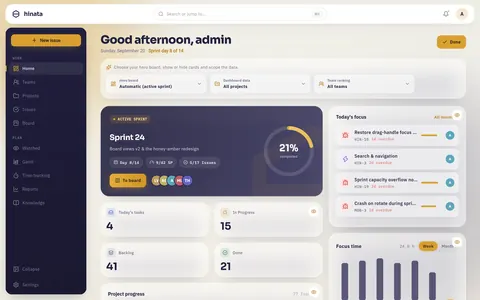
- Hero board: on Automatic (active sprint), the hero card follows the running sprint. Pick a board and it stays there.
- Dashboard data (All projects) and Team ranking (All teams) narrow the numbers to particular projects or teams.
- The eye on each card hides it.
Press Done. The layout is saved to your account, so your phone gets it too.
On a phone, or in a narrow window
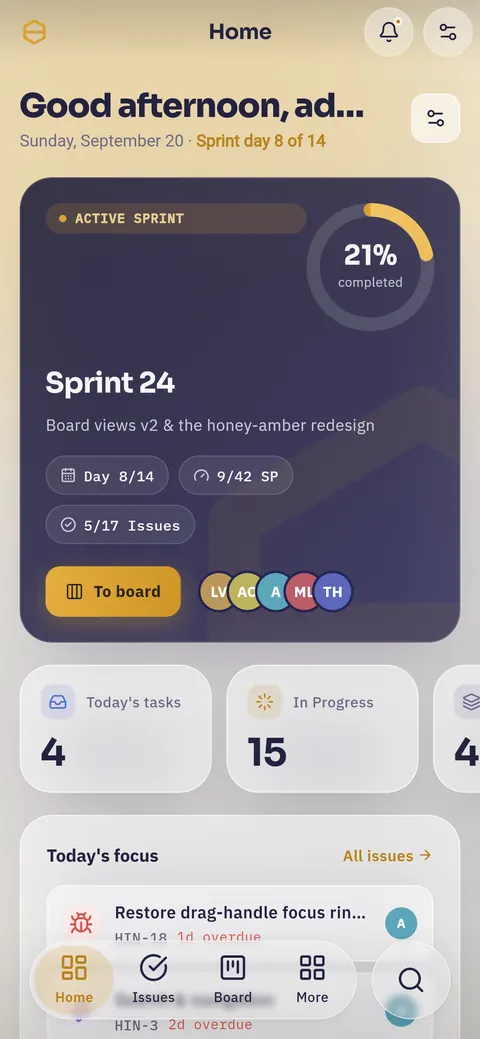
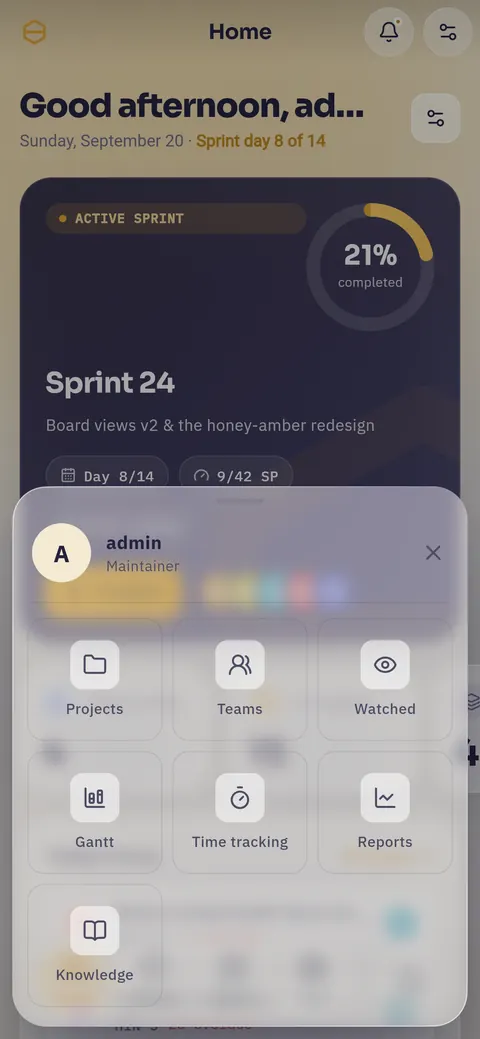
A floating glass tab bar holds Home, Issues, Board and More, plus a separate search button. More shows your account and the Plan group as tiles: Projects, Teams, Watched, Gantt, Timesheet, Reports, Knowledge.
Screens and data are the same. On your phone covers the few differences.
Light, dark, and your language
Open Settings and find the Appearance & app card. It also names the connected server and carries Manage servers.
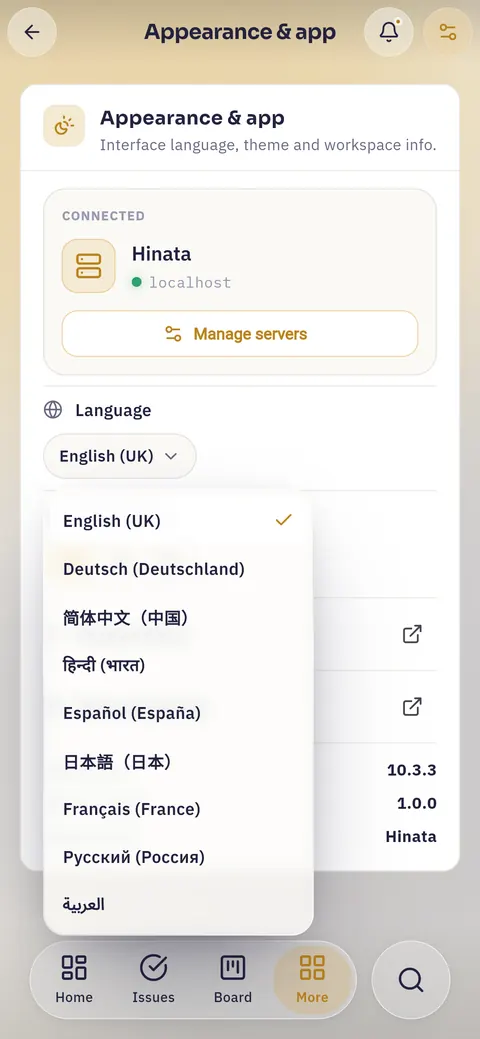
- Language: your first launch uses your device's language, then your choice sticks. Server messages and errors arrive in that language too.
- Appearance: system, light or dark. The amber accent stays the same in both. Or use Toggle light / dark appearance in the palette.
Everything else (profile, e-mail address, password, two-factor, active sessions, your data) is in Your account.
Your first five minutes
- Open Projects. A short list is normal, Projects & teams explains why.
- Click a project card. You see its issues.
- Open an issue and read the description, activity and comments.
- Press ⌘K and type a key like
HIN-1. The app jumps straight there. - Press New issue and create something small and real. You can archive it later.
- Go back to Home. Your issue now counts in the figures.
The same account, every device
Hinata runs on Android, iPhone and iPad, the web, macOS, Windows and Linux, with the same account and data.
Changes arrive live because the app keeps an open connection to the server. Comments, attachments and board moves appear without refreshing.
Signing in on a new device doesn't sign you out elsewhere. Settings → Active sessions lists every signed-in device, marks yours, and lets you end any other, for example when a phone goes missing.
When your app looks different from this page
These depend on the server, and only the person who runs it can change them:
- How you sign in: passwords, single sign-on, or only one of them.
- Self-registration, and whether an administrator has to approve you.
- Push notifications. In-app and e-mail notifications always work. Push needs the server to be connected to a push relay, and Linux has no push at all.
- E-mail as issues. Some servers turn mail from a mailbox into issues automatically.
- Attachment limits on size and type.
- Your organization's name and logo.
Where to go next
- Projects & teams: projects, keys and visibility. Start here.
- Working with issues: create, fill in, move along.
- Boards & sprints: board, backlog and planning in cycles.
- Timeline & dependencies: dates and blockers.
- Tracking your time: logging work, filling in your timesheet.
- Comments & attachments: talking about work on the issue.
- Finding things: the palette and filters.
- Writing documentation: the knowledge base.
- Reports & dashboard: what the charts mean.
- Staying informed: notifications, watching, weekly summary.
- Your account: profile, password, two-factor, sessions, data.
- On your phone: what changes on a small screen.
Hard to lose anything by accident
Issues are archived by default, and projects can be archived. Truly destructive actions make you type a name first. Feel free to explore.