Sharing an issue
Sometimes a person has to follow a single issue without being in its project or in a team that reaches it. The officer who ordered an eSIM from IT should be able to answer questions without seeing the whole IT project. For that you share exactly this issue with her. She then takes part in it.
What participants can do
| Action | Member | Participant |
|---|---|---|
| Read the issue, its history and attachments | yes | yes |
| Comment, reply, react, send a voice note, upload an attachment | yes | yes |
| Edit or delete their own comment | yes | yes |
| Change fields, move, archive, delete, clone | yes | no |
| Be assigned | yes | no |
| Log time | yes | no |
| Watch, export | yes | yes |
| Add more people | yes | no, only remove themselves |
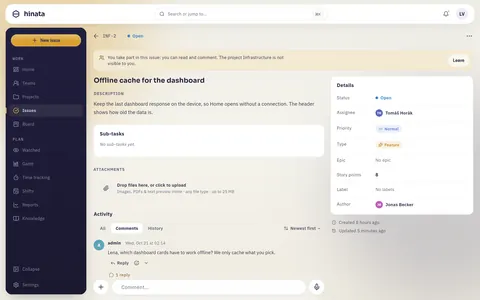
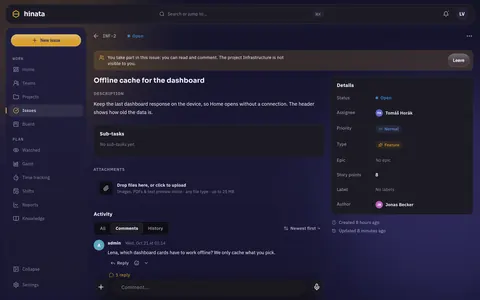
Participants see of the project only what the issue needs to render: its name, key, states and labels. The project page, board, sprints, other issues, reports, the member list and logged time stay hidden from them. Linked issues and parent epics show only when they are shared with them too.
Sharing an issue
- Open the issue and tap ⋯ in the top right.
- Choose Share with….
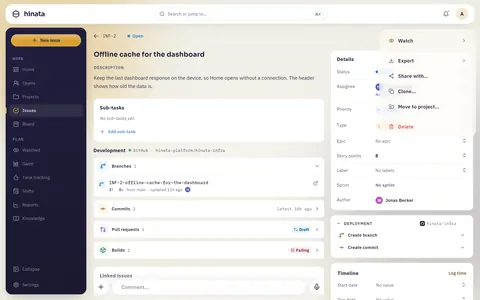
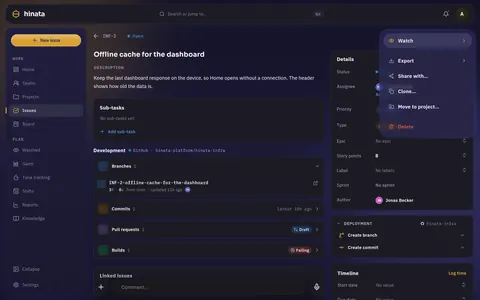
- Find the person in Search for a person… and tap them.
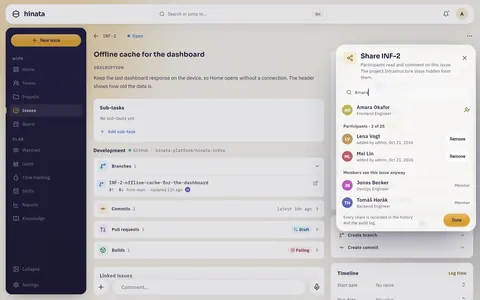
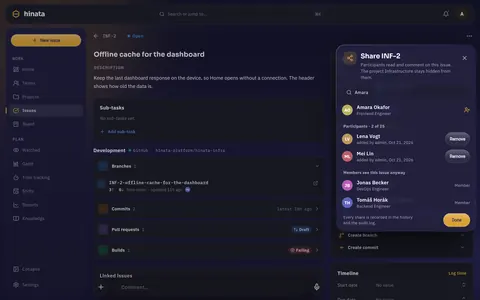
They now appear under Participants, with who added them and when. Below are the members who see the issue anyway.
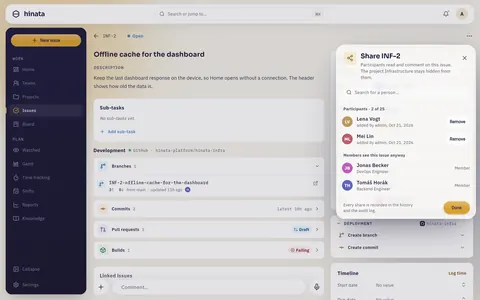
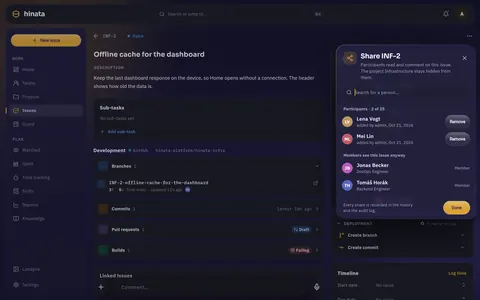
Everyone who works in the project may share. Picking someone who is already a member changes nothing.
Two shortcuts
- Mention in a comment: if you
@-mention someone who cannot see the issue, a note appears below the comment field. Share opens the dialog with that person. - Assigning: someone who cannot open the project cannot take the issue. Instead of an error, Hinata offers to share it with them.
What the participant gets
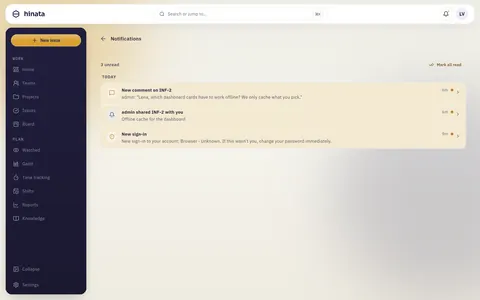
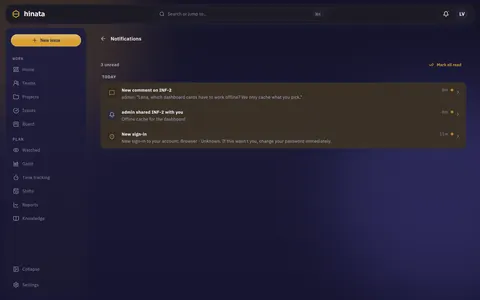
They receive a notification "… shared INF-2 with you". The bell always rings; push and email follow their Assignments setting. From then on they watch the issue and hear about comments and changes like any watcher.
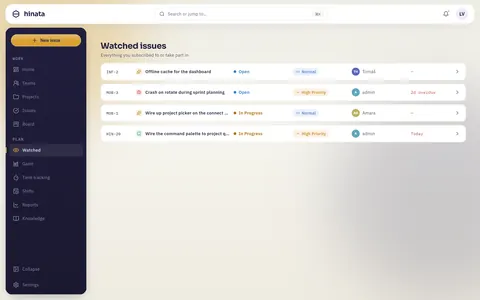
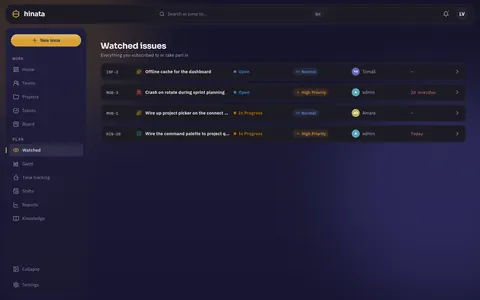
They find the issue under Watched, in the Issues list and in search. At the top of the issue a note says that they take part and cannot see the project. Someone who is in no project at all gets a pointer to Watched on the empty Issues page.
Ending a share
- Members open Share with… and tap Remove next to the person.
- Participants tap Leave in the note at the top of the issue and confirm.
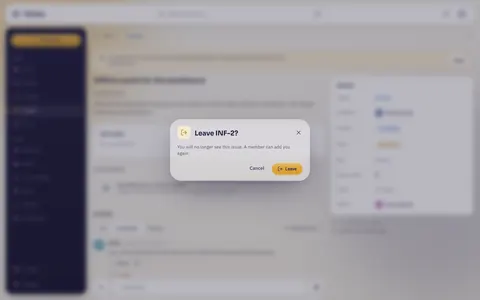
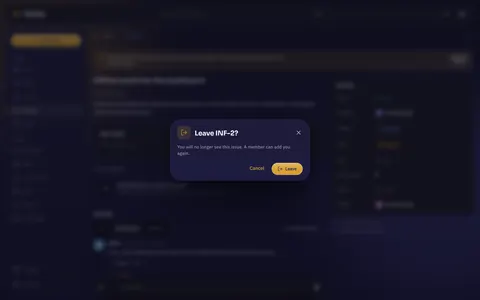
Afterwards the person no longer sees the issue, their subscription ends and any mail still queued for them is dropped. An assignment stays as it was.
What is recorded
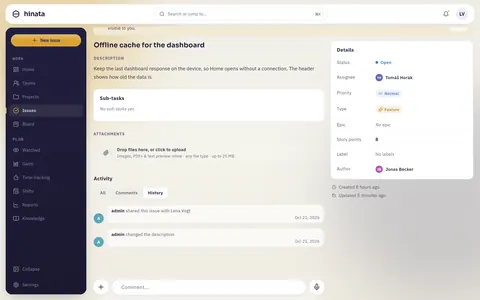
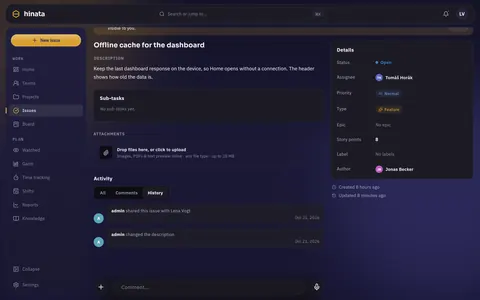
Every share and every removal is in the issue's History ("… shared this issue with Lena Vogt") and in the organisation's audit log.
No marker on the issue
To members a shared issue looks like any other. The Share with… dialog shows who takes part.