Finding things
Hinata has two tools for finding things:
- Command palette: when you are looking for one specific thing, like a ticket, a runbook or a person.
- Issues list: when you want to see all work with certain traits, like every open bug or everything due this week.
Open the palette from anywhere
Press ⌘K on a Mac or Ctrl+K on Windows and Linux. Both shortcuts work on every platform. The hint on screen shows the key your keyboard has.
You can also click Search or jump to… in the top bar. It opens the same palette. On a phone it is a magnifier icon, and the palette fills the whole screen.
The palette opens over your current page. Anything half-typed stays. Press Esc or click the dimmed background to get back where you were.
It works while you are deep in something
The shortcut works across the whole app: reading an issue, dragging a card, in the middle of a comment. Only when another dialog is already open does the palette not open on top of it.
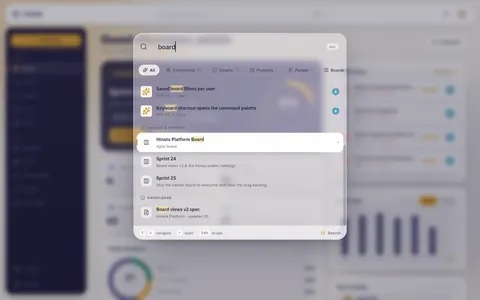
What it searches
Results arrive grouped, always in the same order:
| Group | What matches |
|---|---|
| Commands | Actions and destinations inside the app, see It is also a command bar |
| Issues | The title, the issue key (HIN-42), and labels, plus words from the description |
| Projects | The project name and its key, plus the project description |
| People | Display name, username and job title |
| Boards & Sprints | Board names, sprint names and sprint goals |
| Knowledge | Article titles and labels, plus the text inside the article |
How matching works:
- Short fields (titles, keys, names, labels) match partial text.
lenfinds Lena,HIN-2findsHIN-241. - Long fields (descriptions, article bodies) only match whole words. To find a sentence in a description, type whole words.
In All, each group shows up to five results. In a single group you get up to twenty-four.
Narrow it to one kind of thing
The chips under the search field limit the search to one category: All, Commands, Issues, Projects, People, Boards & Sprints, Knowledge.
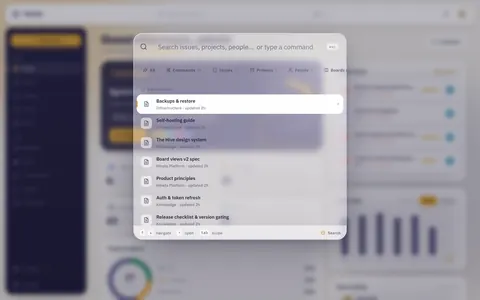
Click a chip, or press Tab to move forward and Shift+Tab to move back. Your query stays in the field while you switch.
An empty query in a scope is a browse list
With no query, a scope shows the most recently touched items. It is the quickest way back to what the team worked on today.
Everything from the keyboard
| Key | Does |
|---|---|
| ↑ / ↓ | Move through results, across group boundaries |
| ↵ Enter | Open the selected result, or run the selected command |
| Tab / Shift+Tab | Move to the next / previous scope chip |
| Esc | Close the palette |
The best match is already selected. Usually it is just: ⌘K, a few characters, Enter. Hovering a row with the mouse selects it too.
Read the results before you open them
Each row shows enough to spot the right result:
- Issue: type glyph, key, a colored status dot with the status name, and the assignee's avatar on the right.
- Project: a colored hexagon with the project key, how many issues are open and done, and its members.
- Person: avatar and job title.
- Board or sprint: the name, plus the goal for a sprint.
- Article: its space and when it was last updated, so stale duplicates stand out.
Recent searches
Open the palette with an empty field to see your last six search terms.
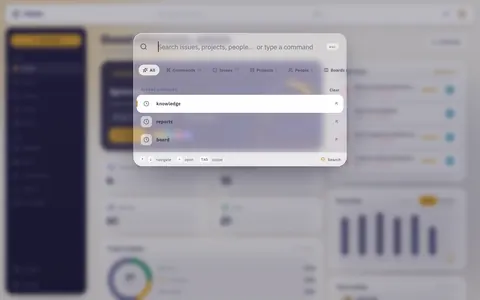
- A term is only saved once you open one of its results.
- Clicking a term puts it back in the field and runs the search again. It does not jump straight to a result.
- Recents are stored per device, so your phone and laptop keep separate lists.
It is also a command bar
Type what you want to do and the palette offers it:
- Go to Dashboard, Projects, Issues, Board, Timeline, Reports, Knowledge: the whole navigation.
- Create new issue: opens the board, where every column has an Add issue composer at its foot.
- Toggle light / dark appearance: switches the theme. The palette stays open so you can switch back right away.
Commands are matched on your device and appear instantly. You do not have to type the label exactly: "dark", "theme" and "appearance" all find the theme switch.
Where the answers come from
All results except commands come from your own server. There is no external index, and nothing is sent anywhere else. Results are current: an issue renamed a minute ago is findable under its new title.
The app waits a moment after your last keystroke before asking, and discards outdated answers. So results do not flicker while you type. Even on a slow connection you never see results for car when you have already typed carbon.
When nothing comes back
Check in this order:
- Is a scope chip still active? A chip you picked stays active. Press All.
- Is it part of a long word? Partial text only matches titles, keys and labels, not descriptions and articles. Type the whole word.
- Is it archived? Put
archivedin front of the query. - Can you reach it? Search only finds what you may open: issues and projects through project membership and your teams, knowledge base pages only when you may read them. Admins are no exception. If a colleague sees something you cannot, ask them to add you, or see Projects and teams and Who can see and change what.
The palette on a phone
On a phone the palette fills the screen and slides down from the top. The field is at the top and the keyboard is already open. The scope chips scroll sideways. The keyboard hint footer is left out.
Scopes, recents, the archive keyword and commands work as on a desktop. More in On your phone.
Six things people actually look for
"Someone mentioned HIN-42."
Type the key. Case does not matter, and part of it is enough: hin-4 already narrows the list. Enter opens the top hit.
"I remember a phrase from the description, not the title." Type whole words, like "certificate rotation". Descriptions and article bodies are searched too. If nothing comes back, try just the most distinctive word. Long fields match word by word, not by fragments.
"I want everything in one project." Search for the project and press Enter. You land on the Issues list, already filtered to that project. Narrow it further with Filter and Group by.
"Has anyone picked this up?" Open Issues, then Filter → Assignee → Unassigned. Add Status if you only care about work that has started.
"What did I touch last week?" Filter → Assignee → you, Sort → Last modified (new), Time range → Last 7 days. If you work across several projects, group by project.
"Was this deleted?"
Archived items are not gone. Type archived followed by your query, like archived login bug. The palette then searches archived issues and projects. archived on its own shows the most recently archived items. The German word archiviert works the same, whatever language your app uses.
Archived issues carry a badge
Results from the archive are marked. You restore them from the issue itself, see Working with issues.
Issue keys are addresses
Every issue has a permanent key: the project key, a dash and a number, like HIN-42. It is unique across the server and works well in chat messages, commits and documents.
- In the web app,
…/browse/HIN-42opens the issue directly. - In the desktop and mobile apps, type the key into the palette.
If an issue moves to another project, it gets a new number. The old key keeps working: in the palette, in browse links, and in articles and issues that already mention it.
Click the key to copy a link
On an open issue, click its key to copy a link to the clipboard. A copy icon appears on hover, and the key confirms when done. The link opens the issue in the app where it is installed, and in the browser otherwise.
When you need a list, not a jump
The Issues page shows every issue in every project you have access to. Recently touched issues come first, and more load as you scroll. Four controls shape the list.
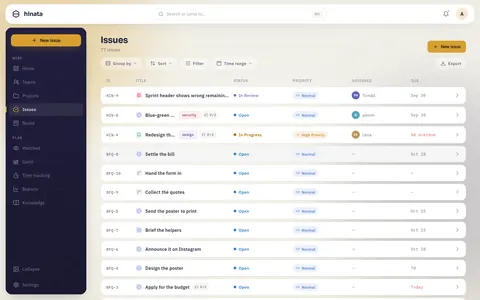
Reading a row
Each row shows the key, the title with a type glyph, status, priority, assignee and due date.
- Due uses relative terms: 3d overdue and Today in red, then Tomorrow, then 5d for the coming week. After that it shows a date.
- Title shows a counter like
0/1or3/4when the issue has sub-tasks, so you can tell whether a parent is really done.
Click a row to open the issue.
Shaping the list
Filter opens a popover with five facets (Status, Priority, Assignee, Project, Type) and an Archived switch.
- Within one facet it is OR: Bug and Task shows both.
- Between facets it is AND: Bug plus In Progress plus Lena shows only Lena's in-progress bugs.
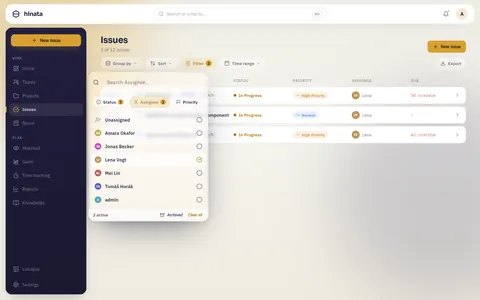
Long facets have their own search field. Clear all in the footer empties every facet.
Group by splits the list into sections, like by assignee for a standup or by project. The button shows the name of the active grouping.
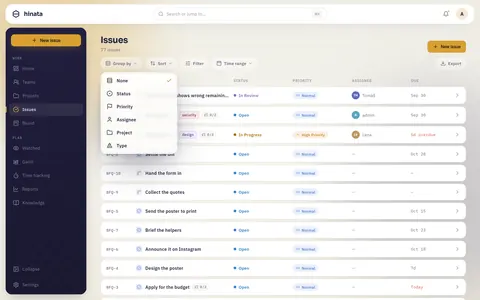
Sort orders the whole result set, not just the loaded rows: newest or oldest first, or by last modified. The default is most recently touched first.
Time range narrows by date:
- With a start and a due date: matches when the span overlaps the range.
- With only one date: matches when it falls inside the range.
- With no date: uses when it was last touched.
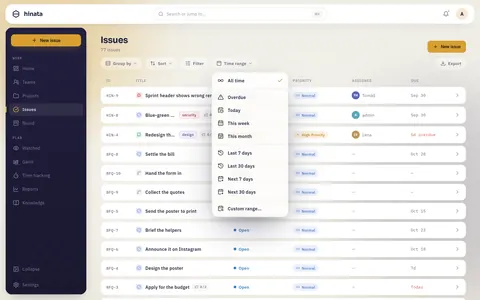
This button also shows the name of the active range.
Filters last for the visit, not forever
There are no saved views yet. Your settings last until you leave the page. For a view you need every day, keep the link (see below) or build a board, which saves its configuration.
Filters that arrive with a link
Some links bring a filter with them. Clicking the Today's tasks tile on your dashboard opens the Issues list with everything due by today. The number on the tile matches the number of rows. A project card filters to its project the same way.
In the web app the filter is in the address bar. Copy the link and a colleague sees the same filtered list.
Taking the results with you
Export writes the complete filtered set, not just the loaded rows. The app first fetches every page from the server.
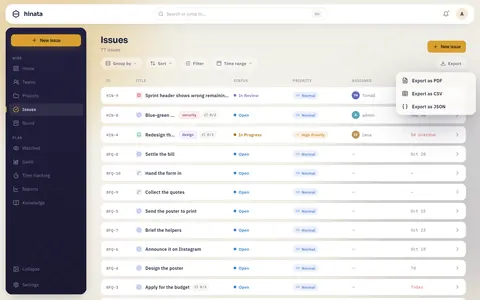
- Export as PDF: a printable table with your organisation's name and logo.
- Export as CSV: for spreadsheets.
- Export as JSON: for tools that read the data back in.
The file lands in your Downloads folder. The app tells you the file name.
Navigating by hierarchy instead of searching
Work in Hinata is three levels deep: an epic holds stories, tasks, bugs and features, and these can hold sub-tasks. You can click through every level:
- Every issue shows a breadcrumb above its title. The ancestors are clickable, from a sub-task to its parent and on to the epic.
- A parent lists its child issues and sub-tasks in their own panels, with a progress count.
- On a board, Group by → Epic gives one swimlane per epic. You see a whole initiative, including the parts nobody is working on.
The epic and parent pickers open with recent epics and recent issues listed first.
Looking for a person
People results match display name, username and job title. "Vogt", "lvogt" and "Designer" all find the same colleague.
To see a person's work: open Issues, filter by Assignee and group by project or status. On a board, the People filter does the same.
Opening a person needs admin rights
A person result leads to user management, which only administrators can open. Everyone can find people.
Link once, search less
When you write a description, comment or article, type @ and pick the issue, article or person. You get a link that:
- shows the issue's real title and status,
- opens the issue when clicked,
- fills the Linked issues panel (on the article) and Documented in (on the issue).
Typing HIN-42 as plain text does none of that. More in Writing documentation.
Finding things elsewhere
- The board has its own filter with sprint, author, label and epic, plus a people filter. See Boards and sprints.
- The knowledge base has a search field above its spaces, matching article titles, space names and labels. See Writing documentation.
- Watched collects the issues you follow. See Staying informed.
- Inside an issue, the @ menu searches issues, articles and people.
The rule of thumb
If you can name the thing, use ⌘K. If you can only describe it (open, mine, overdue), use the Issues list. If you need it again tomorrow, make it a board.
Next steps
- What to do with what you found: Working with issues.
- Shape the same work visually: Boards and sprints.
- Write the runbook the palette finds next time: Writing documentation.