Tracking your time
You log a duration on an issue. Your timesheet, the focus time on your dashboard and the spent line on the issue are built from those entries. This page covers the basic mode. If your organization runs extended time tracking, read the last section too.
Log time on an issue
- Open the issue and find the Timeline card. On a wide window it sits on the right under Details, on a phone further down.
- Tap Log time in the top right corner of the card.
- Enter Hours and Minutes, check the Date and press Save.
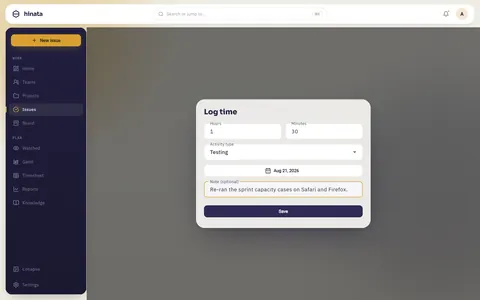
Only the duration is required. Note (optional) is yours to fill. After saving, the spent total on the issue goes up and the entry shows on the card.
Type a duration fast
Hours starts at 1, Minutes at 0. For an hour and a half, type 30 into Minutes. For 20 minutes, set Hours to 0 and Minutes to 20.
What you can enter
- An entry lasts at least one minute and at most 24 hours.
- You can go back up to a year. Future days are not allowed. Plans belong in start and due dates.
- Several entries on the same issue and day are fine and add up.
The entries on an issue
Each row shows the duration and the date. Below it stands who logged it and the note.
- On your own entries you see your name and your note.
- On a colleague's entry you see Another member and no note. A project lead sees names and notes of the project.
- All entries (24) below the list opens the whole history with the total so far. More rows load as you scroll.
Entries marked Smart commits (before 2.0) come from old versions. They belong to nobody but still count. Only a project lead can remove them.
Correct or delete an entry
Every entry you may change has a menu on the right.
- Edit opens the same sheet with the current values. After Save the spent total is computed again. The date rules above still apply.
- Delete asks first, naming the duration and the day. It cannot be undone, and the spent total drops by exactly that amount.
Who may do what:
- Your own entries: edit and delete, always.
- A colleague's entry: a project lead may delete it, but not edit it. Nothing then shows under a name the person did not write. Ask them to log it again. Every such removal goes into the audit log.
Logged too little?
Add the missing time as a second entry. Editing is for a duration that is plainly wrong.
Estimate and spent time
The Timeline card shows a line like Spent 9h 30m of 10h.
- The first number is the sum of all entries on the issue, from everybody.
- The second is the time estimate for the whole job.
You also see it on the board card as a small chip, and on the Timeline view as the filled part of the bar.
With advanced time tracking this becomes a honey level: a glass tube filling with honey. From the project's warning share the honey turns darker, from 100 % it turns red, and whatever goes beyond stands next to it as a small capsule of its own, for example +30 min.
While recording you see, before you save, what your entry does to the estimate and the project budget. The entry shows as hatched honey after what is already recorded. Saving always works: a budget never blocks.
An estimate is not a story point
Story points from sprint planning are a separate field. Without a time estimate the line reads Spent 9h 30m of —. Your time still counts everywhere.
The weekly timesheet
Timesheet sits in the sidebar, on a phone under More.
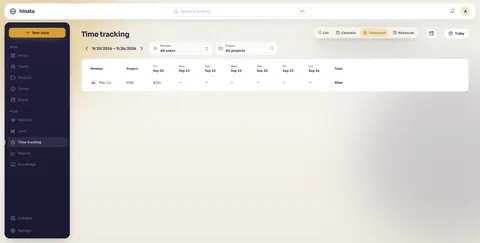
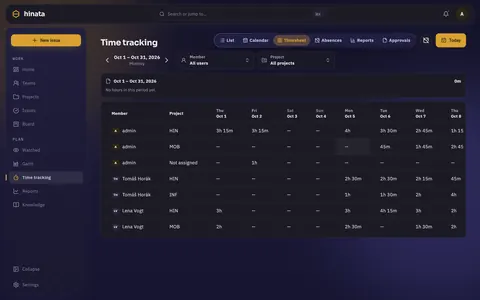
- Each row is one person in one project. The columns are the days of the week, then Total.
- The week starts on the first weekday of your language: Monday in German, Sunday in US English.
- The arrows step one week back or forward. Today jumps back to the current week.
- Time on an issue whose project is gone shows under Not assigned.
- The timesheet is for reading. You log time on the issue.
Filters
- You see only your own time. The server refuses requests for anyone else's hours.
- Organization admins see every row and get two searchable filters: All users and All projects. Issue titles and project names they only see for projects they belong to.
Empty is not broken
"No work items recorded in this week." only covers the week on screen. Step back with the left arrow first.
Log time from a commit
If your project is connected to a Git repository, one line in the commit message logs time:
MOB-42 #time 2h 30m
This creates a real entry on MOB-42, the same as one you type in the app.
- Durations understand
w,d,handm. A day is 8 hours, a week 5 days, so1d 4his twelve hours. - The entry belongs to the author of the commit, found by the author e-mail. Its note holds the short commit hash and the subject.
- It is dated the day the commit was written, in that person's time zone.
- The same rules apply as in the app. A commit cannot book onto a locked day, for example.
Commit time is missing?
The author e-mail has to match an active Hinata account that is a member of the project. Otherwise the line is skipped and no time is logged. Check git config user.email first. A project lead connects the repository, see Git integration.
When extended time tracking is on
Your organization admins can switch on the extended module. Then this changes:
- Timesheet in the sidebar becomes Time tracking, with a list, a calendar and the timesheet in one place.
- Log time on an issue opens the larger entry editor with start and end, tags and billable.
- You get a timer, approvals for your timesheet, lock dates, reports and exports.
- Leave and sickness live in time tracking under Absences.
Read on:
- Extended time tracking for everything the module does.
- Absences: leave and sickness for leave, sickness and balances.
- For admins: switching it on and setting the rules.
- Time tracking: privacy & law for who may see what.
Next steps
- Set the dates that time is measured against on the Timeline.
- See what your hours turn into on the dashboard and in reports.