Knowledge base
Runbooks, onboarding guides, architecture decisions, meeting notes and product specs do not fit into an issue. That is what the knowledge base is for: a built-in, Confluence-style wiki right next to your work.
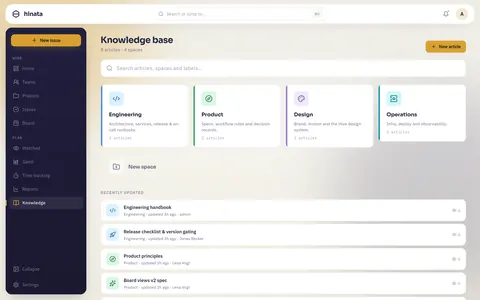
Articles
You write articles in Markdown, with the same editor and toolbar as issue descriptions: headings, lists, code blocks, tables, callouts and images. Articles nest into a hierarchy: a space, its sections and the pages inside them.
- Project pages: documentation for a project, right next to its board and issues.
- Team pages: a team's documentation, for example a handbook, engineering standards or incident playbooks.
- Private pages: pages with no project and no team, such as a draft nobody should see yet.
Backed by real data
The knowledge base is a full backend feature (/api/v1/articles). Articles are stored and versioned in your database and served through the API like everything else. That makes them searchable, access-controlled and always current.
Smart links
As you write, smart links resolve references live:
- Mention an issue like
MOB-42and it becomes a link showing its current title and state. - Mention a person and it links to their profile.
A runbook that references INF-7 always shows the current issue.
Access control
Pages are protected by project and team roles, like the rest of Hinata:
- A project page can be read by everyone who sees the project.
- A team page can be read by the team's admins and by the members the team opened it to. Each member gets one of three levels: no pages (the default), all pages, or selected pages. A selected page includes everything below it.
- A page with neither project nor team is private. Only its author reads it.
Nobody else reads a page, administrators included. Team-Admins set a member's page access when they add someone to the team or change their permissions. Other team members see how many pages a colleague was given, but not which ones. Team-Admins see which.
Private pages are part of your personal data. They are included in your data export and are deleted with your account. That includes pages everyone could read before the update that are now private to their author. If an important page should stay, move it into a project or team before the account is deleted.
Moving pages
Moving a page to another place, such as a project, a team or private, needs authority over the place it is in now:
- A project page can be moved by the project's leads and by the Team-Admins of a team that owns the project.
- A team page can be moved by that team's admins.
- A private page can be moved by its author.
Only the author can make a page private.
When you move a page, its subpages come along. Subpages that someone filed under it from another place stay where they are, though, and become top-level pages there. One person's private page never moves along with another person's page.
You can only delete a space once no pages are left in it. That includes pages you cannot see.
What changes with the update
Existing pages without a project or team become private to their authors after the update. Existing team members start with no access to their team's pages until a Team-Admin opens pages to them. Pages that hung under a page from another place become top-level pages in their own place. Pages whose author was deleted before the update stay stored, but nobody can read them. What happens to them is up to the operator. To make a page readable for more people again, its author puts it into a project or team.
Link docs and delivery both ways
Reference an article from an issue comment and the issue from the article. That keeps the knowledge base alive.
Next steps
- Issues: the references smart links resolve.
- Projects & teams: Team-Admins, members and page access.
- Command palette: find anything fast.