Admin area
In the Admin area you configure most of Hinata directly in the app. Settings are stored in MongoDB, override the environment and apply without a restart.
Who can access it
Only users with the ADMIN role. Every endpoint under /api/v1/admin/**
is also restricted to admins on the server. Other users never see it,
organization admins included.
Admins run the platform, not the projects
The ADMIN role gives no view into other people's work. An admin only
sees the projects, teams, issues, boards, pages, search hits and time
entries they are a member of. Working time, approvals, absences, holidays,
time tags, lock exceptions and billing are no longer here. They live on the
Organization page and belong to organization
admins.
How runtime configuration works
To start, a server only needs a few environment variables: a JWT secret, the database connection and a mail relay. SSO providers, e-mail ingest, Git OAuth apps and app settings are set up in the Admin area and stored in MongoDB. The rules:
- DB overrides env. Environment values such as
hinata.app.*are only defaults. A value you set in the Admin area wins. - No restart required. Changes to a provider or flag apply from the next request, with no redeploy or container restart.
- Secrets are write-only. You can set OAuth client secrets, tokens and passwords, but the admin API never returns them. Stored Git tokens are also encrypted at rest with AES-GCM.
The sections
The Admin area has three groups:
- General, Platform and Security
- Authentication, E-mail and Git integration
- Audit log and Users
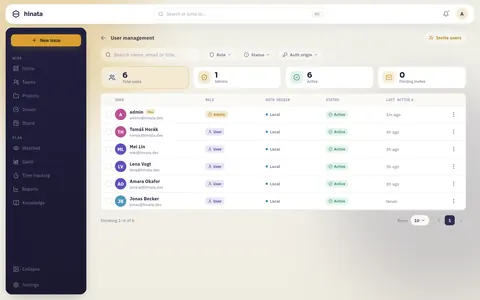
Users
Manage the people on your instance:
- approve pending registrations
- enable or disable accounts
- assign roles: Admin (
ADMIN) and Organization admin (ORG_ADMIN). The two are independent, so a person can hold one, both or neither. Select several people to make them organization admins, or to take the role away, in one go. - change a person's sign-in address
A few rules apply to the roles. You cannot make yourself an organization admin, another administrator has to do that. This is a transparency measure, not a hard barrier: with a second administrator account the role could still be granted. That is why every grant is recorded in the audit log, which cannot be switched off, and every organization admin is notified. The last organization admin cannot be removed, deactivated or deleted. When someone joins the role or leaves it, every organization admin gets a notification.
When you change a person's sign-in address, they are told at their old address. For one day after that, no password reset reaches them, neither from the admin area nor from the public "forgot password" page. That page then quietly sends nothing. That way nobody can quietly take over an account through the new address.
After the update to a version with organization admins, every existing admin is also an organization admin once, so nothing stops working. This is recorded for each person in the audit log, and each of them gets a notification. If you want the roles apart, separate them here on purpose. See Organization.
When self-registration with admin approval is on (see below), new sign-ups wait here until an admin lets them in.
Platform
Three cards: what clients your server accepts, how people sign in, and what this platform offers.
- Minimum version (
minVersion): the version gate. Older clients are forced to update. OverridesHINATA_APP_MIN_VERSION. - Privacy policy URL: the link the app shows. Required for App Store and
Play releases and for GDPR. Overrides
HINATA_PRIVACY_POLICY_URL. - Sign-in: local authentication, self-registration and admin approval.
- Platform behaviour: several people on one issue, replying to an issue by
e-mail, and project templates (copying a project, the template marker and
deadlines kept as an offset from the project's event date). Left off, projects
behave exactly as they do today. That switch has three positions, because
empty means
HINATA_PROJECT_TEMPLATES_ENABLEDdecides. See Project templates. Whether deadlines count calendar days or working days is up to organization admins. - Extended time tracking: here you only see whether it is on. It is set up on the Organization page. If you are an organization admin too, the row takes you there.
These override the environment
Anything under Platform wins over the matching hinata.app.*
environment variable. Env values are only the starting point for a fresh
instance.
Authentication & SSO
Set how people sign in:
- turn local authentication, self-registration and admin approval on or off
- register SSO providers: OpenID Connect, OAuth 2.0, SAML 2.0 and LDAP (Synology SSO, Keycloak, Authentik, Azure AD, Google, …)
Providers are stored in Mongo and apply immediately. See Authentication and Single sign-on.
Git integration
Register one OAuth app per provider (GitHub, GitLab, Bitbucket) so projects can connect their repositories. You enter:
- the client id and secret
- the public API base URL for the OAuth callback and webhooks
- optionally, a secret for encrypting tokens
You set this up once for the whole platform. Projects then connect individual repos in their own settings. See Git integration.
E-mail (mail-to-ticket)
Set up IMAP polling so inbound e-mail becomes issues. This is also stored in Mongo and applies without a restart. You can only route mail into projects you are a member of. See E-mail to ticket.
Audit log
Shows the platform's records: sign-ins, accounts, configuration and integrations.
- Records about working time, timesheets and absences, sick reports included, are not shown here. They are only on the log of the Organization page. Organization admins decide which of them are recorded. You cannot change those switches, and the audit log's master switch does not silence them.
- Records about issues and pages appear without their details, so without issue keys and without page ids.
- Changes to the admin and organization admin roles, and any change of a sign-in address by an administrator, are always recorded. You cannot switch that off.
Where to go next
- Single sign-on: connect an identity provider.
- Git integration: OAuth apps and per-project repos.
- E-mail to ticket: turn inbound mail into issues.
- Authentication: accounts, registration and 2FA.
- Organization: time tracking, absences and deadlines for the whole organization.