Extended time tracking
When your organization admins switch on the extended module, Timesheet in the sidebar becomes Time tracking. Everything about your hours then lives on one page. The basics stay as described in Tracking your time.
The views
At the top of Time tracking you switch between pills:
- List: your entries by day.
- Calendar: a week or a month with your entries as blocks.
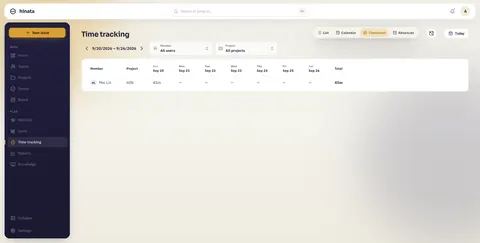
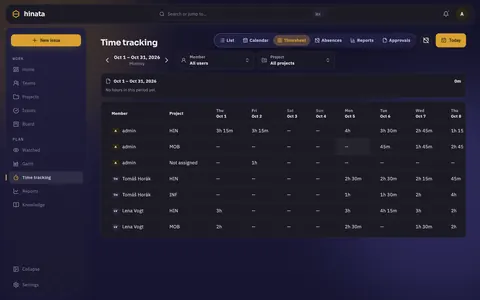
- Timesheet: the grid of days and projects.
- Absences: leave and sickness, see Absences.
- Reports: totals, exports and billing.
- Approvals: only when timesheet approvals are on.
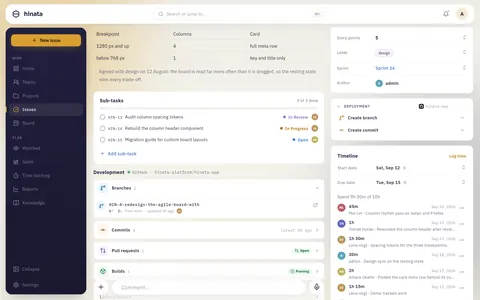
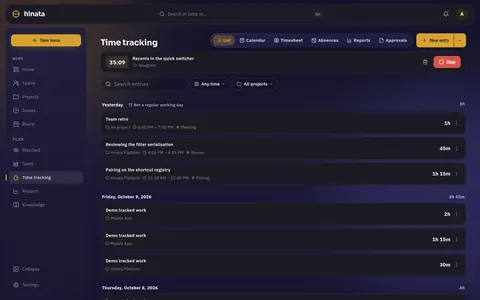
New entry opens the entry editor. In it you either type a duration or a start and an end. You add a description, place the entry on a project or an issue and pick tags. Log time on an issue opens the same editor, already placed on that issue.
The timer
The timer bar sits at the top of the time tracking page. Start runs a stopwatch. The arrow beside it opens Choose how it counts:
- Stopwatch: counts up until you stop.
- Countdown: counts down from 25 minutes by default (1 to 1440 minutes) and stops by itself at zero.
- Pomodoro: 25 minutes of work, 5 minutes break, a long break of 15 minutes after four rounds. The phase does not change on its own. You press Take a break and Back to work. Every work interval becomes its own entry. Breaks are never recorded.
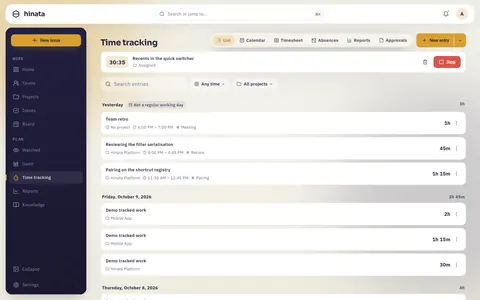
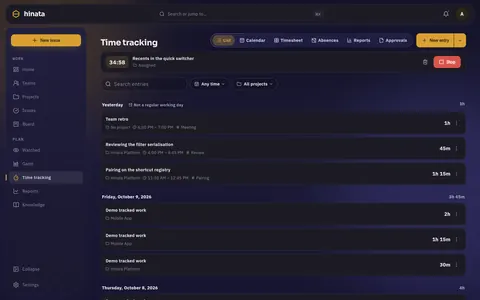
Stop turns the timer into an entry. If your organization requires fields, such as a tag or an issue, the editor opens first. Cancel it and the timer keeps running. Discard timer throws it away without an entry. A timer that runs for 24 hours is cut off there.
You set your own lengths and the sound at the end of an interval under Settings → Time tracking.
Timer outside the app
The app can show the timer outside its window. The card Timer outside the app asks once, and nothing is on until you confirm it:
- a notification when a countdown or Pomodoro interval ends,
- on Android, a quiet notification while the timer runs,
- on the web, a browser notification when the tab is in the background, the running time in the tab title, and a mark on the app icon for the installed web app.
The texts are generic and never name the issue. Your switches stay on this device and are not sent to the server.
Focus mode and shortcuts
Focus mode shows only the running timer and what you are working on. Open it with ⇧⌘F (on Windows and Linux Ctrl+Shift+F). Esc leaves it.
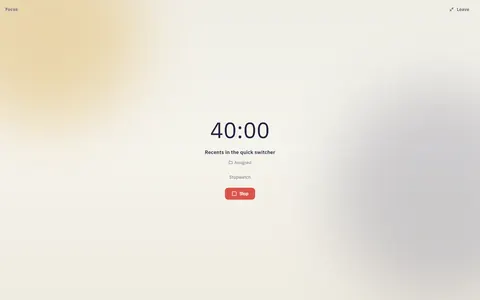
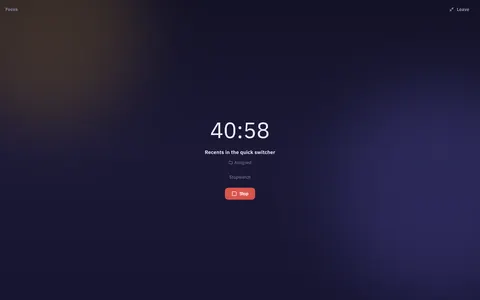
| Shortcut | Action |
|---|---|
| ⇧⌘S | Start or stop the timer |
| ⇧⌘E | Log time |
| ⇧⌘F | Focus mode |
On Windows and Linux use Ctrl instead of ⌘. The ⌘K palette also has commands for time tracking, the timesheet, absences and Ask for time off.
The calendar
Calendar shows a Week or a Month. In the week you draw a block in 15 minute steps to create an entry, and drag a block to move it. A long press or a right click on a day opens the day menu, for example to request an absence for that day.
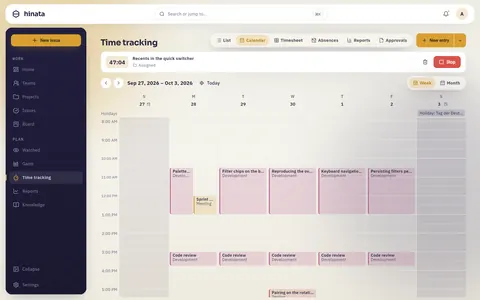
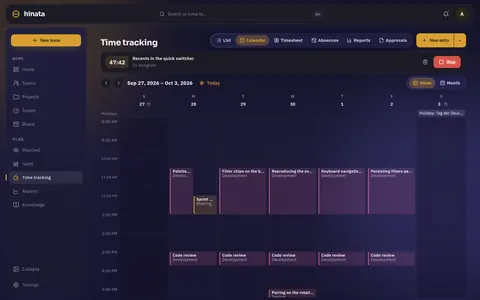
Holidays, absences and days without planned hours are marked lightly. That is no lock. A day that really cannot be changed shows a padlock.
The timesheet
The timesheet here is the same grid as in the basic mode, with more on it:
- In your own row you tap a cell to add or correct time for that day and project.
- Your capacity puts your planned hours, less holidays and absences, next to what you booked. Only you see it.
- With approvals on, the grid follows your approval period and shows its status above it.
Tags
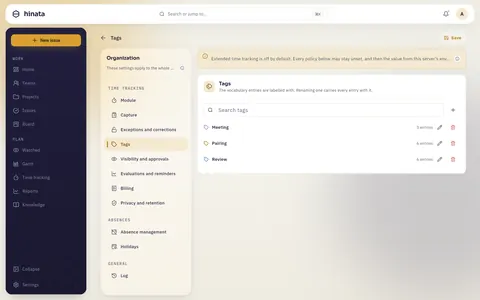
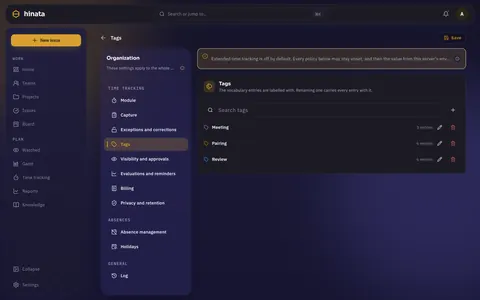
Tags sort your time, for example by client or kind of work. You pick them in the entry editor.
- Everybody can create a tag, unless your organization limits that to organization admins.
- Only organization admins rename or delete tags.
- A name is unique regardless of case and has at most 40 characters.
- Your organization can make a tag required. The editor then tells you before it saves.
History of an entry
History of this entry in the editor shows what other people changed on your entry, with who and when. Your own edits are not listed.
Locked days and corrections
Some days cannot be changed any more. The editor and the list then show a chip with the reason, who can lift it and what you can do:
- Lock date: your organization closed everything before a date.
- Submitted period: the period was handed in or approved.
- Invoice: the entry is on an issued invoice.
- Too far back: the day is older than your organization allows.
What you can do:
- Request a correction asks the people who can lift the lock to change an entry for you.
- Ask for older days asks to open days that are too far back. An organization admin can open them for you, and they close again by themselves after 14 days.
Your open requests are under Settings → Time tracking → Corrections and older days.
Timesheet approvals
If your organization uses approvals, you hand in your timesheet for each period. The period can be weekly, every two weeks, twice a month, monthly (the default), quarterly or set by the organization.
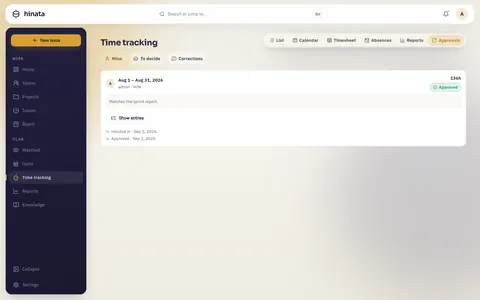
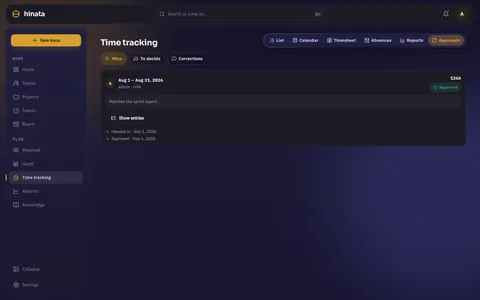
- Hand in period works once the period is over. A period can be at most 92 days.
- Withdraw takes it back while nobody has decided.
- Project leads and organization admins Approve it or Send back with a reason.
- An approved period can be Reopened, again with a reason.
- Nobody approves their own timesheet.
Handed in and approved days are locked for edits. Approvals has three tabs: Mine, To decide and Corrections.
Targets, reminders and hints
If your organization admins allow it, you set a Daily target and a Weekly target under Settings → Time tracking → Reminders. Hinata reminds you when time is missing, on your working days and at the time you pick. Nobody else learns whether or when you were reminded.
Working-time hints point out things like more than 10 hours on a day, a short rest between two days, work on a Sunday or a holiday, or an entry recorded late. Only you see them, and they block nothing.
Calendar subscriptions
If your organization admins switched on calendar import, you can subscribe to your own calendars from Google, Outlook or Apple. Hinata only reads them and never writes back. Only you see your subscriptions.
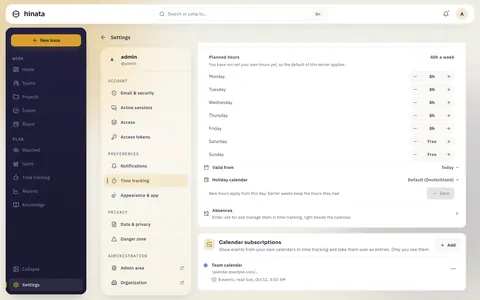
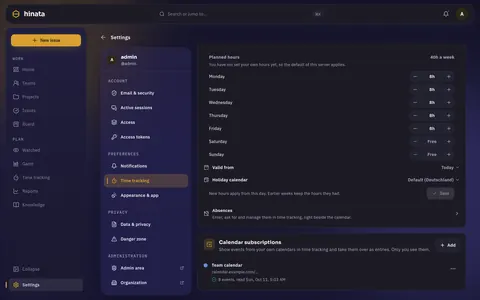
- Open Settings → Time tracking → Calendar subscriptions and tap Add.
- Enter a name, paste the private ICS address (
https://orwebcal://) and pick a colour. - Tap Subscribe.
- Up to 10 calendars. Each is read every 30 minutes, and you can refresh one once a minute.
- After five failed reads in a row a calendar is paused until you resume it.
- Events show with a dashed outline in the calendar, from 30 days back to 90 days ahead. They count towards no total.
- Tap an event to take it over as an entry. An event becomes one entry at most. All-day events cannot be taken over.
- Take over ended events automatically does it for you, with a project and tags you choose.
The address is a key
Whoever knows the address can read the calendar. Hinata stores it encrypted and never shows it again.
Shared entries
When several of you worked together, one person logs it and shares it.
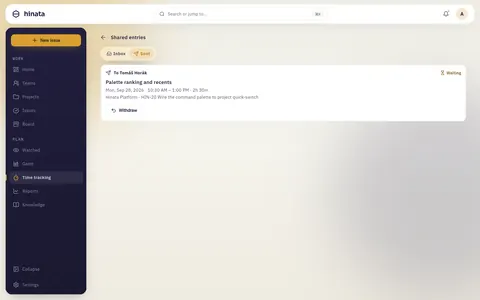
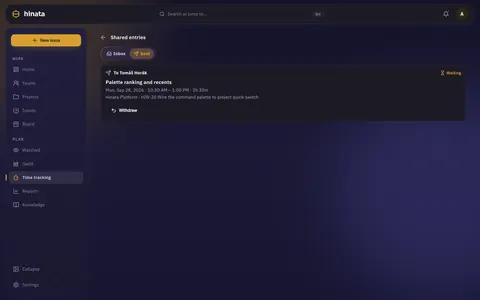
- Open your entry and tap Share with…. Or type + in the description to pick people of the project.
- Choose up to 20 people and tap Send invitations.
The others find the invitation under Shared entries → Inbox:
- Accept adds a copy to their own entries.
- Adjust accepts it with another project or other tags.
- Decline says no. You only see that it was declined, never why.
The copy then belongs to that person. Their lock dates and approvals apply to it. Under Sent you follow your invitations and can withdraw open ones.
Reports, export and import
Reports has six tabs: Summary, Entries, Workload, Absences, Billing and Saved. You pick a period, filters and a grouping by project, person, team, activity, tag, issue, day, week or month.
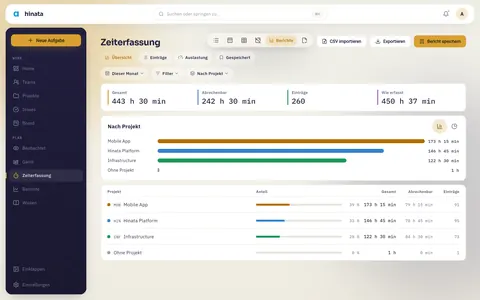
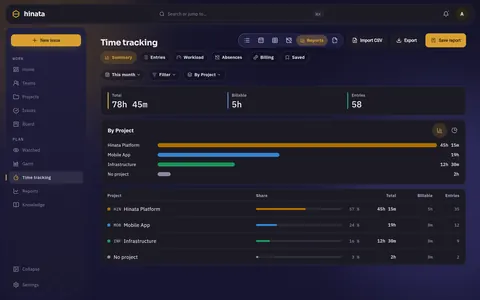
- A report only counts what you may see anyway. Other people's names show only where a policy allows it. See Time tracking: privacy & law.
- Workload compares capacity and booked time per person. It exists only when your organization switched it on, and only for leads and organization admins.
- Export gives PDF (up to 5,000 rows), Excel (up to 50,000) or CSV (up to 100,000), or you print it. Every export goes into the audit log.
- Import CSV brings in your own entries from a file of up to 5 MB and 10,000 rows. Exports from Hinata and toggl are recognised. Every row is checked like a typed entry, and either all valid rows are written or none.
- Save report keeps up to 200 reports. A saved report can get a share link (only signed-in people, each sees their own scope) or go out by mail every week or month to up to 50 people, as a link without attachment.
Billing
With billing switched on, project leads and organization admins price recorded time.
- Rates: a revenue rate for billable entries, set by project leads, and a cost rate that only organization admins see. The most specific rate wins: issue, project member, person, project, team, default. A rate changes from a date.
- Reports in the Billing tab: Billing, Profitability (organization admins only, never per person) and Utilization.
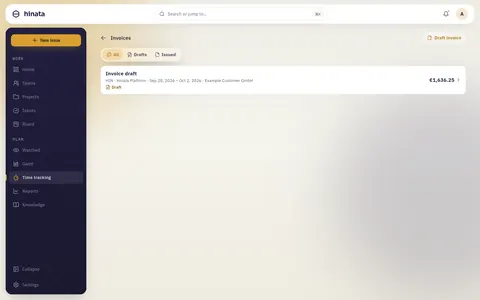
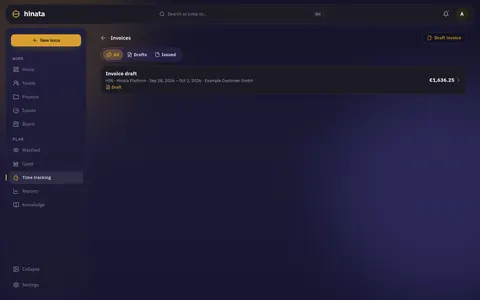
- Invoices: Draft invoice for a project and up to 92 days and 5,000 entries. Issue gives it the next number without gaps, for example
INV-2026-00001, and locks its entries. Write credit note reverses an issued invoice once and frees its entries again. Invoices come as PDF, Word and Excel.
Issued invoices and credit notes are never deleted.
Time tracking through MCP
An AI client connected through MCP can log, list, change and delete your own entries, read your timesheet and summaries, and start, stop or discard your timer. It always acts with your rights and never reads anybody else's time.
Next steps
- Leave and sickness: Absences: leave and sickness.
- For admins: switching it on and setting the rules.
- Who sees what: Time tracking: privacy & law.