On your phone
The phone app is the same app as on the desktop, with all your projects, issues, comments and settings. Only the controls are adapted to touch and small screens.
Getting around
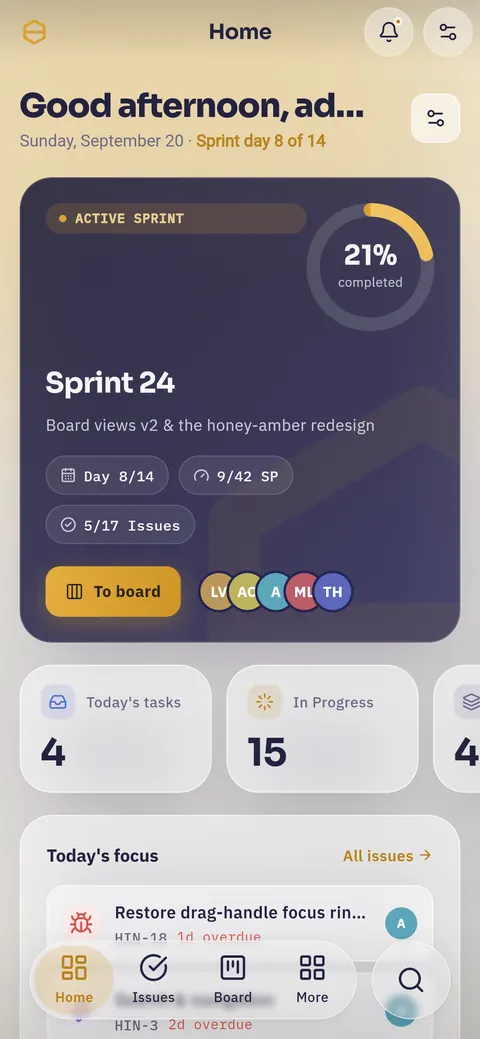
- Four tabs along the bottom on a frosted glass pill: Home, Issues, Board and More.
- A round search button at the bottom right. It opens the same command
palette as
⌘Kon a desktop, for issues, projects, people and pages. - A slim top bar with the page title, the bell and the settings icon.
Both bars are translucent, and content keeps scrolling behind them.
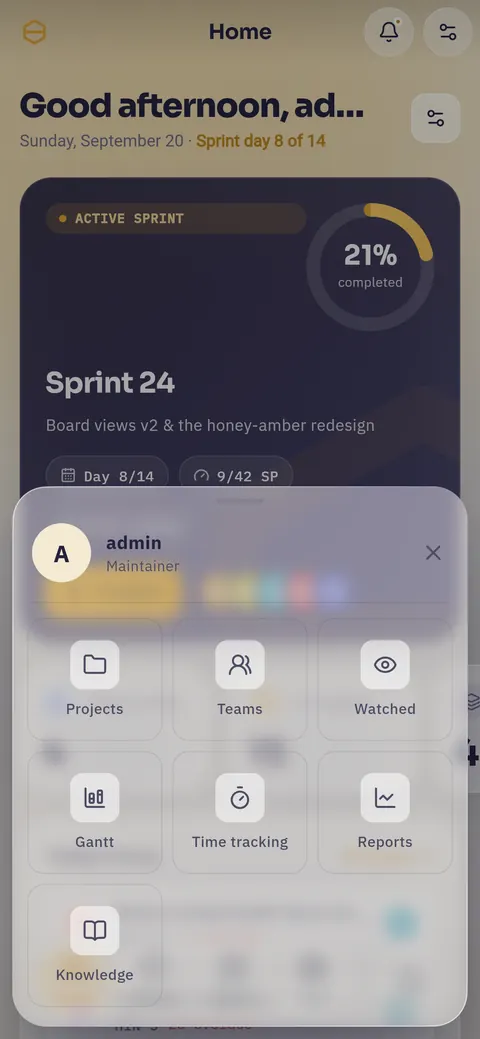
More opens a sheet with "Projects", "Teams", "Watched", "Gantt", "Timesheet", "Reports" and "Knowledge". On those pages More stays lit as the active tab. Notifications is not in the sheet, because the bell is on every screen.
Gestures worth knowing
| Gesture | What it does |
|---|---|
| Swipe in from the left edge | Goes back like the back arrow, including stepping back through settings sections |
| Pull down | Refreshes the page you are on |
| Swipe a notification right | Toggles it between read and unread |
| Swipe a notification left | Deletes it |
| Long-press an issue row | Enters multi-select, so you can act on several at once |
| Long-press a comment | Opens its menu: reply, react, copy link, pin, edit, delete |
The edge swipe only uses a narrow strip on the left. The board, the Gantt chart and the timeline scroll sideways as usual everywhere else.
When the network drops
Hinata has no offline mode. Everything comes live from your server, so you see other people's changes without refreshing.
Without a connection the app shows Could not reach the server. Please check your connection. and does not show stale data. Once you have signal, pull down or navigate on.
Send it before you lose signal
A composer left open does not queue and resend on its own. Send your photo and comment while you still have reception.
The issue list on a phone
Issues appear as cards instead of a table.
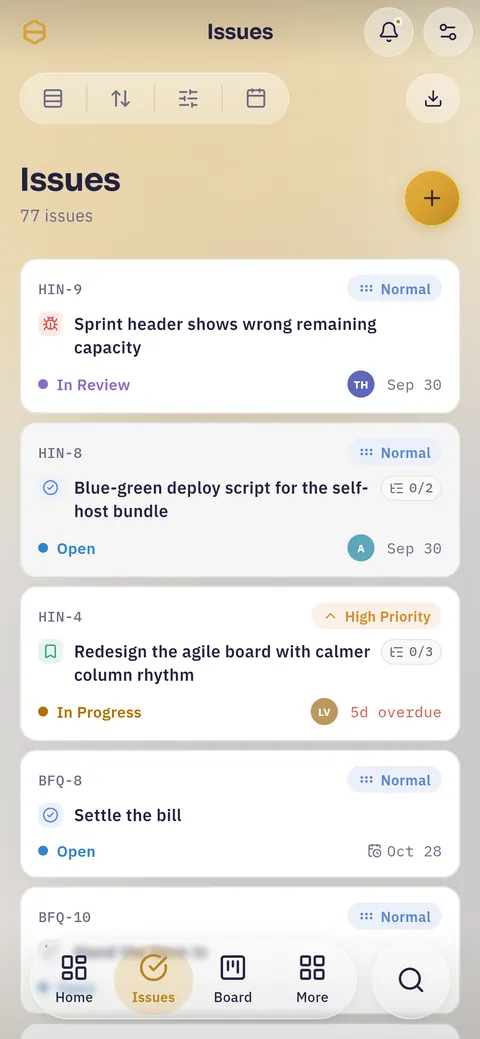
- Grouping, sort, filter and time range sit in one glass bar at the top, with the export button beside it.
- The amber + creates an issue.
- Long-press a card to start selecting, then act on the whole selection at once.
The board on a phone
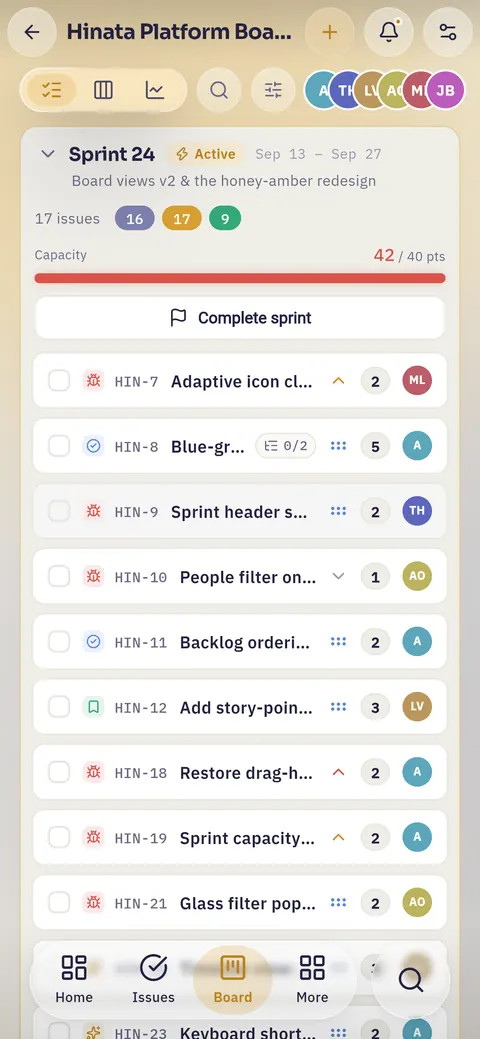
Columns stay 300 points wide, so you see one column at a time. After a flick the board snaps to the nearest column boundary. The view switcher shows icons only and sits on the right.
Cards do not drag on a touch screen
Dragging would fight the board's sideways scroll. To move an issue, open it and change its state.
To plan a sprint, tick the round checkboxes on the rows and tap Move to… in the bar at the bottom. It lists this board's sprints and Backlog.
The ✕ in the bar clears the selection. The add issue button at the foot of each column is always visible, no hover needed.
Working inside an issue
All panels (sub-tasks, linked issues, attachments, details) stack into one scroll. The composer stays docked at the bottom, so replying never means scrolling to the end. Start typing and the microphone becomes the amber send button.
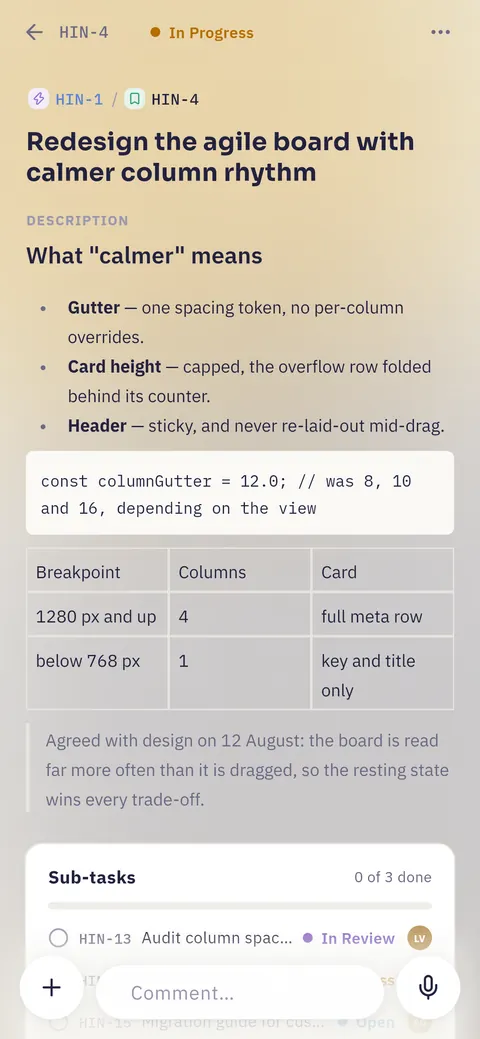
Attaching a photo
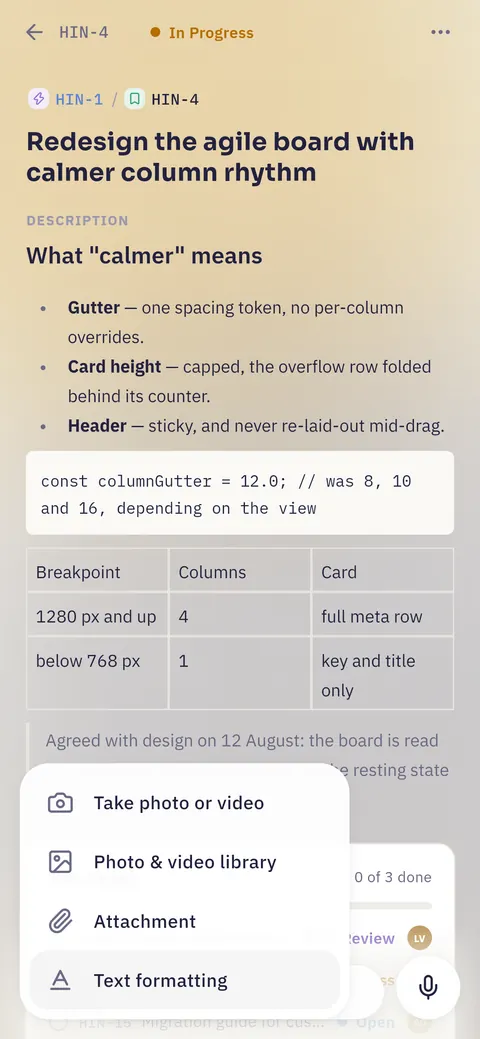
- "+" beside the comment field: "Take photo or video", "Photo & video library", "Attachment" and "Text formatting". The last one formats what you are typing and attaches nothing.
- Add files on the attachments panel: Photo Library for several photos or videos, Take Photo, Record Video, and Choose File for PDFs, documents and archives.
The size limit is shown under the drop area of the attachments panel. If a file is too large, the app names it.
Downloads go through the share sheet
A download opens the system share sheet, for example Save to Files, AirDrop or mail. You choose where the file lands.
Voice comments on the go
Tap the microphone. While recording you see a live waveform, then cancel or send. The comment appears in the thread with the same waveform.
The first recording asks for microphone permission. If you decline, the app tells you the recording needs it.
When voice fits
Voice is handy for quick context. Decisions are better typed, because text is searchable and quotable.
Push notifications
The app asks for notification permission once, the first time you sign in.
Tapping a push opens the exact screen it is about (issue, comment, weekly summary), even if the app was not running. That happens once, so a later relaunch does not take you back there.
Push works on Android, iOS, macOS and Windows. Download has the table per platform.
Your settings belong to your account
Which events may push you is set on your account. A change on your laptop applies to your phone too. See Staying informed.
Several servers, one app
The app has no server address built in and can use several servers, such as work, a club and a test instance. Each server keeps its own sign-in on the device. Signing out of one does not touch the others.
Open Settings → Manage servers.
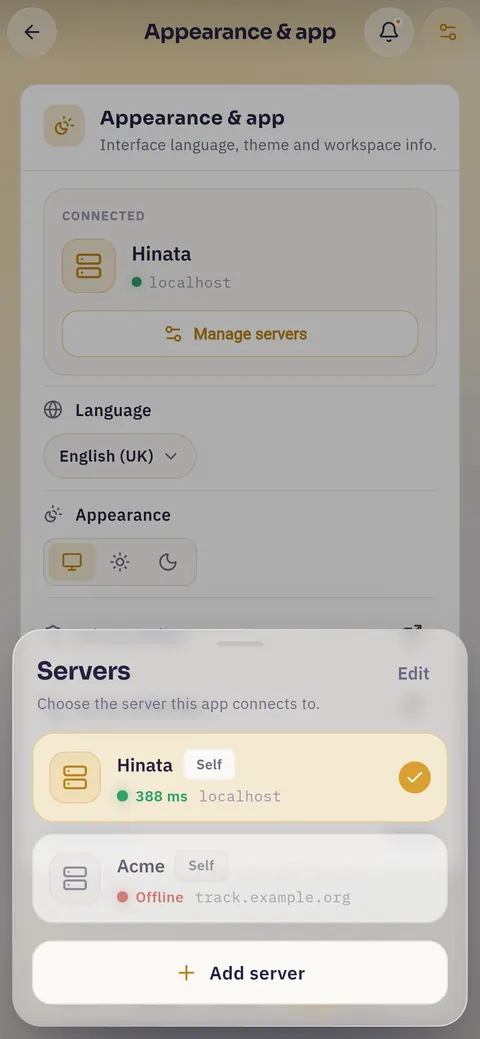
When the sheet opens, each row shows its round trip in milliseconds or "Offline". The check marks the server in use, and "Edit" at the top shows rename and remove controls.
- Switch: the app changes over, with the new server's organisation name and logo.
- Add a server by URL: Hinata tests reachability, TLS and round trip before saving. Only a real Hinata server gets saved.
- Rename one, for example to "work" and "club".
- Remove one: this forgets the saved sign-in on this device. Nothing changes on the server.
Staying signed in
Your sign-in is kept in the Keychain (iOS) or encrypted storage (Android). You stay signed in after a restart. Signing out from Active sessions on another device locks this phone out.
What is still easier on a big screen
- Dragging cards between columns does not exist on touch.
- The Gantt chart and the timesheet grid scroll on a phone, but are easier to read on a laptop.
- Reports show more of a chart with more room.
- Long descriptions are faster to write on a keyboard.
On the go the phone is stronger: attaching photos, dictating context, triaging notifications and moving issues on.
Next steps
- Getting started: signing in and finding your way around.
- Boards & sprints: columns and sprints.
- Comments & attachments: mentions, threads, reactions and voice notes.
- Staying informed: tuning what reaches your phone.
- Download: the app for every platform.