Projects & teams
Everything in Hinata lives inside a project. Teams decide who can see a project.
This keeps, say, a mobile app, a backend service and internal tools cleanly apart. Each project has its own board, workflow, labels and issue numbering. Only the people who should see it can see it.
Projects
A project is a self-contained workspace. Each project has:
- A project key: a short uppercase prefix such as
HIN,MOBorINF. Issues are numbered from it (MOB-42). A number is never reused, so the key stays a stable identifier you can paste anywhere. - Its own workflow states: the columns issues move through (e.g. To Do → In Progress → In Review → Done). States are per project, so a research project and a delivery project can model work differently. See Project settings.
- Reusable labels: colored tags (
frontend,needs-design), defined once and usable on every issue in the project. - Members: the people in the project. They appear in assignee pickers, reports and the board's people filter.
- Git connections: one or more linked repositories (see Git integration).
Pick keys that are easy to type
Keys show up in commit messages, branch names and chat all day (git commit -m "MOB-42 fix crash"). Short, memorable keys pay off.
Creating a project
Open Projects → New project and give it a name and a key. You can change workflow states, labels and members at any time in the project settings without disrupting existing issues. Renames are applied safely across the project.
Teams
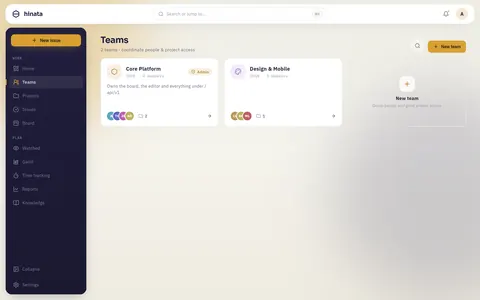
A team is a group of people with access to a defined set of projects. A member only sees the projects their team grants. Someone on the Mobile team sees MOB. They only see INF if a team grants that too.
This check runs workspace-wide: it covers the board, issue lists, search results, reports and even notifications. There is no separate "share" step. Membership is the permission.
How access is enforced
The server checks project visibility on every request (the caller must be a member of the project). The app only shows what the server returns, so access can't be bypassed from the client.
Roles
- Members do the everyday work: create and edit issues, comment, log time, move cards.
- Project leads manage their project: settings, workflow, members, event date and deadlines. Only they may delete a project, connect Git and attach it to another team.
- Team-Admins manage their team and the settings of every project their team owns: name, workflow, members, event date and deadlines, and time settings. Deleting, Git and attaching to another team stay with the project leads.
- Admins reach the Admin area with users, SSO, e-mail-to-ticket, Git OAuth apps and app-wide settings. Admin is a workspace role (
ADMIN), enforced on every/api/v1/admin/**endpoint. Admins only see projects, teams and their content when they are members themselves. - Organization admins (
ORG_ADMIN) manage working time, absences, holidays and billing for everyone. See Organization.
Managing members
Add or remove people from a team or a single project in the team or project settings. Changes take effect immediately. A removed member loses visibility on their next request.
How projects and teams fit together
Team "Mobile"  ──grants──▶  Project MOB  ──contains──▶  issues MOB-1, MOB-2, …
Team "Platform"──grants──▶  Project INF  ──contains──▶  issues INF-1, INF-2, …
        │                        ▲
        └────────also grants─────┘   (a team can grant several projects)
A user can belong to several teams and then sees several projects. A project can be granted by several teams. Model your org however it fits, for example by squad, department or client.
Next steps
- Configure a project's states and labels: Project settings.
- Learn the vocabulary: Core concepts.
- Connect a repository: Git integration.