Comments & attachments
What gets discussed on the issue can still be found two years later. That is why comments, files and voice notes live right on the issue.
Where the conversation lives
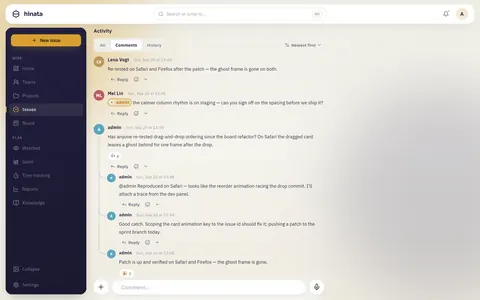
At the bottom of any issue you find the Attachments drop zone and, below it, the Activity section.
- Activity has three tabs: All, Comments and History. An issue opens on Comments.
- On the right, sort by Newest first (to catch up) or Oldest first (to read from the start).
- The composer stays at the bottom of the screen while the feed scrolls behind it.
Write a comment
Click the Comment… field, type, and send.
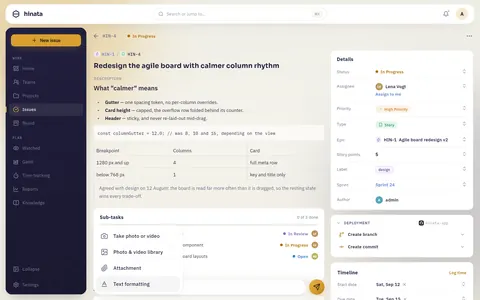
A comment supports everything a description does: headings, bold and italics, lists, task lists, quotes, tables, code blocks with a language, callouts, links and images. Text formatting opens the full editor with an Editor / Preview switch.
⌘↵ sends
On a Mac, ⌘ and Return sends. Everywhere else it is Ctrl and Return. Plain Return gives you a new line.
Not every entry appears on every platform
The camera entry only appears where a camera exists. On Linux it is hidden because webcams are not supported there. See Download for what each platform can do.
Mention someone
Type @ and pick from the menu. A chip lands in your text.
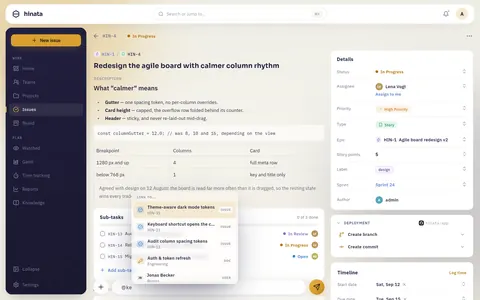
The menu is titled LINK TO…, and each row is labelled ISSUE, DOC or USER. Two letters are enough.
- A person: they get a notification in the app, by e-mail, and as a push if their device supports it. Use this to pull in someone who is not watching the issue.
- An issue: the chip shows its key and current status, live. If the issue moves to Done, the chip shows Done.
- An article: a link into the knowledge base that keeps working after a rename.
Nobody gets pinged twice
A mention beats a reply, and a reply beats the "new comment" notice. Each person gets only the most specific notification. You never notify yourself.
Reply in a thread
Every comment has Reply underneath. The composer shows "Replying to …", and the reply appears indented below.
- Threads are one level deep. A reply to a reply joins the same thread but still quotes the message you answered.
- 3 replies loads the replies, Hide replies folds them away.
- Long threads load in pages with Load more replies.
- The author you reply to is notified, even if they are not watching the issue.
Replies only load when you open them, so even an issue with hundreds of comments opens instantly.
React to a comment
Click the smiley next to Reply and pick an emoji.
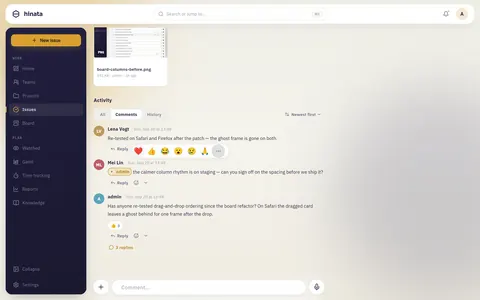
- One reaction per person, per comment. A different emoji replaces yours, the same one again removes it.
- The count shows how many people picked that emoji.
- Anyone in the project can react.
- "👍" on "I'll take this one" saves a separate comment.
Pin what matters
Any project member can Pin a comment from its menu. It then shows up in the Pinned section at the top. Good for summaries, decisions or reproduction steps. Unpin puts it back in the feed.
Edit or delete your own comments
Open the menu: the More chevron on desktop, a long press on touch.
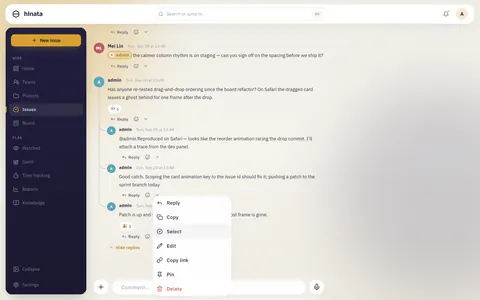
Reply, Copy, Copy link and Pin are available on every comment.
- Edit: only the author can edit. The comment is marked edited. Voice messages cannot be edited.
- Delete: you can always delete your own. For moderation, the project's leads and the Team-Admins of a team that owns the project can delete any comment, currently through the API or MCP rather than the app's menu. Platform admins cannot, unless they hold one of those roles.
- Select: multi-select to delete several of your own comments at once.
Deleting is permanent, and a root comment takes its replies with it
A deleted comment is gone for everyone right away. Deleting a top-level comment also deletes every reply under it, including other people's. A correction posted as a reply is often the better choice.
Copy a comment
Copy puts the text on your clipboard with its formatting. If the comment is only an image, Hinata copies the image itself.
Catching up on a long issue
- Sort oldest first to read the issue from the start. Handy when it was just assigned to you.
- Switch to All to see comments and field changes mixed together.
- Read the Pinned section first. That is usually where decisions are.
Comments load in pages as you scroll. All and History have a Load more button at the end.
Habits that make a thread worth reading
- Mention the person who has to act.
- Reply in the thread instead of starting a new root comment.
- Pin the outcome. Write the decision into one comment and pin it.
- Put lasting information in the description: reproduction steps, agreed scope, API shape.
- Put logs and stack traces in a code block.
- Attach files instead of describing them.
Link straight to a comment
Copy link in the menu copies a permalink to that exact comment. Opening it loads the issue, scrolls to the comment and flashes it briefly. Useful for status reports and e-mails.
Voice comments
Tap the microphone on the right of the composer. Recording starts immediately.
- While recording you see a pulsing dot, a timer and a live waveform.
- The bin on the left discards the recording, the send button on the right posts it.
- The message appears as a bubble with waveform and length and plays right in the thread.
- Reply, react, pin and delete work like any comment. Editing does not.
Voice notes work well when tone matters or typing on a phone would take too long. Write decisions, numbers and lists instead, because audio is not searchable.
The microphone has to be allowed
The first recording asks for permission. If you decline, Hinata tells you. Allow it in your system settings and try again.
Linux needs a few extra packages
On Linux, recording needs parecord and ffmpeg, and playback needs the GStreamer base plugins. If something is missing, the app names the package. Download lists what to install. Other platforms need nothing extra.
Attach files
The Attachments block sits above the discussion.
- Drag files onto it. The zone reads Drop to attach, and letting go starts the upload.
- Click it to open the file picker. On a phone or tablet, Add attachment opens first with Photo Library, Take Photo, Record Video and Choose File.
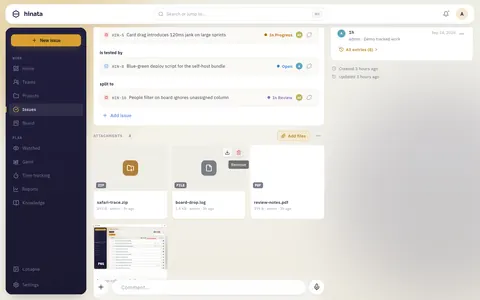
Images get a thumbnail, other files a coloured icon. Hovering a tile shows download and remove buttons.
The zone shows your server's rules, for example "Images, PDFs & text preview inline · any file type · up to 25 MB". Whoever runs the server sets the limits:
| Limit | What it means |
|---|---|
| Size per file | The number printed in the drop zone. A bigger file is rejected before it uploads, naming the file that was too large |
| Files per upload | How many you can add in one go. Drop more and Hinata takes the first batch and tells you |
| Total per upload | The combined size of one selection |
If file types are restricted, a blocked file is refused with "file type not allowed". Everything is stored in your own object storage, nothing goes to a third party. See Object storage.
While the upload runs
- A tile with a progress indicator appears right away. You can keep typing.
- When the upload finishes, the tile becomes the attachment and a short confirmation appears.
- If it fails, the tile shows Upload failed and Retry.
- Several files upload together, each with its own tile.
Inline images vs. attachments
- Inline in the text: the image sits in the description or comment exactly where you put it. It does not appear in the attachments grid.
- In the attachments list: the file belongs to the whole issue, shows in the grid and is included in the archive download.
Rule of thumb: if it illustrates a sentence, put it inline. Attach evidence, documents and logs.
Preview, open and download
Attachments appear as tiles. Images and PDFs show a thumbnail (for a PDF, its first page), everything else a coloured icon.
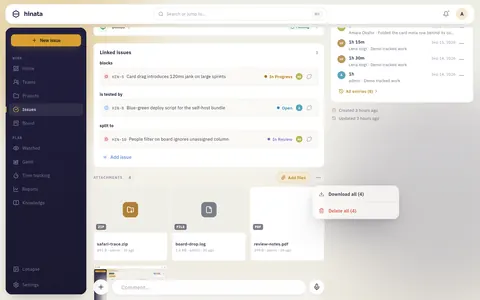
Each tile shows size, uploader and age. Click one to open the full-screen viewer.
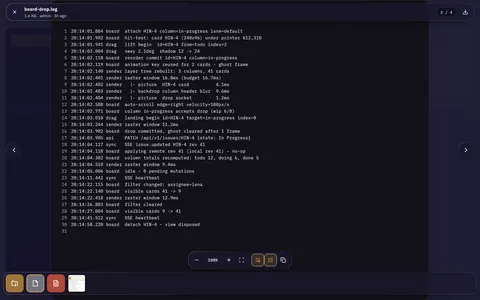
The arrows and the strip at the bottom step through all attachments without going back to the issue.
| File | In the viewer |
|---|---|
| Images (PNG, JPEG, GIF, WebP…) | Full size, zoomable, with a thumbnail in the grid |
| Rendered page by page, the grid thumbnail is page one | |
| Text, code, logs, Markdown, config | Shown as plain text with line numbers, wrapping and copy |
| Office documents, archives, video | A card with the file's name and type, download it to open it |
Text files over a couple of megabytes are not shown in the viewer. It points you to the download instead.
Where a download goes:
- iOS, Android, macOS, Windows: the share sheet opens and you choose the destination.
- Linux: the file goes to your Downloads folder and the app names it.
- Web: your browser takes over.
Removing a file removes it for everyone
Remove permanently deletes the attachment from the issue and from storage, for everyone. Files have no archive step.
Who can see a file
Attachments follow the issue. Anyone who can open the issue can preview and download its files. There is no separate sharing setting.
There are no public links either. Every request goes through your server, which checks your access to the issue. Files are stored under names that cannot be guessed in your organization's storage. A copied URL will not work outside the project. Send the issue link instead and give the person project access.
That includes voice messages
Voice messages are audio files in the same storage. Deleting the comment deletes the recording too.
Everything updates live
New comments, edits, reactions, deletions and attachment changes appear right away, no refresh needed. If someone removes a file, it can disappear just as you are about to open it.
Replying by e-mail
If your server turns inbound e-mail into issues, those issues get a Reply by email entry in the … menu. Your answer then goes to the original sender. Whether this exists depends on the server configuration, see E-mail to ticket.
When a thread gets too loud
- Stop watching the issue (… menu → Watch). As assignee or reporter you still get notified.
- Turn down Comments on my issues or Watched issues in your notification settings, per channel (in-app, e-mail, push).
- Leave Mentions & replies on. They only fire when someone addresses you directly.
The switches are in Your account. Staying informed explains them.
On a phone
- The composer sticks to the bottom and moves above the keyboard as you type.
- Open a comment's menu with a long press.
- + offers camera and photo library first.
- Downloads go through the share sheet.
More in On your phone.
Related pages
- Working with issues: fields, hierarchy, links, cloning, archiving and export.
- Staying informed: what mentions, replies and changes send you, and how to turn it down.
- Writing documentation: when a discussion should become an article.
- On your phone: composer, picker and viewer on a small screen.
- Download: what each platform can do, including the Linux audio packages.