Working with issues
Almost everything in Hinata happens on an issue: a bug, a feature, an epic, a small chore. The board, the timeline and the reports show the same issues in different ways.
What an issue is
An issue is one piece of work with a title, a status and comments. It belongs to exactly one project and carries that project's key plus a number, such as HIN-42 or WEB-7.
The key never changes
Each number is handed out once, even if the issue is deleted. Only a move to another project gives it a new key, and the old one stops resolving.
Create an issue
Every way in opens the same form:
- The amber New issue button at the top of the navy sidebar (on every page)
- The New issue button in the top right of the Issues page
- ⌘K (Ctrl+K on Windows and Linux), type "new", pick Create new issue
- Add sub-task or Add child issue on an open issue. The new one is attached right away.
- On the board: the input at the bottom of a column. The issue gets that column's status.
What the fields mean
Only project and title are required.
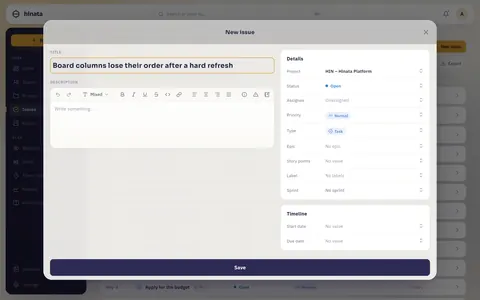
| Field | What it does |
|---|---|
| Project | Decides the key, statuses and labels. You only see projects you are a member of. |
| Title | One clear line for lists, cards and search. |
| Description | What, why, when it is done. See Writing with the editor. |
| Status | The board column, from the project's workflow. |
| Assignee | Who does the work. Empty: Unassigned. The detail view has Assign to me. |
| Priority | Showstopper, Critical, High Priority, Normal, Minor or Very Low. Default: Normal. |
| Type | Epic, Story, Task, Bug, Feature or Sub-task, see Choosing a type. |
| Story points | Size, not hours. Feeds sprint capacity and velocity. |
| Label | Coloured tags such as frontend, needs-design, regression. Create new ones in the picker. |
| Sprint | Empty means backlog. |
| Epic / Parent | The issue one level up ("Parent" on sub-tasks). |
| Start date / Due date | The bar on the timeline. A past due date shows red in lists. |
A deadline that follows the project's date
Where the instance runs project templates, both date fields have a second mode: instead of a fixed day, an offset from the project's date — "4 weeks before", say. The date it works out to stands right beside it.
Calendar days are preselected. Working days skip weekends and, where the project has a holiday calendar selected, its public holidays; without such a calendar a holiday counts as a working day.
In lists and on board cards the deadline stays a date, with a small clock glyph saying that it hangs off the project's date. Pick a day by hand and the offset is dropped, so the next change to the project date leaves it alone.
Titles you can find again
Instead of "Login broken", write "Login fails with 500 when the e-mail contains a plus sign".
Choosing a type
The type decides icon, colour and level:
Epic
└─ Story · Task · Bug · Feature
   └─ Sub-task
| Type | Use it for | Sits |
|---|---|---|
| Epic | A theme across many sprints | Top |
| Story | Value from the user's side | Middle, can hold sub-tasks |
| Task | Work that is not user facing, such as a migration | Middle |
| Bug | Something is broken | Middle |
| Feature | A new capability | Middle |
| Sub-task | One step inside a middle issue | Bottom, always has a parent |
Rule of thumb: if it moves through the workflow on its own, it is middle level. If it only makes sense as part of something, it is a sub-task. If it is too big to finish, it is an epic.
Sub-tasks travel with their parent
Archiving or restoring the parent does the same to its sub-tasks. So don't use them for work you want to prioritise separately.
Building the hierarchy
- From below: set Epic in the details column (Parent on sub-tasks). The picker shows recent epics first.
- From above: Add child issue on an epic or Add sub-task on a story.
- Detaching: pick No epic. The child stays as its own issue.
The Sub-tasks card and a badge in lists show progress, such as "3 of 7 done". The board can group swimlanes by epic or filter to one epic.
Finding the issue you want
The Issues page lists every issue you can see. The count under the heading shows how many are in view.
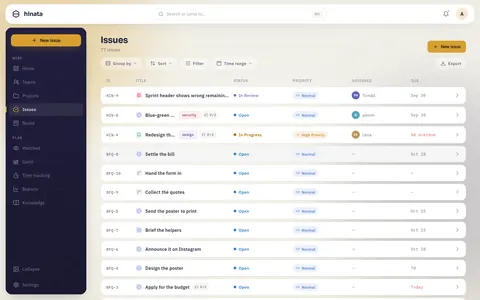
0/1 badge counts finished sub-tasks, red dates are overdue.
- Group by: None, Status, Priority, Assignee, Project or Type
- Sort: newest, oldest or last modified
- Filter: five multi-select facets, plus the Archived switch
- Time range: Overdue, Due by today, This week, Next 7 days, a custom range and more
- Export: the whole filtered result set as PDF, CSV or JSON
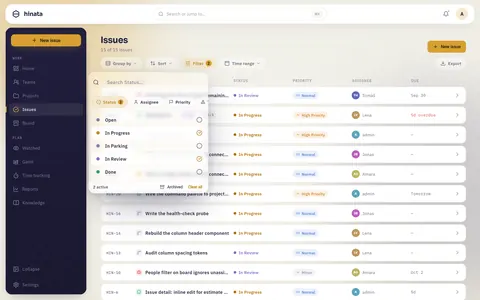
For a specific issue, the command palette is faster.
Selecting several issues and setting one deadline
In the list you can select several issues and give them all the same deadline in one step.
- On a phone, press and hold an issue. The first time, a short tip above the list explains this.
- On wider windows, tap the round select button next to New issue. The same button ends the selection.
- Select all selects the rows that are loaded right now, not every match of the filter.
Then Set deadline lets you pick a date or remove the deadline from all of them. This works for up to 100 issues at a time. With project templates on and all selected issues in one project, you can also set the deadline as an offset from that project's event date. Issues from several projects only take a fixed date, because each project has its own event date.
The change applies to all of them or to none: if you may not edit one of the issues, none of them changes.
The issue in detail
Content on the left, facts on the right.
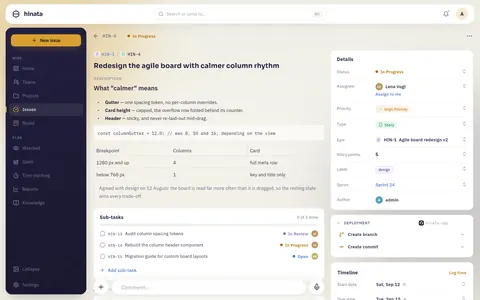
The top bar
Back arrow, key and status.
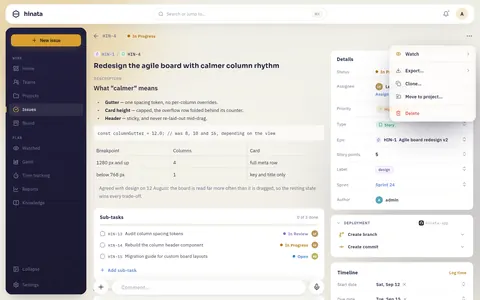
The main column
- Title and Description: double-tap (double-click) to edit
- Sub-tasks (Child issues on epics): with progress and a field to add more
- Linked issues: see Linking issues
- Attachments: see Comments & attachments
- Activity: the tabs All, Comments and History
The details column
Click a value to open a picker for Status, Assignee (with Assign to me), Priority, Type, Epic or Parent, Story points, Label and Sprint. Only Author is fixed.
The Timeline card holds Start date, Due date, Log time and, once work is logged, a line such as "Spent 1h 30m of 4h" (see Tracking your time). At the bottom it says "Created 3 days ago" or "Updated …".
Deployment card only with a repo
If the project is linked to GitHub, GitLab or Bitbucket, Deployment shows branches, commits and pull requests that mention the key, plus shortcuts for a branch name or commit message. A project lead connects it, see Git integration.
Editing an issue
- Fields on the right save immediately. Dragging a card into another board column changes the status.
- Title and description: double-tap, edit, Save or Cancel.
Other people's changes appear live, without a refresh and without overwriting anything.
Watchers hear about it
Field changes notify watchers, the assignee and the reporter. See Staying informed.
Reading the activity trail
- All: comments and changes together, good for catching up
- Comments: only what people wrote, the default tab
- History: only changes such as "changed the status", with who and when
Hinata writes the history automatically and nobody can edit it.
A comment can be deleted by its author, by the project's leads and by the Team-Admins of a team that owns the project. Platform admins can only do it if they hold one of those roles. See Comments & attachments.
Share a link to an issue
Click the key in the top bar (HIN-42) to copy a link. A green tick confirms it. The link opens the app if installed, otherwise the browser. Recipients need an account on your server and access to the project.
Writing with the editor
The description and comments share one editor. The toolbar has Text style (Body text, Heading 1 to 3), Bold, Italic, Underline, Strikethrough, Inline code, Bullet list, Numbered list, Task list, Quote, Link, Code block (with a language picker), Table, Divider, Insert image, Info panel, Warning, Note, Tip and undo/redo.
@searches issues, knowledge base articles and people. An issue becomes a chip that follows renames and status live. A person gets notified.- Images can be pasted or inserted and upload to your server. On mobile, + offers camera and photo library.
Markdown shortcuts
A dash at line start for a bullet, 1. for a numbered list, # for a heading, backticks for inline code.
Linking issues to each other
In the Linked issues card: Add issue, pick one of thirteen relationships on the left, type a title, key or URL on the right (several allowed), then Link.
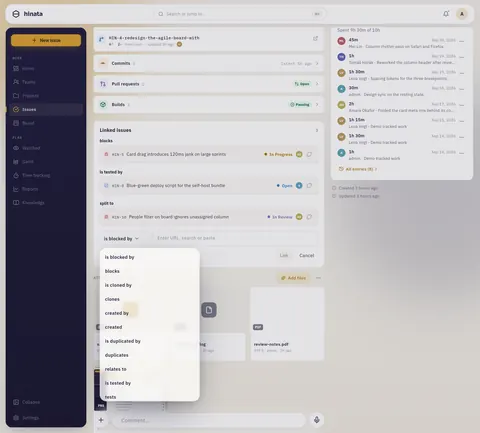
| Relationship | Reads as | Use it when |
|---|---|---|
| is blocked by / blocks | "HIN-42 is blocked by HIN-40" | Work cannot start until the other is done |
| duplicates / is duplicated by | "HIN-42 duplicates HIN-11" | Reported twice |
| relates to | Same from both ends | Loosely connected, no dependency |
| clones / is cloned by | Set automatically by cloning | Copy and original |
| tests / is tested by | "HIN-90 tests HIN-42" | Test or QA for a piece of work |
| split to / split from | "HIN-42 split to HIN-55" | Too big, split into several |
| created / created by | Provenance | One piece of work produced another |
The other issue shows the opposite direction immediately, live.
!!! info "Only blocks affects scheduling" Only blocks is drawn on the timeline as an arrow and counts for the critical path. The others never move a date.
Watching an issue
… → Watch. You get comments and changes until you turn it off. The popover lists all watchers. Assignee and reporter are notified anyway, and the popover tells them so. Everything you watch is on the Watched page.
Cloning an issue
… → Clone copies the issue into the same project, for example as a template.
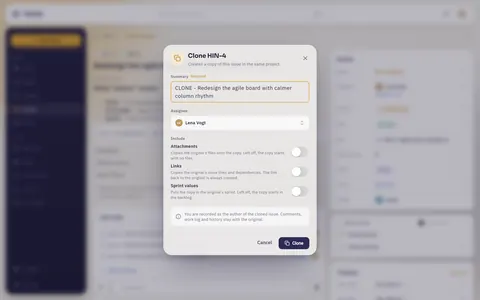
- Attachments are copied as separate files.
- A clones link to the original is always created, and you are the author.
- Comments, work logs and history stay with the original.
Moving an issue to another project
… → Move to project…: pick the target project, then map the statuses. Hinata pre-matches what it can and shows consequences and new keys.
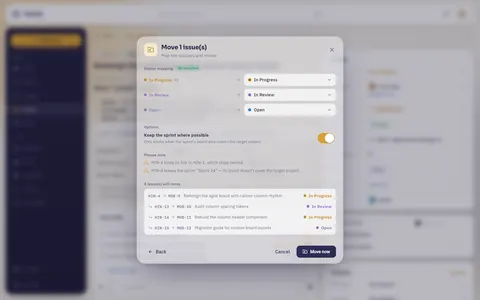
The old key stops resolving.
Restore an archived issue before moving it
The move entry is disabled for archived issues.
Archiving and deleting
Archiving is open to every project member. The issue leaves lists, boards, sprints and search but stays intact. The Archived filter finds it, Restore brings it back. Sub-tasks of a story, task, bug or feature go along.
Deleting is only for project leads and admins of a team that owns the project. Platform admins may only do it when they hold one of those roles. Everyone else only sees Archive. If you can delete, the dialog offers both, with Delete in red.
Deleting cannot be undone
Comments, work logs, links and history go with it. For a story, task, bug or feature, sub-tasks too. For an epic, children stay as ordinary issues and only lose the link. When in doubt, archive.
Exporting or printing one issue
… → Export… offers Print, Export as PDF, Export as Excel, Export as Word and Export as XML.
- The server renders everything, so the layout is the same on every device. Print uses the same PDF.
- Included: fields, description, comments, linked issues, list of attachments, change history.
- Excel has two sheets (fields and comments), XML is machine readable.
- iOS, Android, macOS and Windows open the share sheet. Linux saves to your Downloads folder and shows the file name. On the web, the browser takes it.
Exporting a whole list instead
Export on the Issues page exports the current list with filters and grouping as PDF, CSV or JSON.
Related pages
- Boards & sprints: workflow, sprints, backlog
- Comments & attachments: conversation, files, voice notes
- Timeline & dependencies: dates and blocks on the chart
- Tracking your time: logging work, timesheets
- Staying informed: who gets told what
- Finding things: ⌘K palette, saved filters and search syntax