Planning shifts
Shift planning organises events such as a trade fair stand, a club party or a duty roster. An event has shifts, and each shift needs a number of people. Helpers sign up themselves, planners assign. This page shows both, step by step. Background and operations are on the Shift planning page.
Switch it on first
Shift planning is off by default. Without it, Shifts is missing from the sidebar. How an admin switches it on is below.
My shifts
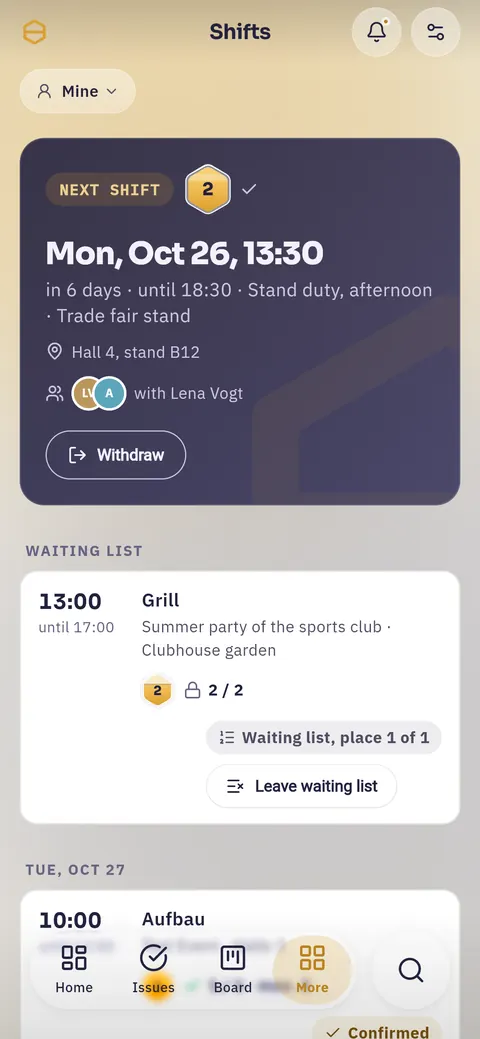
Open Shifts in the sidebar, on a phone under More. You land on Mine.
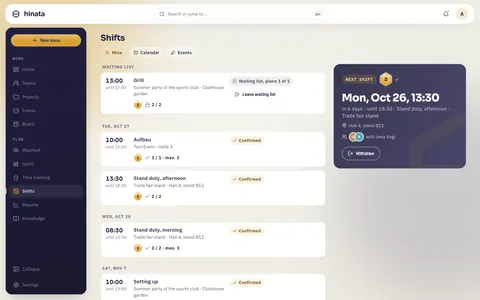
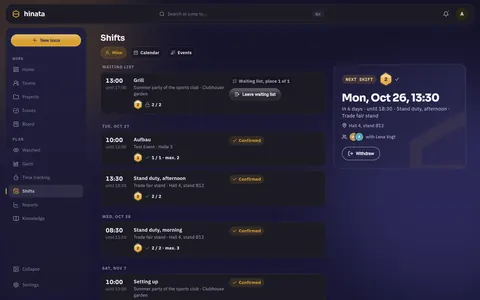
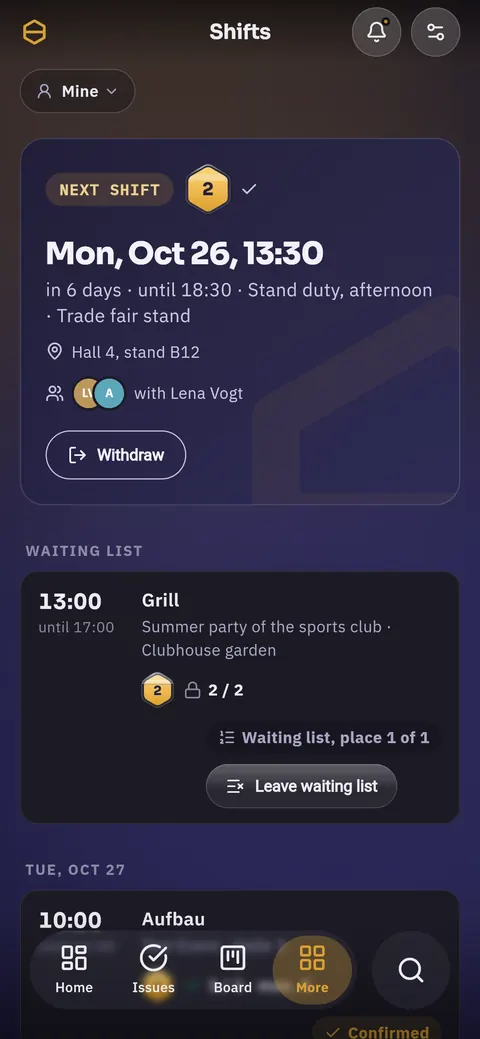
- The Next shift card shows day, time, place and who is there with you.
- Below are your shifts by day, then open shifts that still need people.
- The honeycomb shows how full a shift is. Next to it are the number and a sign: a triangle means someone is missing, a tick means it is staffed, a lock means it is full.
Signing up and withdrawing
- Open Events and then an event, or tap an open shift directly.
- Tap Sign up on a shift.
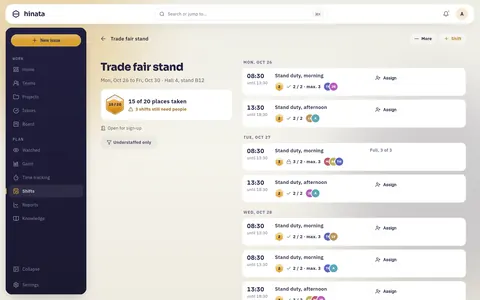
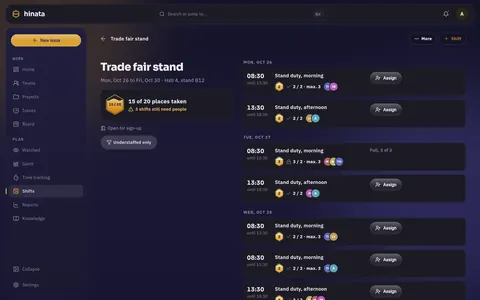
Tapping a shift opens its sheet with time, place and the people on it.
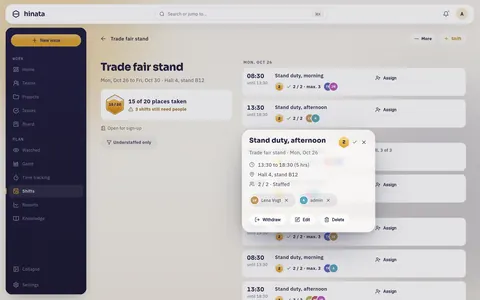
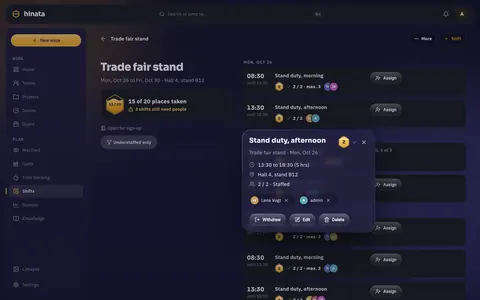
If you cannot make it after all, choose Withdraw. Hinata asks once, then your place is free again.
Not in two places at once
If a shift overlaps one you are already on, Hinata refuses the sign-up. This holds across projects too.
Joining the waiting list
When a shift is full, it offers Join waiting list.
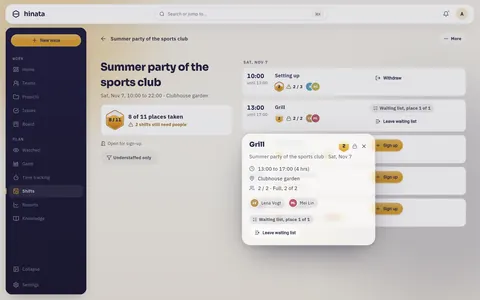
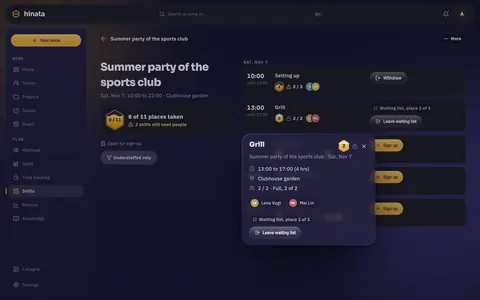
- When a place frees up, you move up automatically and get a notification.
- Mine then says A place opened up for you, please confirm by …. Tap Confirm.
- Leave waiting list takes you off again.
Being assigned
When a planner assigns you, the shift appears as Assigned in your list. Confirm accepts it, Decline gives the place back.
The calendar
Calendar shows every shift of your projects as a week or a month.
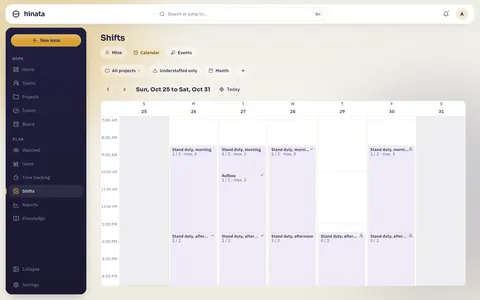
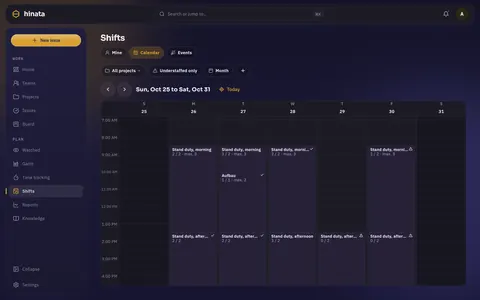
- All projects filters to one project.
- Understaffed only shows only shifts that still need people.
- Month switches to the month. A dot means your own shift, a ring means understaffed.
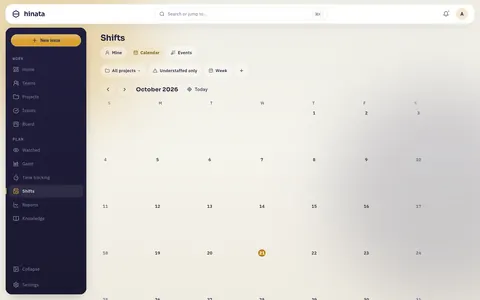
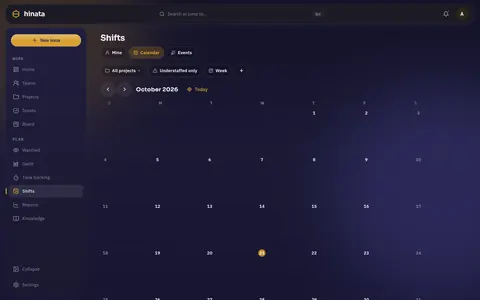
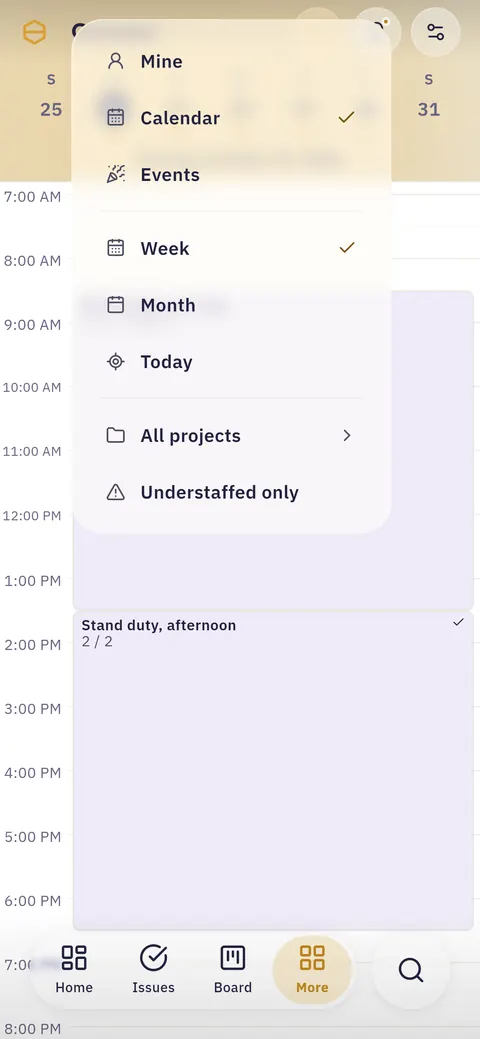
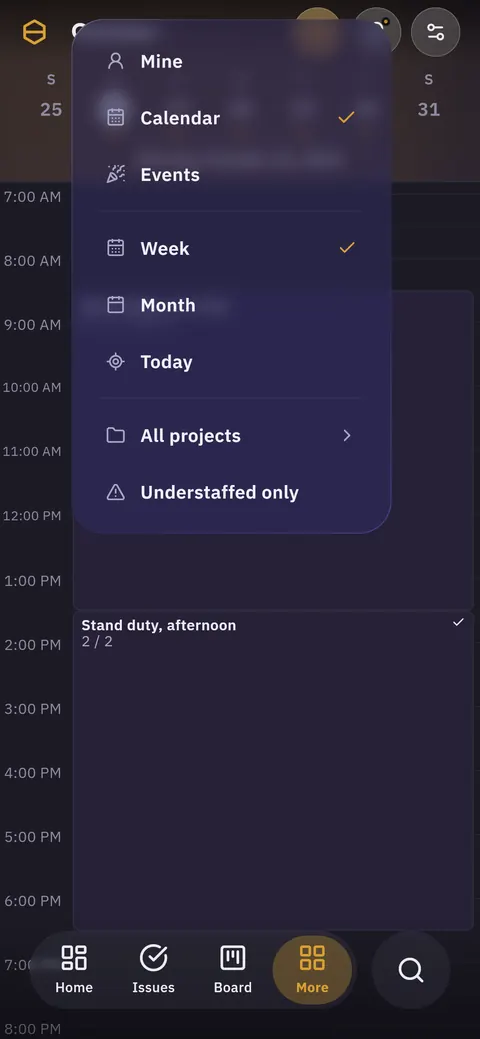
On a phone the calendar shows one day with the week strip above it. The month name at the top opens the menu with view, week or month, today and the filters.
For planners
Project leads and team admins can plan, and so can everyone listed as a planner in the project.
Creating an event
- Open Events and tap + Event.
- Choose the Project, enter Name, Start, End and Place.
- Tap Create.
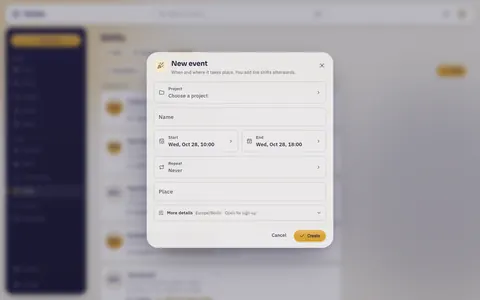
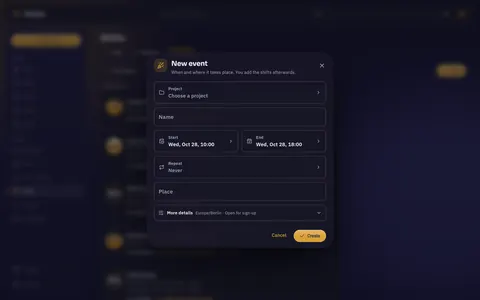
More details holds the time zone and the switch Members may sign up. When it is off, only planners assign.
Series
For an event that repeats, choose Daily, Weekly, Monthly or Custom rule under Repeat.
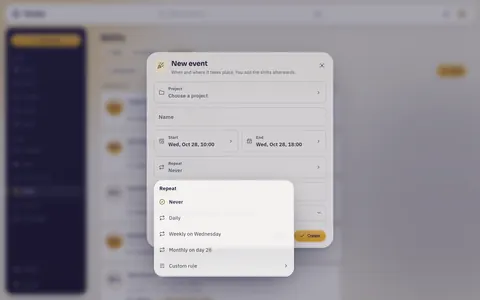
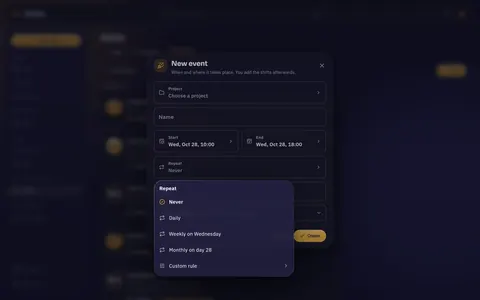
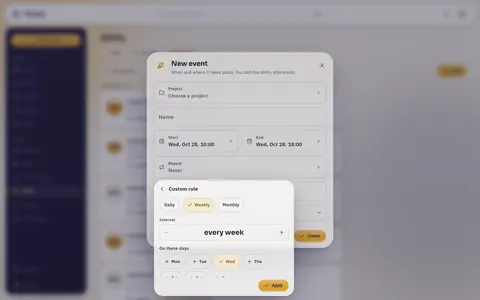
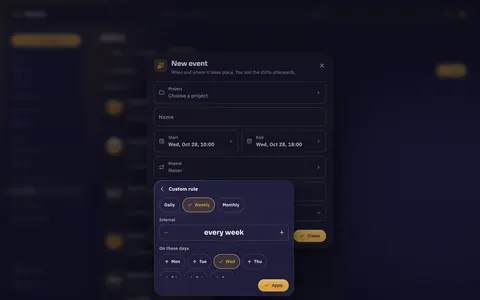
Start and end are for one occurrence
In a series, start and end are the times of a single occurrence, for example Tuesday 10:00 to 18:00. When the series stops is set under Custom rule at End. A single occurrence lasts at most 14 days.
When you later change an occurrence, Hinata asks: Only this one or All future ones.
Adding shifts
On an event's page, + Shift adds a shift. The calendar is quicker:
- Open Calendar in the week.
- Drag with the mouse across the time the shift should last. On a phone, press and hold, then drag.
- When you let go, the editor opens with exactly that time in the right event.
- Enter a name, choose Needed and, if you like, an Upper limit, then Save.
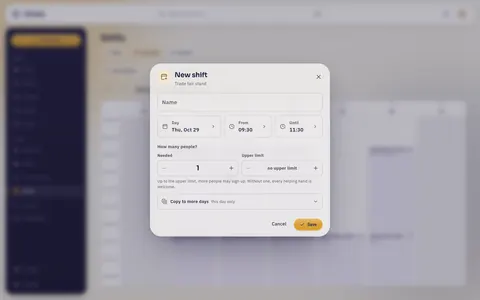
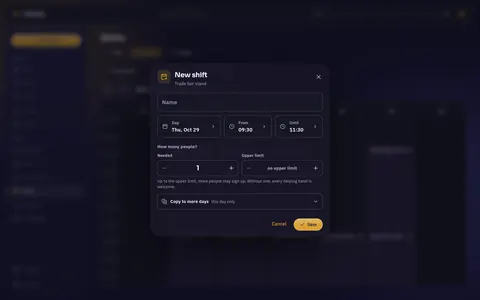
If several events cover the span, Hinata asks which one. If none does, it offers New event at this time.
Without dragging, use + in the calendar: New event or Add shift.
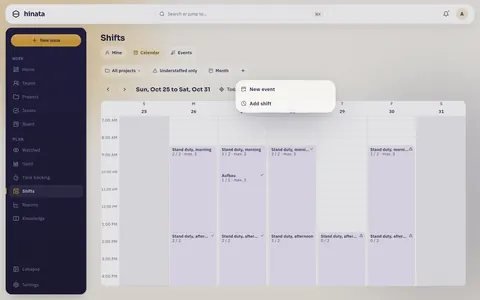
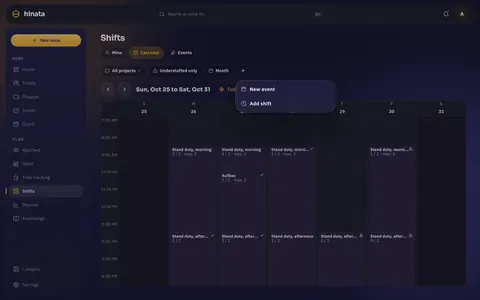
Copy to more days in the editor adds the same shift to several days at once.
Assigning and taking people off
- Tap Assign on a shift.
- Search for the person and tap them. Sign me up is at the top.
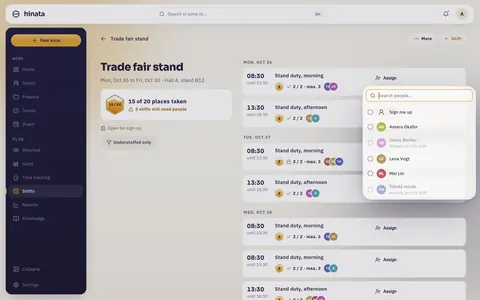
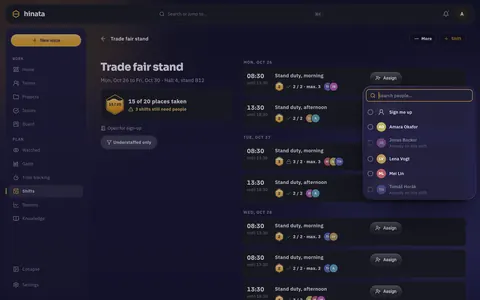
In a shift's sheet, the x next to a name takes the person off. A place that frees up goes to the first person on the waiting list automatically.
Moving, cancelling, deleting
- In the calendar, drag a block somewhere else. Hinata asks once.
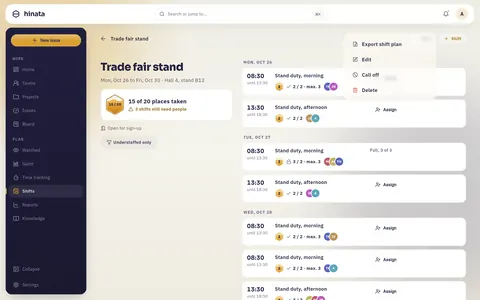
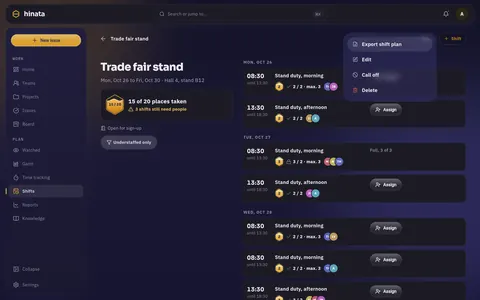
- More on an event's page offers Edit, Cancel and Delete.
Exporting the shift plan
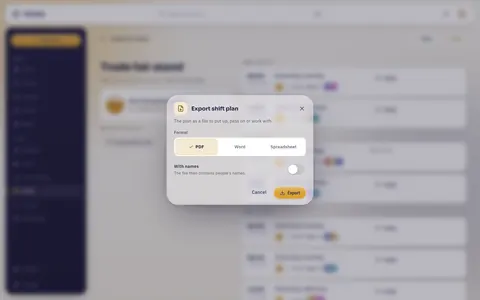
- On an event's page tap More, then Export shift plan.
- Choose PDF, Word or Spreadsheet.
- With names puts people's names in the file. Only planners see this switch.

Naming planners
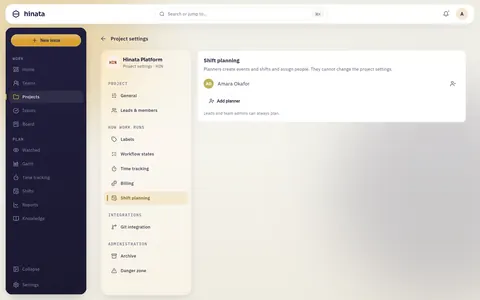
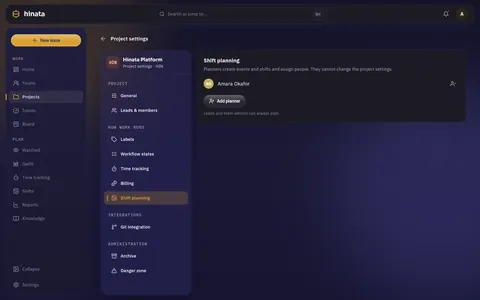
A project lead names planners in the Project settings under Shift planning with Add planner.
Shifts in your own calendar
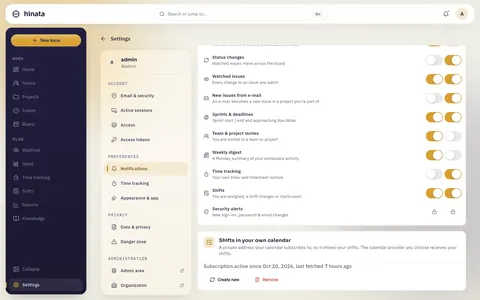
Your shifts can show up in Apple Calendar, Google Calendar or Outlook.
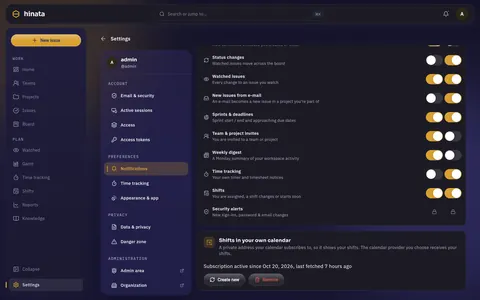
- Open Settings, then Notifications, at the bottom Shifts in your own calendar.
- Tap Create subscription address.
- Tap Open in calendar or copy the address into your calendar.
Apple Calendar
When subscribing, choose On My Mac as the location if your Hinata is only reachable on your own network. With iCloud, Apple fetches the address from outside.
The address is shown only once. The subscription holds only your own shifts.
For admins: switching it on
- Open Admin, then Platform.
- Switch on Shift planning.
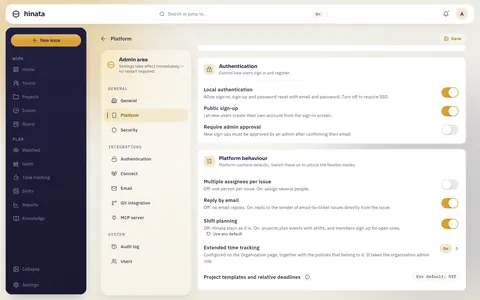
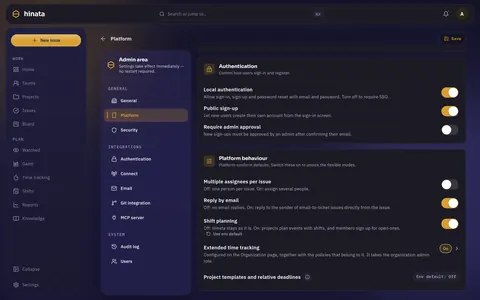
Shift planning needs MongoDB as a replica set. Without one, a note takes the place of the switch. More on the Shift planning page.