Tracking your time
You log a duration on an issue and pick the kind of work. Your timesheet, the focus time on your home screen and the effort breakdown in reports are built from those entries.
Log time on an issue
- Open the issue and find the Timeline card. On a wide window it sits on the right under Details, on a phone further down.
- Tap Log time in the top right corner of the card.
- Enter the duration and press Save.
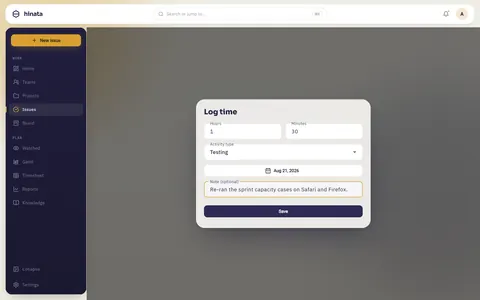
Only the duration is required, the note is optional. After saving, the issue's spent total goes up, the entry appears on the card and your timesheet counts it.
Type a duration fast
Hours starts at 1, Minutes at 0. For an hour and a half, type 30 into Minutes. For 20 minutes, set Hours to 0 and Minutes to 20. The boxes only accept digits.
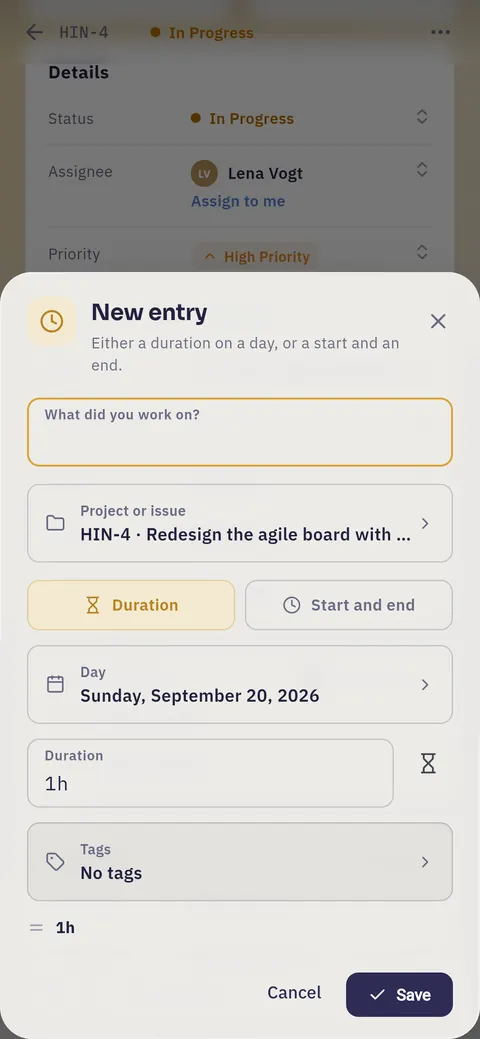
What you can and cannot enter
- An entry is at least one minute and at most 24 hours. Split work across midnight over the two days.
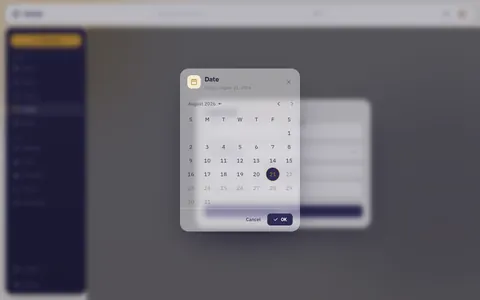
- You can back-date up to a year, but you cannot log time in the future. Plans belong in start and due dates.
- Several entries on the same issue and day are normal and add up.
The entry list
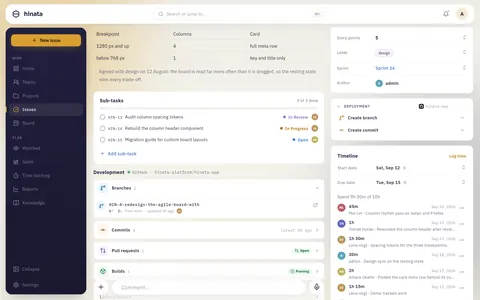
Each row shows duration · activity type, with the date on the right. The list holds everyone's entries.
- On other people's entries you only see duration and activity type.
- Name and note show on your own entries. Project leads see them too and can correct entries.
Why a colleague's entry has no name on it
A name and a day on every entry would create a record of who worked how long on which day. That kind of reading of employee data has to be introduced deliberately, with a works agreement where one applies. An operator policy that opens it up to project leads is planned. Until then the rule is the same for everyone.
All entries (24) below the list opens the whole history with the total logged so far. More entries load as you scroll.
Pick the right activity type
There are six fixed activity types, so they mean the same to everyone and the numbers add up.
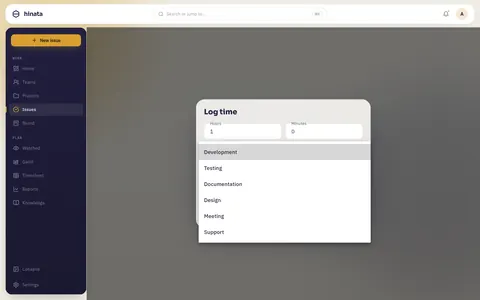
- Development: writing and changing the thing itself.
- Testing: verifying it, manually or by building tests.
- Documentation: writing it down, in the knowledge base or anywhere else.
- Design: deciding what it should look like or how it should behave.
- Meeting: time with other people about this issue.
- Support: helping someone else use the thing or get unblocked.
The type powers the Time per activity report, which is only accurate if everyone logs meetings as meetings. In the German app the types read Entwicklung, Testen and so on. Underneath is the same value, so reports count across languages.
Estimate, spent, and the difference between them
The Timeline card shows a line like Spent 9h 30m of 10h (see the entry list).
- The first number is the sum of every entry on the issue, from everybody.
- The second is the time estimate, the original guess for the whole job.
When the first number gets close to the second, things are getting tight. A time estimate also shows:
- On a board card as a small timer chip with the time spent so far.
- On the Timeline view as the filled part of the bar. A full bar with days left means the estimate was optimistic.
An estimate is not a story point
Estimate in sprint planning (the deck of Fibonacci cards) sets story points, a relative size for planning and velocity. That is a different field from the time estimate, and it is the one most teams use day to day. Without a time estimate the line reads Spent 9h 30m of —. Your logged time still counts everywhere.
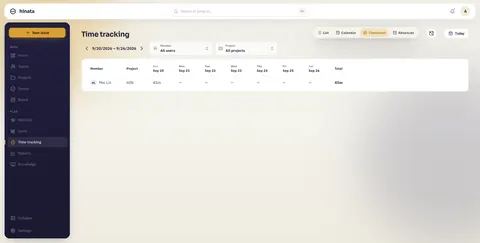
The weekly timesheet
Timesheet is in the sidebar, behind More on a phone.
Reading a row
- Each row is one person on one project. The project comes from the issue.
- The columns run Monday to Sunday and end in Total.
- A day with no entries shows a dash instead of a zero.
Moving between weeks
- The week sits in the top right. The arrows next to it step one week back or forward.
- Weeks start on Monday, so Sunday work lands at the end of its own week.
- Today in the page header jumps to the current week and reloads it. It is only active when you are looking at another week.
Whose time you can see
- You only see your own work. The server refuses requests for somebody else's hours.
- Organization admins see every row. They get a searchable filter for the person and one for the project. Issue titles, issue keys, descriptions and project names they only see for projects they are a member of.
Time on an issue that has since moved, or whose project is gone, is still yours. It shows under Unassigned.
Empty is not broken
"No work items recorded in this week" only covers the week on screen. Step back with the left arrow before assuming something is wrong.
Filling a week quickly
- Log when you stop. You are already on the issue, and the sheet takes four taps.
- Forgot yesterday? Open the issues you touched, log there and set the Date to yesterday.
- Log from a commit. If your project is connected to a Git repository and smart commits are on, this line in the message is enough:
MOB-42 #time 2h 30m
Durations understand w, d, h and m. A day is 8 hours and a week is 5 days, so 1d 4h means twelve hours. A project lead connects the repository, see Git integration.
The entry belongs to the author of the commit, matched by the author e-mail. It shows on their timesheet, in their focus time and in the Time per activity report. It is dated the day the commit was authored, in that person's time zone. Its note holds the short sha and the commit subject. Without an explicit activity type it counts as Development.
A commit only logs time for an account it can recognise
The address has to match an active Hinata account, and that person has to be a member of the project. Otherwise the line is skipped, noted in the server log and no time is logged, not even for whoever connected the repository. If your commits are missing, check git config user.email first.
Correcting an entry
Every entry on the card and in the All entries sheet has a menu on the right.
- Edit reopens the sheet with the current values. After Save the Spent total is recomputed. The date rules still apply.
- Delete asks first, naming the duration and day, and cannot be undone. Spent drops by exactly that amount.
Whose entries you may change
- Your own, always. You can edit and delete them.
- Somebody else's, if you lead the project or are an organization admin. You may delete them but not edit them, so nothing appears under a name that the person did not log. Ask them to log it again. Every removal goes to the audit log with both names.
Logged too little?
Log the missing time as a second entry. Entries on the same issue and day add up. Editing is for a duration that is plainly wrong.
Entries labelled Smart commits (pre-2.0) come from older versions that booked time straight from commits with #time. They carry no name but still count. Only a lead or an organization admin can remove them.
Working hours, absences and holidays
When your organization admins have switched on extended time tracking, your Settings have a section Working hours, and time tracking has a view Absences. Both are planning. You can record time on every day, holidays and days you are away included.
- Planned hours are your hours per weekday. Until you set your own, the default of the server applies. A change applies from the date you pick, so earlier weeks keep the hours they had. This is also where you pick the holiday calendar you follow.
- Absences are vacation, sick leave or other time away, for a single day or a span. A single day can be half a day. The note is optional. Only you and whoever keeps absences see it. You find and keep them in time tracking under Absences.
- Holidays come from the calendars your organization admins keep on the Organization page under Holidays. They enter days by hand or import a year from a calendar address.
What changes on screen:
- The entry list and the calendar mark holidays, absences and days without planned hours. The marking is quiet on purpose, because it is not a lock. A day that really cannot be changed shows a padlock.
- Your own timesheet shows Your capacity: your planned hours in the period, less holidays and absences, next to what you booked. Only you see it.
- With working-time hints on, an entry on a holiday gets a hint, just like an entry on a Sunday.
Absences in time tracking
Your absences sit where your hours sit: in time tracking, beside the list, the calendar and the timesheet. The Absences view has four parts.
- Mine is the list of your days, with a search over the notes, a span, a type and the order. Whatever still waits for a decision stands above it.
- Requests are your own requests and what became of them.
- To decide is the inbox for everybody who decides.
- Balances show what you are entitled to this year, with the journal behind it.
You can enter one from anywhere in the module: from the head with Request absence or the arrow beside New entry, on a phone from the +, and in the calendar from the day menu — a long press or a right click on a day. The form then starts on the day you touched.
A tap on an absence, on a band in the calendar or on a mark in the list or the timesheet opens the same sheet. It says where the absence came from and offers exactly what is still possible: edit and delete for one entered directly, withdraw and edit for a waiting request, cancel for an approved one, and a fresh request after a rejection.
Absence balances
If your organization admins also turned on absence management, the Balances pill under Absences shows what you are entitled to this year.
- Balances show, per absence type, what you are entitled to, what you have taken, what is planned and what is left. A type without a quota — sick leave, for instance — shows what went on it this year instead of a number: continued pay when ill is not an entitlement measured in days.
- Journal lists every movement on a balance, with the day it takes effect and the reason, where there was one. Your balance is made from that list rather than from a stored number, which is why every figure on it can be traced back.
- The days themselves are on the Mine pill, past ones as well as coming ones.
Only the people it concerns can see this: you, and whoever your organization named to keep absences.
A number that is not there yet
Not granted yet against a type means no entitlement has been entered for this year. It is not an error and says nothing about your contract — only that the year has not been granted.
Requesting an absence
When an absence type says it has to be approved, it is requested rather than entered. Request absence sits in the head of the absences view and in every menu time tracking offers for adding something.
The form asks for the type, the span and — where the type allows it — whether the first or the last day is a half day. As you pick the dates the server works out what the span costs and says so: how many working days are in it, how many public holidays it swallowed, and what would be left afterwards. Weekends, holidays and the days your pattern leaves empty cost nothing — a holiday that fell inside leave was never leave.
Two fields are optional. The note is read by whoever decides. A stand-in is told and has nothing to confirm: your leave should not wait on somebody else's attention.
What was worked out when you submitted is frozen. Moving later from a five-day week to a four-day one does not reinterpret a decision already made, in either direction.
You can see a requested day before it is decided
A day you have asked for is hatched in the calendar and the timesheet and carries an hourglass. That is deliberately neither the quiet wash of an entered absence nor the padlock of a frozen day: the day is claimed, not closed, and time can still be recorded on it.
Reporting sickness
Sickness is reported, not applied for. Report sickness asks only for the span, takes effect at once and works retroactively. There is no approver, no required field, and no path on which the server could refuse a sick report.
You do not upload a certificate here, and that is deliberate: since 2023 an employer retrieves the fit-note from the health insurer under § 109 SGB IV. A health fact in a project tool is special-category data that has no business being there. You still have to report the sickness to your employer yourself (§ 5 EFZG); hinata is not that report.
If the sickness falls on days already approved as leave, those days go back to your balance by themselves and the leave is shortened (§ 9 BUrlG). Whoever decided the leave learns that it got shorter, never why.
Who sees a sick report as sickness depends on whether your organization named people to keep absences. If it did, only those people see the sickness. Organization admins then only see that you are away, not why. If nobody is named, organization admins keep absences themselves and see them in full.
Requests and the inbox
Requests lists what you asked for and what became of it: waiting, approved, rejected, withdrawn or cancelled. While nobody has decided you can withdraw a request or edit it: the span, the half days, the note and the stand-in can change, and the days are worked out again. Change the type while you are there and the request goes to the people who decide that type, while the earlier ones learn it no longer concerns them. Once it is approved and still entirely ahead of you, you can cancel it yourself — the days come back and whoever decided is told. Once the absence has begun it takes whoever keeps absences, because by then it is a record of what happened rather than a plan.
To decide is the inbox. It is empty for anybody who decides nothing, which is an honest answer rather than a hidden feature. Each card names the person, the span, the number of days and, where they apply, three warnings: that the balance does not cover it, that the notice is shorter than the type asks for, and how many other people are away over the same span. How many days somebody has left is not on it — the answer is a yes or a no, never a figure.
A rejection needs a reason. § 7 (1) of the German Federal Leave Act allows a refusal only for urgent operational reasons or somebody else's prior claim, and a refusal that names neither is one nobody can check. The reason reaches the person who asked and stays in the request's history.
Nobody decides their own request, organization admins included. Whoever files one is struck from the circle of people who could decide it. If that leaves nobody, the request goes to the organization admins. A request sitting unanswered in a visible inbox is a problem somebody can act on. A request that disappeared is not.
Where a type is set to approve automatically, the request is decided as it arrives, you are told, and the history records that nobody judged it.
And if nobody is left?
In an organization of one the list of recipients stays empty: whoever files the request is the only person who could decide it, and nobody decides their own. The request is not lost for that. Anybody who keeps absences may decide any request, one without recipients included. So as soon as a second person joins, or somebody is named to keep absences, it appears in their inbox.
Absences in your team
If the organization admins have switched on the team absence calendar, the absences in time tracking gain a fifth part: Team. It shows who in a group is away when, as a planning view rather than an attendance register. You see spans of days, never times of day, and people are sorted by name, never by who was away the most.
At the top you pick the group: My projects, one of your teams, or a project. A person appears in a group only if they recorded time on one of its projects themselves. Being a member is not enough, because whoever creates a project or a team can add anybody to it without asking. You are always in a group you belong to, and absence keepers see every current member. Beside it you switch between Month and Quarter and page with the arrows.
What you learn about an absence is set by the organization admins, and every absence type can narrow it further:
- Only that somebody is away: a neutral bar with the word Away.
- The absence type: the bar carries the type's icon and name. A type kept to the person themselves does not appear for anybody else.
- Sickness only ever shows as Away, on every level and in your own row too. It is health data (Art. 9 GDPR), and a calendar other people look at is no place for it.
A requested span is hatched and marked with an hourglass, an approved one is filled. Weekends and public holidays are a wash behind both.
Leads of a project and admins of a team, where leads may see their members' absences, and the absence keepers also see, above the rows, how much capacity the group has left each day: everybody's planned hours, less public holidays and approved absences. Requested shows, approved counts: an open request lowers no capacity, or a withdrawn request would have changed the plan after the fact. The figure is always a sum over at least three people and never names a person.
On a phone the calendar becomes a list by week: the hours available each week written out, and underneath the people who are away with their span and type. A grid of five visible days would not be readable there.
On the dashboard, the Away today card lists up to five names from your projects and how many more there are.
Keeping types and entitlements
The two pages below are for whoever keeps absences. That need not be an organization admin: they can name people for it, and they find their way there from their own settings.
Absence types is the catalogue. Each type sets whether it is paid, whether it counts against a balance, how an entitlement accrues, what carries into next year, who can see it and who approves it. The four built-in types always remain, and their kind cannot be changed, because time tracking treats them by it. A type that has been used is retired rather than deleted — otherwise past years would lose what they refer to.
Entitlements is the directory beside where each person stands for one type and one year. Granting happens here, for one person or for many at once, and a preview shows what each person would get and why before anything is written. A correction moves a balance by an amount and always asks for a reason — a balance that moved for no stated cause is the one somebody will ask about in a year.
What the default promises
Vacation starts at 20 days, not 30. That is the statutory minimum for a five-day week under German law (§ 3 Abs. 1 BUrlG). A default should not promise what your employer has not; anything beyond it is entered by whoever keeps absences.
Time reports
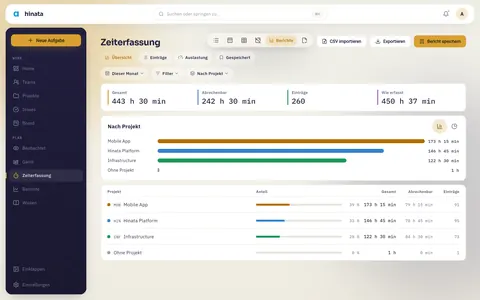
Under Time tracking → Reports you look at the time that was logged. At the top you pick the period, such as This month or one of your own, and next to it the Filter and the grouping. The reports have four parts: Summary, Entries, Workload and Saved.
What a report counts
A report only counts what you are allowed to see anyway.
- Totals per project, activity, tag, issue or period include your own entries and every entry of the projects you can see. Every member already sees on an issue that time was booked on it.
- People appear only on your own entries. If you lead a project, its members are added, but only when the organization admins have switched on the policy Leads see members' entries. That applies to grouping by person or team, to the list of entries and to every export.
- Organization admins see hours, person and project key for everyone. Issue titles, issue keys, descriptions and project names they only see for projects they are a member of, and for their own entries. The same goes for every export. The description search only searches entries they may read.
Filtering by people, teams, search term or approval therefore only takes effect where you may see the people's entries. The filter sheet says so too.
Summary
The summary starts with the totals: Total, Billable and the number of Entries. When the report rounds, As recorded stands next to them, the time before rounding. Below come a chart and a list with each group's share.
- You can group by project, person, team, activity, tag, issue, day, week or month.
- You switch the chart at the top right of its card. Groups with names show as Bars or as a ring of Shares, days, weeks and months as columns or as a Trend. Switching does not ask the server again.
- Tapping a group opens its entries: the same report, narrowed to that group.
Each entry is rounded on its own, not the total at the end. The default is As in the rules, the rounding the organization admins set for time tracking. In the filter sheet you can round differently for one report, for example up to 15 minutes. That changes nothing about the entries themselves.
Entries
Entries lists every entry of the report by day, with description, time of day, project and issue, activity, tags and, where you may see it, the person. When the rounded duration differs from the recorded one, the recorded one stands below it. The list loads more as you scroll.
Workload
Workload exists only when the organization admins have switched on workload reports, and only for organization admins and project leads. For every person it puts the Capacity in the period next to what they Booked, and the Difference. Capacity is the planned hours minus public holidays and absences. How much of it was free or away stands under the name.
- At the top you pick the group: My projects or a single project you lead.
- A lead sees under Booked only the time on projects they lead.
- The list is sorted by name, never by hours, and the bar is neutral. No colour says "too little" or "too much".
A comparison between people
The workload report puts people side by side. Which purposes it may serve belongs in the works or service agreement. See Time tracking privacy.
Export and print
With Export you get the report as PDF, Excel (XLSX) or CSV, or you Print it. The export takes the report as it stands on screen, with period, filters, grouping and rounding. PDF and Excel contain the totals, the groups and the entries, CSV only the entries.
A file has a ceiling: 5,000 entries in a PDF, 50,000 in Excel and 100,000 in CSV. When the report goes past it, the file is cut short, says so at its end, and the app tells you when it saves it. Narrow the period or the filters then. Every export is in the audit log, with format, number of rows and a fingerprint of the filters. Only organization admins see these records, in the log on the Organization page.
You still get your own entries as CSV under Art. 20 GDPR in Settings → Time tracking. The report export does not replace that. See Time tracking privacy.
Import entries from a CSV file
With Import CSV you bring in entries from a file, for example from another tool. A file may be up to 5 MB and 10,000 rows.
- Pick the file. The import recognises exports from Hinata and from toggl on its own, with German or English column names too.
- Check which column holds what: date, start, end, minutes, hours or duration, project, issue, activity, description, tags, billable and person. A column you do not map is not used.
- Look at the preview. Every row is checked like a typed entry: project and issue, lock date, approvals, required fields and allowed tags. Rows with errors are listed below with their line number and the reason.
- Import. Only the rows that passed are written, all of them or none. If the import breaks off half way, Hinata takes back the entries it had already written.
You import your own entries. Organization admins can also import for others through Import for; that goes into the audit log.
Save, share and get reports by mail
Save report keeps the report with its period, filters, grouping and rounding under Saved. A relative period such as Last month stays relative: opened in October, it shows September. From the menu on a saved report you can open, rename, share, send by mail or delete it.
- Share link creates a link you can pass on. Whoever opens it has to be signed in and sees the report only with what they may see themselves, never with your view. Revoke link makes the link invalid at once.
- Send by mail sends the report weekly on a day you choose or on the first of the month, at the hour you pick in your time zone. It covers the seven days before or the previous month. Every person on the list gets it with what they may see themselves, without an attachment and with a link into the app. You only get it yourself if you put yourself on the list.
The mail belongs to the time tracking notifications and can be switched off there. See Staying informed.
Where your logged time ends up
- The issue: the spent total is recomputed from all entries, so it is always the true sum.
- Focus time on the dashboard: your minutes for the last seven days, today in amber. Month shows the last five calendar weeks. It only counts your entries.
- Your weekly timesheet, as described above.
- The Time per activity report in Reports: a project's time from the last 30 days by activity type, as durations.
- Your weekly summary: the focus time you tracked over the week, next to what you closed. See Staying informed.
- The time reports under Time tracking → Reports, as described above.
Habits that make the numbers worth keeping
- Round gently. 25 minutes logged as 30 is fine. Two hours logged as a whole day skews every later estimate.
- Log the meetings. They are the hours most often left out.
- Log on the piece you worked on. Work on a sub-task goes on the sub-task. Spent time does not roll up to the parent.
- Don't log on an epic. Time logged there cannot be tied to specific work.
- Nobody grades you on hours. Focus time is only on your own dashboard, and the team ranking counts resolved issues.
Logging time sends no notifications
People watching the issue are not notified of new entries. If the job turned out much bigger, say so in a comment.
Next steps
- Set the dates that time is measured against on the Timeline.
- See what your hours turn into on the dashboard and in reports.
- Learn how issues and sub-tasks fit together in Working with issues.