Issues & hierarchy
Everything you plan, assign, discuss and ship in Hinata is an issue: an epic that spans a quarter, a story in this sprint, a bug someone just filed, or a sub-task. This page covers what an issue holds, how issues nest, and how they connect to Git.
Where issues live
Every issue belongs to exactly one project and carries that project's key as a prefix, like ASTA-42 or WEB-7. The number is assigned once and never reused, so you can paste a key into a chat, a commit message or a browser and it stays valid.
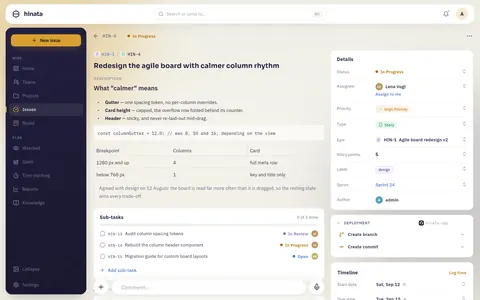
Anatomy of an issue
An issue holds:
- Type: Epic, Story, Task, Bug, Feature or Sub-task. The type sets the icon, the colour and where the issue sits in the hierarchy.
- Title & description: the description is Markdown with a shared toolbar (headings, lists, code, links). Smart links resolve issues and people as you type.
- Priority: a graded scale from lowest to highest.
- Assignee & reporter: who does the work and who raised it.
- Labels: reusable, colored project labels for filtering (e.g.
frontend,needs-design). - Story points: an estimate for sprint capacity and the velocity report.
- Dates: start and due date, which also drive the Gantt timeline.
- Workflow state: the column on the board, from the project's own states.
- Comments: a flat discussion with reply threads, reactions and voice notes.
- Attachments: files and images.
- Dependencies & links: relationships to other issues.
Types at a glance
| Type | Typical use | Hierarchy role |
|---|---|---|
| Epic | A large body of work spanning many sprints | Top level, parent of stories, tasks, bugs and features |
| Story | A user-facing slice of value | Mid level, can have sub-tasks |
| Task | A unit of work that isn't user-facing | Mid level, can have sub-tasks |
| Bug | A defect to fix | Mid level, can have sub-tasks |
| Feature | A capability to build | Mid level, can have sub-tasks |
| Sub-task | A small step inside a story, task, bug or feature | Leaf level |
Descriptions & comments
The description and every comment support Markdown with a shared toolbar, so you get headings, checklists, code blocks and links without memorizing syntax.
- @mentions notify a teammate directly.
- Smart links recognize issue keys and turn them into live references.
ASTA-42resolves and stays highlighted even if the title changes later. The knowledge base uses the same engine.
Keep discussion on the issue
Decisions made in comments stay attached to the issue. Whoever picks up the ticket later finds them there.
Comments are laid out flat and left-aligned like in Jira, without chat bubbles. That is easier to scan on a long-running issue. Each root comment can have its own reply thread, which loads only when you open it. Sort newest first or oldest first, and jump to any comment via its permalink.
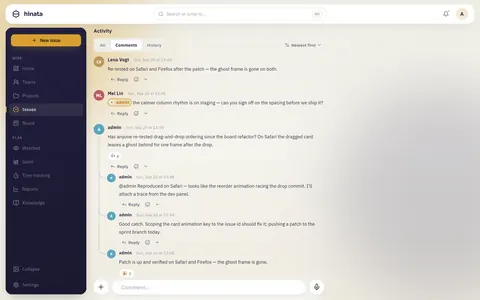
- Reactions: react to a comment with an emoji, like on WhatsApp. You get one reaction per comment, and a new pick replaces the old one.
- Voice comments: record a short voice note in the composer. It's uploaded to your S3/MinIO bucket and plays inline as a waveform bubble among the text comments.
- Context menu: long-press (or hover on desktop) for reply, copy, copy link, pin, edit, delete, and multi-select to delete several of your own comments. The copied link scrolls to that exact comment and flashes it.
- Live updates: new comments, edits, reactions and deletes stream over Server-Sent Events, so everyone sees the discussion update without a refresh.
Attachments
Drop files straight onto an issue. They're stored in your own S3/MinIO bucket with randomized object keys and served through short-lived presigned URLs, so nothing becomes public by accident.
- Drag & drop a file onto the attachments grid, or use the upload button to pick from your device.
- Images open full size in a liquid-glass lightbox.
- Changes stream live over Server-Sent Events. When a teammate adds or removes a file, your view updates without a refresh.
- The operator sets size and type limits via environment variables. See Object storage.
Dependencies & links
Link issues to express relationships, for example that one issue blocks or relates to another. Dependencies show up in the Gantt timeline, where a blocking link is drawn as a connector between bars. That shows what has to finish first.
The three-level hierarchy
Hinata organizes work into three levels, similar to Jira:
Epic
└─ Story / Task / Bug / Feature
   └─ Sub-task
- Epic: top level. Groups the stories, tasks, bugs and features that deliver it.
- Story, Task, Bug or Feature: middle level. Can belong to an epic and be broken into sub-tasks.
- Sub-task: the smallest step, always under a parent work item.
You build and navigate this structure right on the issue:
- Breadcrumb: shows the ancestry at the top (epic › story › sub-task). One click jumps up a level.
- Parent picker: set or change the parent from a searchable picker, for example to attach a story to an epic.
- Child panel: on an epic, lists its child work items and lets you add more.
- Sub-task panel: on a story, task, bug or feature, lists its sub-tasks and lets you add them inline.
Archiving vs. deleting
Archiving is a soft delete:
- Any project member can archive an issue.
- Its sub-tasks are archived with it.
- It disappears from search, the board and sprints by default.
- You can unarchive it just as easily.
Hard deletion is destructive and role-gated: only the project lead or a team admin of a team that owns the project can do it. The platform admin role alone is not enough. Hinata checks your permissions on the issue and only offers the option you're allowed to use.
Hard-deleting cannot be undone
What goes with it depends on the type:
- Standard issue (story, task, bug, feature): its sub-tasks are removed too, along with their comments, work logs and links. A sub-task cannot exist without its parent.
- Epic: its children survive as ordinary top-level issues and only lose the epic link.
If you're not sure, archive first.
The hierarchy also powers the board: you can group the agile board into swimlanes by epic or sub-task, and filter it down to a single epic.
Several issues at once
In the issues list you select several issues (press and hold on a phone, or use the round select button next to New issue on wider windows) and give them all the same deadline, or remove it. This works for up to 100 issues at a time. An offset from the project's event date is only offered when all of them belong to one project and project templates are on. See Working with issues.
Issues and Git
Once a project is connected to a repository, Hinata links by issue key:
- A branch whose name contains
ASTA-42links to that issue. - A commit links only if its message references
ASTA-42. Sitting on the issue's branch is not enough. - A pull/merge request links by its title or source branch.
Branches, commits, PR/MRs and build status then appear right on the issue.
Smart commits
Act on an issue straight from a commit message using trailers:
ASTA-42 #comment Fixed the race in the uploader
ASTA-42 #time 2h 30m
ASTA-42 #done
#comment <text>adds a comment to the issue.#time 2h 30mlogs work against the issue.- Any other
#wordtransitions the issue to a matching workflow state.
Side effects are applied exactly once, even when providers redeliver webhooks. Provider setup, automation rules and webhooks are covered in Git integration.
Related pages
- Projects & teams: where issues, keys, labels and workflow states are defined.
- Boards & sprints: move issues through your workflow and into sprints.
- Gantt & time tracking: dates, dependencies and logging work.
- Git integration: connect a repo and use smart commits.