Project templates
Some projects come round again. Freshers' week, the summer action day, the party you run every term: the same chain of book the room, apply for the budget, print the posters, announce it, settle the bill. Only the date is different.
Three things work together here: a project date, deadlines kept as an offset from that date, and copying a whole project.
It has to be switched on
Project templates are a module of their own and are off on a fresh instance. An administrator turns them on under Admin area → Platform; see the configuration reference. While they are off, projects behave exactly as they always have.
The project date
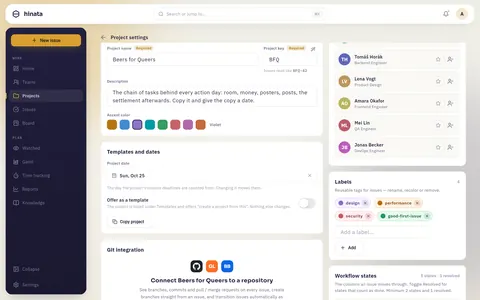
Any project can carry a date: the day of the event, the action day, the party. You set it in project settings under "Templates and dates".
On its own the date does nothing. It is the day everything else is counted from.
Deadlines as an offset
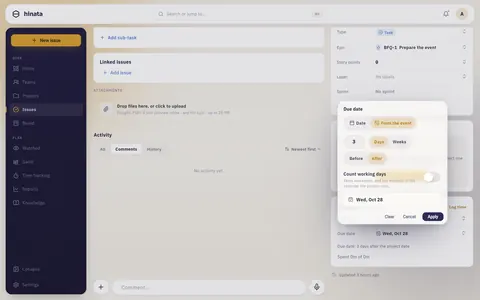
A deadline can still be a fixed date. What is new is the second mode: "From the event". You give a number, a unit and a direction, and the date it works out to stands right beside it.
Due     ( ) Date         [ 14 Oct 2026 ]
        (•) From the event [ 4 ] [ weeks ] [ before ]  ->  15 Oct 2026
Two things about it matter:
- The date is still written. The board, the timeline, the reports, the reminder mail and the app all go on reading a date. The offset is the rule; the date is its result.
- A date set by hand wins. Pick a day directly and the rule behind it is dropped. The form says so before it happens, and the next change to the project date leaves that deadline alone.
Calendar days or working days
"28 days before" in calendar days is 28 days, weekend included. In working days only working days count. Which basis a new deadline starts with is decided like this:
- If the project has its own choice under Deadlines count in, that applies. You set it when you create or copy the project, or in its settings.
- Otherwise the organization's default applies, which organization admins set on the Organization page.
- If the organization has not chosen either, the server default applies. Out of the box that is calendar days (
HINATA_PROJECT_TEMPLATES_DEFAULT_BASIS).
You can still switch at any single deadline. The preselection only affects new deadlines: existing ones keep their basis and do not move when the default changes.
Working days need a holiday calendar
Working days always skip weekends. They only skip public holidays when the project has a holiday calendar selected. Without one, a holiday counts like any other working day. Organization admins keep the calendars on the Organization page.
Moving the date
The event is postponed. You change the date in project settings, and before anything is written a sheet shows what would happen:
- which deadlines follow, with their old and new day
- how many there are altogether
- how many stay where they are, because somebody set them by hand
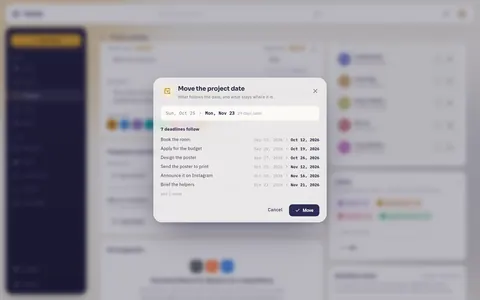
Only "Move" writes. Cancelling changes nothing.
Remove the date and the deadlines stay where they are and keep their rules. Nothing is lost.
Copying a project
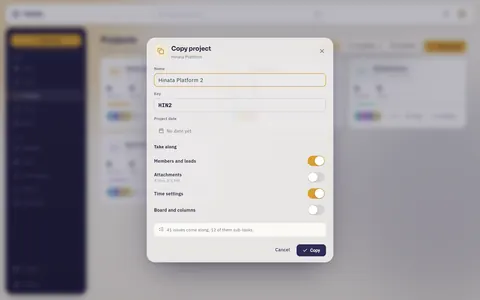
From the button on a project card on a wide window, or from project settings: Copy project. On a phone the way in is project settings. You give a name, a key and optionally a date, and choose what comes along. The copy counts deadlines like the original unless you pick something else under Deadlines count in.
What travels
| Area | Contents |
|---|---|
| Project | Description, colour, picture, workflow columns, labels, resolved states |
| Issues | Title, description, type, priority, labels, estimate, story points, order, sub-tasks to full depth, dependencies and links inside the project, the offsets |
| Optional | Members and leads, attachments, time settings, the board with its columns |
What never travels
Comments, the activity history, recorded time, watchers, reporters, the state (a copy starts in the first workflow state), sprints, the Git connection and the mail inbox.
That is not thrift, it is the line between the plan and the history: a copy inherits the plan. The Git connection stays behind because it carries an encrypted access token and a webhook that belong to exactly one project.
Limits
- At most 500 issues per copy. Above that the server refuses and names the real number, rather than leaving half a project behind.
- Attachments at most 50 files and 100 MB.
- If anything goes wrong along the way, everything is taken back out. Half a project is worse than no project.
Keeping a template
A project that exists only as a blueprint gets marked as a template. There are two ways to get one, and they answer two different questions:
- You already have the project and it is the blueprint. Switch on "Offer as a template" in its settings. The project moves from the running list to Templates; nothing else about it changes.
- You want a blueprint of a project you are still running. Open the Templates tab and press the plus. It asks which project to make the template from, and copies it — the project you picked keeps running, untouched.
Either way the result is listed under "Templates" rather than among the running projects, and it leads with "Create project".
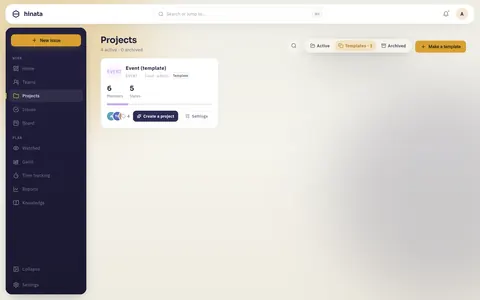
Nothing else changes: same rights, same search, same boards.
"Create project" asks for a name, a key and a date, and does the copying and the arithmetic in one step. The scope is decided for you — structure, issues, members and time settings yes, attachments and board no. If you want it different, use the copy route.
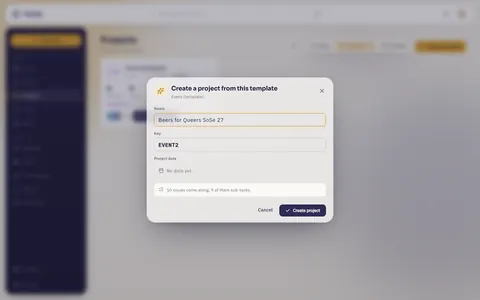
A template usually carries no date at all: its issues hold only rules. Creating a project from it is the moment those become days.
Through MCP
With the module on, the MCP server offers two more tools:
copy_project— copy a project, with a name, an optional key, an optional date and the scope switches. Needs theprojects:writescope.set_issue_deadline— set an issue's deadline as an offset, or take the offset away. Needsissues:write.
When something does not work
The deadline says "This project has no date yet". The offset is stored and stays stored. What is missing is the day to count from; set it in project settings.
The copy has different dates from the original. That is the point: deadlines with an offset are recomputed against the copy's own date. Fixed dates come along unchanged.
A deadline did not follow the move. Then it no longer carries an offset — somebody set it by hand. Put it back on "From the event" in the deadline field.
Working days give a date you did not expect. Check whether the project has a holiday calendar selected. Without one, holidays count as working days.