Projects & teams#
Every issue in Hinata belongs to a project, and every project you can open was opened to you by a team or by someone adding you to it directly. Those two ideas explain most of what you see — and most of what you don't.
This page covers both, in the order you'll meet them: what a project is, how to browse the ones you have, why your list may be shorter than a colleague's, and what a project lead can change without ever going near an admin area.
What a project is#
A project is a container for a body of work — one product, one service, one internal initiative. It holds its own issues, its own board, its own set of columns and its own labels. Two projects can work completely differently and never get in each other's way.
Practically, a project gives you five things:
- An issue key, the prefix on every issue in it.
- Workflow states — the columns an issue moves through.
- Labels — reusable colored tags for its issues.
- Members, and one or more leads.
- A board, a backlog, a timeline and reports, all scoped to it.
The issue key#
When a project is created it gets a short uppercase key: HIN, MOB, INF. Every issue in that project is then numbered from it — HIN-1, HIN-2, HIN-3 — and that combination is the issue's name for the rest of its life.
This is the single most useful thing to learn about Hinata, because the key travels everywhere:
- Type
HIN-42into the search palette and you go straight to that issue. - Paste
HIN-42in a chat message and everyone knows what you mean. - Put
HIN-42in a branch name or a commit message and, if your project is connected to a repository, the work links itself back to the issue.
Numbers are handed out in order and never reused. Archive HIN-42, delete it, move it — the number 42 does not come back for something else. That's what makes a key safe to write down in a document that will outlive the issue.
Say it out loud before you commit to it
Keys end up in commit messages, branch names and half your conversations. HIN is a pleasure to type a hundred times a day; PLATFORM2024 is not. Short wins.
A key can change later, and it takes its issues with it
If a project is renamed and its key changes, every issue is renumbered to the new prefix and keeps its number: HIN-42 becomes PLAT-42. Old links stop resolving, so it is worth doing early rather than late — but it is not a trap you can fall into permanently.
Workflow states, labels and members#
The rest of what a project carries is described in the sections below, but in short:
Workflow states are the columns of the board and the possible values of an issue's status. A new project starts with a sensible default — Backlog → Open → In Progress → In Review → Done, with Done marked as the state that counts as finished — and a lead can change all of it later.
Labels are reusable tags with a colour, defined once per project and then available on every issue in it. design, performance, security, good-first-issue. Because they are defined at the project level rather than typed freehand, they stay tidy and searchable.
Members are the people who work in the project. They show up in assignee pickers, in the board's people filter and in reports. One or more of them is marked as a lead — the people who may change the project's configuration.
Browsing your projects#
Projects in the navigation rail lists everything you can see.
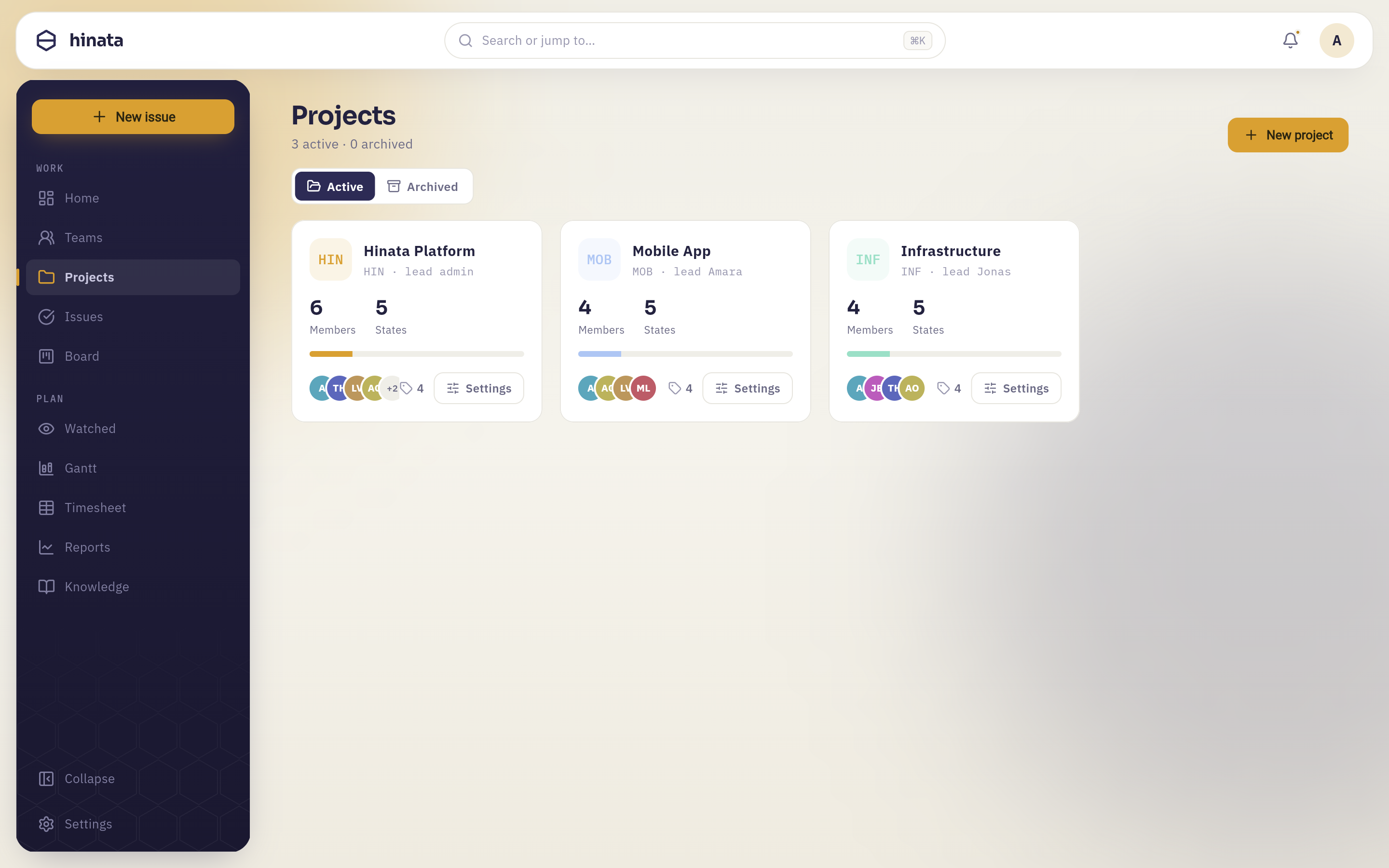 The Projects page: a card per project with its key glyph, name, key and lead, member and workflow-state counts, a progress bar, member avatars and a label count. The Active / Archived switch sits above the cards, and New project at the top right.
Clicking anywhere on a card opens that project's issue list — that's the main way in. The Settings button on the card is a separate destination, and it only appears if you are allowed to use it (more on that below).
What a card tells you at a glance#
- The square glyph is the project's picture, or its key set in a mono typeface if it doesn't have one.
- The line under the name is the key and the project lead:
HIN · lead admin. - Members and States are counts — how many people work here, and how many columns the workflow has.
- The bar is progress: how much of the project's work is resolved.
- The faces are the members, with a
+2when there are more than fit. - The tag count is how many labels the project defines.
Active and archived#
The switch above the cards flips between Active and Archived, and the line under the page title keeps the score: "3 active · 0 archived".
Archiving is how a project ends without being destroyed. An archived project disappears from the active list and becomes read-only — its issues, comments, attachments and history all stay exactly where they were, and you can still find and read them. Nothing is deleted.
That makes archiving the right move for a finished project, a cancelled one, or one that is simply dormant. It is also reversible: flip the switch back and the project returns.
Creating a project#
New project, at the top right, is the whole ceremony.
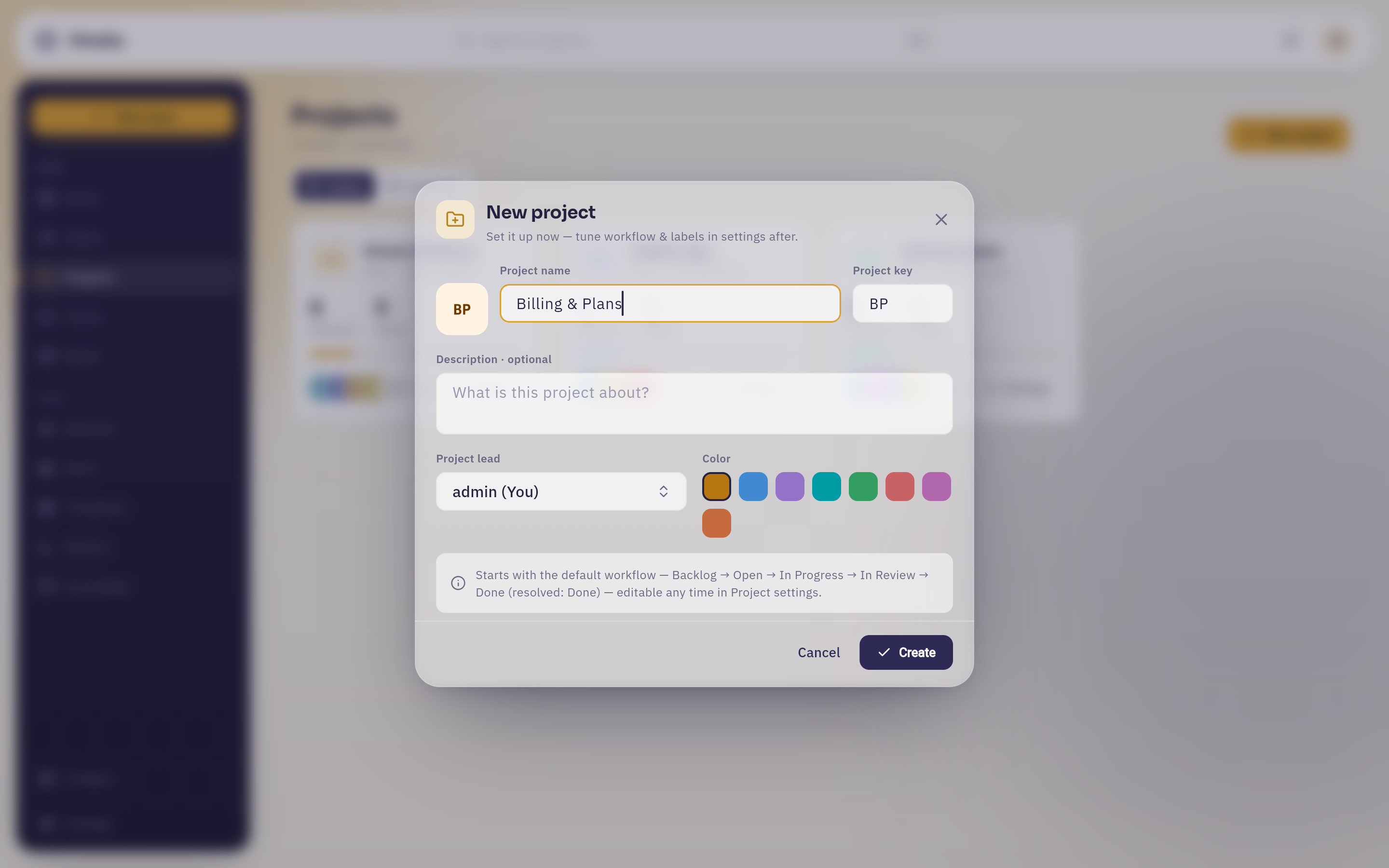 The New project dialog. The key writes itself from the name as you type — "Billing & Plans" became BP, in the field and in the glyph beside it — and description, lead and colour are the rest. The line at the foot names the workflow the project will start with.
You can overwrite the suggested key. It must be uppercase, start with a letter, and be between two and ten characters of letters and digits, and it has to be unique across the whole server — if someone already took it you'll be told "That key is already taken." before you can save.
Nothing else here is final. The workflow and the labels are edited afterwards in project settings, so there is no pressure to get everything right in one go.
Teams, and why you can't see everything#
Here is the part that surprises people, so it's worth being direct about it.
You do not automatically see every project on the server. Your colleague may open Projects and find six cards where you find two. Nothing is broken, and nobody is hiding anything from you personally — Hinata simply treats project access as something that has to be granted rather than something everyone gets by default.
The rule, in three lines#
You can see a project if any one of these is true:
- You are a member of that project directly.
- A team you're on grants you that project.
- You are a platform administrator, who sees everything.
That's the whole rule. And it is enforced by the server on every single request, not by hiding buttons in the app — so a project you cannot see does not appear in your issue list, your search results, your reports, your board filters or your notifications either. There's no "shared with me" step for anyone to forget: being granted access is the access.
What a team is#
A team is a group of people plus a set of projects. Put someone on the team, grant the team a project, and that person can work in it. Take the project off the team, and everyone who reached it only through that team quietly loses it.
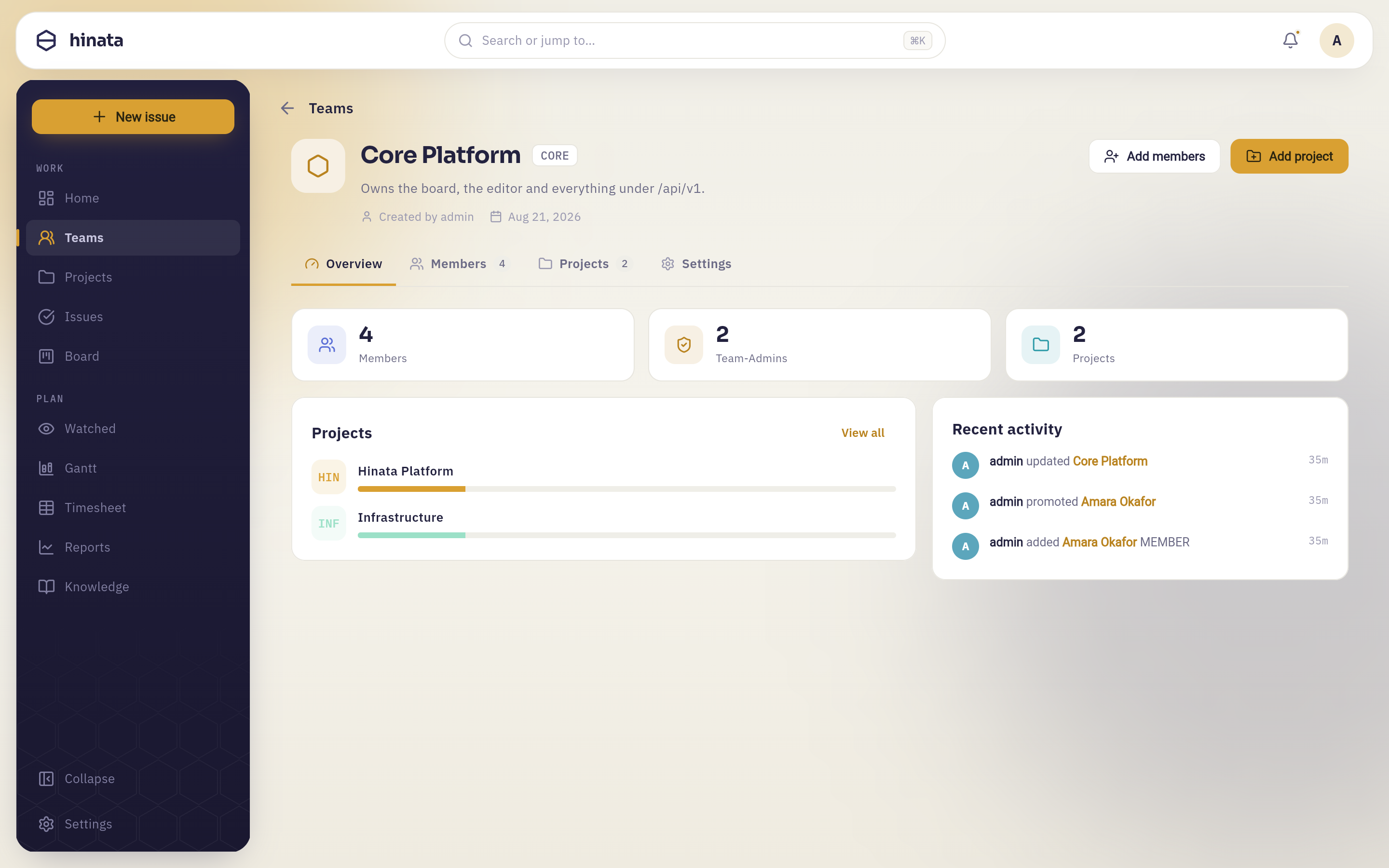 A team page: the team's name and key at the top with Add members and Add project, the Overview / Members / Projects / Settings tabs, headline counts for members, Team-Admins and projects, the list of projects the team grants, and a recent-activity feed — here the description being rewritten, and Amara Okafor being added and then promoted.
The Teams entry in the rail lists the teams you belong to, each card showing its key, its member count, a few faces, how many projects it grants, and — on the teams you're actually on — a badge with your own role in it, Admin or Member.
Open one and you get four tabs:
- Overview — the headline counts, the projects this team grants, and what has been happening in it lately.
- Members — who is on the team, their role, and what each of them can reach.
- Projects — the projects the team grants, with the option to attach an existing one or create a new one for the team.
- Settings — the team's name, key, colour and icon, a plain-language summary of what each role can do, and the danger zone.
Two roles#
Inside a team there are exactly two roles, and the app spells out what each means:
| Role | What it can do |
|---|---|
| Team-Admin | Full control of this team — members, projects, settings. The same rights as a platform administrator, but scoped to this one team. Always sees every project the team owns. |
| Member | Works on the projects they're granted. Cannot change the team's membership or its settings. |
Three levels of project access#
When someone is added to a team, their project access is set alongside their role.
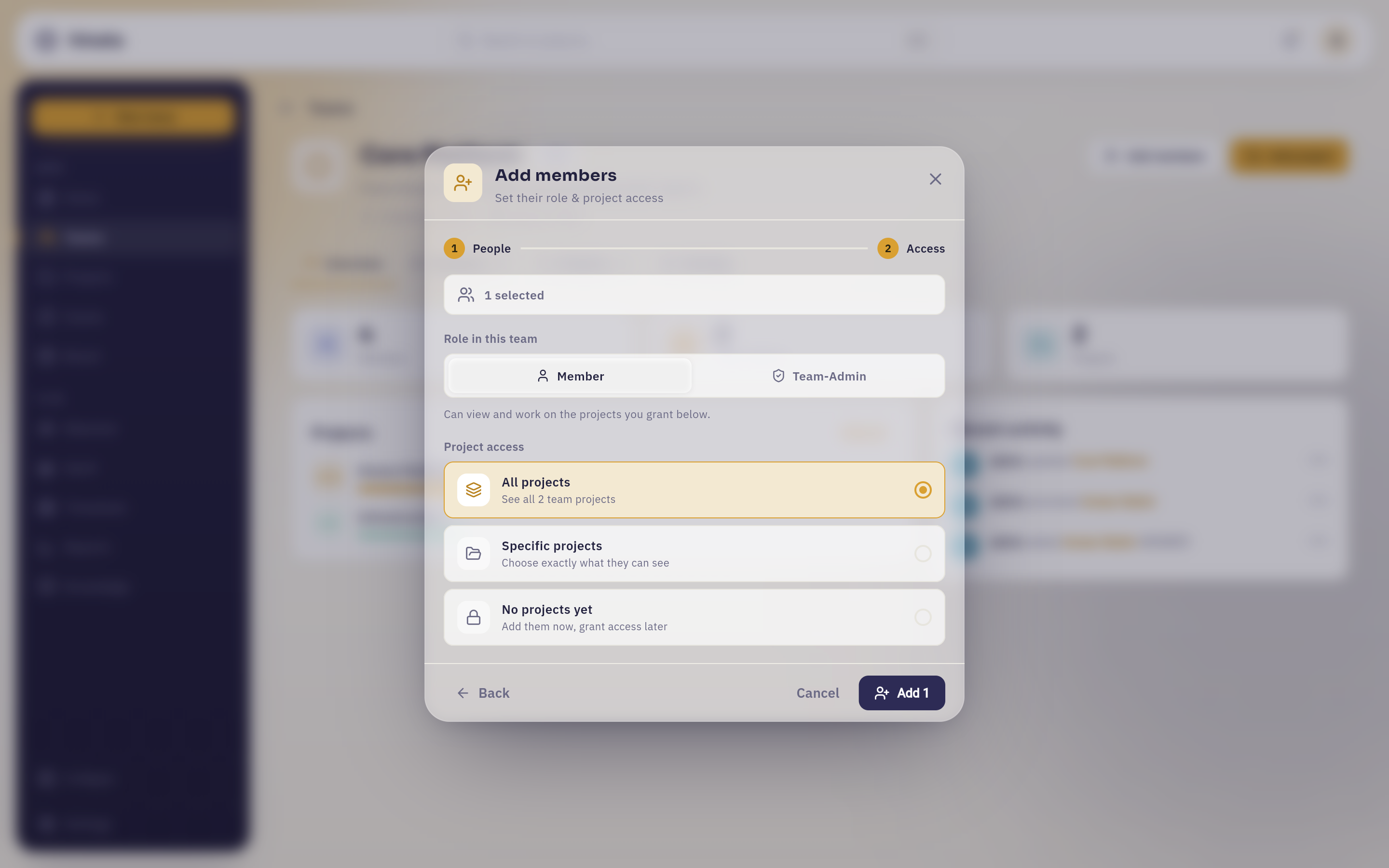 Step 2, Access: the role — Member or Team-Admin — with the three levels of project access under it. Back returns to the People step; Add 1 commits the person, the role and the access in one go.
All projects keeps working as the team grows: projects attached later are included without anyone revisiting that person. Specific projects is exactly what you tick and nothing else the team happens to own. No projects yet puts someone on the team with nothing open to them — useful when you want to add people now and sort out access afterwards.
Team-Admins are the exception: they always see everything their team owns, whatever the access setting says. That's what makes them admins.
The projects a team owns#
The Projects tab of a team is where the granting actually happens.
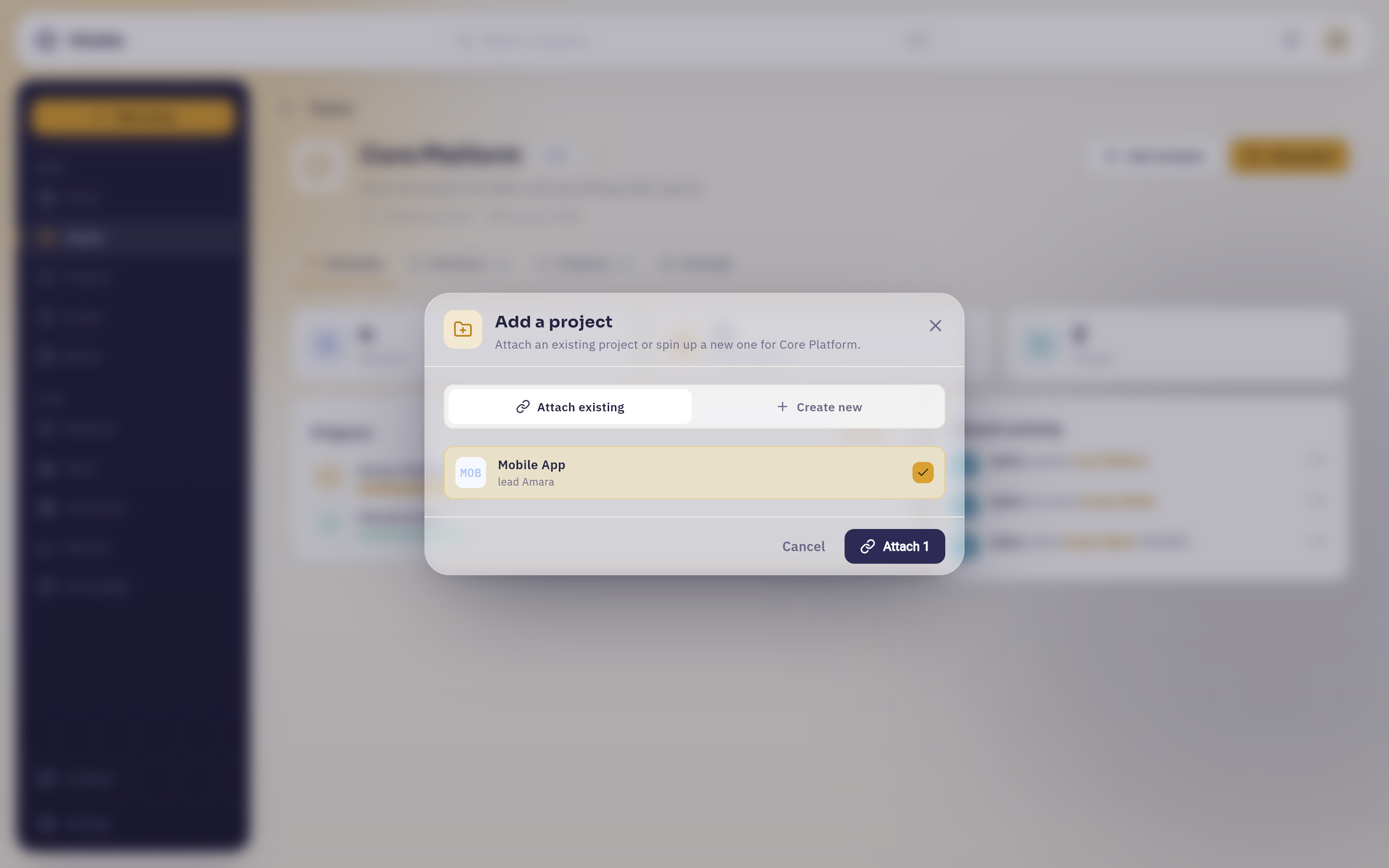 Add a project, on the Attach existing tab: every project the team does not already have, one row each with key, name and lead, and a tick box. Mobile App is ticked here, so the confirm button counts it — Attach 1. Create new, beside it, spins up a fresh project that belongs to the team from its first day.
Removing a project from a team is the mirror image, and the app is honest about the consequence before you confirm: members lose the access this team granted them. If they also reach the project some other way — as a direct member, or through a second team — they keep it. Hinata checks every route before it takes anything away.
"I'm sure this project exists, but I can't find it"#
This is the most common confusion in Hinata, and it has a short answer: someone needs to grant you access. Either
- ask to be added to the project as a member, or
- ask to be added to a team that grants it, or — if you're already on that team —
- ask a Team-Admin to widen your project access from Specific projects to include it.
Any Team-Admin of the relevant team, any lead of the project, or a platform administrator can do it, and the change takes effect immediately. You don't need to sign out and back in; the project simply appears.
Removing access removes it everywhere, at once
Taking someone off a team, or detaching a project from a team, revokes everything that grant carried — the project, its boards, its issues, and the notifications about them. They also stop watching issues they can no longer reach. The work itself is untouched; only the access disappears.
Deleting a team never deletes its projects
The confirmation says so explicitly: members lose the access the team granted, and the projects, boards and issues stay in the workspace. A team is a permission structure, not a container.
An example that makes it click#
Abstract rules are hard to hold on to, so here is an invented organization, laid out the way most teams end up doing it.
Suppose there are three projects — Hinata Platform (HIN), Mobile App (MOB) and Infrastructure (INF) — and two teams:
- Core Platform grants
HINandINF. - Design & Mobile grants
MOB.
Now follow four people:
- Nora is a Member of Core Platform with access to All projects. She opens Projects and sees two cards:
HINandINF. - Sam is a Member of Design & Mobile. They see one card:
MOB.HINdoes not appear anywhere for them — not in search, not in reports, not in a board filter. - Ida is a Team-Admin of Core Platform. She sees
HINandINFregardless of any per-person access setting, because Team-Admins always see what their team owns. She is also lead ofINF, soINFis the only card that shows her a Settings button. - Ruben is a Member of Design & Mobile and was added directly to
HINas a project member, because he designs one screen in it. He seesMOBthrough his team andHINthrough direct membership — two different routes, same result.
Nothing here required an administrator after the initial setup. Team-Admins grant projects, project leads configure them, and everyone else simply finds the right work waiting for them.
Team grant or direct membership?
Use a team grant when a whole group needs a project — it stays correct as people join and leave the group. Use direct membership for the one designer, the one contractor, the one person from another department. Mixing them is normal, and access is the union of everything that applies.
What a project lead can change#
Every project has a Settings page, and it belongs to the people who run that project: its leads, plus platform administrators. If you're a regular member you can work in the project all day and never see this page — that's why the Settings button on the card isn't there for you.
Nothing here needs the admin area. A lead configures their own project.
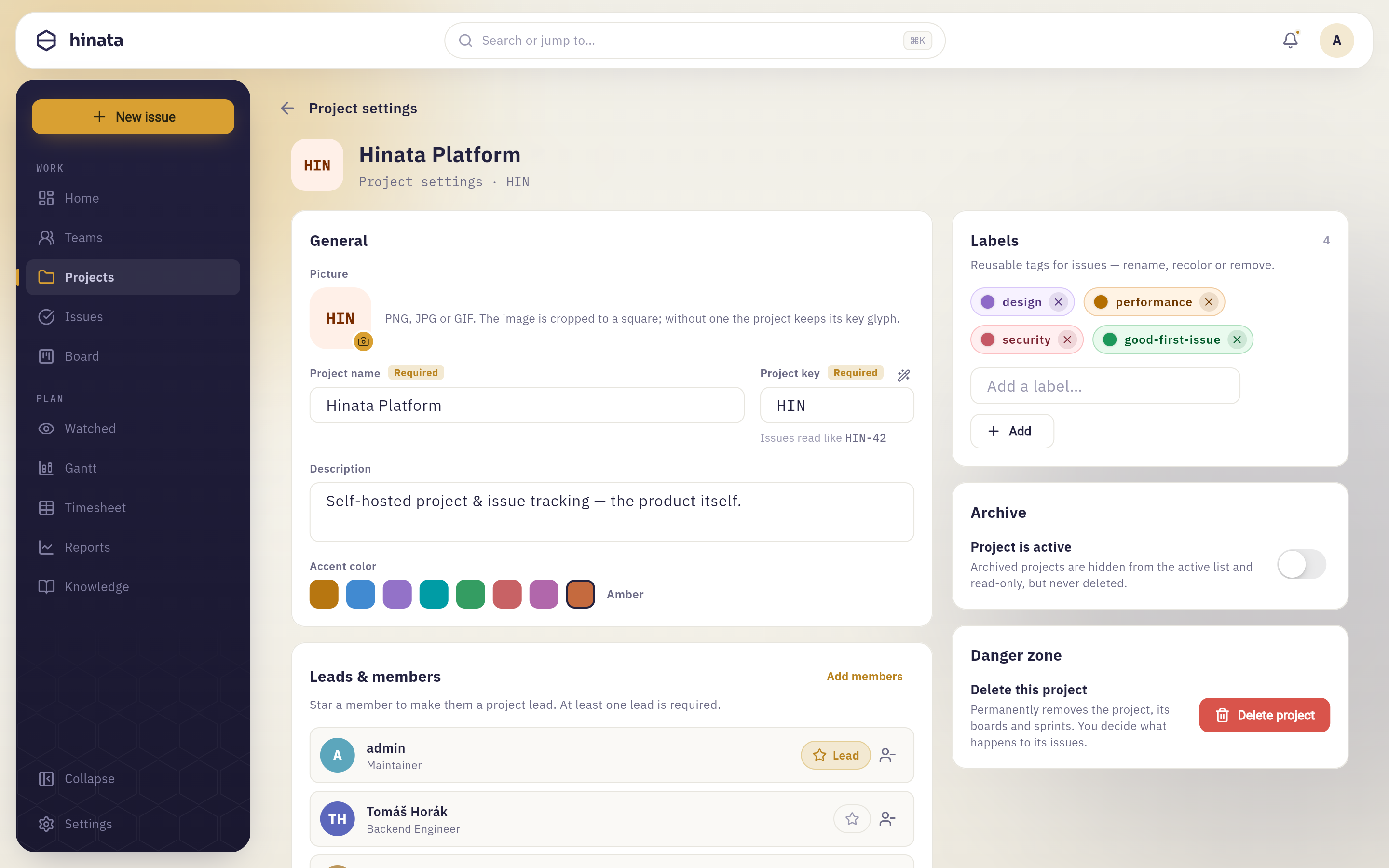 Project settings for the Hinata Platform project: the General card with picture, name, key, description and accent colour on the left, Leads & members below it, and Labels, Archive and the Danger zone stacked on the right.
General#
The project's picture (or its key glyph if it has none), its name, its key, a description and an accent colour that tints the project across the app.
Under the key field the page shows you the consequence in real time — "Issues read like HIN-42" — which is a small thing that has saved a lot of regret.
Leads & members#
The list of people in the project. Star a member to make them a project lead, and a project must always have at least one — the page tells you so, and refuses to save if you'd leave it with none.
Add members opens a search over everyone on the server. Newly added people are notified that they now have the project.
Labels#
Reusable tags for this project's issues: type a name, pick a colour, press Add. You can rename, recolour or remove them later, and a rename flows through to every issue already carrying the label — nothing is left pointing at the old name.
Workflow states#
The columns an issue moves through, in order. Add one, rename one, drag them into a different order, remove one you don't use.
Each state has a Resolved toggle, which marks it as a state that counts as finished. That toggle is what makes burndown charts, progress rings and struck-through sub-tasks tell the truth, so it's worth getting right. A project needs at least two states and at least one resolved state; the editor won't let you go below either.
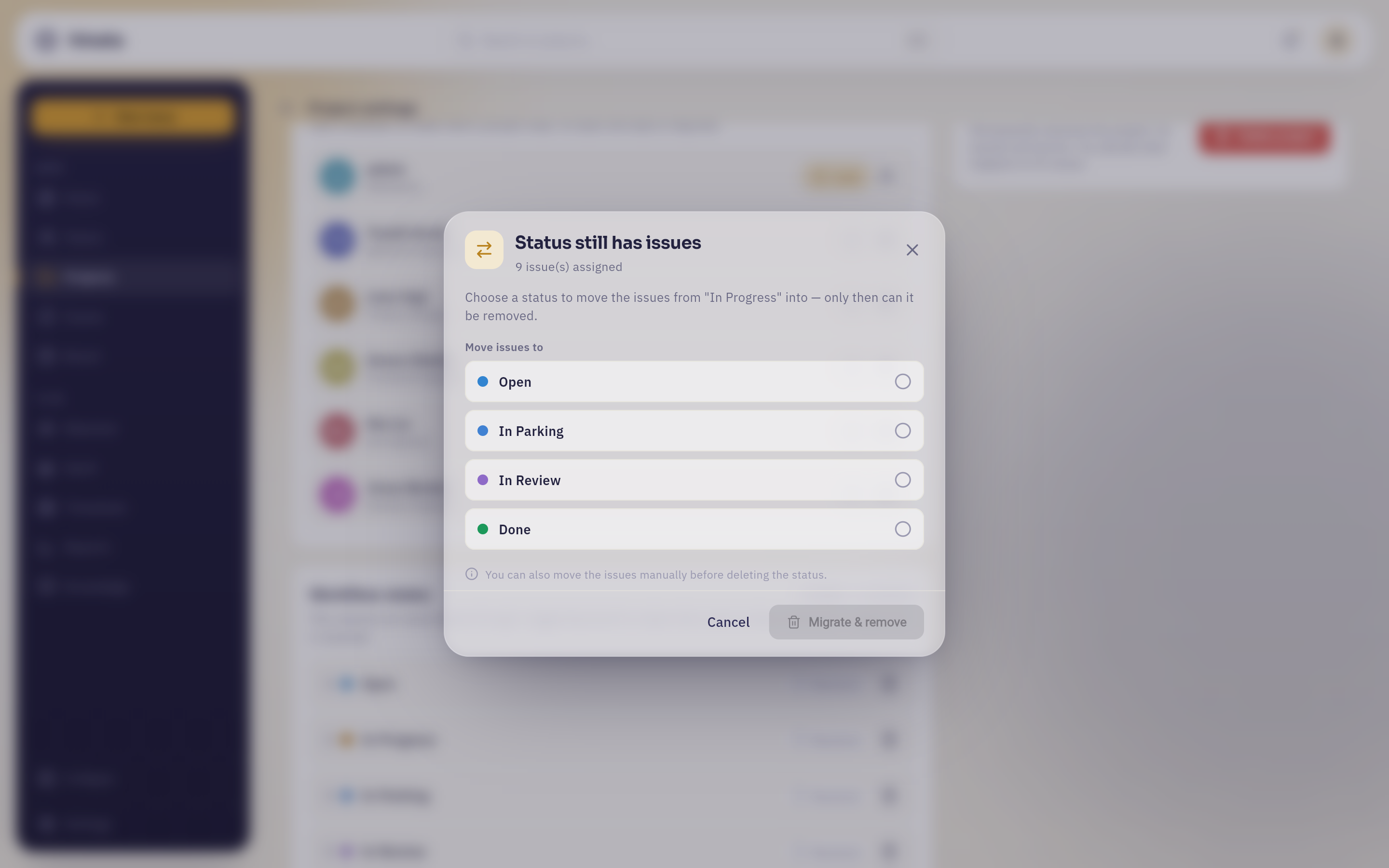 Deleting a state that still holds issues opens "Status still has issues": it counts them, names the state they are sitting in, and offers the remaining states as a destination. Migrate & remove stays inactive until one is picked.
Nothing gets stranded
A state cannot be removed while issues are in it. You can also move those issues yourself beforehand, if you'd rather do it deliberately.
Saving#
Project settings is a draft editor, not a live one. Change anything and a bar appears at the bottom saying Unsaved changes, with Discard and Save changes. Nothing you've touched reaches the project — or anyone else's screen — until you press save.
If something is invalid the bar says "Fix required fields to save" rather than letting you save a broken project.
Archiving#
The Archive card has a single switch: Project is active. Turn it off and the project moves to the Archived tab, becomes read-only, and stays there — complete and readable — until someone turns it back on.
This is almost always what you want when a project ends. It costs nothing and it loses nothing.
Deleting#
The Danger zone at the bottom has one button: Delete project. This is the one genuinely irreversible action in a project's life.
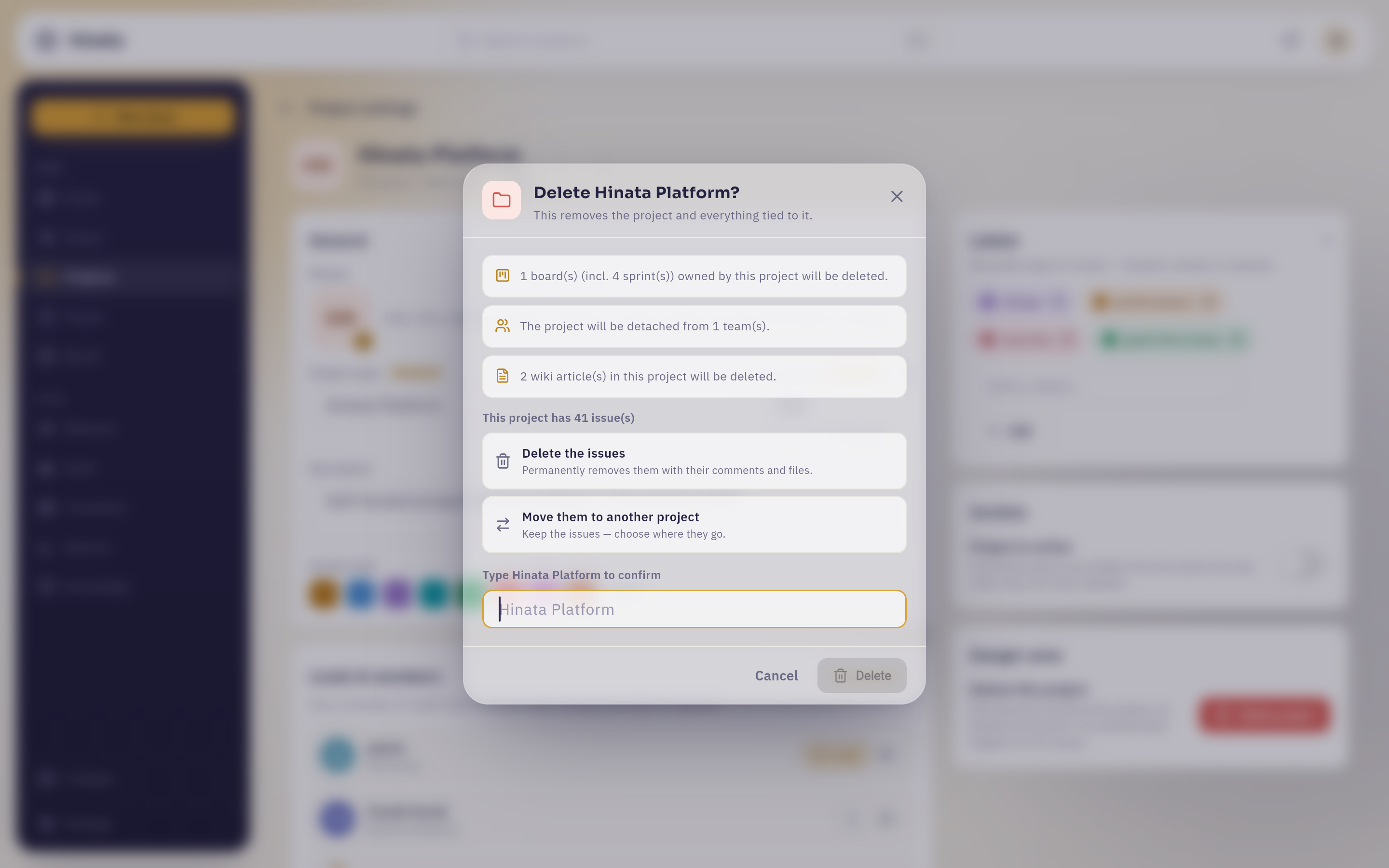 The confirmation itemises the damage with the real counts from the project you are deleting — boards and sprints, the teams it will be detached from, the wiki articles — and then asks what happens to its issues: delete them, or move them to another project. Delete stays inactive until the project's name has been typed in.
A board shared with other projects survives the deletion; it only loses this one.
Archive instead, unless it was a mistake
Deleting is for a project that should never have existed. For one that simply ended, archive it: it costs nothing, loses nothing, and can be turned back on.
Who can do what#
A summary you can skim when you're not sure whether to ask someone, or just do it:
| Action | Who |
|---|---|
| Work in a project — create issues, comment, log time, move cards | Any member of the project |
| See a project at all | Direct members, people a team grants it to, platform administrators |
| Change a project's name, key, labels, workflow, members | Project leads and platform administrators |
| Archive or delete a project | Project leads and platform administrators |
| Add or remove team members, set their role and access | Team-Admins and platform administrators |
| Attach or detach a team's projects | Team-Admins and platform administrators |
| Change a team's name, key, colour or icon | Team-Admins and platform administrators |
| Everything else — users, sign-in, e-mail, integrations | Platform administrators, in the admin area |
If you need something from the last row, you're looking for whoever runs the server. The Admin area page describes what lives there.
Where to go next#
- Working with issues — now that you know where issues live, learn how to write good ones.
- Boards & sprints — the workflow states from this page, as columns you drag cards across.
- Finding things — searching across every project you can see, and filtering down to one.
- Reports & dashboard — where those resolved states and progress bars turn into charts.
- Getting started — back to the front door, if you arrived here first.