Staying informed#
A tracker is only useful if it reaches you when something actually needs you — and stays quiet the rest of the time. Hinata sends every notice through up to three channels, and you decide, event by event, which ones are allowed to interrupt you.
This page explains what generates a notification, where notifications land, and how to tune them so the ones you get are the ones you read.
What Hinata notifies you about#
Ten kinds of thing can produce a notification. These are exactly the rows you will find in your settings, so it is worth knowing what each one covers:
| Event | It fires when |
|---|---|
| Mentions & replies | Someone @-mentions you in a description or a comment, or replies to a comment of yours |
| Issue assigned to you | You are added as an assignee |
| Comments on my issues | Someone comments on an issue you created or watch |
| Status changes | An issue you are involved with moves to another column |
| Watched issues | Any change at all to an issue you subscribed to |
| New issues from e-mail | An incoming e-mail becomes an issue in a project you are part of |
| Sprints & deadlines | A sprint starts or completes, or a due date is coming up |
| Team & project invites | You are added to a team or a project |
| Weekly digest | Your Monday summary of the week |
| Security alerts | A new sign-in, a password change, an e-mail change |
Two of these behave in ways worth spelling out.
You do not have to watch an issue to hear about it. If you are the assignee or the person who reported it, changes reach you anyway — that is what "Status changes" covers. "Watched issues" is the separate, deliberate subscription you add on top, for issues that are nobody's assignment but still yours to keep an eye on.
Due dates remind you once. Every morning, Hinata looks two days ahead and notifies the assignees of anything unresolved that is about to come due. You get one reminder per due date, not one a day — and if the date is moved, the reminder re-arms for the new one.
You never hear about your own work. Whatever you change, comment on or assign, you are removed from the list of recipients before anything is sent. The bell reflects what other people did.
Nobody hears about work they cannot see. Before a notice goes out, Hinata checks that each recipient still reaches the project the issue is in now — not the one it was in when the change happened. Someone removed from a project this morning does not get an e-mail about it this afternoon.
New issues from e-mail depend on your server
The "New issues from e-mail" event only ever fires if your operator has connected a mailbox to a project. If nothing has been connected, the row is simply never used. See E-mail to ticket if you are the person who would set that up.
The bell and the notification centre#
The bell sits in the top bar on every screen. A small dot appears on it when you have something unread.
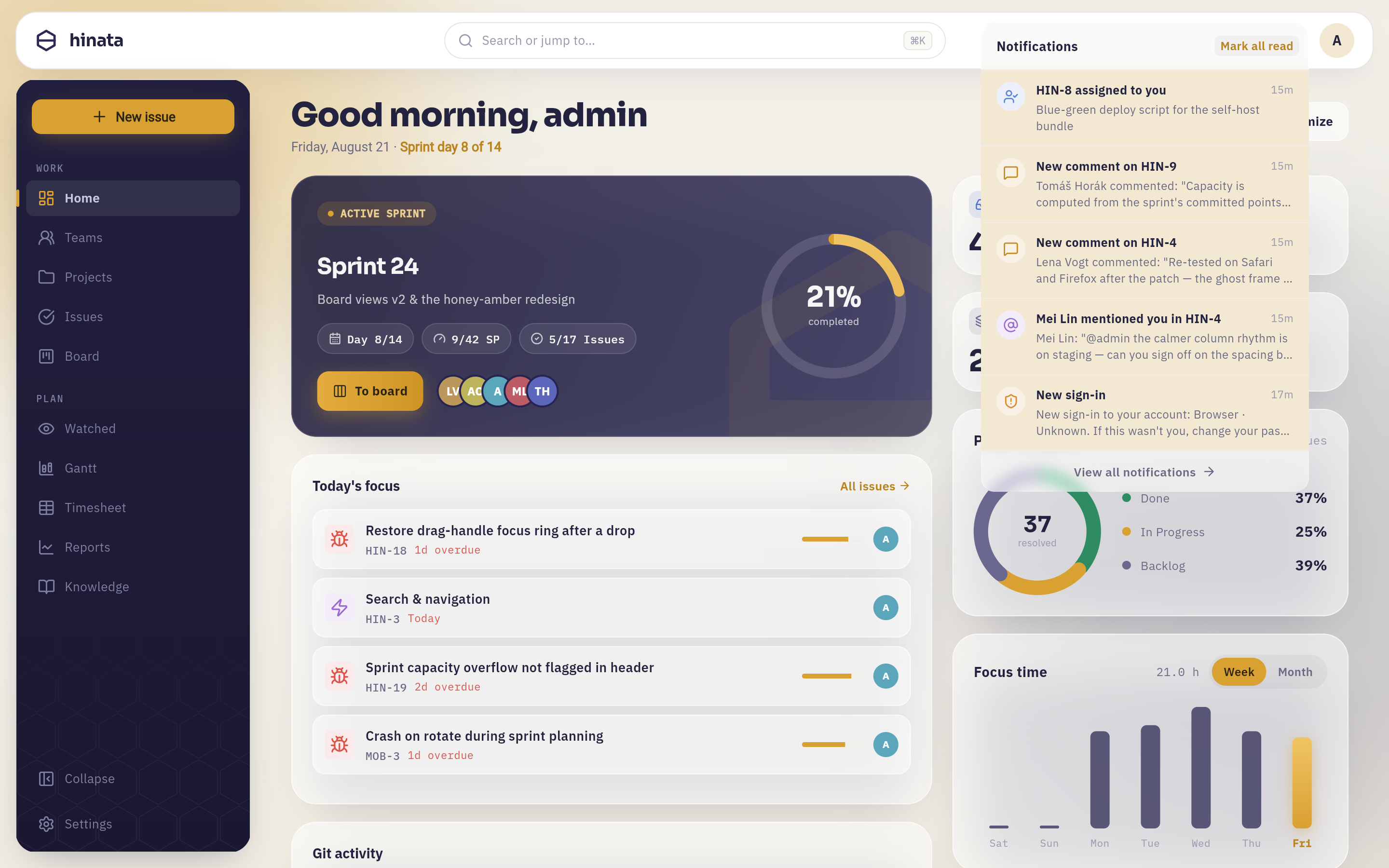 The preview under the bell: the five most recent notices, each with an icon for its kind — a person-with-a-tick for the assignment, speech bubbles for the comments, an "@" for the mention, a shield for the sign-in. Unread rows sit on an amber tint. "Mark all read" is top-right, "View all notifications" at the foot.
The full centre keeps everything, grouped into Today, Yesterday, This week, This month and Earlier, and it loads more as you scroll.
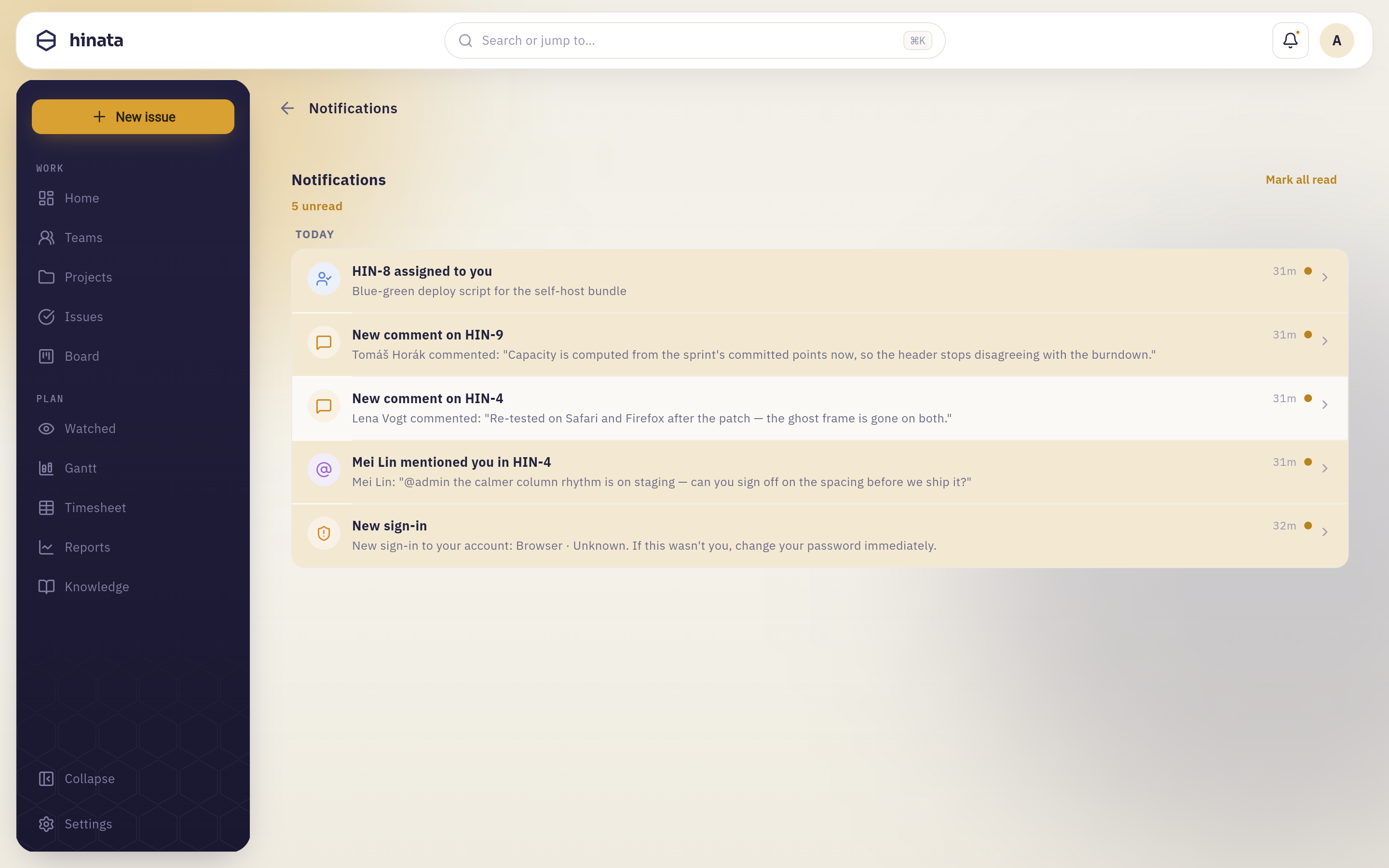 The same notices in the full centre, under "Yesterday", with the unread count and "Mark all read" at the top. Every row carries the sentence that explains it — who commented and what they wrote — so most of them need no click at all.
Three things you can do with a row:
- Tap it to go where it points. Every notification carries a destination — the issue, the team, the weekly summary — so a mention takes you to the comment, not to a list you then have to search. Opening it also marks it read.
- Swipe it right to flip it between read and unread. The row snaps back rather than disappearing, so you can mark something unread to deal with later.
- Swipe it left to delete it. This only removes your copy of the notice; it changes nothing about the issue it referred to.
Unread as a to-do list
Marking a notification unread again is the cheapest way to keep a "come back to this" list without creating an issue for it. The dot on the bell stays until you have actually dealt with it.
Three channels, and which ones you control#
| Channel | Where it shows | Can you turn it off? |
|---|---|---|
| In-app | The bell and the notification centre | No — it is always recorded |
| Your inbox | Yes, per event | |
| Push | Your phone's or desktop's system notifications | Yes, per event |
The in-app notice is always written, whatever your settings say. That is deliberate: the bell is the place you can always go to reconstruct what happened, even if you have silenced every mail and every push. What your settings govern is whether something also interrupts you.
E-mail needs your operator to have configured an outbound mail server; if nothing arrives even with the switch on, that is the first thing to ask about. Push works on Android, iOS, macOS and Windows and does not work on Linux or in the browser — the download page has the full table of what each platform can do.
The push switch stays usable everywhere
On a Linux desktop or in a browser tab, the push switch still works and still saves. It has to: these preferences belong to your account, not to the machine in front of you, and turning push off from your laptop would otherwise silence the phone in your pocket without telling you. The app just notes underneath that this particular device has no push service.
Tune what reaches you#
Open Settings → Notifications.
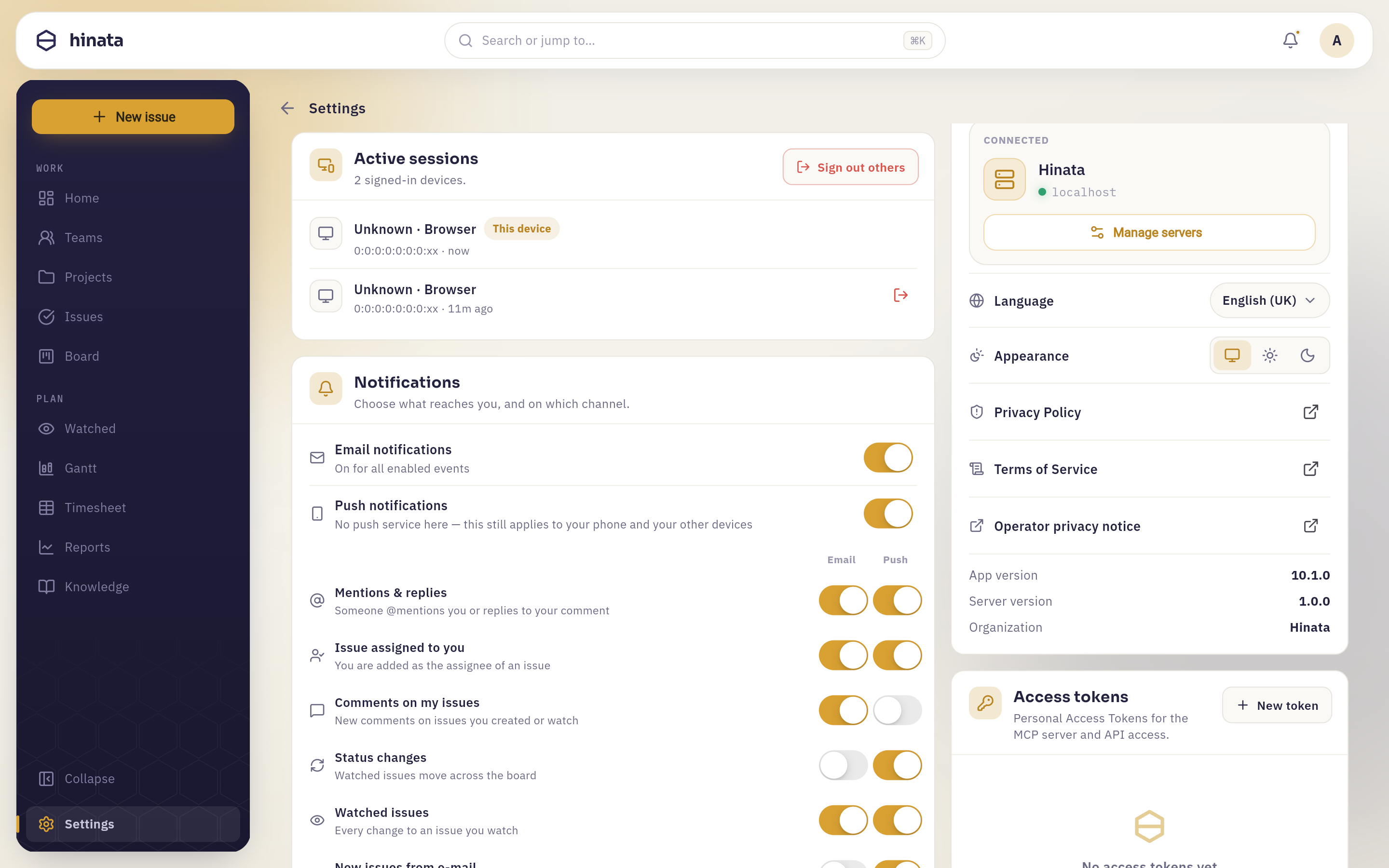 The Notifications card. The two masters sit at the top — "Email notifications" and "Push notifications", the latter noting that this particular device has no push service — and under them one row per event, with an "Email" and a "Push" column.
The masters are the blunt instrument: switch E-mail notifications off and no mail is sent for anything, while your per-event choices stay exactly as you left them, ready for when you turn it back on. Delivery happens when the master and the event's cell are both on.
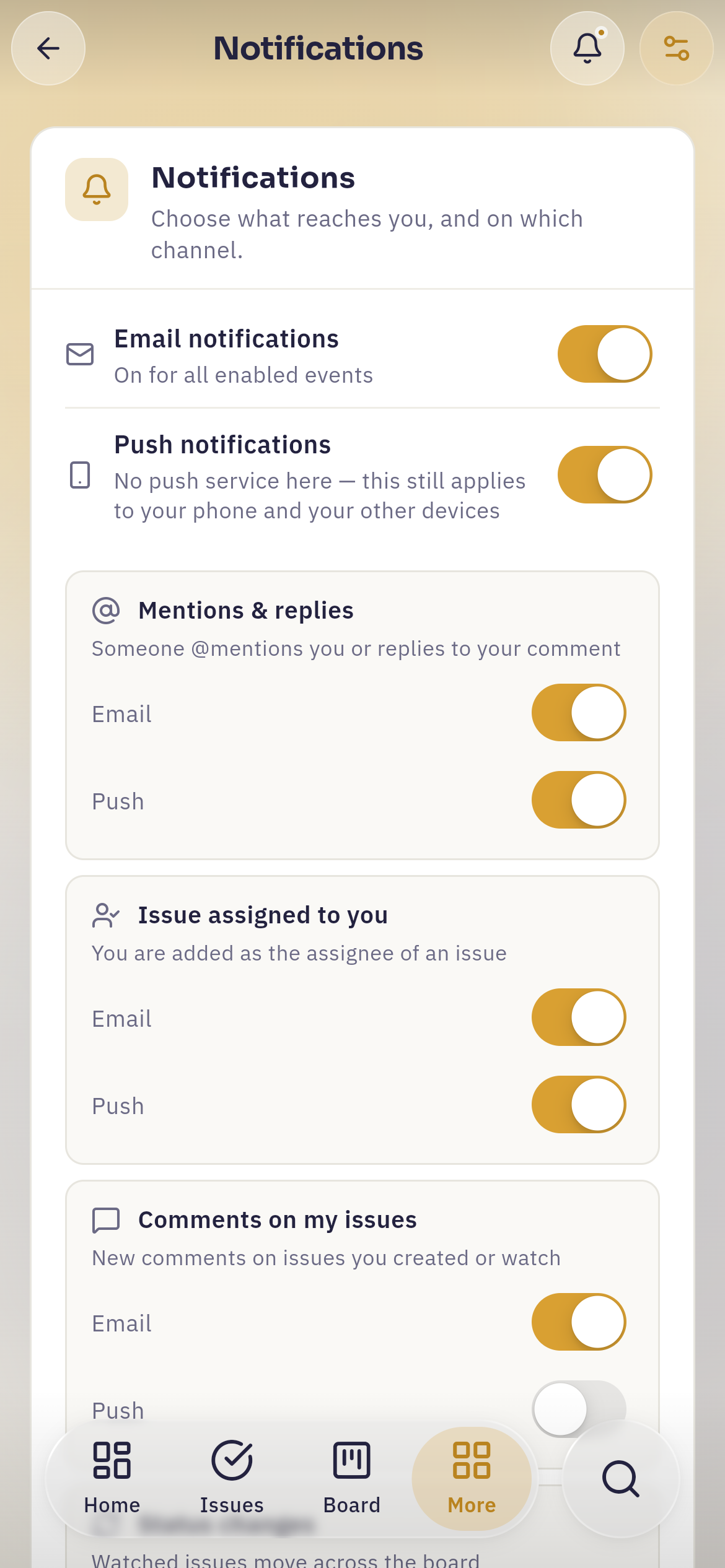 The same screen on a phone. Each event becomes its own card with "Email" and "Push" listed inside it, so nothing has to be read across columns.
These are the defaults a new account starts with:
| Event | Push | |
|---|---|---|
| Mentions & replies | on | on |
| Issue assigned to you | on | on |
| Comments on my issues | on | off |
| Status changes | off | on |
| Watched issues | on | on |
| New issues from e-mail | off | on |
| Sprints & deadlines | on | on |
| Team & project invites | on | off |
| Weekly digest | on | off |
| Security alerts | locked on | locked on |
The pattern behind them: things aimed at you personally get both channels, things that are merely nearby get the glanceable one. Watching starts on for both because subscribing is something you did on purpose — unlike status changes, which every new assignment opts you into whether you asked or not.
Security alerts cannot be switched off. Their row shows a padlock instead of a switch. A new sign-in on your account is exactly the message that must not be losable in a preference you set eighteen months ago.
Two minutes now saves an inbox later
The people who end up muting a tracker entirely are usually the ones who never touched this screen. Go through the ten rows once, honestly, and turn off the two or three that you know you will never act on. Everything you leave on then means something.
Watch an issue to opt in#
Watching is how you subscribe to an issue that is not yours. Open it, use the ⋯ menu in the top bar and choose Watch.
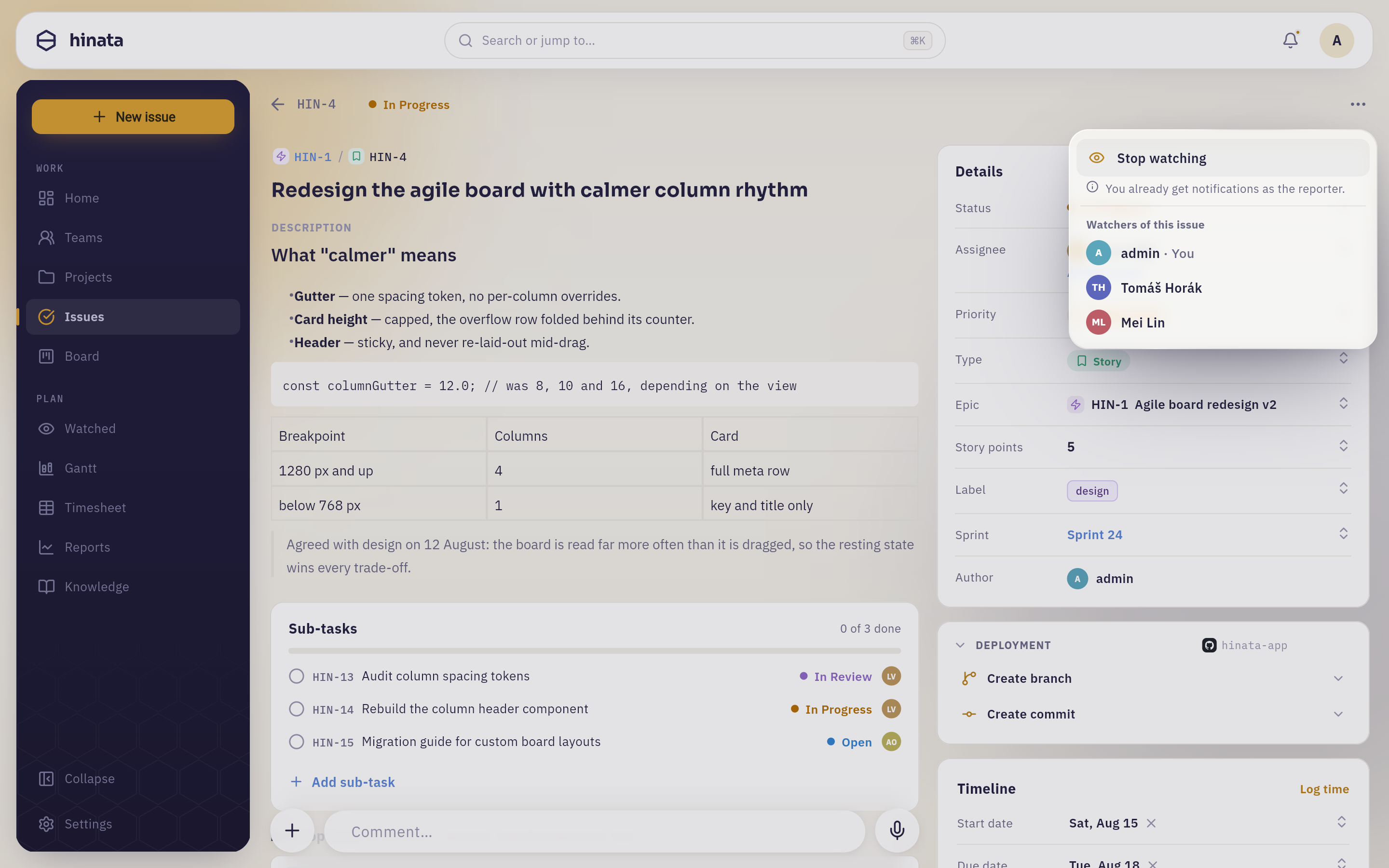 The panel behind "⋯ → Watch", anchored where the menu was. The toggle at the top reads "Stop watching" once you are subscribed; beneath it "You already get notifications as the reporter." and "Watchers of this issue", everyone already paying attention.
A toast confirms it: You are now watching this issue. From then on, every change to it can reach you through the "Watched issues" event.
That line about being the assignee or the reporter is worth reading before you subscribe: it separates "nobody is listening" from "you are already covered".
Everything you have subscribed to is collected on one page: Watched in the sidebar (behind More on a phone).
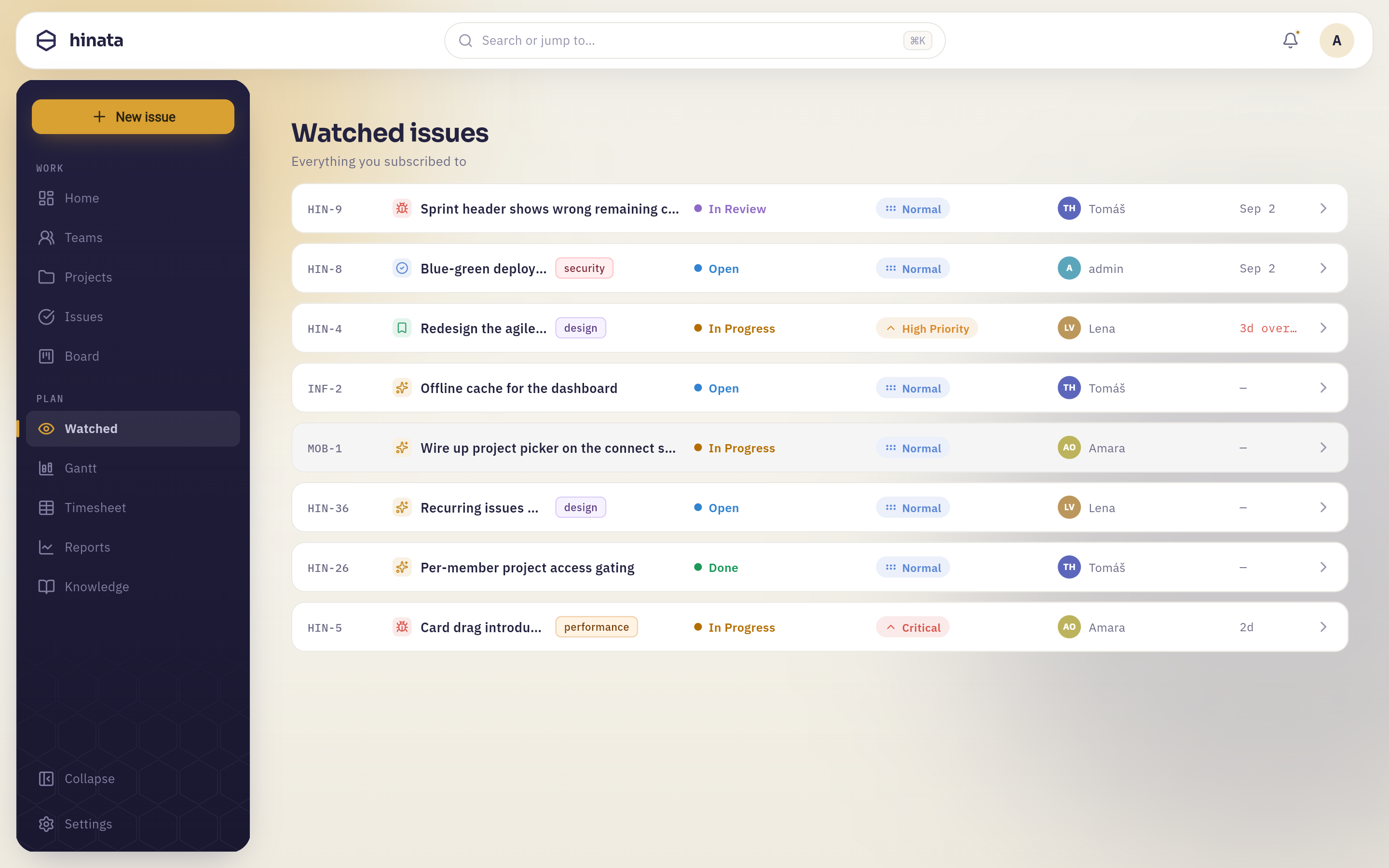 The Watched page: one row per subscription, across every project you can reach, with state, priority, assignee and due date. Before you have subscribed to anything it holds a single line telling you how to fill it — open an issue and turn on "Watch".
Why watched issues do not flood your inbox
The bell and push fire the moment something changes, because you glance at them and move on. Mail is different: one message per edit turns a busy issue into a mailbox flood, and the only lesson anyone takes from a flood is to stop watching.
So the mail waits for the editing to settle — about five minutes of quiet — and then sends one message listing everything that changed. If the editing never stops, it goes out anyway after half an hour. You get a summary of the afternoon, not a transcript of it.
Assignees and reporters are the exception: their mail is sent immediately, because their relationship to the issue is stronger than a subscription. If you are both — assigned and watching — you keep the immediate mail.
Your weekly summary#
Every Monday morning, Hinata puts together a picture of the week for you: what the team finished, what you personally closed, how much focused time you logged, and what is waiting for you next. It arrives as a notification in the bell and, if you have left the "Weekly digest" e-mail on, as a mail with the same contents. Both open the same page in the app.
If there is genuinely nothing to report — a quiet week, a new account, a holiday — you are skipped rather than sent an empty digest.
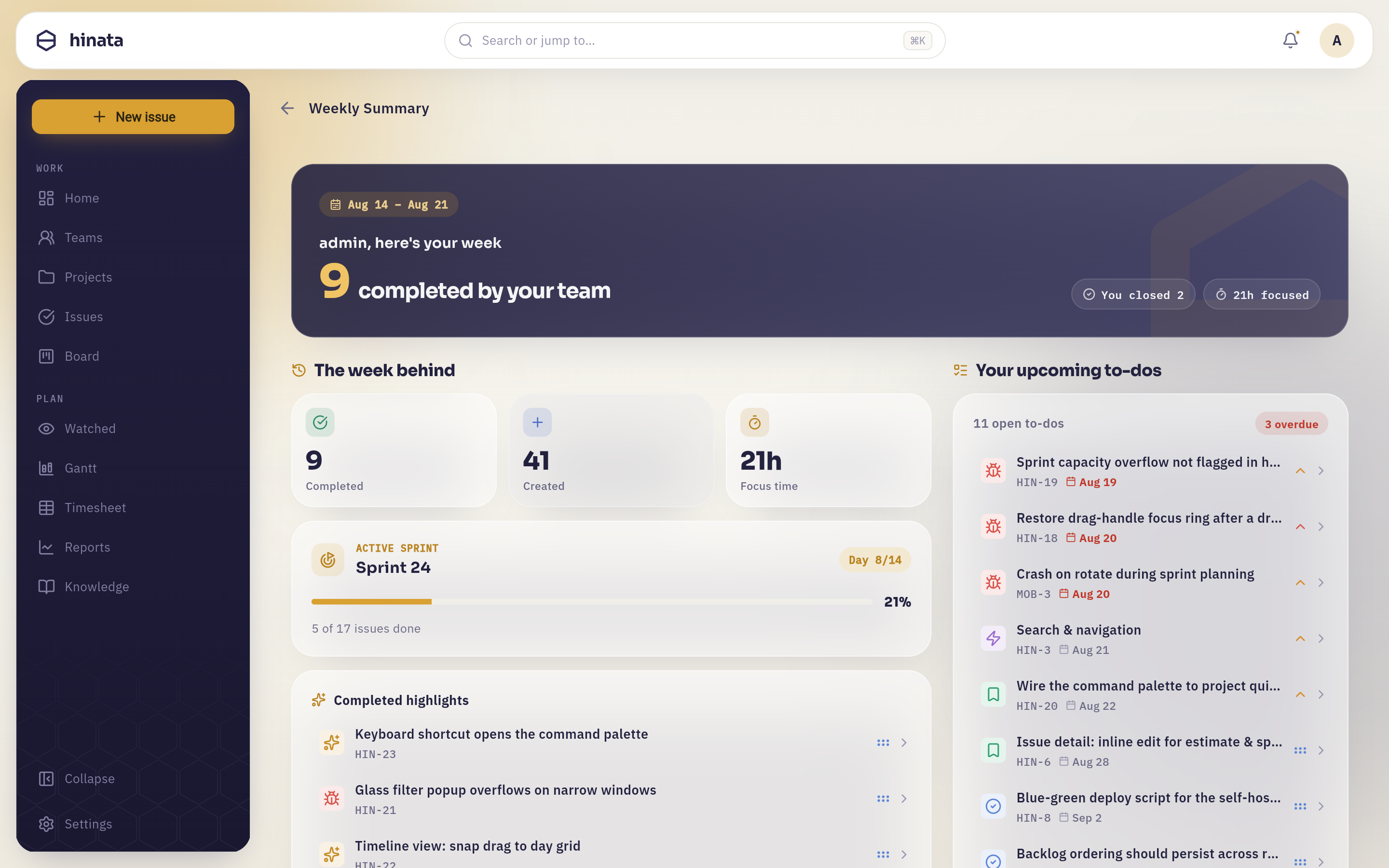 The weekly summary. The navy hero names the week and how many issues the team completed, with your own closed count and focus time beside it; "The week behind" holds completed, created and focus-time tiles plus the active sprint's progress, and "Your upcoming to-dos" lists what is next, with overdue items flagged in red.
Two sections the screenshot does not reach:
- Top contributors and completed highlights — who moved what, and a sample of the actual work that got finished. Useful for a Monday stand-up.
- Your upcoming to-dos — everything open and assigned to you, ordered by urgency, with an overdue count at the top. Tap any row to open the issue.
You can reach the page any time from the notification, and you can turn the whole thing off in the Weekly digest row of your settings.
Read it before your Monday meeting
The summary answers the two questions a stand-up always opens with — what landed last week, and what is at risk this week — without anyone having to prepare a report.
When something does not arrive#
Work down this list; it is ordered by how often each turns out to be the answer.
- Check the master switch. A silenced channel silences every event under it, and the switch says so: Silenced — nothing is delivered.
- Check the event's row. Comments and status changes in particular are off for one channel by default.
- Check that you are actually involved. You hear about an issue if you are an assignee, the reporter, or a watcher. Being in the project is not enough, by design.
- For push: check your device's own permission. The app asks once, the first time you sign in; if you declined, the operating system's settings for the app are where you grant it. And confirm push works on that platform at all — see Download.
- For e-mail: ask your operator. Mail needs a working outbound mail server on the Hinata server. Nothing you can change in the app fixes that.
Deleting a notification does not undo anything
Swiping a notification away removes your copy of the message. The assignment, the comment or the status change it announced is still there. If you want the issue itself to stop bothering you, stop watching it — or hand it to someone else.
Next steps#
- Comments & attachments — mentions are the single biggest source of notifications; this is how to write them.
- Working with issues — assignees, reporters and the ⋯ menu the Watch panel lives in.
- Your account — the rest of the settings screen, including where the notification matrix sits.
- Reports & dashboard — the numbers behind the weekly summary, on demand rather than on Mondays.