Boards & sprints#
A board is your team's work, laid out so you can see it. Each column is a step in your process, each card is an issue, and moving a card is how you say "this has moved on". Everything else on this page — filters, swimlanes, limits, sprints — exists to make that one picture readable when there are eighty cards instead of eight.
You do not have to set anything up first. If someone has already created a board for your project, open it and start moving cards.
Open a board#
Choose Board in the sidebar. You get a list of every board you can see, across all your projects; a menu at the top lets you narrow it to one project. Tap a board to open it.
If the list is empty, use New board to make one.
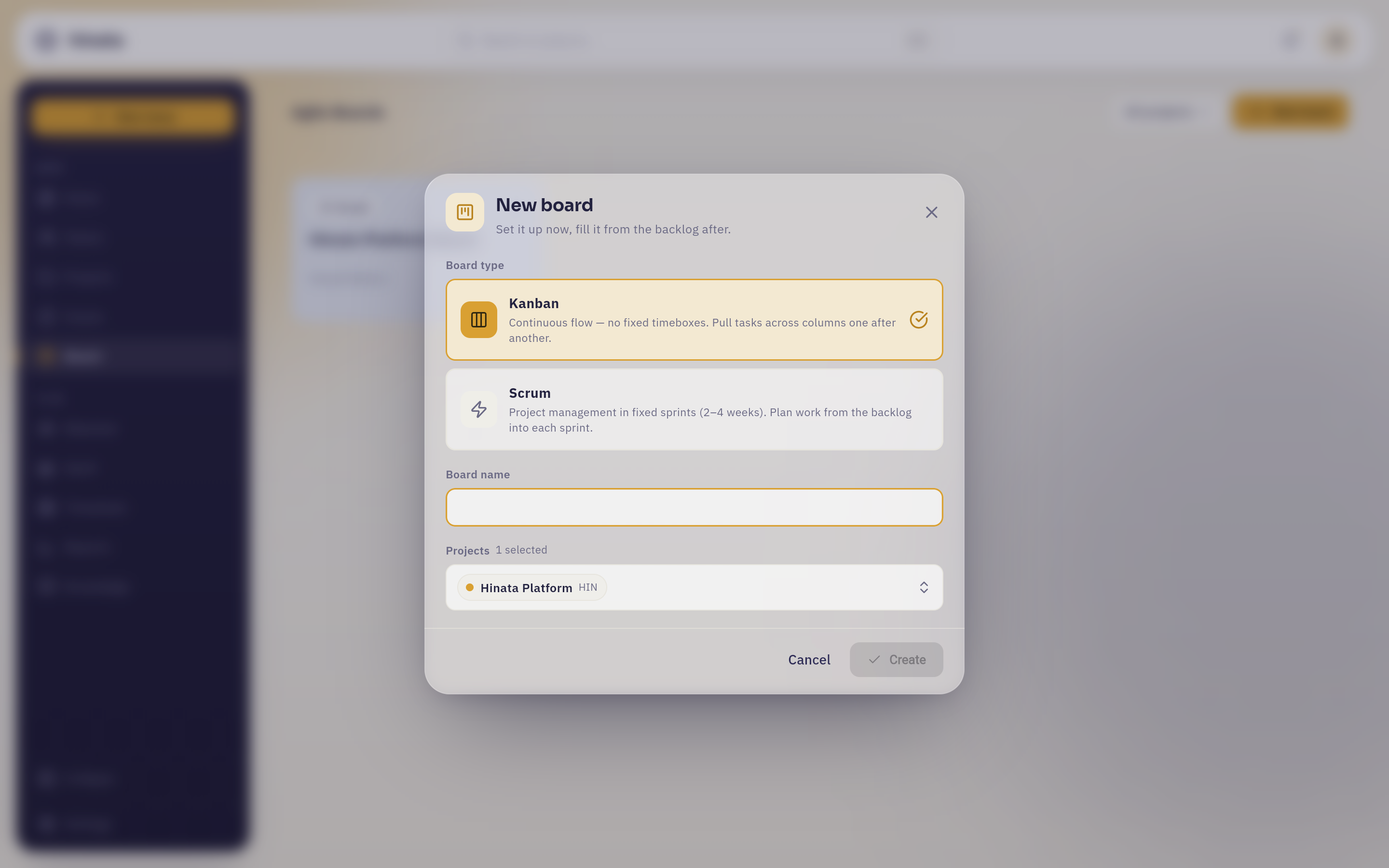 The New board dialog. Board type is two cards carrying their own descriptions — Kanban selected here, Scrum underneath — then Board name, then a Projects row already reading "1 selected". Create stays greyed out until the board has a name.
Only the type is worth a pause. There is no control in the app for switching a board from Kanban to Scrum afterwards, so read Kanban or Scrum below before you pick. The name is what your team calls the board, not what the project is called. And selecting more than one project merges those projects' equivalent columns into a single wall, so two teams can work side by side without leaving their own projects.
One project can have several boards
Boards are views, not containers. The same issue can appear on a team board, on a release board and on a personal board without being copied. Nothing belongs to a board — issues belong to projects.
Columns are your workflow states#
The columns you see are not generic. Each one maps to one or more workflow states from your project — the named steps an issue passes through, like To Do, In Progress, In Review, Done. The colored dot next to a column name is that state's color, and it is the same color you see on the card, in the issue and in reports.
That is why moving a card between columns is a real change and not a bit of tidying: the card lands in the column's state, and every other view in Hinata immediately agrees.
The badge on the right of a column header counts the cards in it.
Who decides what the columns are
The states themselves live in your project's settings, and a project lead can rename, recolor and reorder them. The docs for that are in Project settings. If a column on your board is called something unhelpful, that is where it gets fixed — not on the board.
What appears as a card, and what does not#
Boards use the same three-level hierarchy as the rest of Hinata — see Working with issues:
- Stories, tasks, bugs and features are always cards.
- Epics never are. An epic is a container for other work, so putting it on the wall as a card would double-count it. Epics show up as swimlane headers and as a filter instead.
- Sub-tasks are hidden by default, because they belong inside their parent. Group the board by sub-task and they appear underneath it.
What a card tells you without being opened#
A card is dense on purpose — it is meant to answer "should I click this?" from across the room. The status stripe, type glyph, issue key, priority arrow, title, labels and assignee avatar are all on it, and three of them repay knowing:
- The due date turns red once it has passed, so an overdue card announces itself from across the wall.
- Time spent only appears if the issue carries an estimate. A card with no timer chip means nobody estimated it, not that nobody has worked on it.
- The sub-task strip at the bottom expands in place, so you can check a parent's progress without leaving the board.
Move an issue through the board#
On a computer, drag the card into the column you want. The target column lifts and glows amber while you hover it, the card leaves a socket where it came from, and it settles into its new home when you let go. Drag towards the edge of the screen and the wall scrolls along with you, so a column that is currently off-screen is still reachable mid-drag.
On a phone or tablet, cards do not drag — a card drag and a board scroll are the same gesture with a finger, and one of them has to win. Tap the card to open the issue and change its status there instead. The result is identical.
A move changes exactly one thing: the issue's status. Assignee, sprint, dates, story points and everything else stay as they were. It saves the moment you let go — there is no confirm step and nothing to save afterwards — and the change is recorded in the issue's history with your name on it. Everyone else picks it up the next time their board loads.
When a column refuses a card#
On a board that spans several projects, a column can hold a state from project A and a state from project B — but not necessarily from project C. If you drag a C card onto it, the column outlines in red instead of amber, the drop is refused while the card is still in the air, and a message tells you which project has no status there.
This is deliberate. The alternative is accepting the drop and then failing, which leaves you wondering what you did wrong. A refusal you can see mid-drag is a refusal you can act on.
Create an issue right where it belongs#
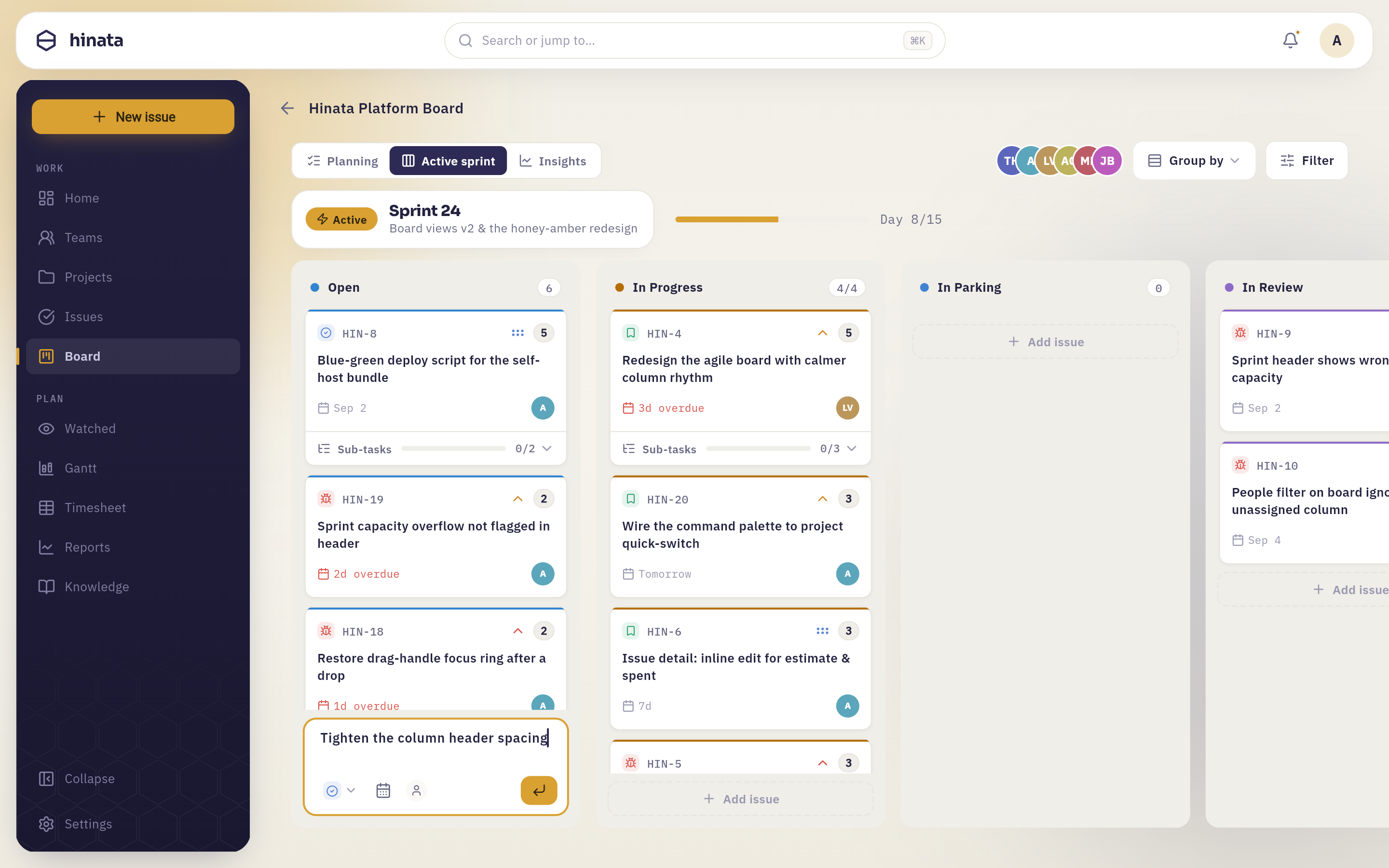 Add issue at the foot of the Open column, opened into a composer: a title typed and not yet submitted, chips for type, due date and assignee, and the amber Enter button. Behind it the Active sprint wall — a status dot per column, the 4/4 count on In Progress sitting exactly on its WIP limit, Day 8/15 in the sprint header.
Type a title, press Enter, and the issue is created already in that column's project and status. It also inherits whatever the column sits inside — the epic of an epic swimlane, the person of an assignee lane, the sprint of a sprint board — so there is nothing to set twice.
It is much faster than the full form, and it means a thought that arrives during standup gets written down during standup.
Kanban or Scrum#
Both board types share the same cards, the same filters and the same swimlanes. They differ in how they treat time.
| Kanban | Scrum | |
|---|---|---|
| Shape of the work | Continuous flow | Fixed timeboxes (sprints) |
| Views | Board and Timeline | Planning, Active sprint and Insights |
| Where unstarted work waits | In the first column | In the backlog, on the Planning tab |
| Estimation | Optional | Story points, per sprint |
On a Kanban board, the switcher next to the board name offers Board and Timeline. Board is the wall you already know; Timeline lays the same issues out on a calendar — see Timeline & dependencies.
On a Scrum board, the three tabs replace that switcher entirely, and the backlog lives on the Planning tab rather than as a separate view. The rest of this page walks through them.
Narrow the board down#
A board with two hundred cards on it is a wall, not a picture. Three controls sit above the columns to cut it down, and they all work together.
The people strip#
The overlapping avatars in the top-right are everyone with work on this board. Click one to show only their cards; click another to add them; click again to remove.
This is the same setting as the Assignee facet in the filter popup — the strip is simply the shortcut for the thing you filter by most often.
The filter popup#
Filter opens a glass panel with eight facets:
Status · Type · Priority · Assignee · Sprint · Author · Label · Epic
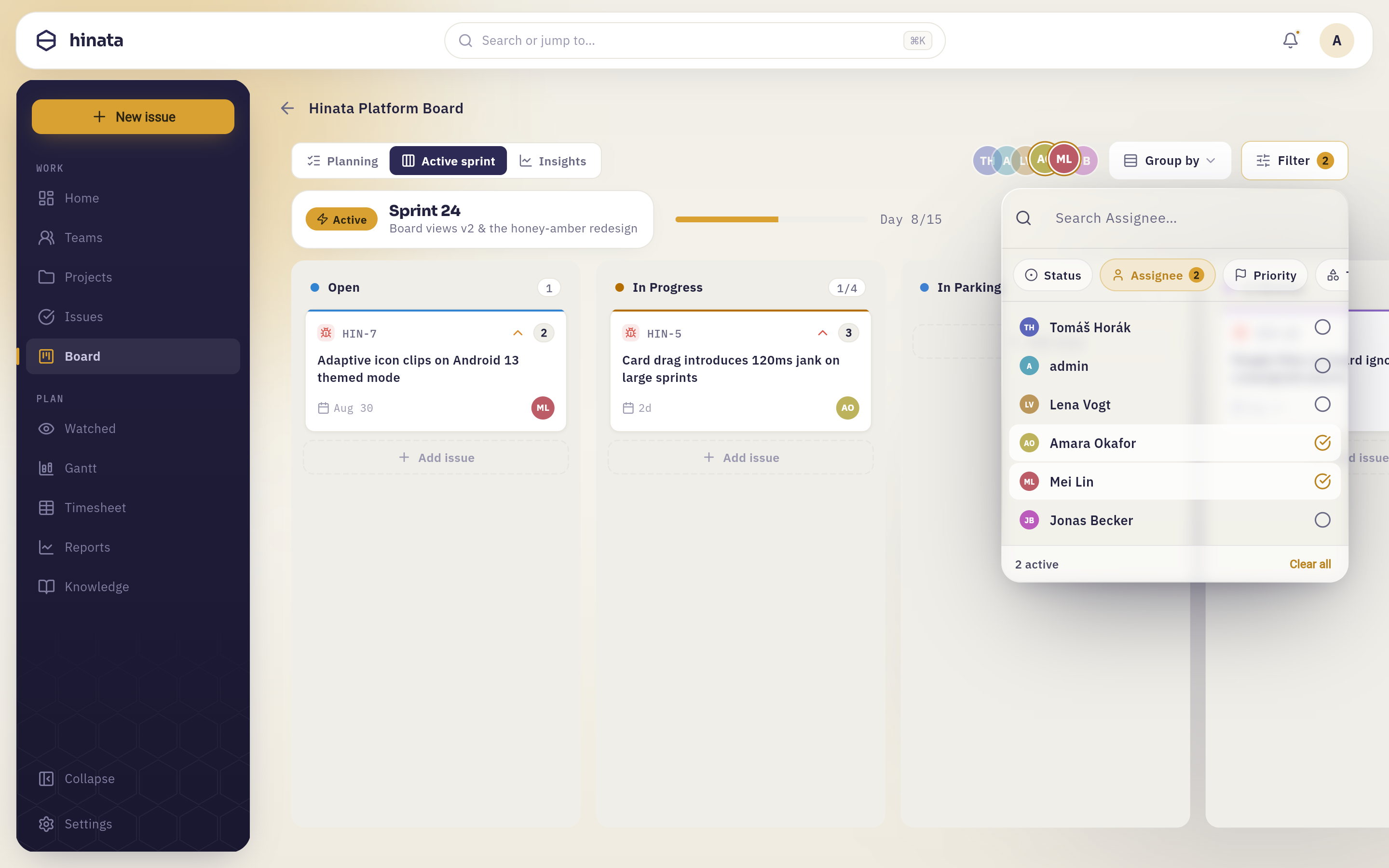 The Assignee facet with Amara Okafor and Mei Lin ticked. The footer reads 2 active with Clear all beside it, the Filter button gains an amber 2, the same two avatars light up in the people strip, and the wall behind has narrowed to their cards — Open is down to one.
Each facet is a searchable multi-select. The rule for how they combine is worth learning, because it is what makes the filter useful rather than fiddly:
Choices within one facet are an OR. Facets between each other are an AND.
So picking Bug and Story under Type, and Ana under Assignee, gives you "bugs or stories that are assigned to Ana". Picking nothing in a facet means that facet is not filtering at all.
The Sprint facet includes a No sprint entry, which is how you look at backlog items among the rest.
The filter is yours, not the board's
Filtering changes what you see. It does not move, hide or alter anything for anyone else, and it is not saved onto the board — so filter freely.
Swimlanes#
Group by splits the wall into horizontal lanes, each carrying the full set of columns. It is the single most effective way to make a crowded board legible, and which grouping helps depends on the question you are asking.
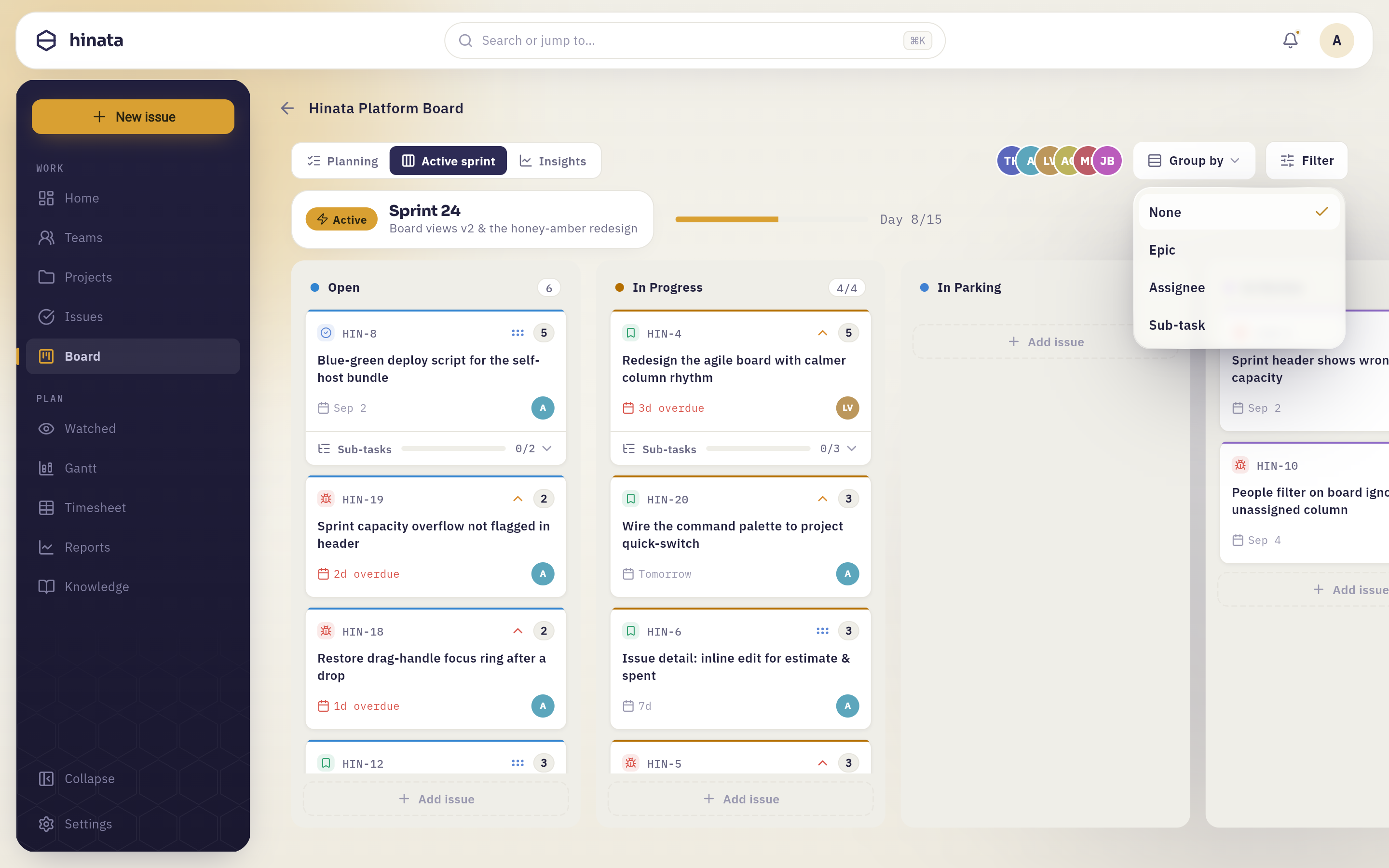 Group by, beside Filter above the wall. This board covers one project, so the menu offers None, Epic, Assignee and Sub-task — Project appears only on a board that spans several.
| Group by | You get | Use it when |
|---|---|---|
| None | One flat board | The default — fewer than ~40 cards |
| Epic | A lane per epic, plus No epic | You want to see how a large piece of work is progressing as a whole |
| Assignee | A lane per person, plus Unassigned | Running a standup, or checking whether the load is fair |
| Sub-task | A lane per parent issue, with its sub-tasks as cards, plus Stand-alone | A few big items are being worked in parallel and you need the detail |
| Project | A lane per project | Only on a board that spans several projects |
Each lane can be collapsed, so you can fold away the four epics you are not discussing and leave the fifth open.
Epic swimlanes plus the epic filter
Group by Epic and then filter to a single epic, and the whole board becomes one epic's board — columns, cards and all. It is the cleanest way to run a focused review without creating a separate board for it.
WIP limits#
A column can carry a work-in-progress limit: the largest number of cards that should sit in it at once. When one is set, the count badge reads 3/5 instead of 3. Go over it and both the badge and its background turn red.
Hinata does not stop you exceeding a WIP limit, and that is on purpose. The limit is a conversation-starter, not a lock — the point of a red badge in In Review is that somebody notices nothing is being reviewed, not that the seventh card gets blocked at the door.
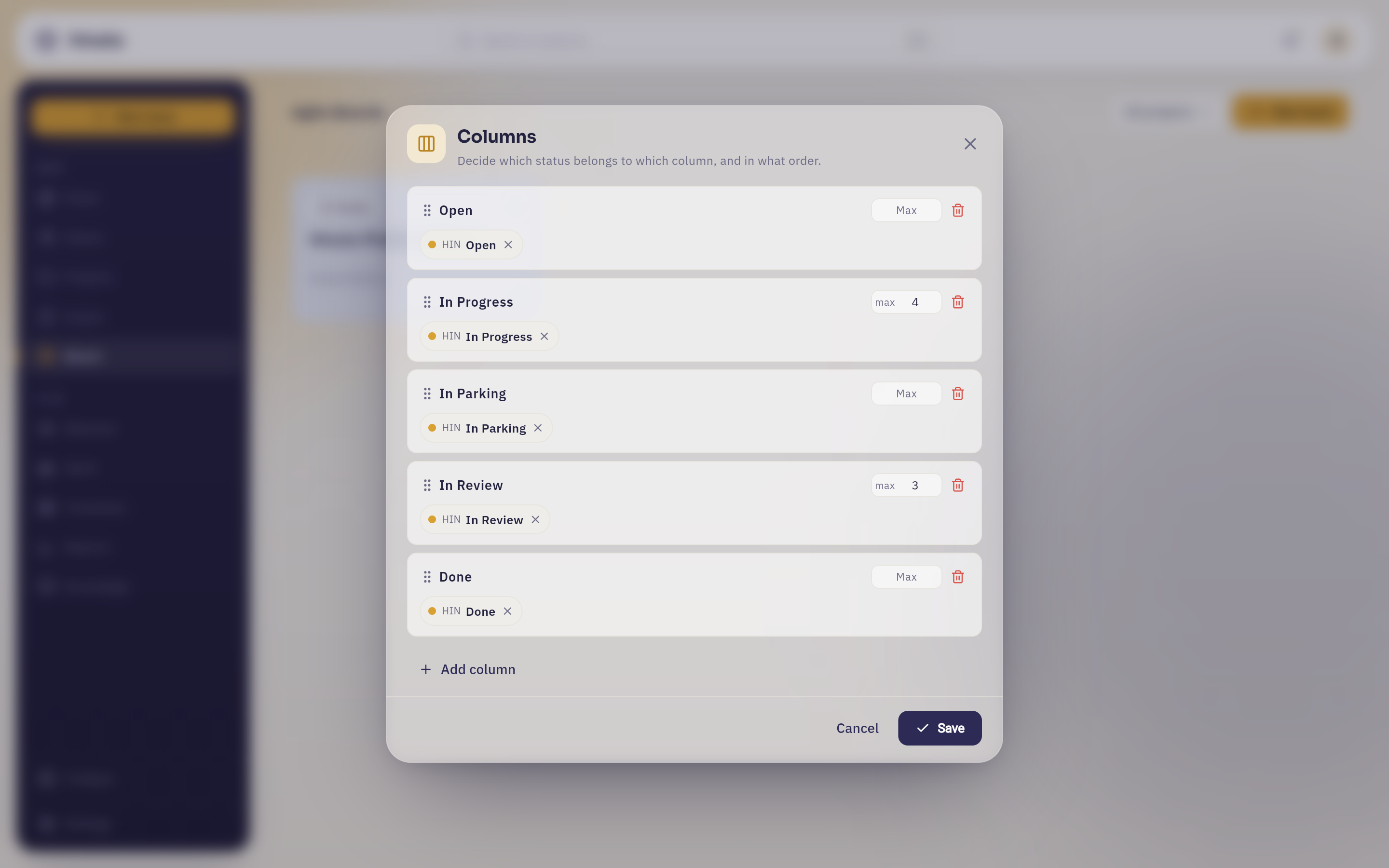 Board options → Columns. One row per column: a drag handle for reordering, the workflow states it holds as chips, a Max box for the WIP limit — filled in on In Progress and In Review, empty on the rest — and a button to remove the column outright.
You need to be the board's owner, a lead on one of its projects, a team lead or an administrator to open it.
The backlog#
The backlog is simpler than it sounds: it is every issue in the board's projects that is not in a sprint, ordered by priority. Nothing puts an issue there — an issue is in the backlog exactly as long as no sprint has claimed it.
It is where ideas wait. Raise a bug on Tuesday, and it sits in the backlog until a sprint planning session decides whether it belongs in the next two weeks. On a Scrum board you find it at the bottom of the Planning tab, paginated, with its own search box.
Kanban boards have no backlog tab
A flow board has no timeboxes to be outside of, so the concept does not apply. Unstarted work simply sits in the first column.
Run a sprint#
A sprint is a fixed stretch of time — usually one to four weeks — with an agreed set of work in it. Hinata models the whole lifecycle: plan it, start it, work through it, complete it. Everything happens on a Scrum board's three tabs.
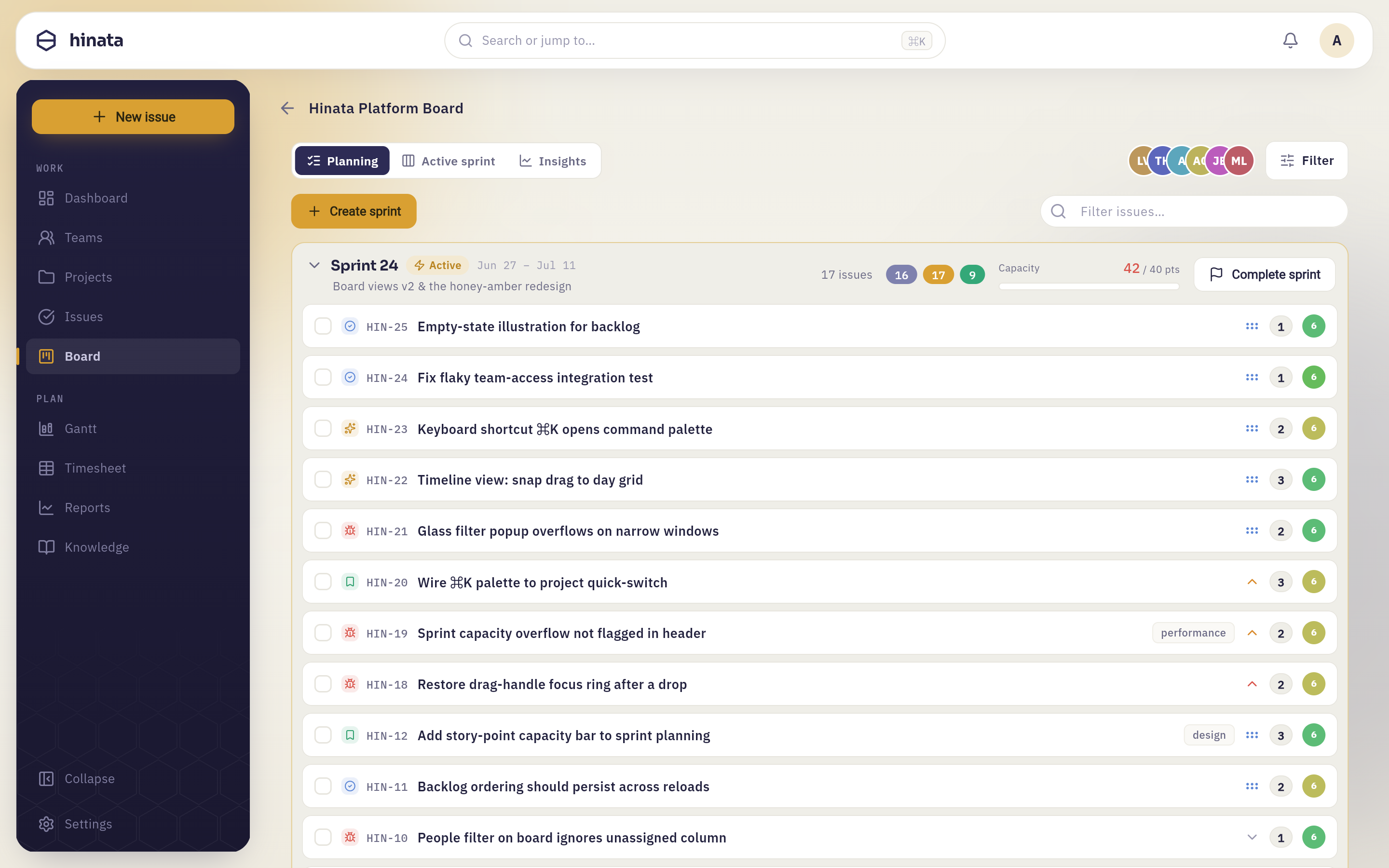 The Planning tab: Sprint 24 is active, runs 14 to 28 August, and its capacity bar is red — 42 story points committed against a capacity of 40. Each row shows the issue's type, key, title, labels, story points and assignee.
1. Plan the sprint#
On the Planning tab, choose Create sprint. The dialog asks for:
- Sprint name — prefilled with the next number (Sprint 24, Sprint 25…), editable to anything.
- Sprint goal — optional, and worth writing. One sentence about the outcome the sprint should deliver, which then appears in the sprint header for the next two weeks and reminds everyone what they agreed to.
- Duration — one to four weeks. The end date follows from the start date automatically.
- Start date — when the timebox begins. It comes pre-filled: tomorrow for your first sprint, and shortly after the previous sprint's end date once there is one.
The new sprint appears as an empty container above the backlog.
2. Fill it from the backlog#
Drag issues out of the backlog and into the sprint container. On a phone, tick the circles on the rows you want instead — a bar appears at the bottom of the screen with the count and a Move to… action.
You can also move issues between planned sprints the same way, which is how "this is really a next-sprint problem" gets acted on rather than argued about.
3. Estimate with story points#
Tap the points area on any row in the sprint to open the estimate picker.
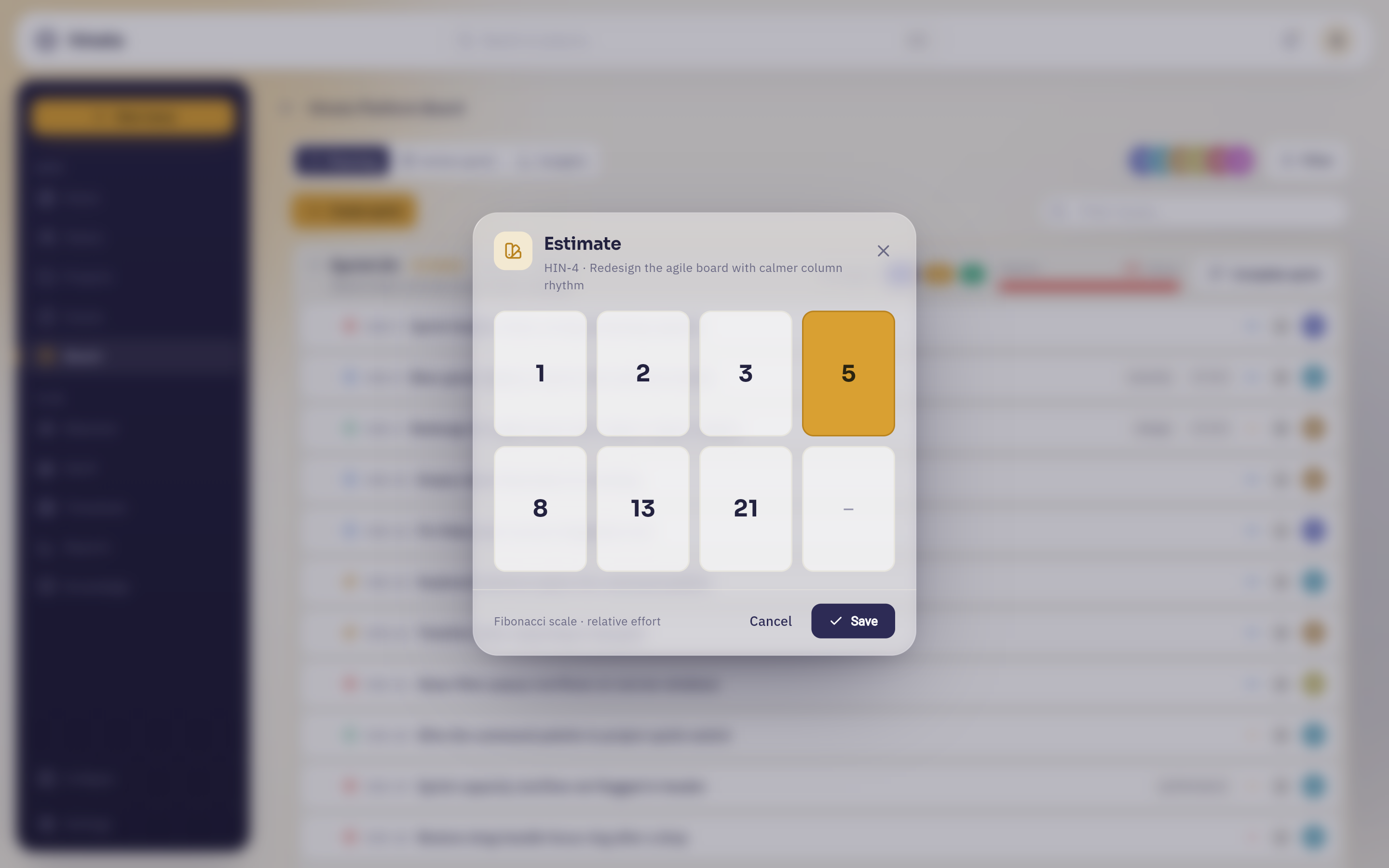 Estimate, opened from HIN-4's row: a planning-poker grid on the Fibonacci scale — 1, 2, 3, 5, 8, 13, 21 — with the issue's current 5 selected. The key and title under the heading say which issue is being sized, which is the part people get wrong; the last card, —, clears the estimate again.
Story points measure relative effort, not hours. A 5 is meaningfully bigger than a 3 and roughly half of a 13; that is the whole contract. Their value is what they add up to, which is what the two readouts in the sprint header are for:
- Point buckets — three pills showing how the committed points split across to-do, in-progress and done. During a sprint you want to watch the green one grow.
- Capacity — committed points against the team's capacity, as
42 / 40 ptswith a bar underneath. Go over and both turn red, as in the screenshot above.
Capacity is optional
A sprint without a capacity figure shows its committed points on their own, with no bar — a bar that is always full says nothing. Capacity is set through the API or an admin tool rather than in the create dialog, so if your team does not use it, you simply will not see it.
4. Start it#
When the scope looks right, press Start sprint on the sprint container. The button stays disabled while the sprint is empty — there is nothing to start.
The dialog shows what you are committing to: the issue count, the committed story points, and a warning if that is over capacity. Confirm the goal and the end date, and the sprint becomes Active.
Starting a sprint notifies everyone who is a member of the board's projects, so nobody has to be told separately that the timebox has begun.
5. Work through it#
The Active sprint tab is a normal board wall, scoped to the sprint. The same drag, the same filters, the same swimlanes — plus a glass header carrying an amber Active badge, the sprint name and goal, and a day counter reading Day 8/15 with a progress bar.
That counter is quietly the most useful thing on the tab. "We are on day 11 of 15 and half the points are still to-do" is a conversation you want to have on day 11, not on day 14.
6. Complete it#
Press Complete sprint when the timebox ends.
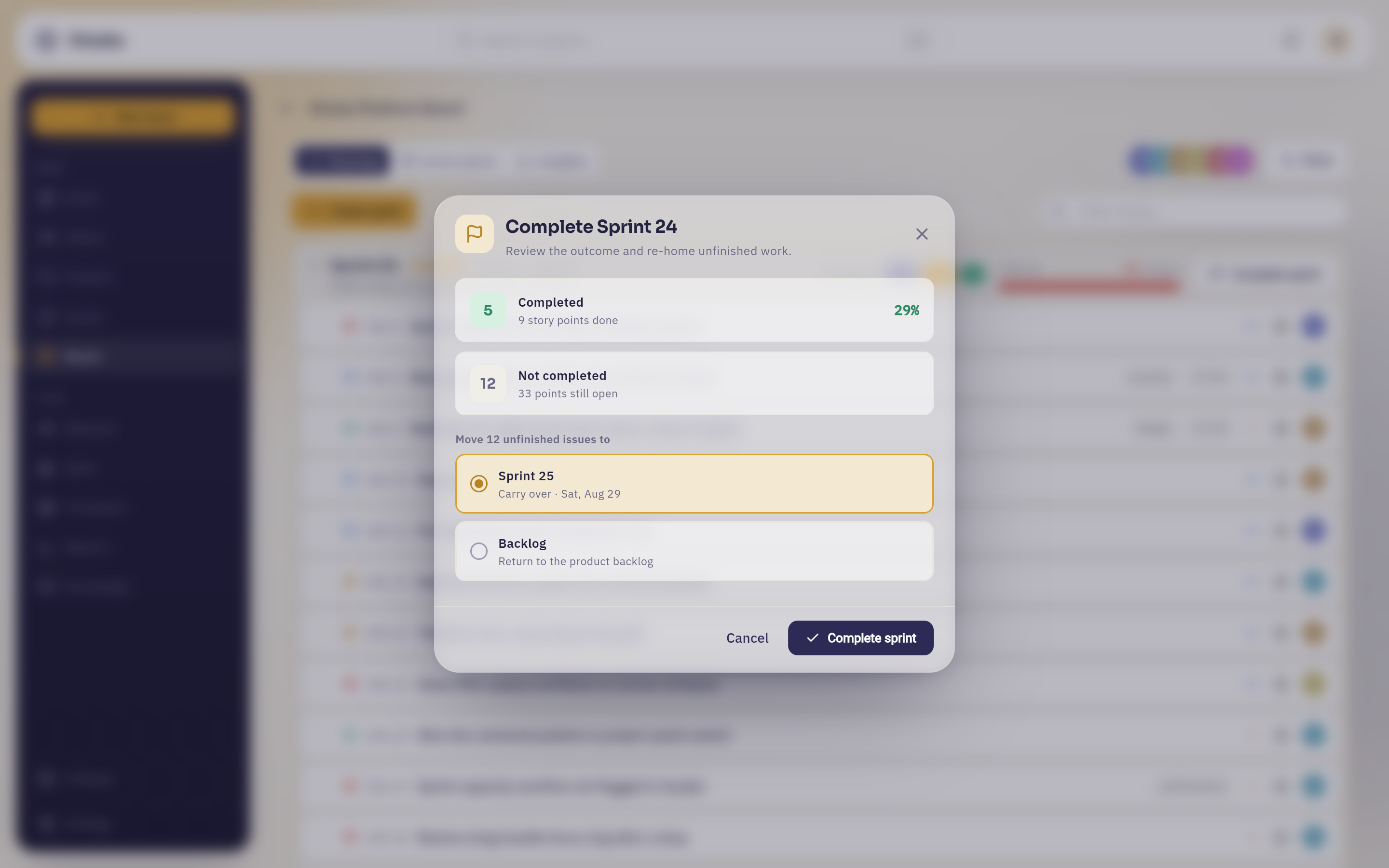 Complete Sprint 24: five issues completed for nine story points — 29 % — against twelve not completed and 33 points still open, then the destination for those twelve. Every planned sprint is offered above Backlog — here Sprint 25, with the date the carry-over would land on — and Backlog is what is left when there is nothing to carry into.
Confirm, and three things happen. The sprint is archived. Finished work stays attributed to it, so its history and its numbers stay honest. Every unfinished issue moves to the destination you chose, is recorded in that issue's history as a sprint change, and its watchers are notified.
Completing a sprint moves other people's work
Unfinished issues really do change sprint — it is not a label. Anyone watching one of them gets told, and the move shows up in the issue's history. Make the choice deliberately, and tell the team which way you went.
Nothing is ever lost at a sprint boundary
There is no option to complete a sprint and leave open issues stranded in it. Every one of them is explicitly re-homed, which is what keeps the next planning session from starting with an archaeology exercise.
Read the sprint's numbers#
The Insights tab turns the running sprint into four charts:
- Sprint burndown — a dashed Guideline from the committed points down to zero, against a solid Actual line drawn up to today. The gap between them is the story.
- Velocity — committed against done points for this sprint and previous ones, with an average.
- Work breakdown by assignee — where the estimated effort sits.
- Scope changes — the net points added or removed since the sprint started, which is how "we kept adding things" stops being a feeling and becomes a number.
For trends across many sprints, cycle time and exports, go to Reports & dashboard.
On a phone#
Everything above works on a phone; the layout simply folds.
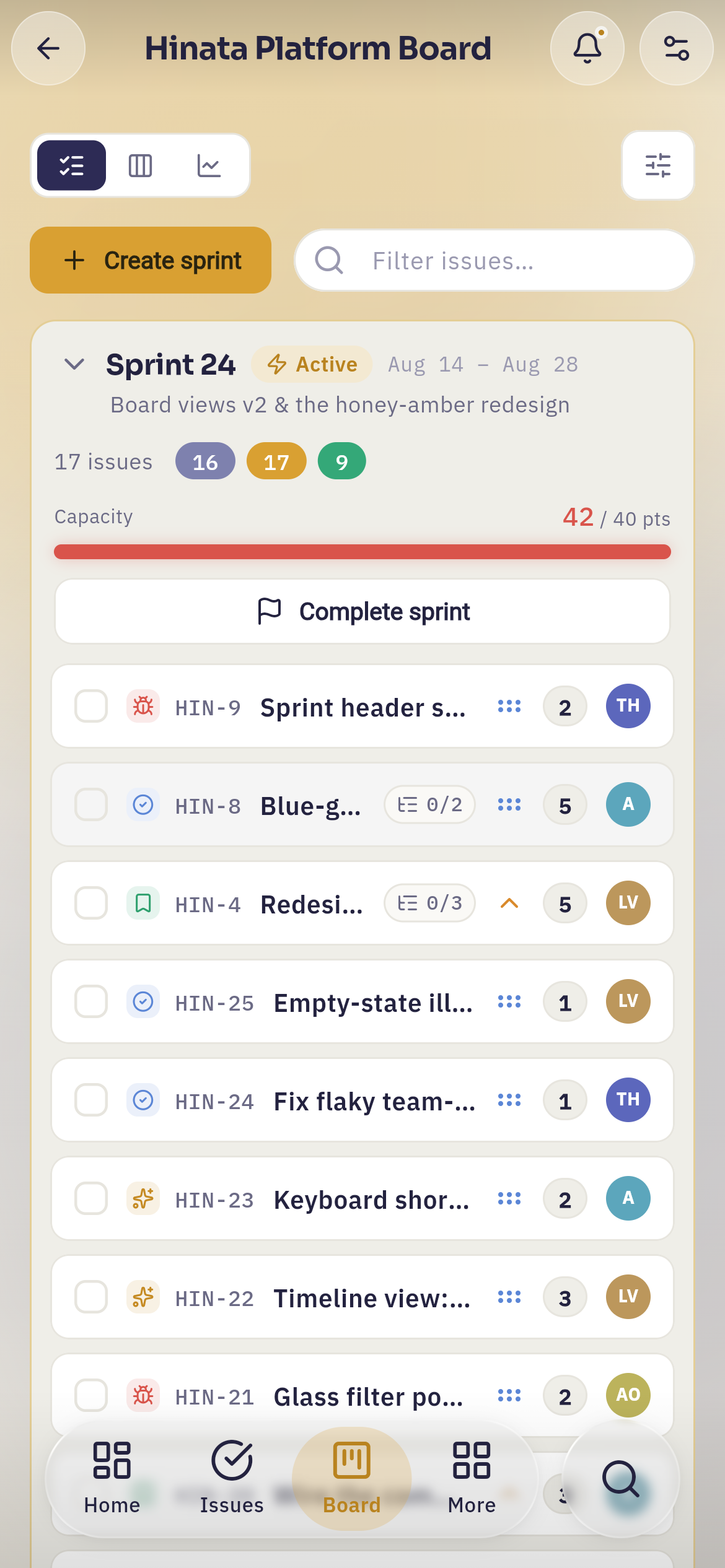 The same Planning tab on a phone: the view switcher and filter collapse to icons, the sprint header stacks its issue count, point buckets and capacity bar vertically, and Complete sprint runs the full width.
The differences worth knowing:
- The Board/Timeline switcher and the Planning/Active sprint/Insights tabs become icon-only buttons, and so does Filter.
- Cards do not drag. Change a status by opening the issue; move issues into a sprint by selecting them and using Move to….
- The board wall scrolls sideways one column at a time, so a column always lands squarely on screen.
More about the small-screen experience is in On your phone.
Look after the board#
Every board in the boards list carries a ⋮ button — that is Board options, and it is also on a project's own Boards page. It holds the housekeeping actions:
- Rename board — new name, nothing else changes.
- Projects — change which projects the board covers. Equivalent statuses of the selected projects merge into shared columns automatically.
- Columns — the editor shown above. The automatic merge is a good guess, but two projects may name the same step differently; this is where you correct it.
- Delete board — removes the board. The issues on it are untouched: they belong to their projects, not to the board.
You need to own the board, lead one of its projects, lead a team with access to it, or be an administrator. If you do not see the menu, you are not in one of those roles — which is normal, and not something you need to fix yourself.
Every status needs a column
If you edit columns by hand, make sure each workflow state ends up in exactly one of them. A state with no column means its issues quietly do not appear on the wall. The editor warns you about this before it lets you save.
Where to go next#
- Working with issues — what is on the cards, and how epics, stories and sub-tasks fit together.
- Timeline & dependencies — the same work on a calendar, with the links between it.
- Tracking your time — logging effort against the issues you are moving.
- Reports & dashboard — velocity, cycle time and the numbers behind several sprints.