Comments & attachments#
Decisions that live in a chat channel are gone by next quarter. Decisions that live on the issue are still there when someone asks "why did we do it this way?" two years later. That is the whole idea behind this page: every conversation, file and voice note belongs to the piece of work it is about.
Where the conversation lives#
Scroll to the bottom of any issue and you find two things stacked: the Attachments drop zone, and the Activity section with the discussion in it.
Activity has three tabs — All, Comments and History. An issue opens on Comments, because that is usually what you came for. On the right, a sort control switches between Newest first and Oldest first; newest first is right for catching up, oldest first for reading a long issue as a story.
The composer floats at the bottom of the screen and stays there while the feed scrolls behind it, so you never have to hunt for it on a long issue.
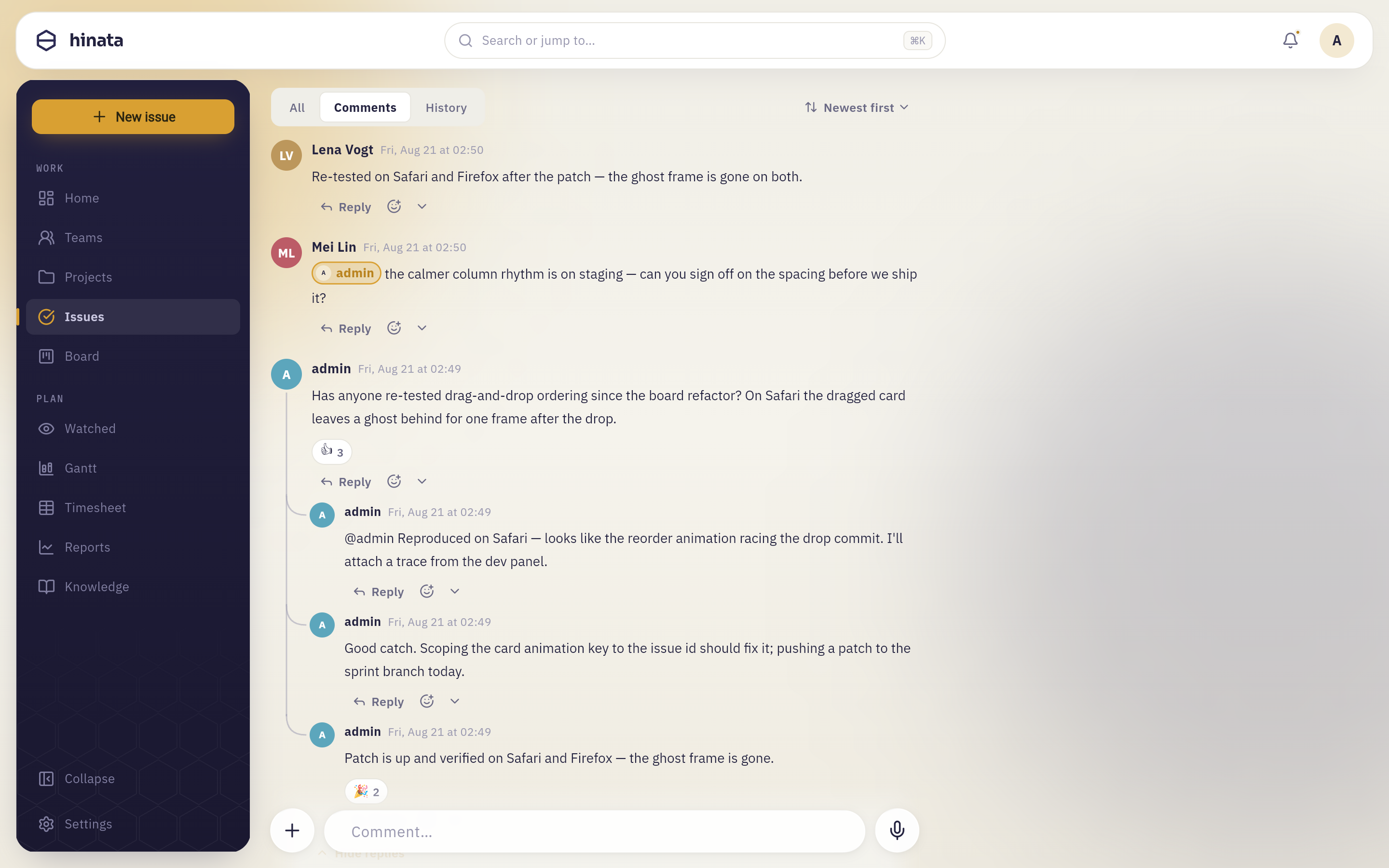 A thread: a root comment carrying a 👍 3 reaction, its indented replies under it, and under every one of them Reply, React and the More chevron. The composer floats over all of it with its + and its microphone.
Write a comment#
Click the Comment… field, type, and send. Everything you can write in an issue description you can write in a comment: headings, bold and italics, lists, task lists, quotes, tables, code blocks with a language, callouts, links and images. Text formatting expands the composer into the full editor with an Editor / Preview switch, so you can check a long comment before it goes out.
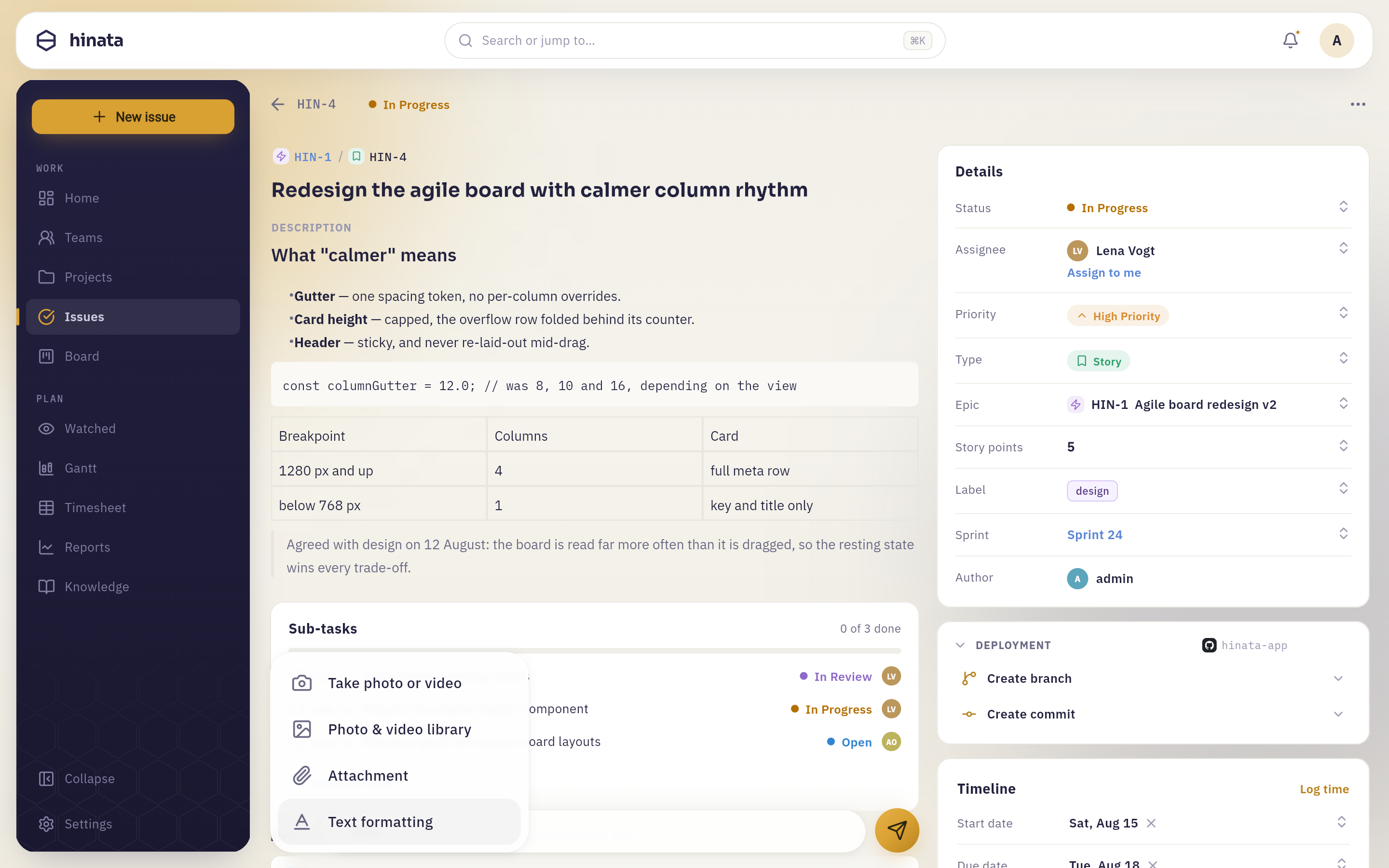 The + to the left of the Comment… field. The two picture entries put the image into the comment text, at your cursor; Attachment uploads the file to the issue's attachment list instead, where everyone finds it without scrolling the thread.
⌘↵ sends
The composer prints its own hint: ⌘↵ to send — that is ⌘ and Return on a Mac, Ctrl and Return everywhere else. Plain Return gives you a new line — comments are often more than one sentence, so the safer key is the one that does less.
Not every entry appears on every platform
The camera entry is only offered where a camera exists — on Linux there is no webcam support, so the entry is hidden rather than shown and then failing. See Download for what each platform can do.
Mention someone#
Type @ anywhere in a comment and pick from the menu that opens. What lands in your text is a chip, not characters.
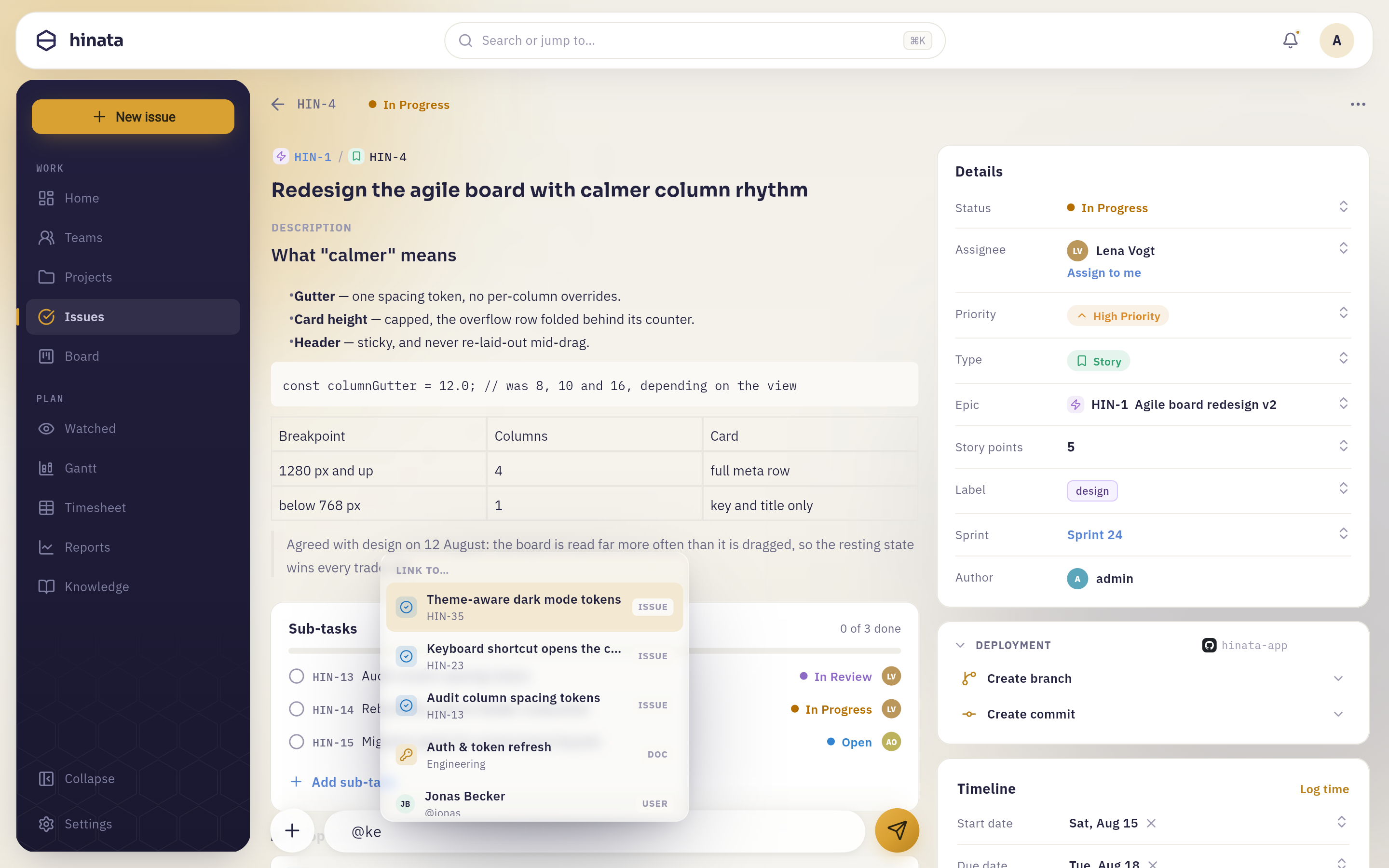 One menu searches issues, knowledge base articles and people together, under the heading LINK TO…. Two letters are enough:
 @ke brings back three issues, the article Auth & token refresh and Jonas Becker, each row labelled ISSUE, DOC or USER on the right.
What each kind does:
- A person — they get a direct notification: in-app, by e-mail, and as a push if their device supports it. This is how you pull somebody in who is not watching the issue.
- An issue — the chip shows that issue's key and current status, live. If it moves to Done, the chip in your comment shows Done, without anyone editing anything.
- An article — a link into the knowledge base that keeps working if the article is renamed.
Nobody gets pinged twice
Hinata sorts out overlapping reasons for the same notification. A mention beats a reply, and a reply beats the general "new comment on this issue" notice — so if you mention the assignee in a reply to their comment, they get exactly one notification, the most specific one. And you never notify yourself, however often you mention your own name.
Reply in a thread#
Every comment has a Reply action underneath it. Replying opens the composer with "Replying to …" above it, and the reply lands indented under the comment you answered.
Threads are deliberately one level deep. Reply to a reply and it joins the same thread rather than starting a new branch — but it still quotes the specific message you answered, so a fast-moving thread stays readable without turning into a tree nobody can follow.
- A root comment with replies shows 3 replies — click it to load them, Hide replies to fold them away again.
- Long threads load in pages, with Load more replies at the bottom.
- Replying notifies the author of the comment you answered, even if they are not watching the issue.
Replies are loaded only when you open them, which is why an issue with hundreds of comments still opens instantly.
React to a comment#
Next to Reply there is a smiley button. Click it, search the emoji picker if you need something specific, and your reaction appears under the comment.
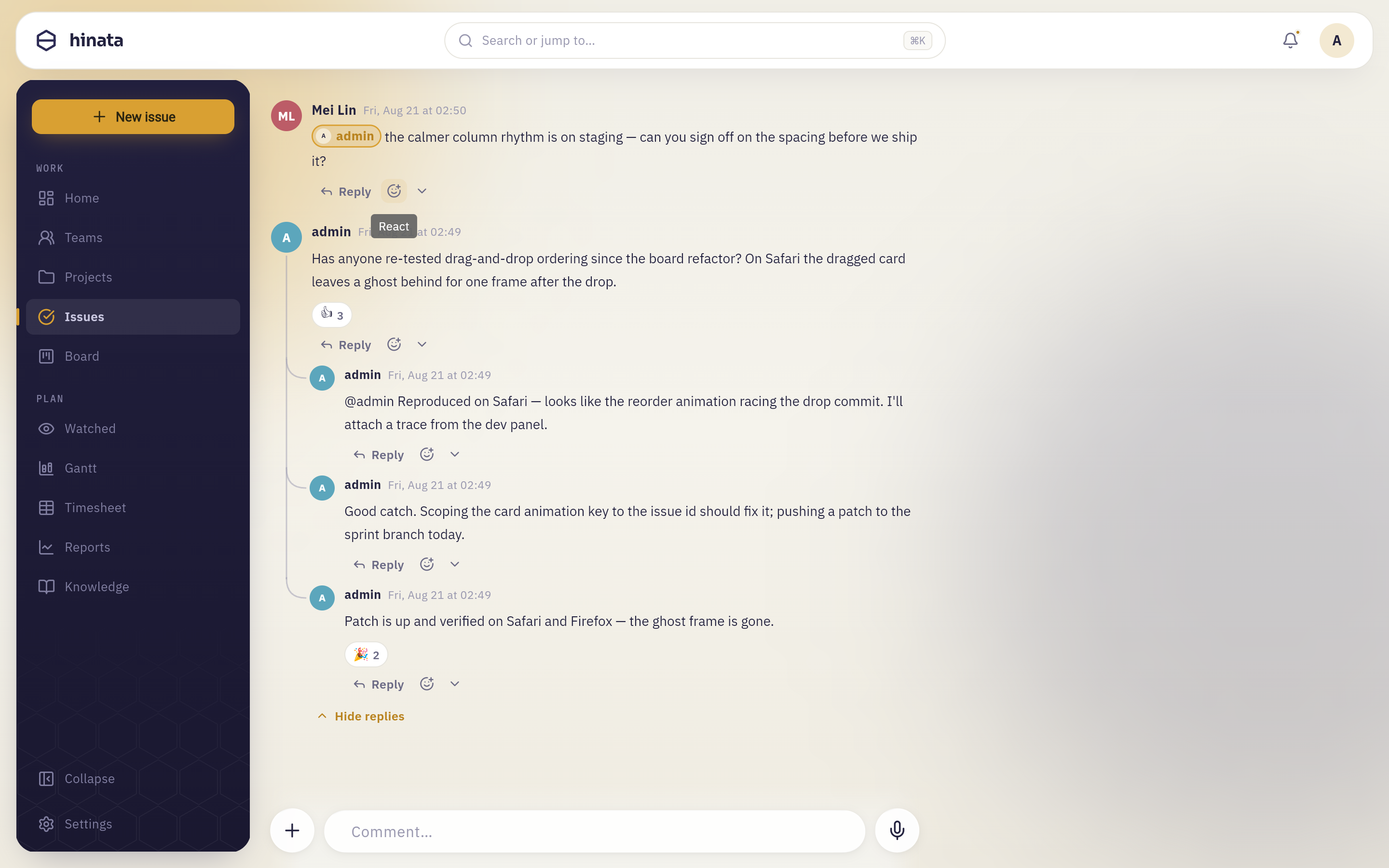 One click opens six emoji — ❤️ 👍 😂 😮 😢 🙏 — and a … for the full picker. The comment below already carries its own 👍 3: reactions sit under the text, above the action row, and the count is how many people picked that one.
- One reaction per person, per comment. Picking a different emoji replaces yours; picking the same one again removes it.
- Anyone in the project can react.
- Reactions are the cheapest way to close a loop. "👍" on "I'll take this one" saves a comment that says nothing else.
Pin what matters#
Any project member can Pin a comment from its menu. Pinned comments are collected in a Pinned section at the top of the thread, which is where the summary of a long discussion, the agreed decision, or the reproduction steps belong. Unpin puts it back in the flow.
Edit or delete your own comments#
Open a comment's menu — the More chevron on desktop, a long press on touch. Which entries it holds depends on whose comment it is.
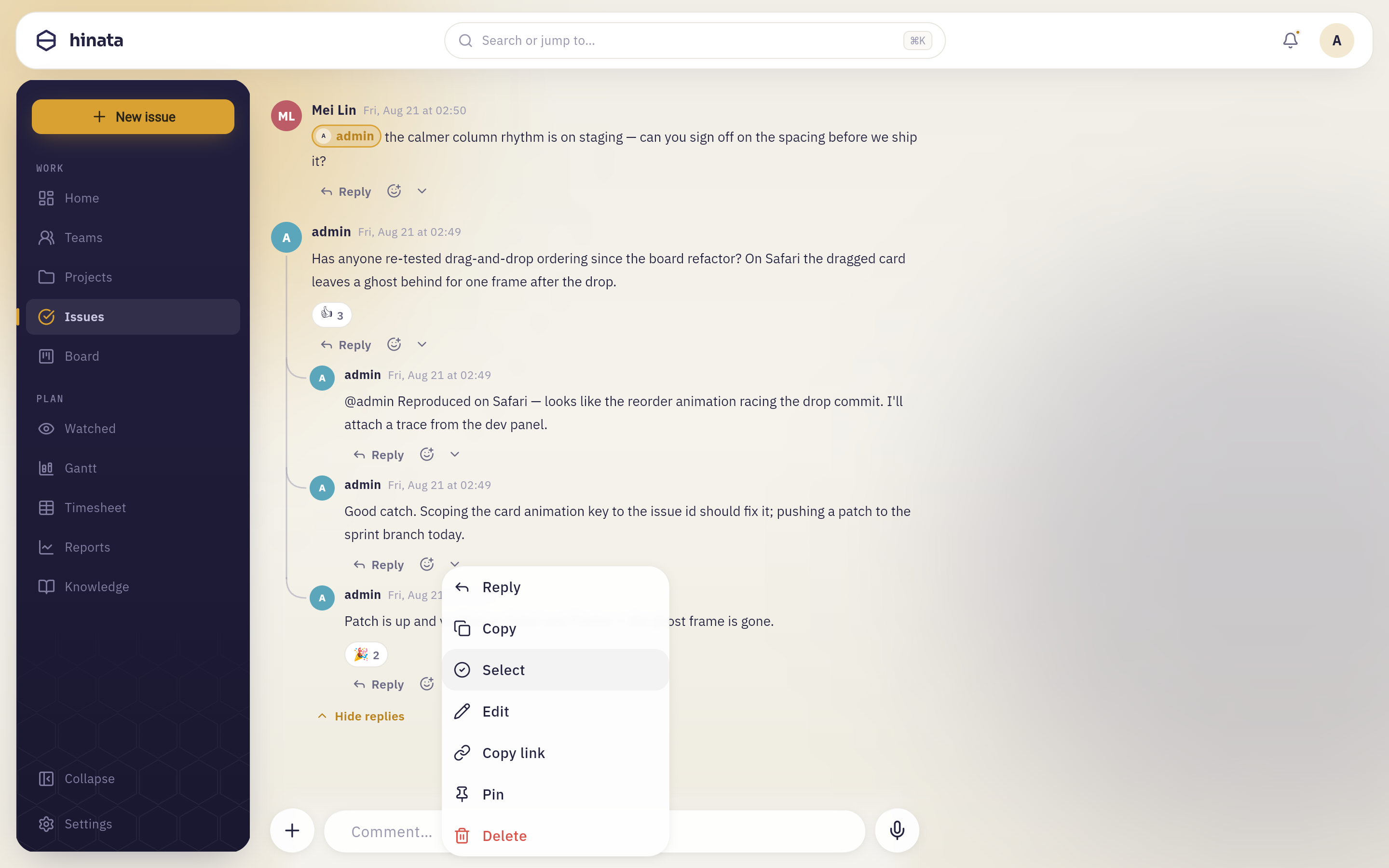 The menu on one of your own comments. Reply, Copy, Copy link and Pin are offered on anybody's comment; Select, Edit and the red Delete at the foot only on your own.
- Edit — only the author of a comment can edit it. An edited comment is marked edited, so nobody has to wonder whether they misread it the first time. Voice messages cannot be edited; delete and re-record instead.
- Delete — you can always delete your own. Administrators can delete anyone's, for moderation.
- Select — turns on multi-select for clearing out several of your own comments at once.
Deleting is permanent, and a root comment takes its replies with it
A deleted comment is gone for everyone, immediately, with no undo. Deleting a top-level comment also deletes every reply in its thread — including other people's. If a thread went off the rails, consider replying with a correction instead: the record of what was actually said is often worth more than a tidy page.
Copy a comment#
Copy puts the comment's text on your clipboard, formatting and all, ready to paste into a document or a chat. If the comment is nothing but an image, Hinata copies the image itself rather than a link to it, so it pastes straight into whatever app you are in.
Catching up on a long issue#
An issue that has been running for months is a different reading problem from one that started yesterday. Three controls do most of the work:
- Sort oldest first and read the thread as a story from the beginning. This is the right mode when you have just been assigned something and need the background.
- Switch to All to see comments and field changes interleaved. "Moved to In Review" sitting between two comments explains a lot that neither would explain alone.
- Read the Pinned section first. If the team pins its decisions, the summary of a 60-comment discussion is three pinned messages at the top.
Comments load a page at a time as you keep scrolling, so a long issue never makes you wait for history you were not going to read. The All and History tabs page the same way, with a Load more button at the end.
Habits that make a thread worth reading#
None of this is enforced, and all of it is learned the hard way by teams who ended up scrolling through 80 comments looking for one number.
- Mention the person who has to act. A comment nobody is named in is a comment addressed to everyone, which usually means nobody.
- Reply in the thread instead of starting a new root comment. A root comment says "new topic"; a reply says "about that thing above".
- Pin the outcome. When a discussion ends in a decision, write one comment that states it, and pin it. Everyone who arrives later reads three lines instead of forty.
- Move stable information into the description. Reproduction steps, the agreed scope, the API shape — if it is still true tomorrow, it belongs in the description where people look first, not in comment 30. Comments are the conversation; the description is the current truth.
- Use a code block for logs and stack traces. Pasted as plain text they turn into a wall; in a code block they stay readable and scroll on their own.
- Attach the file instead of describing it. A screenshot of the broken layout ends a discussion that three paragraphs would not.
Link straight to a comment#
Copy link in a comment's menu copies a permalink to that exact comment. Opening it loads the issue, scrolls to the comment and flashes it briefly so the eye finds it.
That is the link to paste when you are quoting a decision in a status report or an e-mail — much better than "see the comments on HIN-42, somewhere in the middle".
Voice comments#
Sometimes it is faster to say it. Tap the microphone on the right of the composer and recording starts immediately.
While you record, the composer becomes a recording bar: a pulsing dot, a running timer, and a live waveform of what the microphone is hearing. Two buttons frame it — the bin on the left throws the recording away, the send button on the right posts it.
The posted message appears as a bubble in the thread with its waveform and length, and plays back inline for anyone who opens the issue. Voice messages can be replied to, reacted to, pinned and deleted like any other comment; they just cannot be edited.
A voice note is worth it when tone matters, when you are describing something fiddly out loud, or when you are on a phone and typing it would take five minutes. It is worth not doing when the content is a decision, a number or a list — those need to be searchable, and audio is not.
The microphone has to be allowed
The first recording asks for microphone permission. If you decline, Hinata tells you why nothing happened rather than failing silently — grant it in your operating system's settings and try again.
Linux needs a few extra packages
On Linux, recording is done through parecord and ffmpeg, and playback needs the GStreamer base plugins. Without them the app says exactly which package is missing instead of pretending the audio is broken. Download lists what to install; every other platform works out of the box.
Attach files#
The Attachments block sits just above the discussion. Two ways to fill it:
- Drag files onto it. The zone highlights and reads Drop to attach; let go and the upload starts.
- Click it to open your file picker. On a phone or tablet an Add attachment sheet opens first, offering Photo Library, Take Photo, Record Video and Choose File.
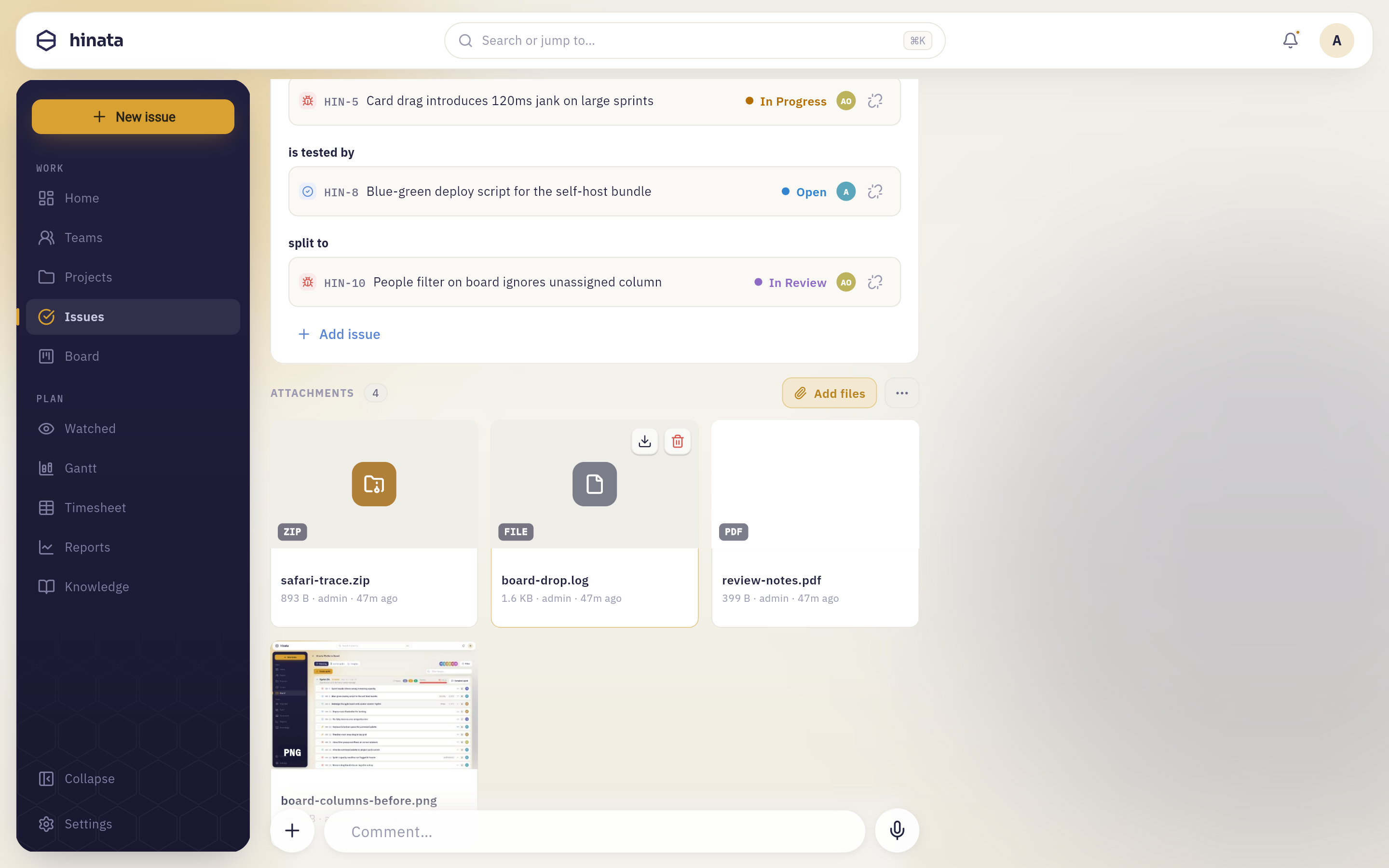 Once the block has files the drop zone becomes Add files, which opens the same picker. The image gets a real thumbnail, the ZIP, the log and the PDF a colour-coded glyph — and the tile under the cursor grows a download and a remove button.
The zone itself tells you the rules your server enforces — something like "Images, PDFs & text preview inline · any file type · up to 25 MB". Three limits apply, and all three are set by whoever runs your server:
| Limit | What it means |
|---|---|
| Size per file | The number printed in the drop zone. A bigger file is rejected before it uploads, naming the file that was too large |
| Files per upload | How many you can add in one go. Drop more and Hinata takes the first batch and tells you |
| Total per upload | The combined size of one selection |
If your server restricts file types, a blocked file is refused by name with "file type not allowed". Everything is stored in your own object storage — nothing goes to a third party. Operators can read the storage side in Object storage.
While the upload runs#
A tile appears immediately with a progress indicator, so you can keep typing your comment while a large file uploads. When it finishes, the tile becomes the real attachment and a short confirmation appears. If it fails — a dropped connection, a file that changed under you — the tile says Upload failed and offers Retry, so you do not have to find the file in your folders again.
Uploading several files at once is normal: drop the whole selection and they upload together, each with its own tile.
Inline images vs. attachments#
A picture can end up on an issue in two different places, and it is worth knowing which you are creating:
- Inline in the text — an image you insert into a description or a comment. It is part of what you wrote, it sits exactly where the sentence needs it, and it does not appear in the attachments grid.
- In the attachments list — a file that belongs to the issue as a whole. It shows up in the grid, everyone finds it without reading the thread, and it can be downloaded with the rest in one archive.
Rule of thumb: if it illustrates a sentence, put it inline. If it is evidence, a document, a log or something a colleague will come looking for, attach it.
Preview, open and download#
Attachments appear as tiles in a grid. Images and PDFs get a real thumbnail (for a PDF, its first page); everything else gets a colour-coded glyph for its type.
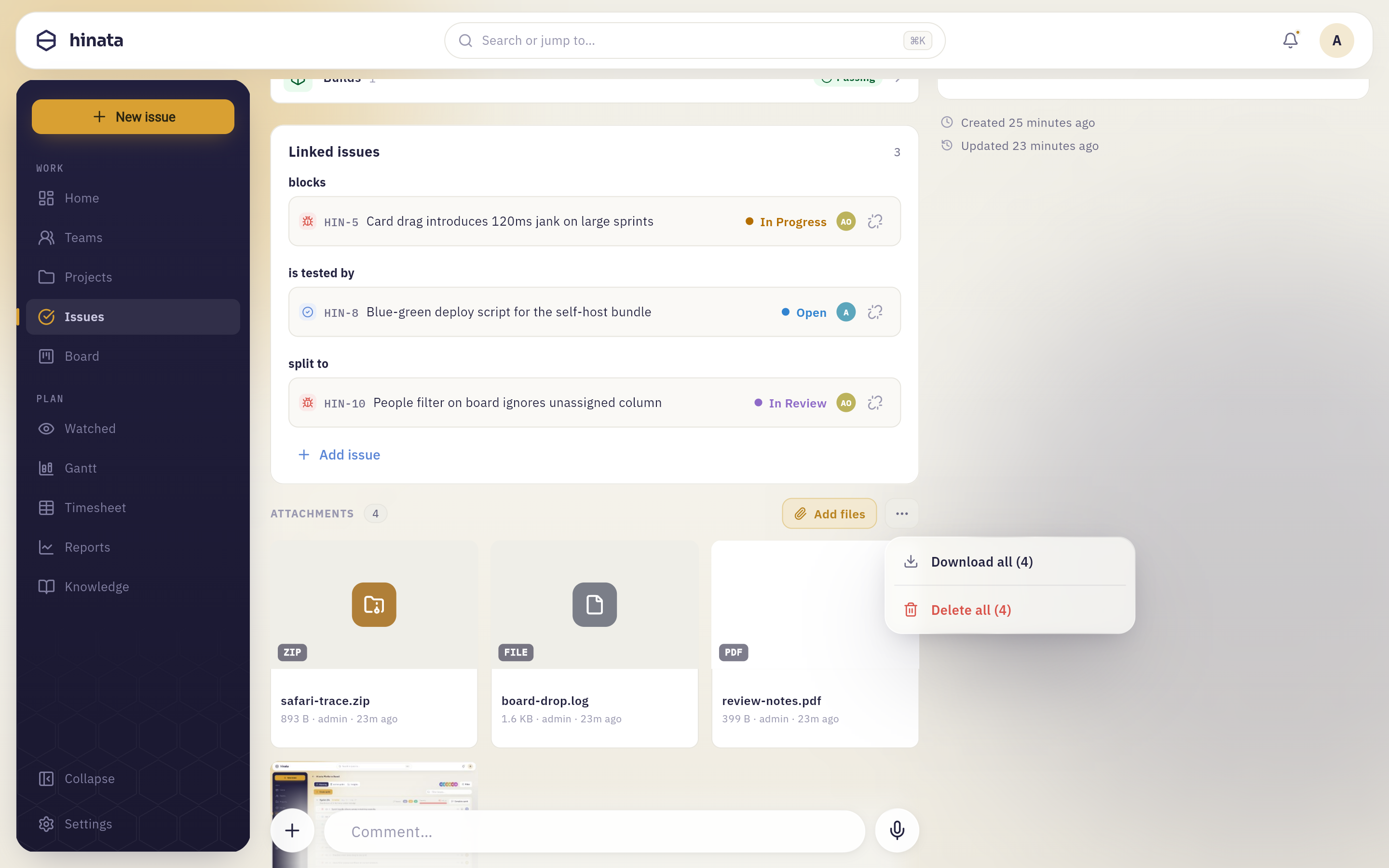 Four files on one issue, each tile naming size, uploader and age. Add files uploads more; the … beside it is More actions, holding Download all (4) — every file on the issue in one ZIP — and Delete all (4).
Click a tile to open the viewer, a full-screen dark stage with the file in the middle.
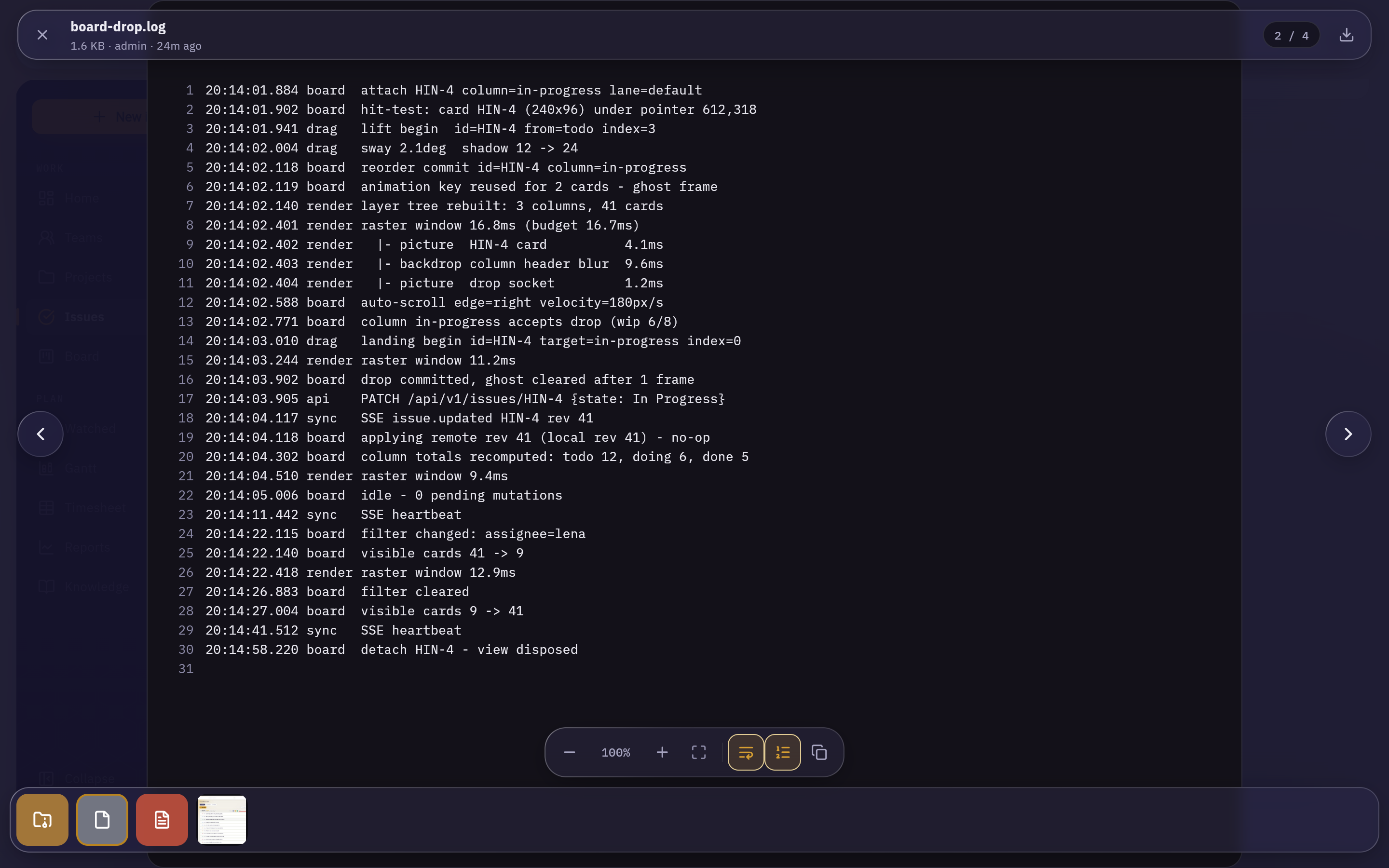 A log file in the viewer, with Line numbers and Wrap long lines switched on and Copy all text beside them. The counter reads 2 / 4: the arrows and the strip along the bottom step through the whole grid without going back to the issue.
Not every type can be shown, and the viewer says so rather than failing:
| File | In the viewer |
|---|---|
| Images (PNG, JPEG, GIF, WebP…) | Full size, zoomable, with a thumbnail in the grid |
| Rendered page by page; the grid thumbnail is page one | |
| Text, code, logs, Markdown, config | Shown as plain text with line numbers, wrapping and copy |
| Office documents, archives, video | A card with the file's name and type — download it to open it |
Text files past a couple of megabytes are not pulled into the viewer at all: they say they are too large and point you at the download, because a preview pane is no place for a giant log.
Where a download goes — one file or the whole ZIP — depends on your platform: iOS, Android, macOS and Windows open the system share sheet so you choose the destination; Linux writes straight to your Downloads folder and names the file; the web build hands it to your browser.
Removing a file removes it for everyone
Remove deletes the attachment from the issue and from storage — for every person looking at that issue, permanently. There is no archive step for files the way there is for issues, so read the file name twice before confirming.
Who can see a file#
Attachments follow the issue. Anyone who can open the issue can see, preview and download its files; anyone who cannot, cannot — there is no separate sharing setting to get wrong.
There is also no public link. Every preview and every download is fetched through your server, which checks your access to that issue first, and the files themselves sit in your organisation's own storage under names that cannot be guessed. So a URL you copy out of the app is not a link you can hand to someone outside the project and expect to work — send them the issue link instead, and give them access to the project.
That includes voice messages
A voice comment is an audio file in the same storage, reachable the same way. Deleting the comment deletes the recording with it.
Everything updates live#
You do not have to refresh anything, ever. New comments, edits, reactions, deletions and attachment changes all arrive while you are looking at the issue.
That has a practical consequence worth knowing: if two of you are on the same issue during a call, you can watch each other work. Someone drops in a screenshot and it appears in your grid; someone reacts to your comment and the emoji shows up under it. It also means the file you were about to open can vanish under your cursor if a colleague removes it — rare, but not a bug.
Replying by e-mail
If your server turns inbound e-mail into issues, an issue that arrived that way gets an extra Reply by email entry in the … menu, which sends your answer back to the original sender instead of only writing an internal comment. Whether this exists depends on your server's configuration — the operator side is E-mail to ticket.
When a thread gets too loud#
A busy issue can fill your notifications, and there are three separate dials rather than one:
- Stop watching the issue (the … menu → Watch). You keep getting notified as its assignee or reporter, but the general chatter stops.
- Turn down Comments on my issues or Watched issues in your account's notification settings, per channel — in-app, e-mail, push.
- Leave Mentions & replies on. It is the one category worth keeping loud: it only fires when somebody actually addressed you.
Your account is where those switches live, and Staying informed explains what each one covers.
On a phone#
Everything on this page works on a phone; a few things simply look different.
- The composer sticks to the bottom of the screen and lifts above the keyboard as you type, so the field you are writing in is never hidden.
- The per-comment menu opens with a long press instead of a hover chevron.
- The + button offers your camera and photo library first, because that is what you usually want on a phone.
- Downloads go through the system share sheet, so a file can land in Files, in another app, or in a message.
On your phone covers the mobile layout in full.
Related pages#
- Working with issues — the fields, the hierarchy, links, cloning, archiving and export.
- Staying informed — what a mention, a reply or a change actually sends you, and how to turn it down.
- Writing documentation — when a discussion has outgrown an issue and deserves an article.
- On your phone — the composer, the picker and the viewer on a small screen.
- Download — what each platform can do, including the Linux audio packages.