Your account#
Your account settings are the one screen in Hinata that is entirely about you rather than about the work. Your name and picture as colleagues see them, how you sign in, which devices are currently signed in, what language the app talks to you in, and what happens to your data if you leave.
Open it from Settings at the bottom of the navigation rail, or from your avatar in the top-right corner — that menu also has a quick Edit profile and Sign out. On a phone, the settings icon lives beside the bell in the top bar.
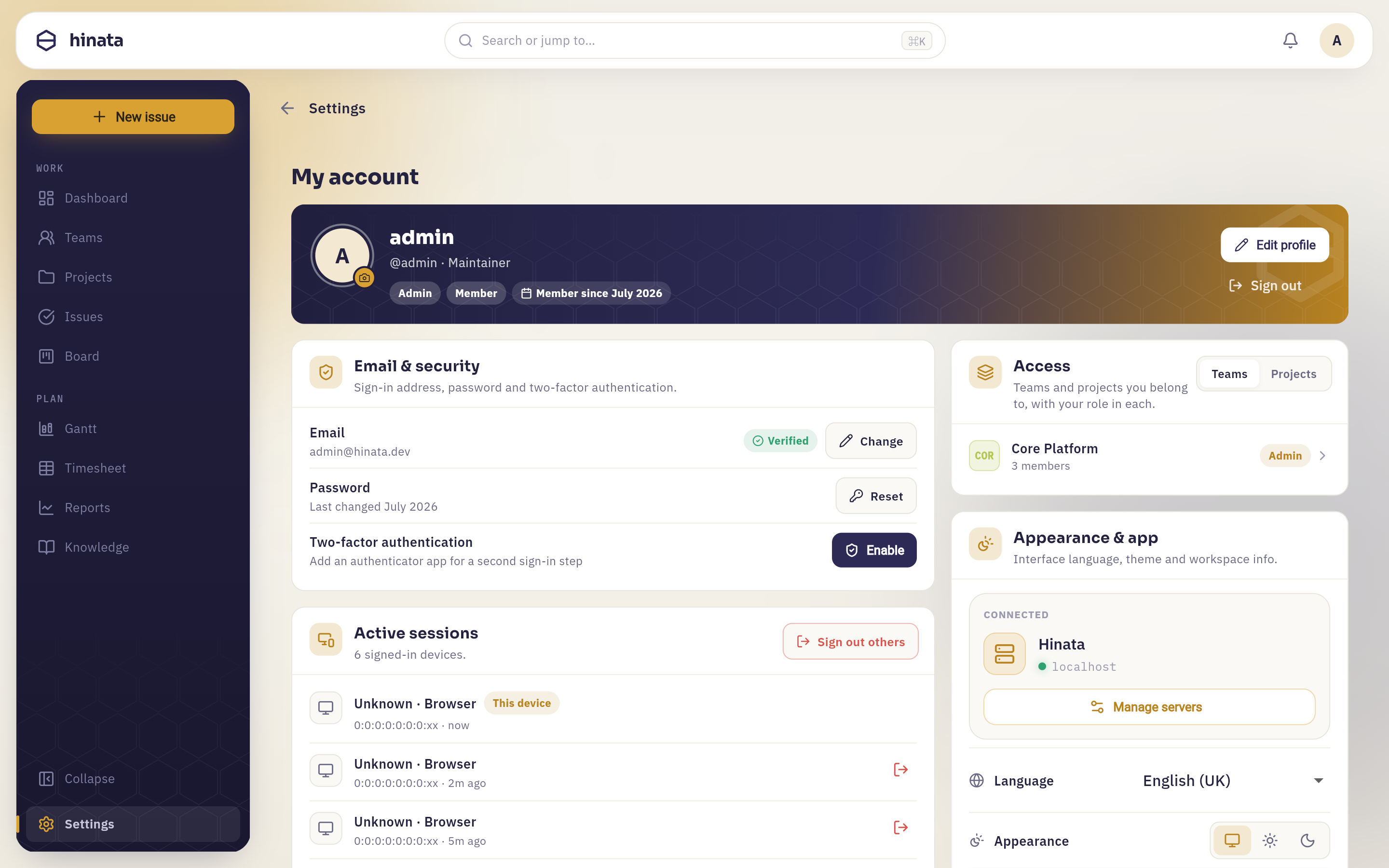 Settings on a desktop. The profile banner runs along the top with "Edit profile" and "Sign out". Under it the page splits: E-mail & security and Active sessions open the left column, Access and Appearance & app the right. Your notification matrix and the data controls carry on below the fold in the same two columns.
On a phone this is a list, not a wall
Narrow screens turn the same content into an index, and each entry opens as its own page. The back arrow returns you to the index first, then to wherever you came from.
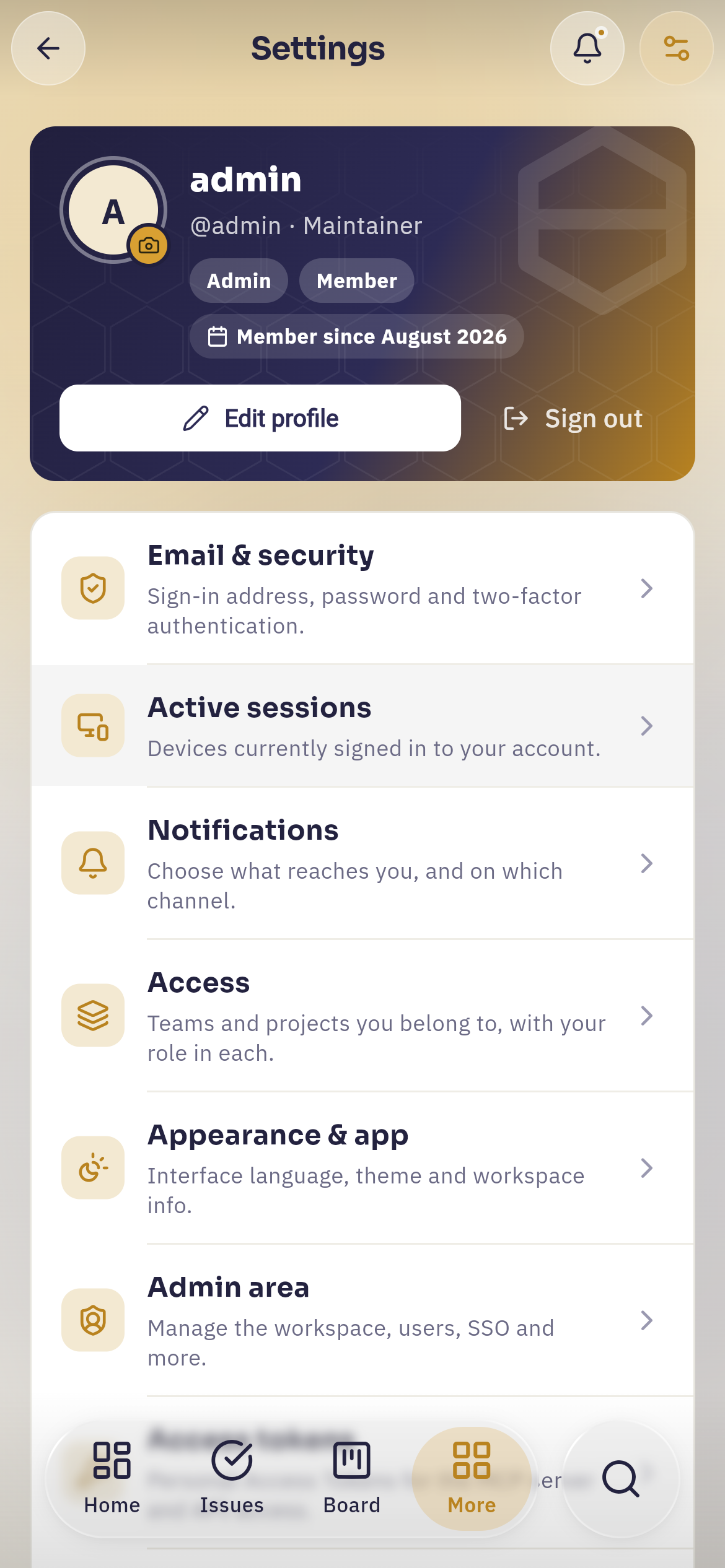 Settings on a phone. The profile hero keeps "Edit profile" and "Sign out"; below it every card of the desktop screen becomes one row — "Email & security", "Active sessions", "Notifications", "Access", "Appearance & app", and "Admin area" for an administrator. Which rows you get depends on your account.
Your profile#
The banner at the top shows how you appear to everyone else: your picture, your
display name, your @username, your job title, the roles you hold and the month
you joined.
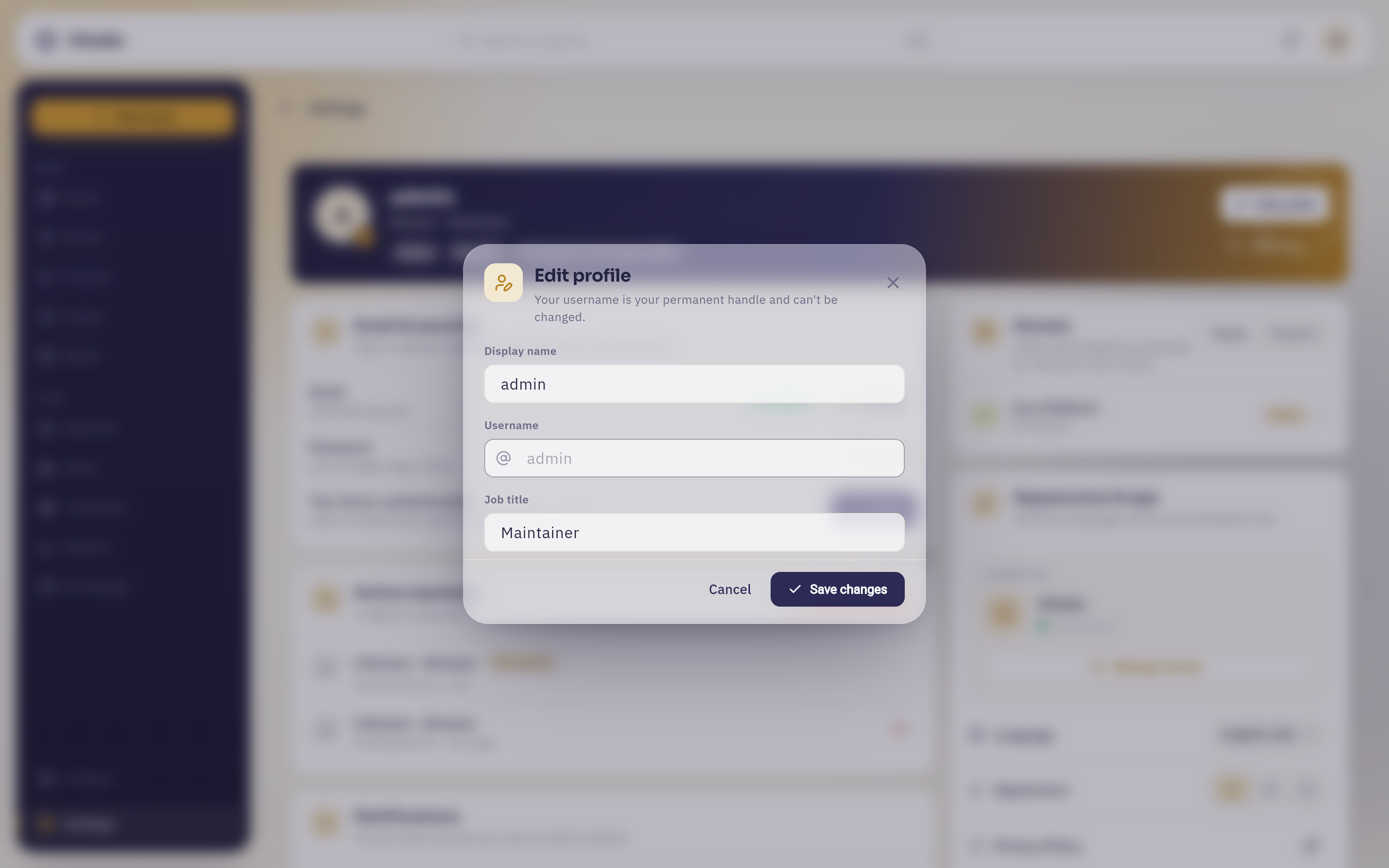 "Edit profile" opens over the settings screen. "Display name" and "Job title" are editable; "Username" sits greyed out between them, and the subtitle says why.
Your display name is what colleagues see on cards, in comments and in assignee pickers, and changing it costs nothing. The job title is free text — "Maintainer", "Design lead", "Working student" — whatever helps someone decide whether to ask you.
The username cannot be changed because @-mentions resolve to it and old
comments still point at it. Letting it move would quietly rewrite history.
Your picture#
Click the small camera badge on your avatar, or open the picture row, and choose Upload a photo. JPEG, PNG, GIF and BMP files are accepted, up to 12 MB — a photo straight off a phone is fine. The server shrinks whatever you send to at most 512 pixels on the long edge and stores it as a JPEG, so a 9 MB upload does not become a 9 MB download for everyone who opens the board.
Remove photo puts you back to the coloured initials Hinata generates from your name. There is no penalty for having no photo, but a board full of initials is genuinely harder to scan than a board full of faces.
Your sign-in address#
The E-mail & security card starts with the address you sign in with, marked Verified or Unverified.
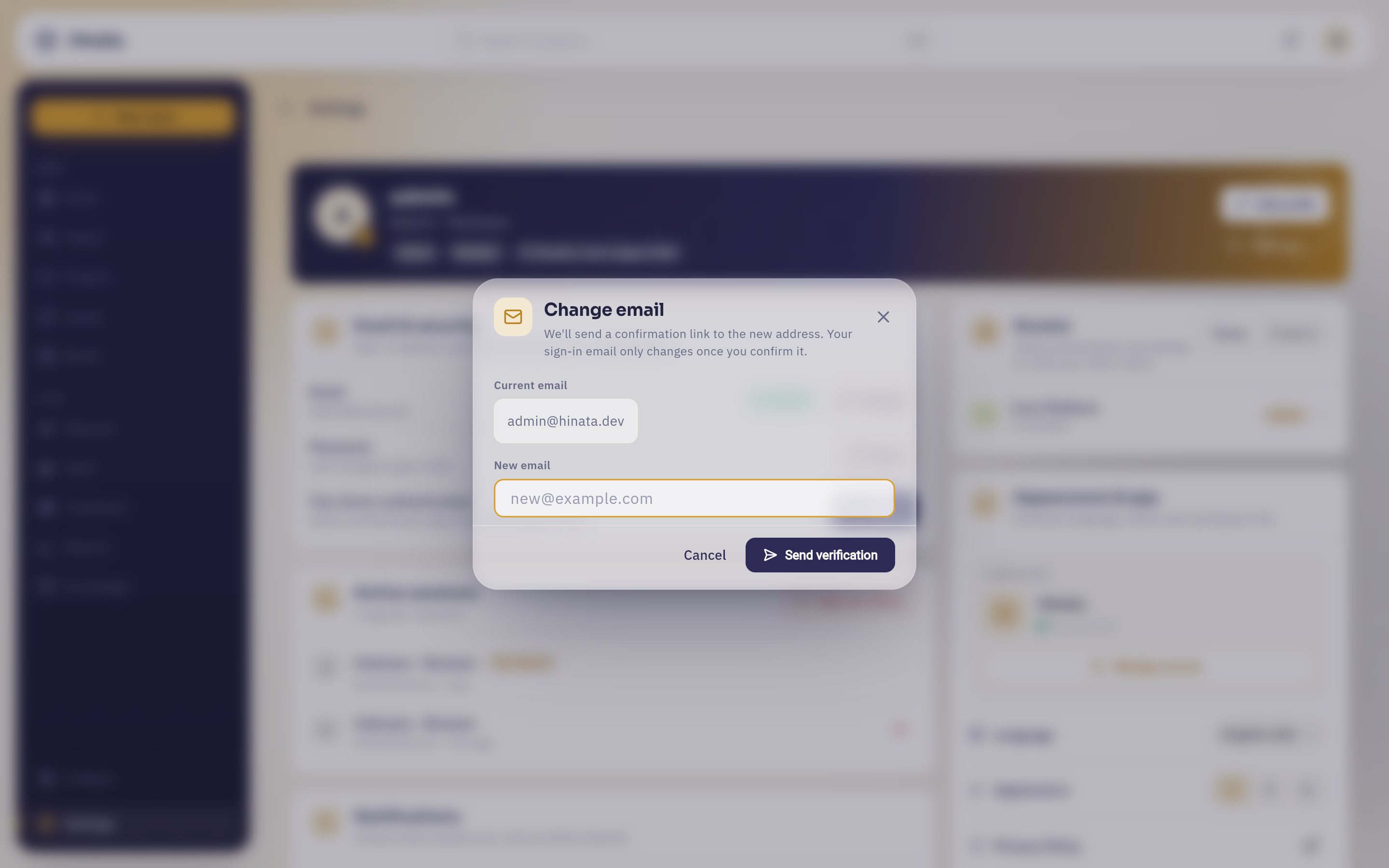 "Change" on the Email row opens this. The current address sits above the new one, read-only, and the subtitle carries the guarantee: your sign-in email only changes once you confirm it.
Until you click the link in that mail, the card shows Pending confirmation for … and nothing has moved. A typo therefore costs you nothing — you simply never confirm.
The moment you do confirm, two things happen: every device signed in to your account is signed out, and a security alert lands in your bell and your inbox. An address change is a change to how the account is recovered, so Hinata treats it as one.
Unless your organisation uses single sign-on
If you sign in through an identity provider, the card says so — Email and password are managed by your identity provider — and the change and reset buttons are gone. Both live wherever your organisation's accounts live. Single sign-on covers the arrangement.
Your password#
Hinata does not ask you for your old password in a form.
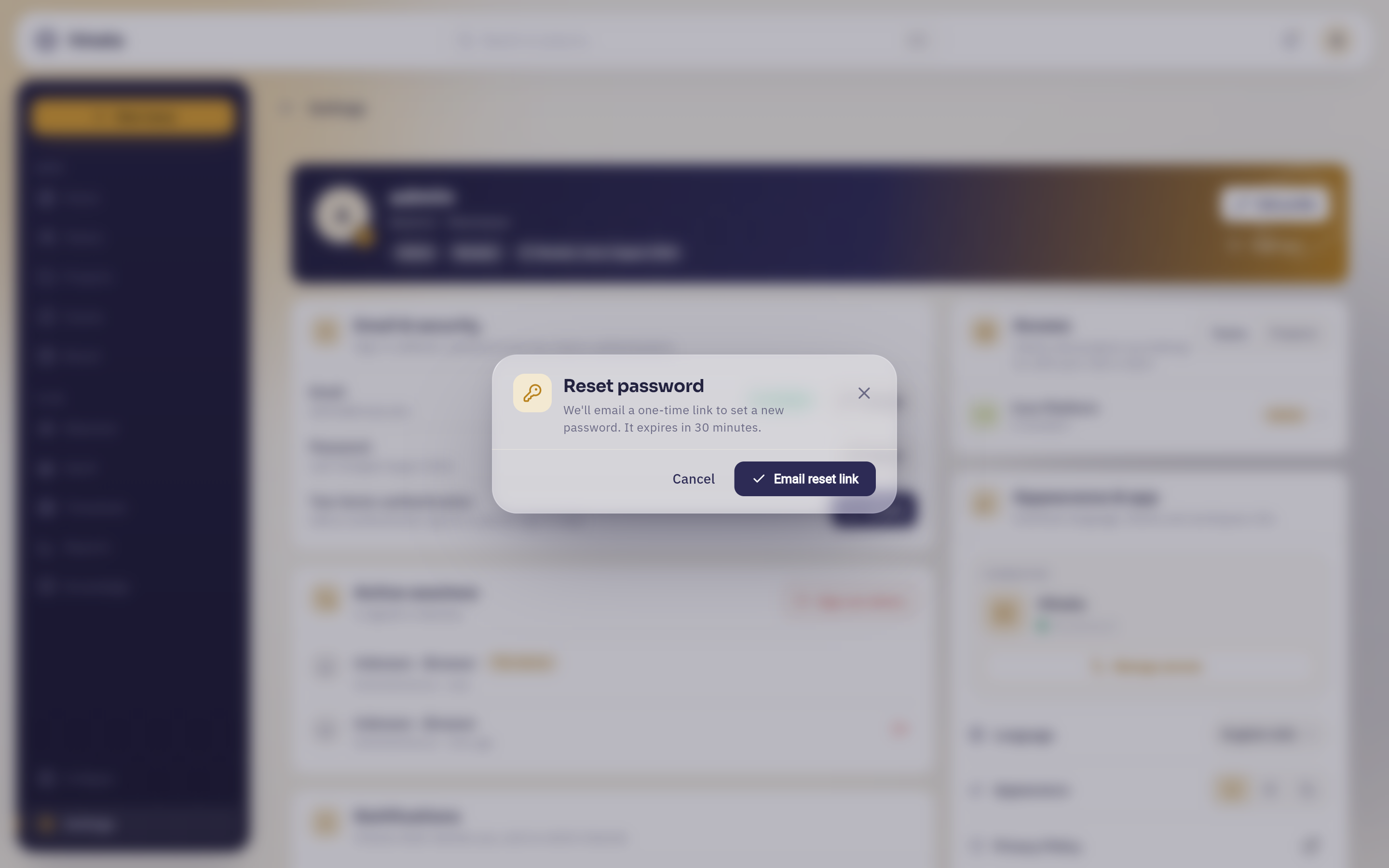 "Reset" on the Password row does not open a change-password form. It opens this: one line saying a one-time link goes to your inbox and expires in 30 minutes, and a single "Email reset link" button.
That is deliberate. A change-password form in a signed-in session protects nothing if someone is sitting at your unlocked laptop. A link to your mailbox means the person changing the password has to control the mailbox.
New passwords must be at least 10 characters long. Completing a reset also signs you out everywhere — including the session you started it from — so the first thing you do afterwards is sign in with the new password.
Length beats punctuation
Four ordinary words you will actually remember beat P@ssw0rd! in every way
that matters. Nothing in Hinata demands a symbol or a digit — it demands
length, because that is the thing that makes guessing expensive.
Two-factor authentication#
With two-factor authentication on, signing in takes your password and a six-digit code from an app on your phone. Someone who steals the password still cannot get in.
The row shows Enable when it is off, and On · 10 recovery codes left when it is on.
Turning it on#
Press Enable. The wizard has three steps and takes about a minute.
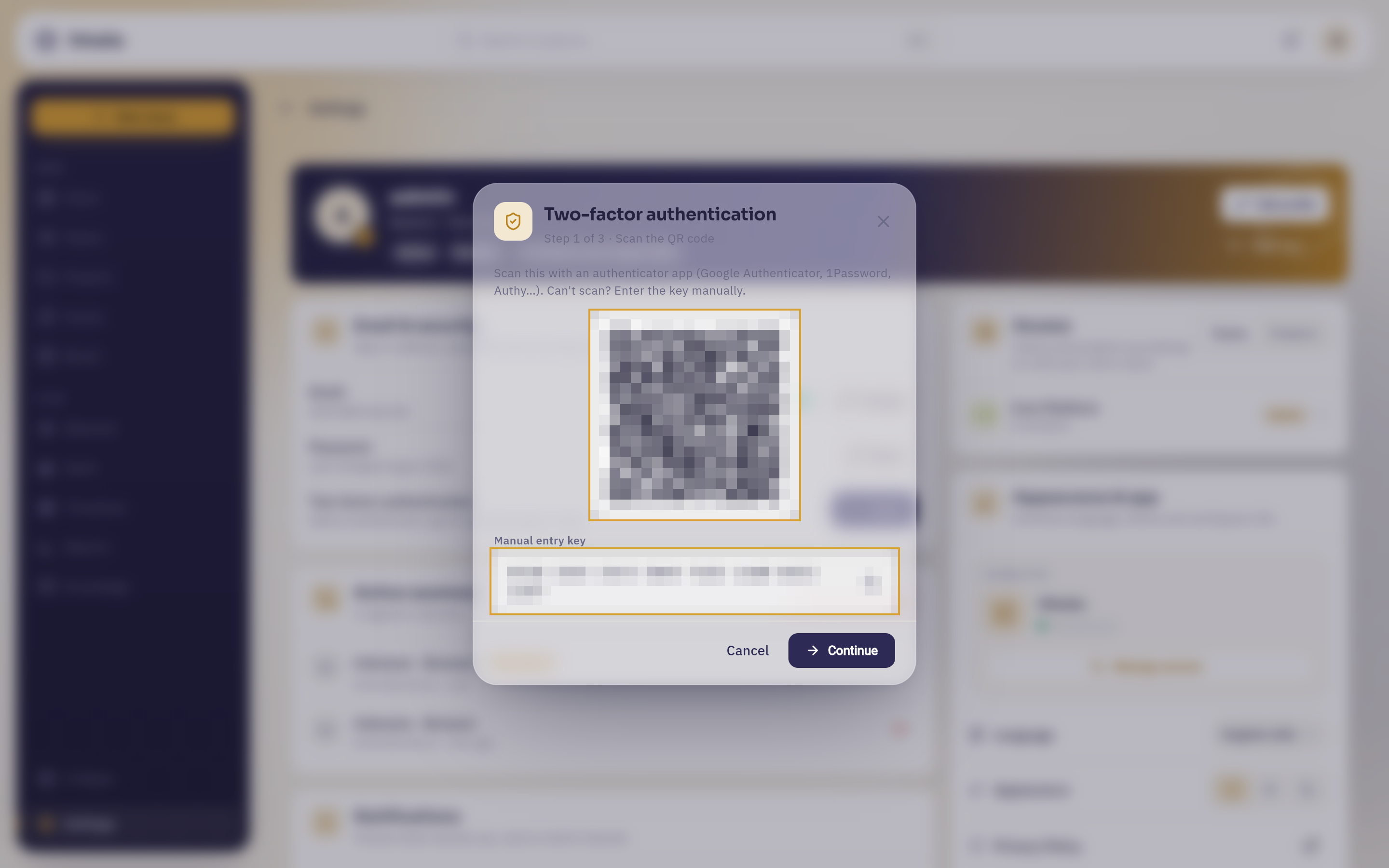 Step 1 of 3. Scan the code with an authenticator app — Google Authenticator, 1Password, Authy. If you are reading this on the phone that would be doing the scanning, copy the "Manual entry key" printed underneath instead. Both are pixelated here: they are a real secret, and one that works is not something to print on a web page.
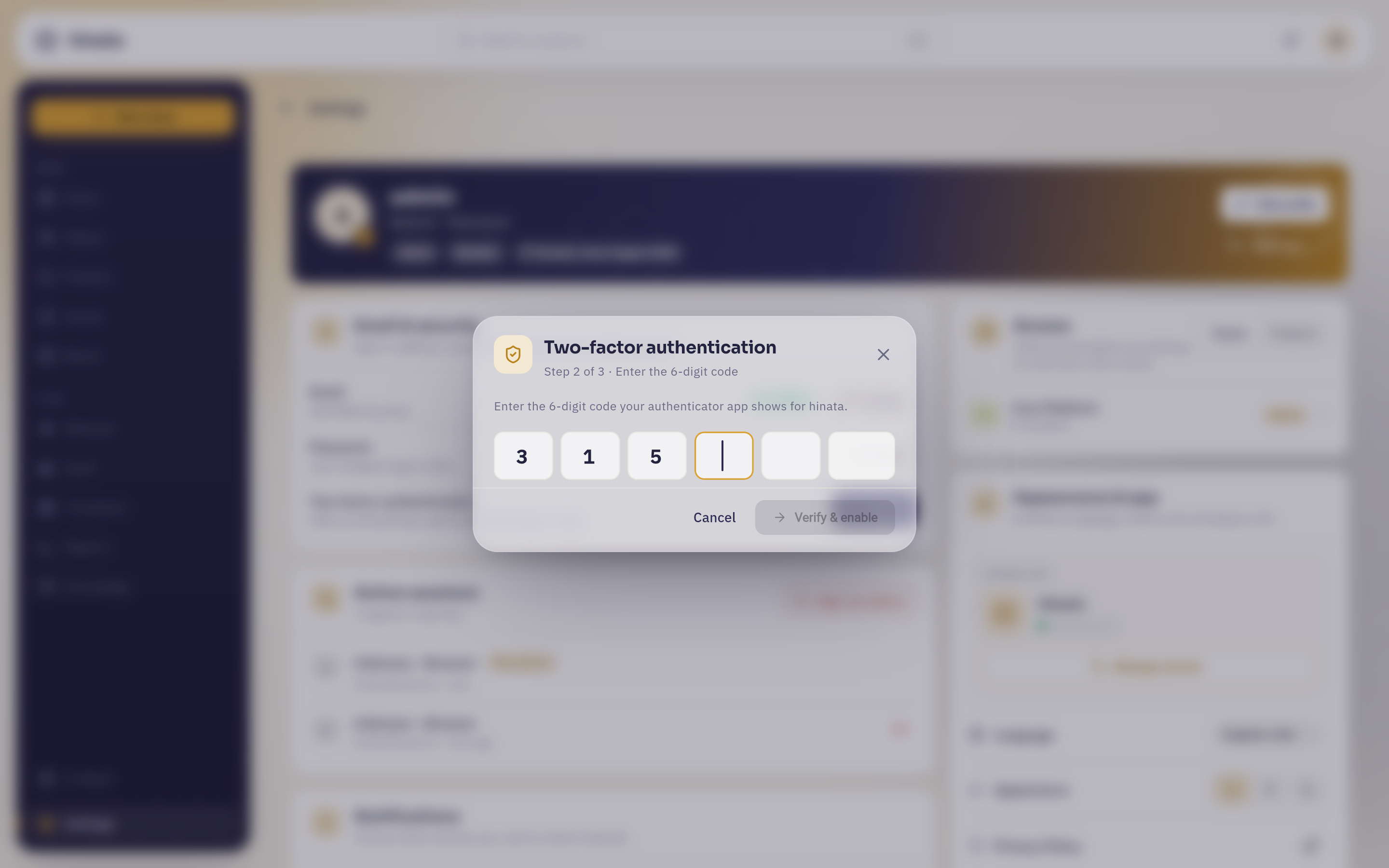 Step 2 of 3 is six separate boxes rather than a text field, and the cursor advances by itself. "Verify & enable" stays greyed out until all six are filled — here the last one is still empty.
Step 2 is there to prove your authenticator really did store the right secret before Hinata starts requiring it. It is the step that stops you locking yourself out of an account you never enrolled properly.
Step 3 of 3 · Save your recovery codes. You get ten single-use codes. Each one works exactly once, in place of the six-digit code, if you lose access to your authenticator. Copy all puts them on your clipboard.
The recovery codes are shown exactly once
Hinata never displays them again — it only keeps hashes, so it genuinely cannot. Put them somewhere you will still have access to when your phone is the thing that is missing: a password manager, a printout in a drawer. Not a note on the phone itself.
Living with it#
- Signing in asks for the code as a second step after your password. The code changes every 30 seconds; a code that just expired is still accepted for a moment, so a slow typist is not punished.
- Codes issues a fresh set of ten and invalidates the old ones. You need a current code to do it — which is exactly why it is worth doing before you replace your phone rather than after.
- Disable switches it off. It also asks for a current or a recovery code: turning off a security feature has to be as hard as using it.
Active sessions#
Every device signed in to your account is listed here, newest activity first, with what it is (a browser, the Hinata app), the operating system, a masked IP address, and when it was last active. The one you are using right now is marked This device.
Two ways to act on the list:
- The sign-out arrow on a row ends that one session. The device is asked to sign in again next time it tries anything.
- Sign out others ends every session except this one, immediately.
What ends a session without you pressing anything#
- Finishing a password reset signs out every device.
- Confirming an e-mail change signs out every device.
- An administrator deactivating your account signs out every device.
- Deleting your account signs out every device, permanently.
Everything else — closing the app, restarting the machine, losing the network — leaves the session alone. That is why the list is worth a glance now and then: sessions do not expire out of tidiness.
The one-minute security drill
Lost a laptop, left a session open on a shared machine, or just do not recognise an entry? Press Sign out others, then Reset your password. In that order — signing out first means the new password lands on an account nobody else is holding a door open on.
Sessions are also where the Security alerts notification pays for itself: a sign-in you did not perform shows up in your bell and in your inbox, and this is the screen you come to next. See Staying informed.
Language and appearance#
The Appearance & app card holds the small choices:
- Language — English or German. It changes the interface immediately, and it is also the language the server uses for the e-mails it sends you and for the error messages it returns. One setting, everywhere.
- Appearance — System, Light or Dark. System follows whatever your operating system is doing, including switching at sunset if your OS does.
- The connected server — which server this app is talking to, with Manage servers beside it if you use more than one. See On your phone.
- Privacy policy — your operator's privacy notice, plus the app and server version numbers, useful when you report a problem.
Your operator's branding, not a theme
The organisation name and logo in the top-left come from the server, not from your settings. They change for everyone at once when an administrator changes them — see Admin area if that is you.
Teams and projects you can reach#
The Access card is read-only, and it answers a question that is otherwise annoyingly hard to answer: what am I actually a member of? Switch between Teams and Projects, and each row shows the name, the member count and the role you hold there.
If a colleague swears a project exists and you cannot find it, look here first. An empty list is not a bug — project visibility comes through team membership, and somebody needs to add you. Projects & teams explains how that works.
Access tokens#
If your operator has enabled it, an Access tokens card appears. It issues personal access tokens for connecting AI assistants and scripts to Hinata on your behalf, scoped to what you allow them to do. The secret is shown once, at creation, and never again.
If you do not see the card, the feature is switched off on your server, and there is nothing you need to do. MCP server has the detail for those who do.
Your data#
The last two cards are your rights under the GDPR, wired up as buttons rather than as an e-mail address you have to write to.
Export a copy (Art. 15)#
Data & privacy → Request asks the server to compile everything it holds about you. You get an e-mail with a secure download link; the report is prepared within 24 hours and the link stays valid for three days.
You do not need a reason, and nobody is notified that you asked.
Delete your account (Art. 17)#
Danger zone → Delete account erases your account.
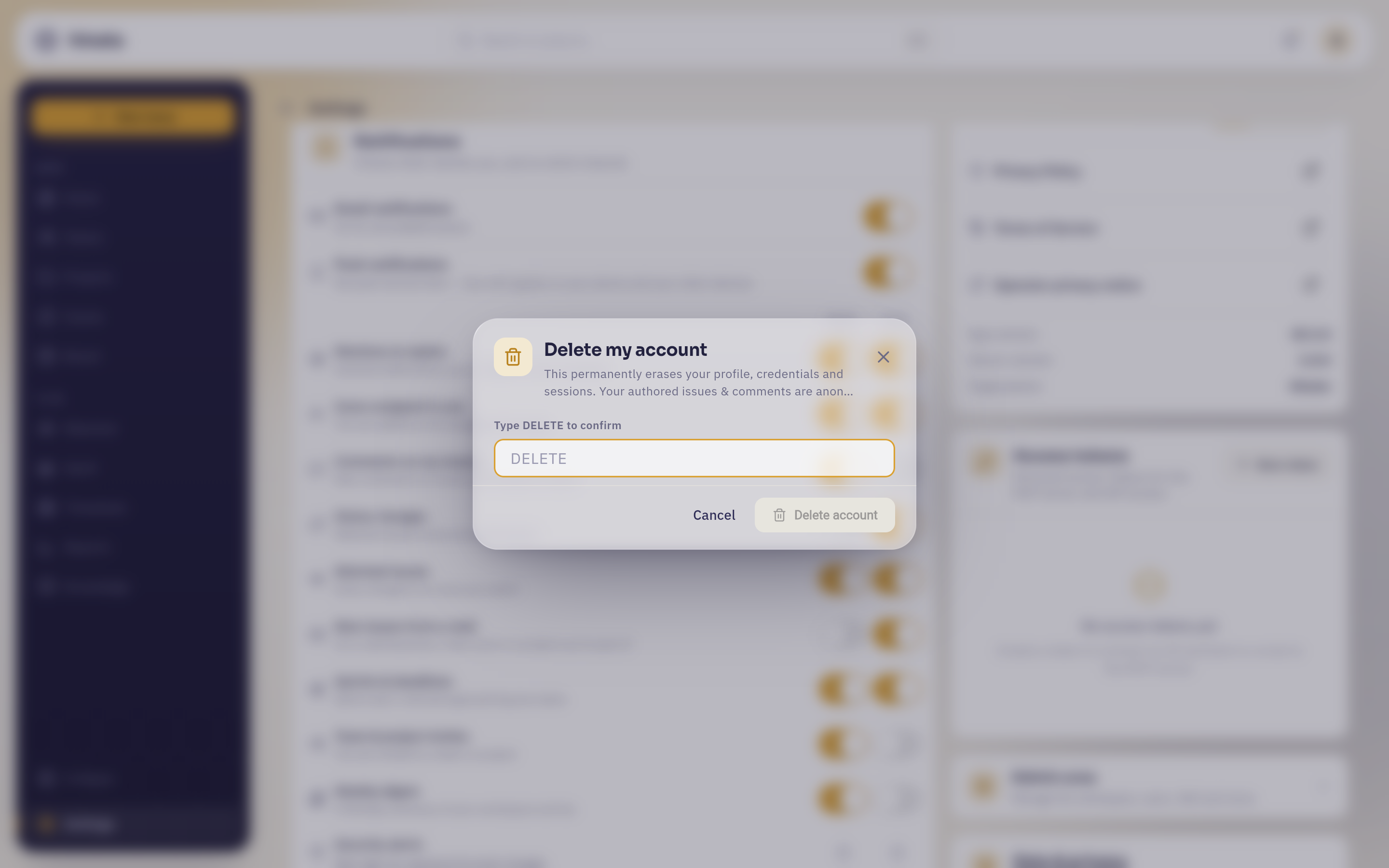 The confirmation. "Delete account" stays inert until the field reads exactly DELETE — and the sentence above it is the one to read first: profile, credentials and sessions go, authored issues and comments are anonymised.
This cannot be undone
Deleting your account permanently removes your profile, your credentials and every session you have open — you are signed out everywhere the moment it completes, and a confirmation is mailed to you.
The work you authored is not deleted — issues, comments and history stay where they are so your team's record does not develop holes — but it is anonymised: your name comes off it and cannot be put back. There is no undo, no grace period and no recovery. If you only want to step away from a project, ask an administrator to remove your access instead.
One case where the button refuses: if you are the last active administrator of the workspace, Hinata will not let you delete yourself. Somebody has to be able to let the others back in. Promote another administrator first, then delete.
Next steps#
- Staying informed — the notification matrix, which lives on this same screen.
- Getting started — signing in, the layout, and what to do on day one.
- On your phone — the mobile layout of this screen and how several servers share one app.
- Authentication — the operator's view of passwords, registration and 2FA policy.