Tracking your time#
Time tracking in Hinata is deliberately small. You log a duration against the issue you were working on, you say what kind of work it was, and that is the whole ritual. Everything else — your timesheet, the focus-time chart on your home screen, the effort breakdown in reports — is built from those entries. No second tool, no separate spreadsheet, nothing to reconcile at the end of the month.
That also means the numbers are only as good as the logging. This page is about making the logging cheap enough that you actually do it.
Log time on an issue#
Open the issue you worked on and find the Timeline card — it holds the start and due dates, the spent-versus-estimate line, and the most recent work entries. On a wide window it sits in the right-hand column under Details; on a phone it is further down the page. In the top-right corner of that card is Log time.
Tap it and a small glass sheet slides up.
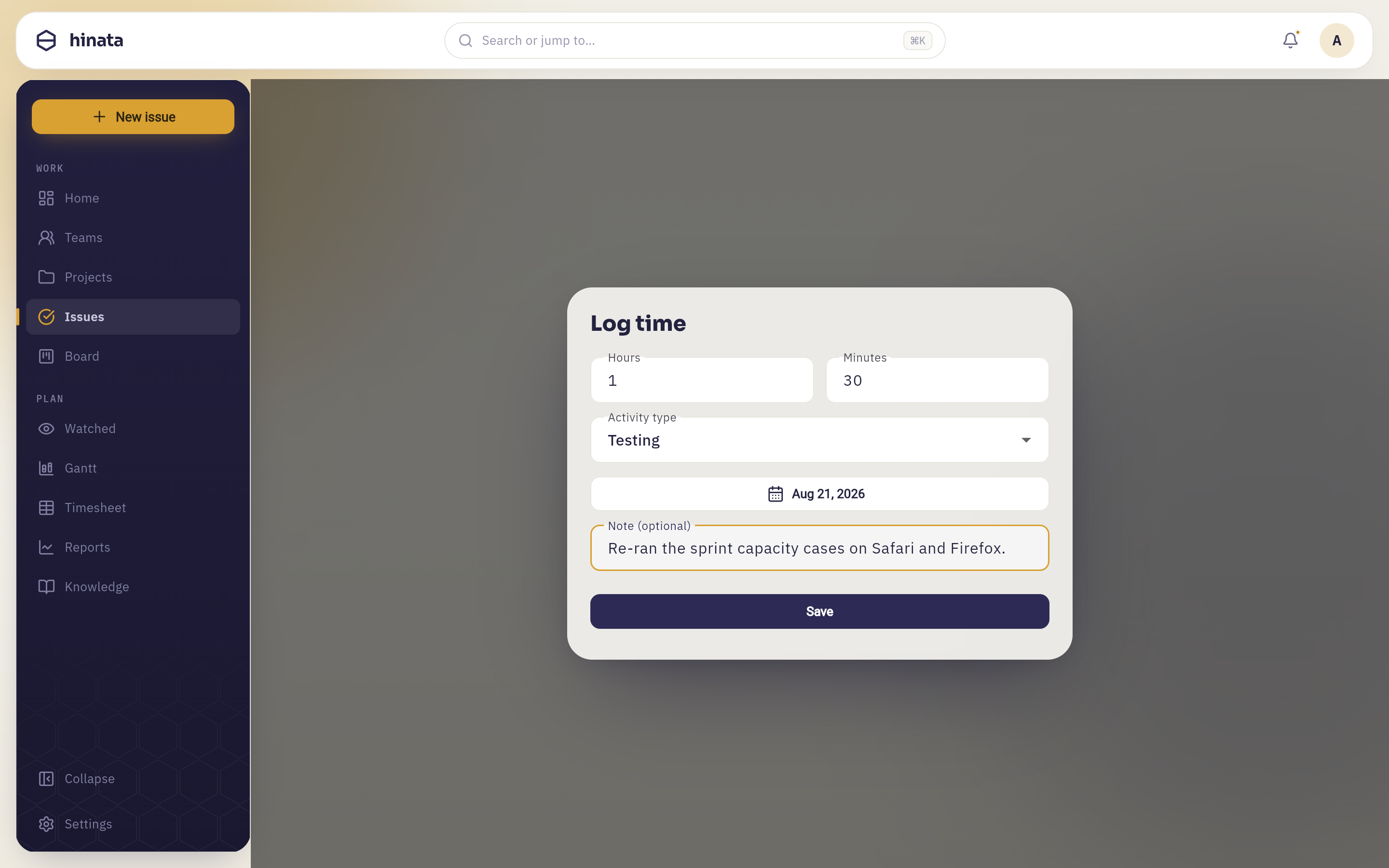 Log time, filled in: Hours and Minutes as two separate boxes — 1 and 30 here — Activity type set to Testing, a Date that starts on today, and an optional Note. Only the duration is required; the note is the field worth the extra five seconds.
Press Save and the entry is recorded immediately. The issue's spent total goes up, the entry appears in the list at the bottom of the Timeline card, and your timesheet for that week gains the minutes.
The two-box duration is faster than it looks
The boxes start at 1 and 0, so a plain hour is one tap away. Leave
Hours at 1 and type 30 into Minutes for an hour and a half; for a
20-minute job, clear Hours to 0 and put 20 in Minutes. They only
accept digits, so there is no format to remember.
The same sheet on a phone:
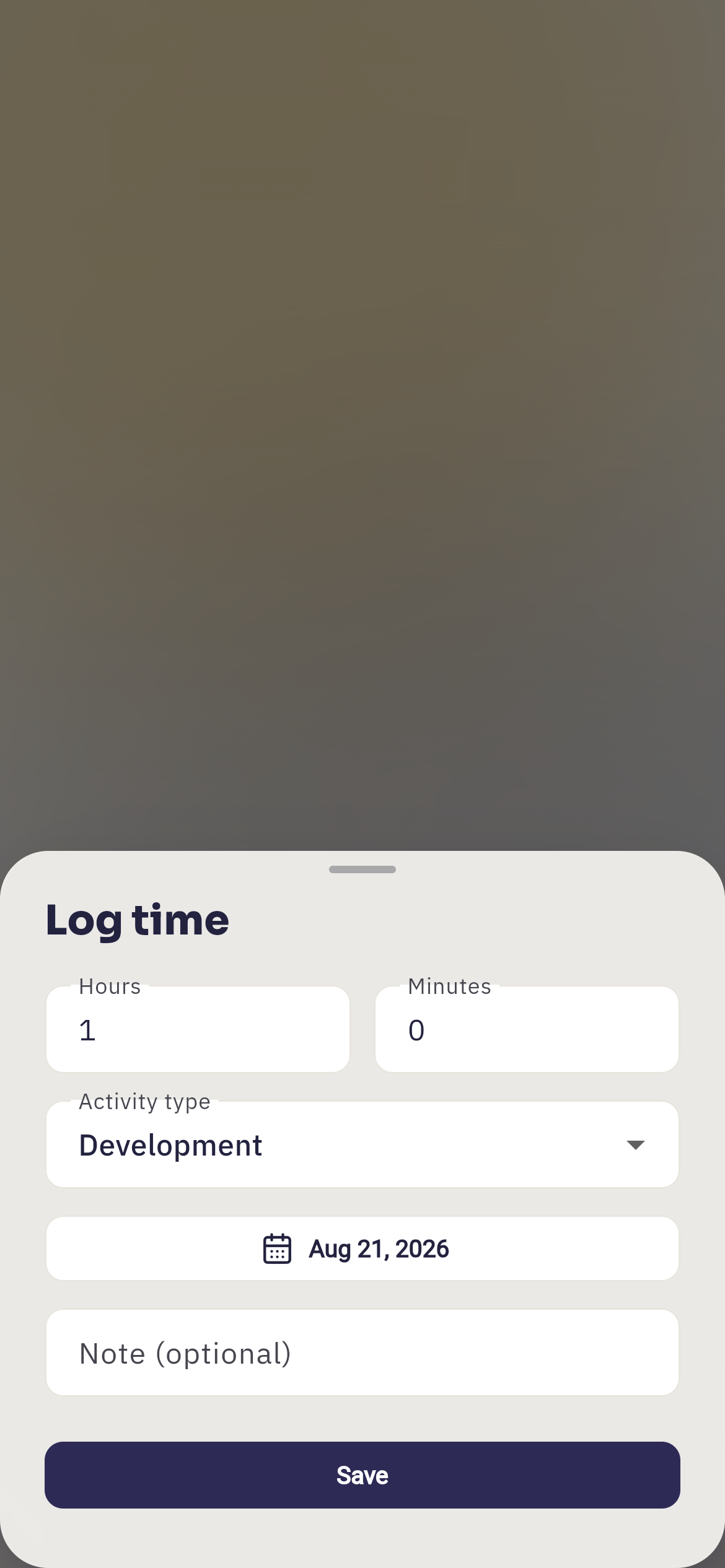 On a phone the sheet slides up from the bottom edge and the fields run the full width, with the issue dimmed away behind it. Hours and Minutes stay side by side, so a duration is typed exactly as it is on a desktop.
What you can and cannot enter#
- A single entry must be at least one minute and at most 24 hours. If you genuinely worked a marathon session across midnight, log it as two entries on the two days it belongs to — which is more accurate anyway.
- You can back-date up to a year, and you cannot log time in the future. Time tracking records what happened, not what you intend to happen; that is what the start and due dates are for.
- Entries add up. Logging twice against the same issue on the same day is perfectly normal and gives you two lines instead of one bigger one.
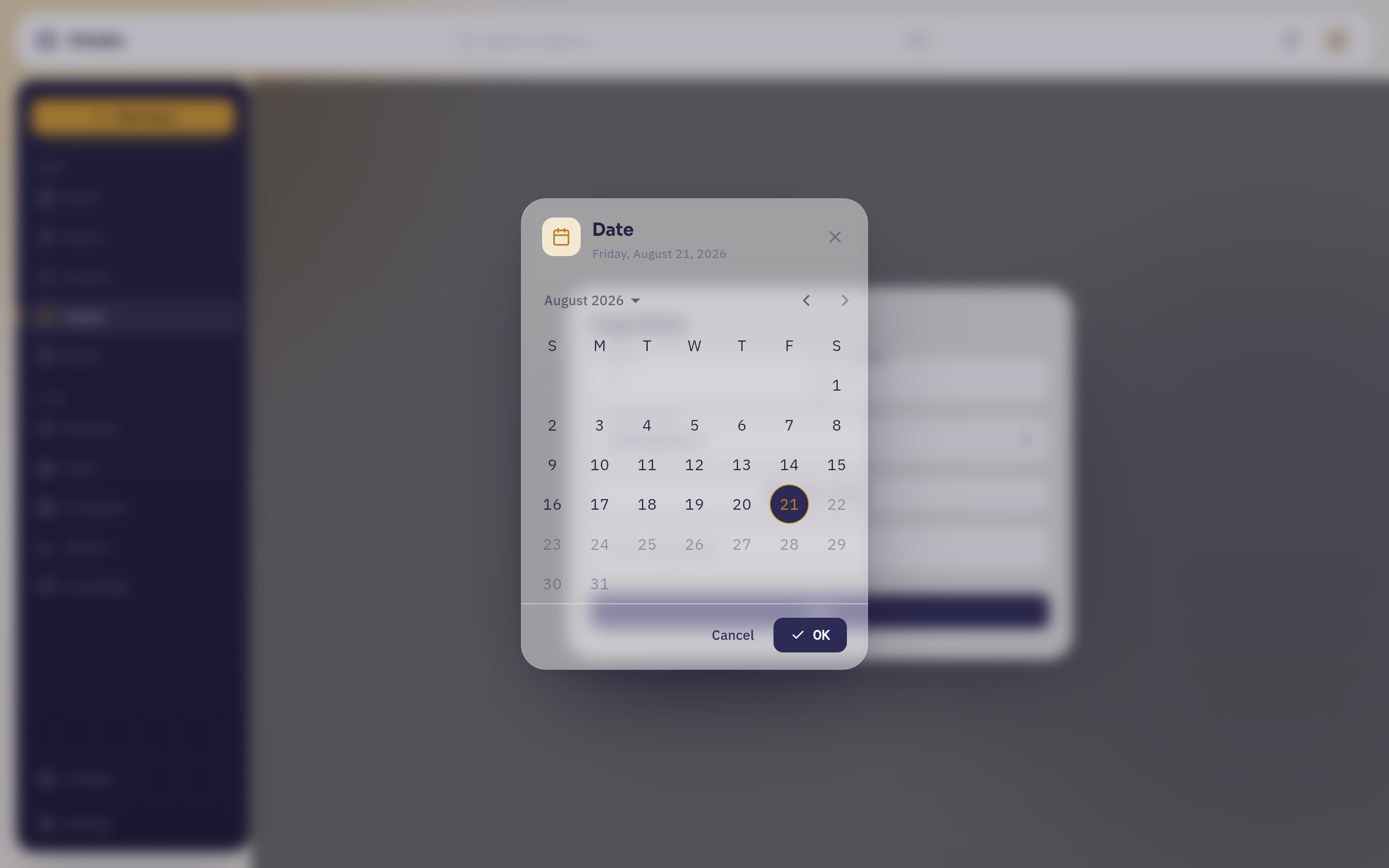 Both date rules are drawn rather than enforced on Save: the picker opens on today, today is the last day you can select, and everything after it is greyed out. Going back, it stops 365 days ago.
The entry list#
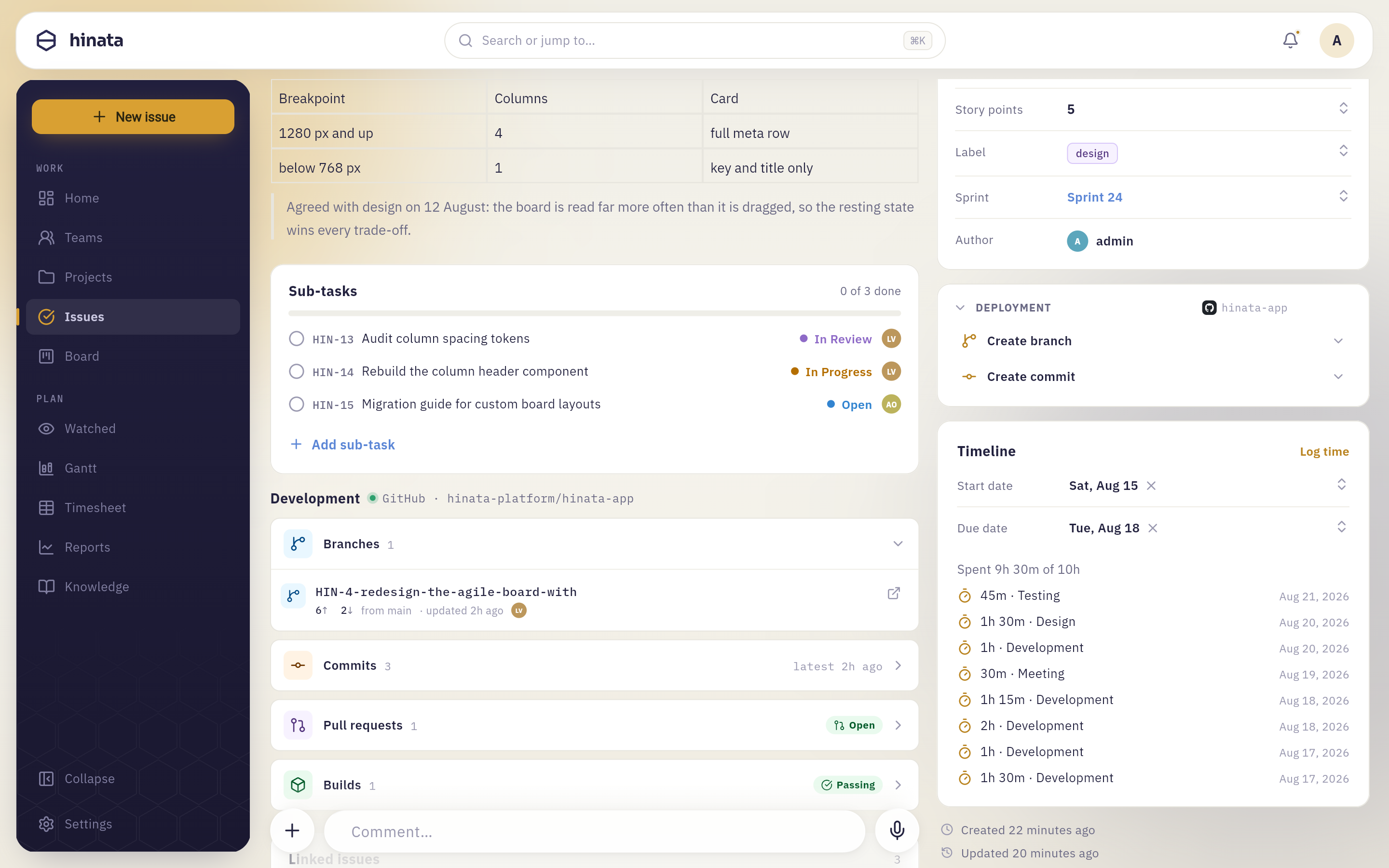 The Timeline card in full: start and due dates, the spent-of-estimate line, then the eight newest work entries — duration · activity type, with the date on the right.
These are everyone's entries, not just yours, which is exactly what you want when you are trying to work out why a task that was supposed to take a day has eaten three.
Pick the right activity type#
The six activity types are fixed, and they are fixed on purpose. A short, shared list means that six months from now "Testing" still means the same thing to everyone, and the numbers can actually be added together.
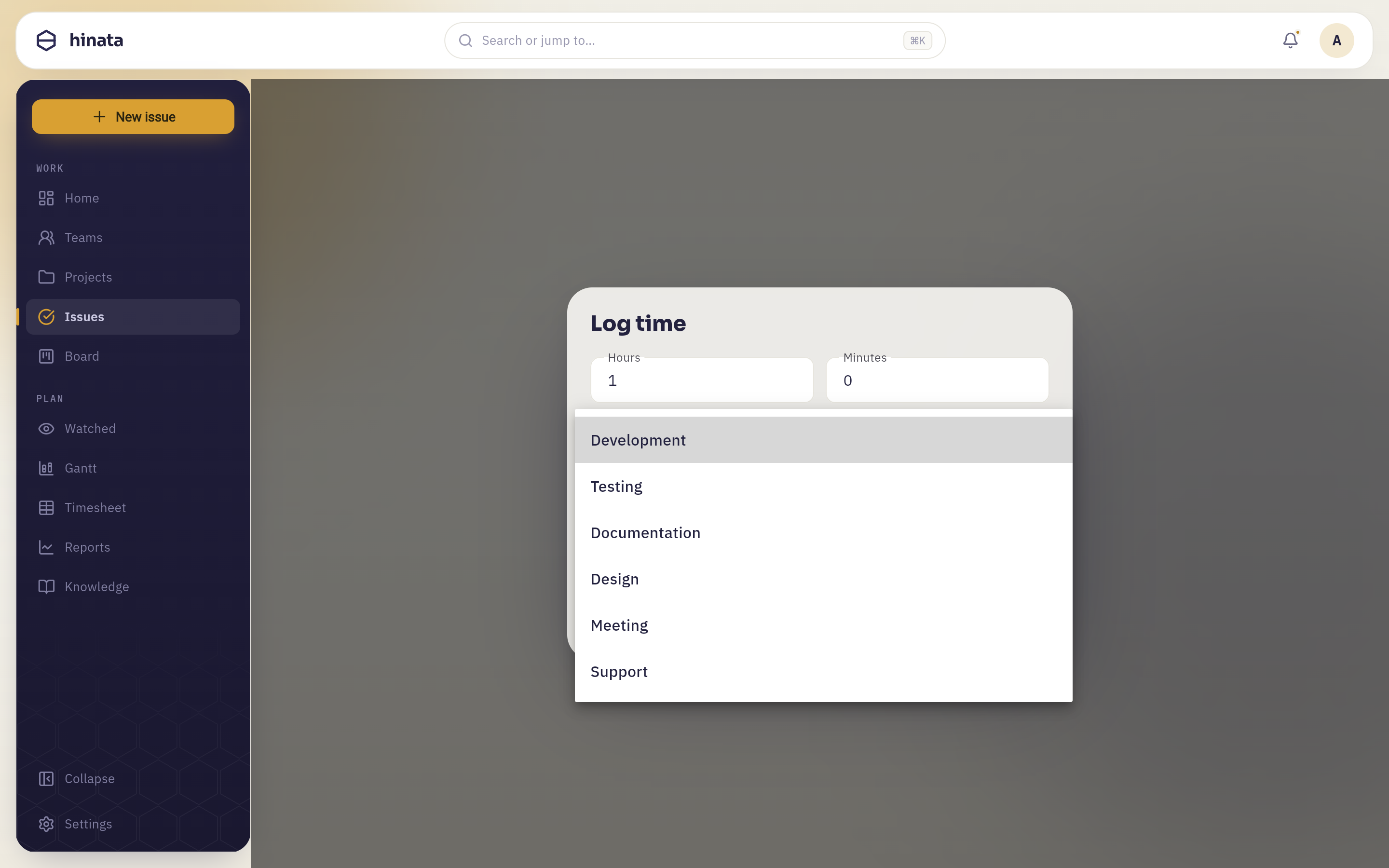 The Activity type menu, open. Six entries and no "other" — the list is the entire vocabulary, which is what lets a report add anything up.
- Development — writing and changing the thing itself.
- Testing — verifying it, manually or by building tests.
- Documentation — writing it down, in the knowledge base or anywhere else.
- Design — deciding what it should look like or how it should behave.
- Meeting — time spent with other people, about this issue.
- Support — helping someone else use or unblock the thing.
The type is what makes the Time per activity report meaningful. A team that discovers it spent more hours in meetings about a feature than building it has learned something useful — but only if everyone logs meetings as meetings.
Your language, one underlying value
The activity names are translated in the app — a German colleague sees Entwicklung, Testen, Dokumentation. Underneath it is one shared value, so a report reads the same regardless of which language each person logged in.
Estimate, spent, and the difference between them#
The Timeline card carries one line that quietly does a lot of work — the
Spent 9h 30m of 10h in the entry list above.
The first number is the sum of every work entry on this issue, from everybody. The second is the issue's time estimate — the original guess at how long the whole job would take. Watching the first number approach the second is the earliest honest warning you get that something is going sideways.
Where an issue carries a time estimate, it shows up in two more places:
- On a board card, as a small timer chip with the time spent so far — so you can see effort piling up without opening anything.
- On the Timeline view, as the filled portion inside the issue's bar. A bar that is visually full but has days left on the calendar is telling you the estimate was optimistic.
An estimate is not a story point
The Estimate picker you meet during sprint planning — the deck of
Fibonacci cards — sets story points, a relative size used for planning
and velocity. That is a different field from the time estimate, and it is
the one most teams use day to day. If nobody has set a time estimate on an
issue, the spent line simply reads Spent 9h 30m of —, and that is fine.
Your logged time is still counted everywhere else.
The weekly timesheet#
Timesheet in the sidebar is the week-at-a-glance view of everything that has been logged. On a phone it lives behind the More tab.
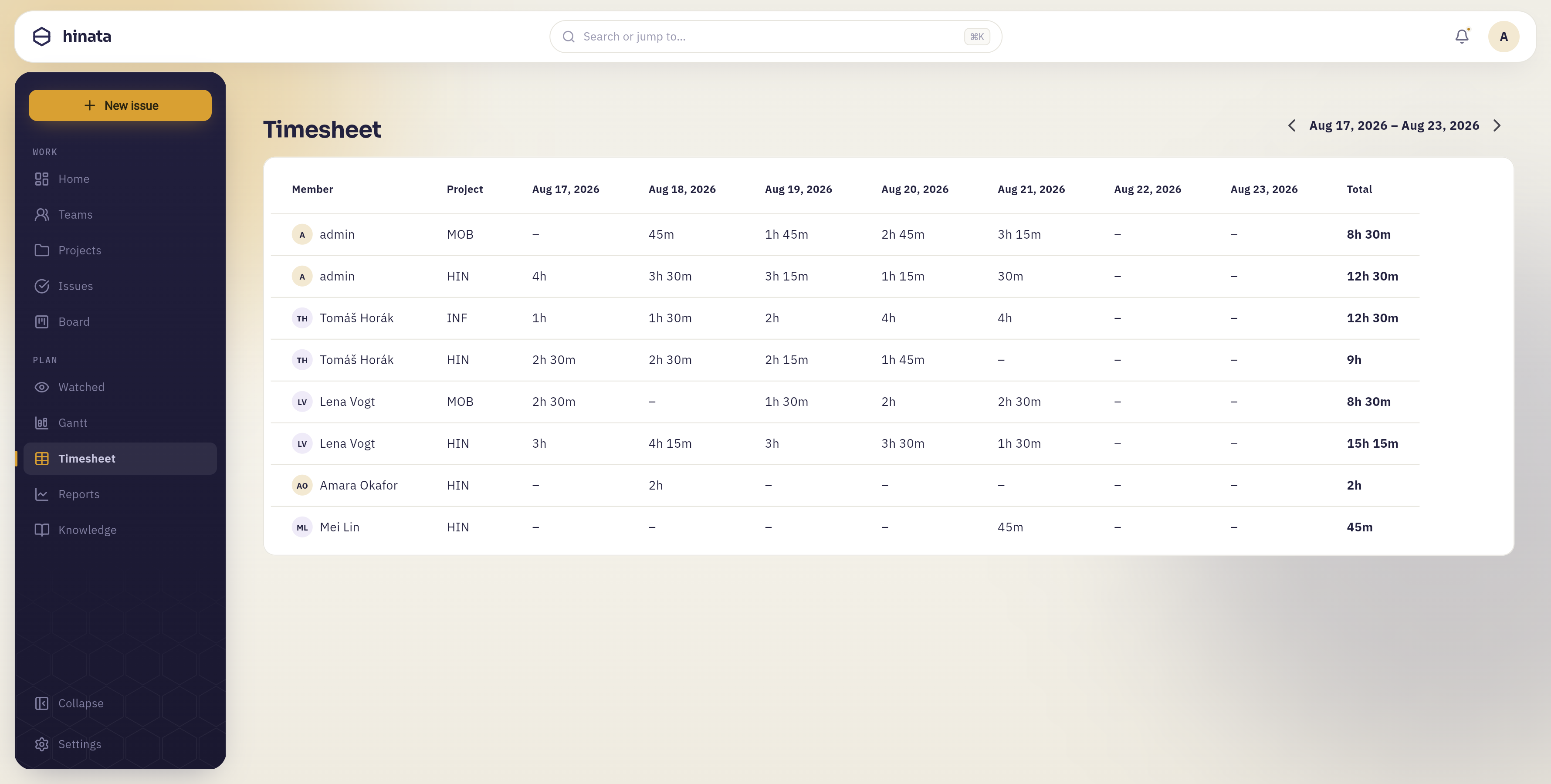 The Timesheet page. One row per person per project — five people across MOB, HIN and INF, down to the two who logged a single entry each — a column per day from Monday to Sunday, a Total closing every row, and a dash wherever nothing was logged. The week being shown sits in the top-right corner between its two arrows.
Reading a row#
Each row is one person working on one project. The days run Monday through Sunday and end in a Total for the row; a day with no entries shows a dash rather than a zero, so the days you actually worked stand out.
The project is derived from the issue, so if you worked on three projects this week you get three rows without having to tag anything by hand. That split is the point: it answers "where did my week go?".
Moving between weeks#
The week range sits in the top-right of the page with a chevron on either side. The arrows step one week back or forward. Weeks always start on Monday, so the grid lines up with how most people talk about a week, and a Sunday session lands at the end of the week it belonged to rather than the start of the next one.
Whose time you can see#
Your timesheet shows your own work. Administrators see everyone's rows, which is what makes the page useful for a team lead reviewing a week. Nobody else can browse your hours from here.
Empty is not broken
"No work items recorded in this week" means exactly that — nothing was logged in the week you are looking at. Step back a week with the left arrow before assuming something is wrong.
Filling a week quickly#
The trick to a timesheet that reflects reality is never to fill it in as a timesheet. Log as you go, from the issue you were just working on, and the week assembles itself.
Log at the moment you stop, not at the end of the day. You are already on the issue. The sheet takes four taps.
Back-date the whole of yesterday from one sitting. If you did lose a day, open each issue you touched, log against it and change the Date to yesterday. You are reconstructing from the issues themselves, which is far more accurate than reconstructing from memory.
Let your commits do it. If your project is connected to a Git repository and smart commits are switched on, a trailer in the commit message logs the work without you leaving your editor:
MOB-42 #time 2h 30m
Durations understand w, d, h and m, and follow the usual convention that
a day is 8 hours and a week is 5 days — so 1d 4h means twelve hours. Whether
this is available depends on whether an administrator has connected your project
to a repository; see Git integration.
Time from a commit is not a timesheet entry
A #time trailer raises the Spent total on the issue, but it does not
create a work entry with a date and an activity type. It therefore does not
appear on your timesheet, in your focus-time chart, or in the Time per
activity report. If those numbers matter to you or to your team, log the
work in the app as well as — or instead of — in the commit.
Correcting an entry#
Be a little careful here, because this is the one part of time tracking that is not yet forgiving.
A saved entry cannot be edited in the app
There is no edit or delete control on a work entry. Check the duration, the date and the issue before you press Save.
What to do when it goes wrong anyway:
- You logged too little. Log the difference as a second entry. Entries on the same issue and day add together, so two entries of 1h and 30m read exactly the same as one entry of 1h 30m.
- You logged too much, or against the wrong issue. Ask an administrator to remove the entry for you — deletion exists on the server, it simply has no button in the app yet — and then log it again correctly.
- You picked the wrong activity type. In practice this is rarely worth unpicking. It shifts a few minutes between two bars on one 30-day report. Get the next one right.
Where your logged time ends up#
Every entry you save feeds five different places, which is the argument for logging even the small stuff.
The issue itself. The spent total is recomputed from all its entries, so it is always the true sum rather than a running counter that can drift.
Focus time on your home screen. The bar chart on the dashboard shows your own logged minutes for the last seven days, with today's bar highlighted in amber. Switch it to Month and it re-buckets into the last five calendar weeks. This chart only ever counts your entries — it is a personal mirror, not a team scoreboard.
Your weekly timesheet, as described above.
The Time per activity report. In Reports, one card breaks the last 30 days of a project's logged time down by activity type, as durations rather than counts. This is the team-level view of everything everyone logged.
Your weekly summary. The weekly digest includes a "focused" figure — the total you tracked over the week — alongside what you closed. See Staying informed.
Habits that make the numbers worth keeping#
- Round gently, don't fabricate. 25 minutes logged as 30 is fine. Two hours logged as a whole day is not, and it will quietly poison every estimate the team makes afterwards.
- Log the meetings. They are the hours most often left out and the hours most worth seeing.
- Log against the piece you actually worked on. If the work belongs to a sub-task, log it on the sub-task. Spent time stays on the issue it was logged against — it does not roll up to the parent — so the issue you choose is the issue that will carry the number forever.
- Don't log against an epic. An epic is a container. Time logged there is time you can no longer attribute to anything specific, and it will never appear against the work that actually consumed it.
- Nobody is grading you on hours. Focus time is on your own dashboard, and the team ranking counts issues resolved — not minutes logged. Log honestly; nothing in Hinata rewards inflation.
Logging time is quiet
Saving a work entry does not notify the people watching the issue. Time tracking ticks up constantly and would drown every other notification, so it is deliberately left out. If the hours are news — the job turned out to be three times the size — say so in a comment.
Next steps#
- Set the dates that time is measured against on the Timeline.
- See what your hours turn into on the dashboard and in reports.
- Learn how issues and sub-tasks fit together in Working with issues.